> ## Documentation Index
> Fetch the complete documentation index at: https://www.carstoragesoftware.com/docs/llms.txt
> Use this file to discover all available pages before exploring further.
# Review security settings
> Add passkeys, review admin access, and build a simple security habit for protecting customer and billing data.
Security settings help protect **your sign-in** and **who on your team can change billing, settings, and customer records**.
Use this guide when you are setting up how you sign in, checking who has admin access, or building a simple monthly security habit for your facility.
## What you will accomplish
* Open [Settings > Security](https://www.carstoragesoftware.com/dashboard/settings/security) and add a **passkey** on the device you use every day.
* Understand when to use a passkey vs a **magic link** email.
* Review [Settings > Team](https://www.carstoragesoftware.com/dashboard/settings/team) so only trusted people have **admin** access.
* Know what to do if someone leaves your company or loses a device.
## Before you start
* Use your own account. Do not share sign-in links or devices with another staff member.
* Have the device you normally use for work, such as your laptop or phone.
* Know your device unlock method, such as Face ID, Touch ID, Windows Hello, a PIN, or a security key.
* Review [Team permissions](/docs/settings/manage-team-permissions) if you need to remove staff access or change admin access.
## Open Security settings
Go to [Settings > Security](https://www.carstoragesoftware.com/dashboard/settings/security).
The page title is **Security**.
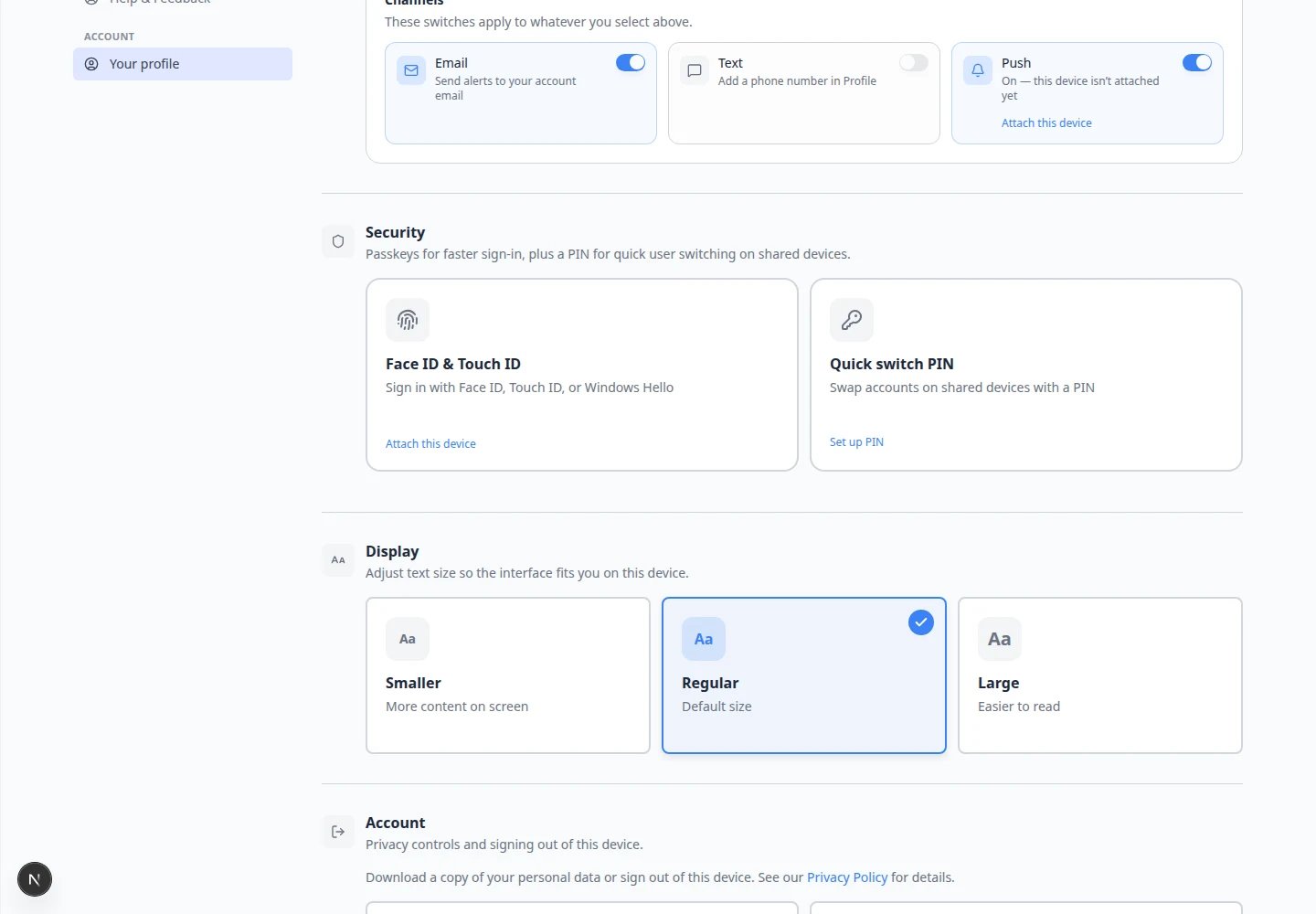 *Security settings let you manage passkeys for faster and safer sign-in.*
**Security protects two things**
**Your sign-in** (who can open the dashboard on a device) and **team access** (who can change billing, settings, and customer data). Both matter. This guide covers your sign-in first, then how to review admin access.
## Understand passkeys
A **passkey** lets you sign in using your device instead of typing a password.
Examples include Face ID, Touch ID, Windows Hello, your phone screen lock, or a physical security key.
Passkeys are safer because they are tied to your device and are much harder for someone to steal with a fake sign-in page.
## Add a passkey
On [Settings > Security](https://www.carstoragesoftware.com/dashboard/settings/security), find the section named **Passkeys**.
Click **Add passkey**.
Your browser or device may show a different prompt, but the button on this page is labeled **Add passkey**.
**Why this matters:** The button on this page starts setup. Your device then asks you to prove it is really you with Face ID, Touch ID, Windows Hello, or a PIN.
*Security settings let you manage passkeys for faster and safer sign-in.*
**Security protects two things**
**Your sign-in** (who can open the dashboard on a device) and **team access** (who can change billing, settings, and customer data). Both matter. This guide covers your sign-in first, then how to review admin access.
## Understand passkeys
A **passkey** lets you sign in using your device instead of typing a password.
Examples include Face ID, Touch ID, Windows Hello, your phone screen lock, or a physical security key.
Passkeys are safer because they are tied to your device and are much harder for someone to steal with a fake sign-in page.
## Add a passkey
On [Settings > Security](https://www.carstoragesoftware.com/dashboard/settings/security), find the section named **Passkeys**.
Click **Add passkey**.
Your browser or device may show a different prompt, but the button on this page is labeled **Add passkey**.
**Why this matters:** The button on this page starts setup. Your device then asks you to prove it is really you with Face ID, Touch ID, Windows Hello, or a PIN.
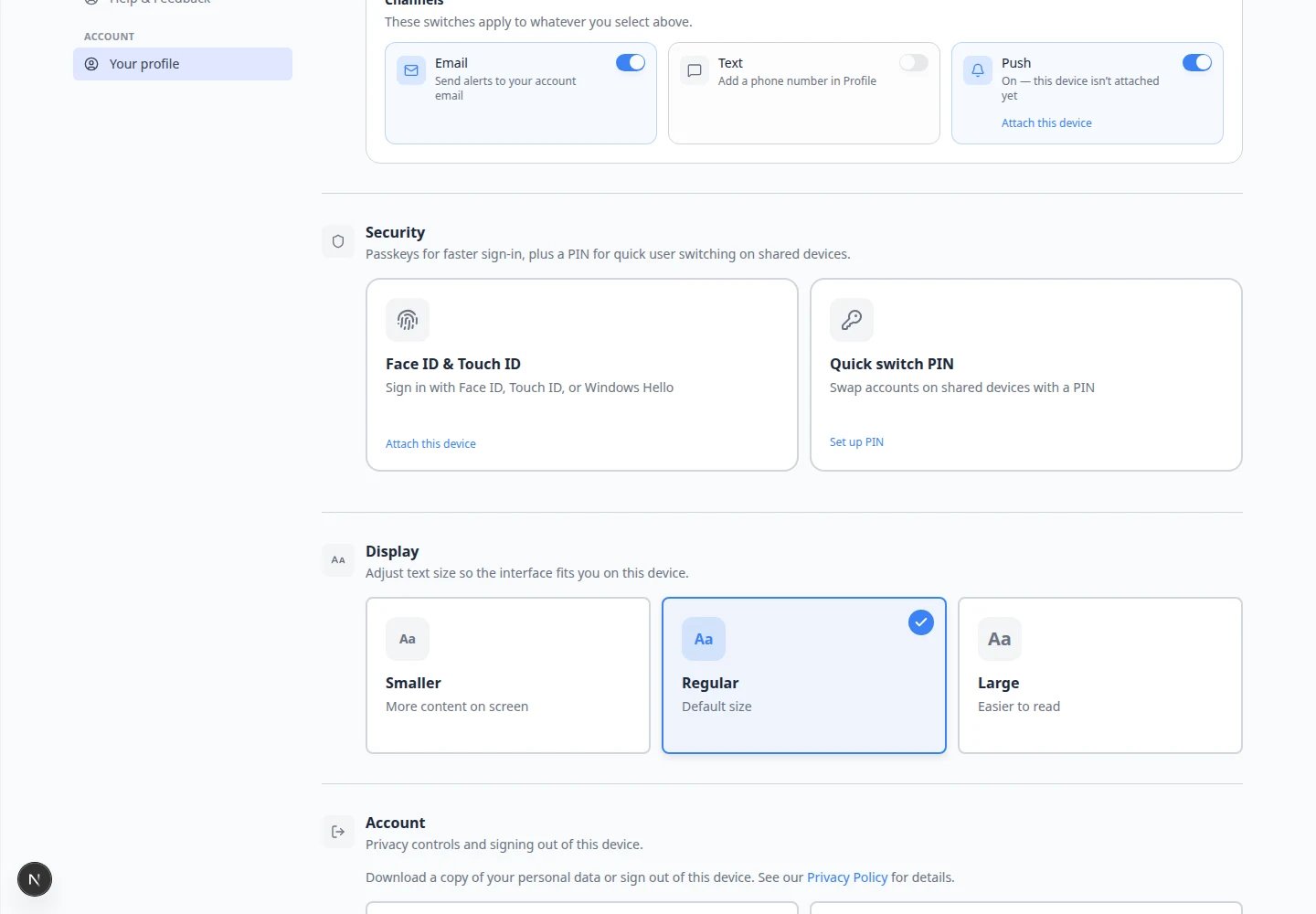 *Click **Add passkey** on this page first. Your browser or phone will then show its own security prompt—look for Face ID, Touch ID, Windows Hello, or a device PIN.*
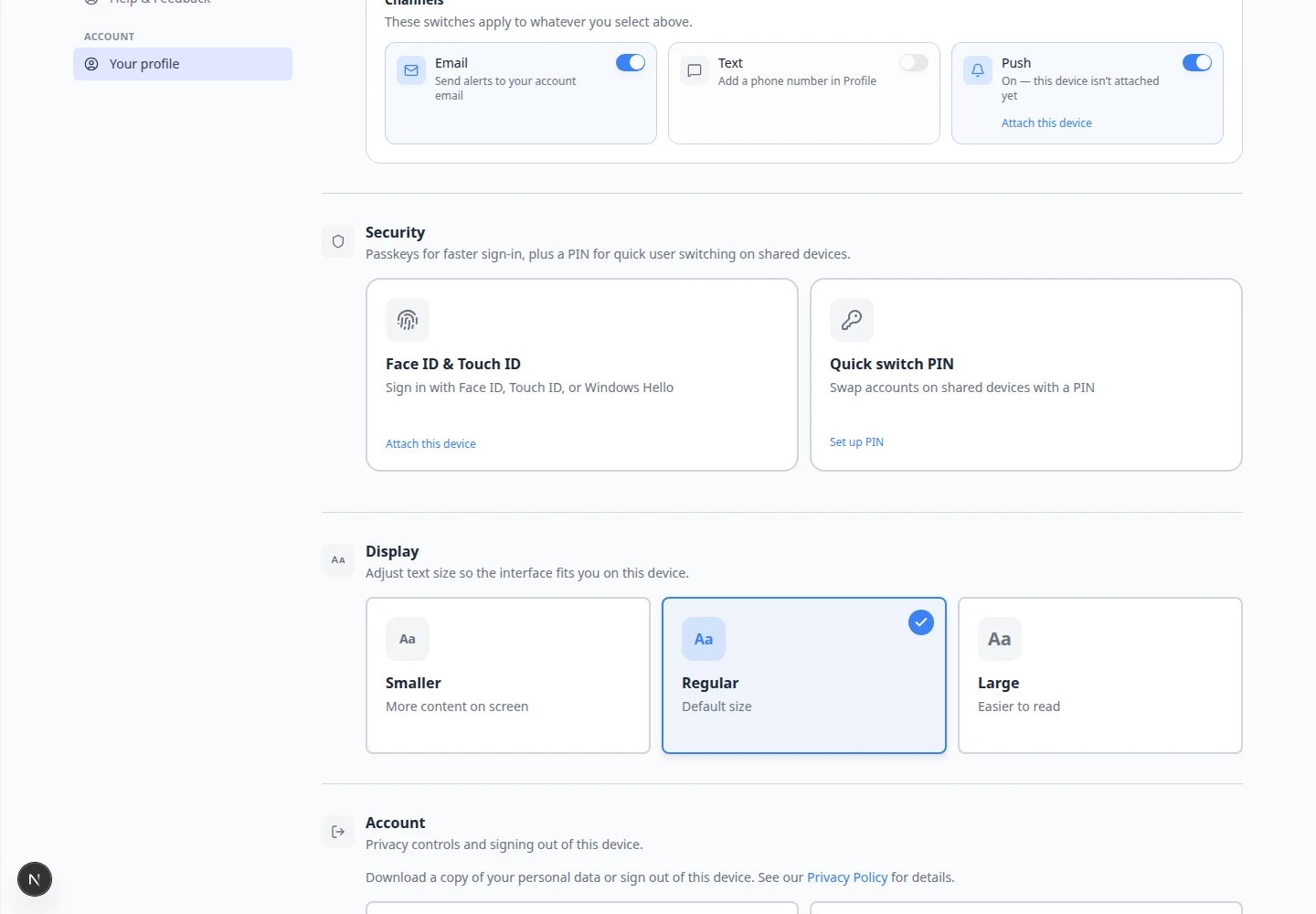 *The **Passkeys** section lists devices you already set up and gives you a button to add another.*
Your device may ask you to use Face ID, Touch ID, Windows Hello, your computer PIN, your phone, or a security key.
The exact screen depends on your browser and device. Common examples:
* **iPhone or Mac:** a Face ID or Touch ID prompt
* **Windows:** Windows Hello or a PIN window
* **Android:** fingerprint or screen lock
Follow the prompt shown by your device or browser. You do not type a new password on the Security settings page itself.
After setup finishes, return to the **Passkeys** section and confirm the new passkey appears.
**Expected result:** You see at least one passkey listed for the device you used.
### Expected result
You can use the passkey for faster, safer sign-in on that device. On your next sign-in, choose the passkey option instead of waiting for an email link when your device offers it.
## Sign in with a passkey next time
Go to your facility sign-in page (the same page you use today). Do not use a customer portal link.
The page title is **Sign in** and shows your facility name or **Car Storage Software** branding at the top.
Type the email address tied to your staff account—the same one that receives magic-link emails.
Click **Continue** or press **Enter**.
**Expected result:** The app sends a sign-in email to that address, or your browser offers to use a saved passkey.
Your browser or device may ask you to use Face ID, Touch ID, Windows Hello, or your phone.
**Why this matters:** A passkey proves it is really you without copying a link from email. That reduces the chance someone else signs in if they get access to your inbox.
If you are on a shared computer, a device without biometrics, or passkeys are blocked by your company, open the email from Car Storage Software and click the **Sign in** link inside.
**Expected result:** You reach the [Dashboard](https://www.carstoragesoftware.com/dashboard) with your name and facility showing correctly.
*The **Passkeys** section lists devices you already set up and gives you a button to add another.*
Your device may ask you to use Face ID, Touch ID, Windows Hello, your computer PIN, your phone, or a security key.
The exact screen depends on your browser and device. Common examples:
* **iPhone or Mac:** a Face ID or Touch ID prompt
* **Windows:** Windows Hello or a PIN window
* **Android:** fingerprint or screen lock
Follow the prompt shown by your device or browser. You do not type a new password on the Security settings page itself.
After setup finishes, return to the **Passkeys** section and confirm the new passkey appears.
**Expected result:** You see at least one passkey listed for the device you used.
### Expected result
You can use the passkey for faster, safer sign-in on that device. On your next sign-in, choose the passkey option instead of waiting for an email link when your device offers it.
## Sign in with a passkey next time
Go to your facility sign-in page (the same page you use today). Do not use a customer portal link.
The page title is **Sign in** and shows your facility name or **Car Storage Software** branding at the top.
Type the email address tied to your staff account—the same one that receives magic-link emails.
Click **Continue** or press **Enter**.
**Expected result:** The app sends a sign-in email to that address, or your browser offers to use a saved passkey.
Your browser or device may ask you to use Face ID, Touch ID, Windows Hello, or your phone.
**Why this matters:** A passkey proves it is really you without copying a link from email. That reduces the chance someone else signs in if they get access to your inbox.
If you are on a shared computer, a device without biometrics, or passkeys are blocked by your company, open the email from Car Storage Software and click the **Sign in** link inside.
**Expected result:** You reach the [Dashboard](https://www.carstoragesoftware.com/dashboard) with your name and facility showing correctly.
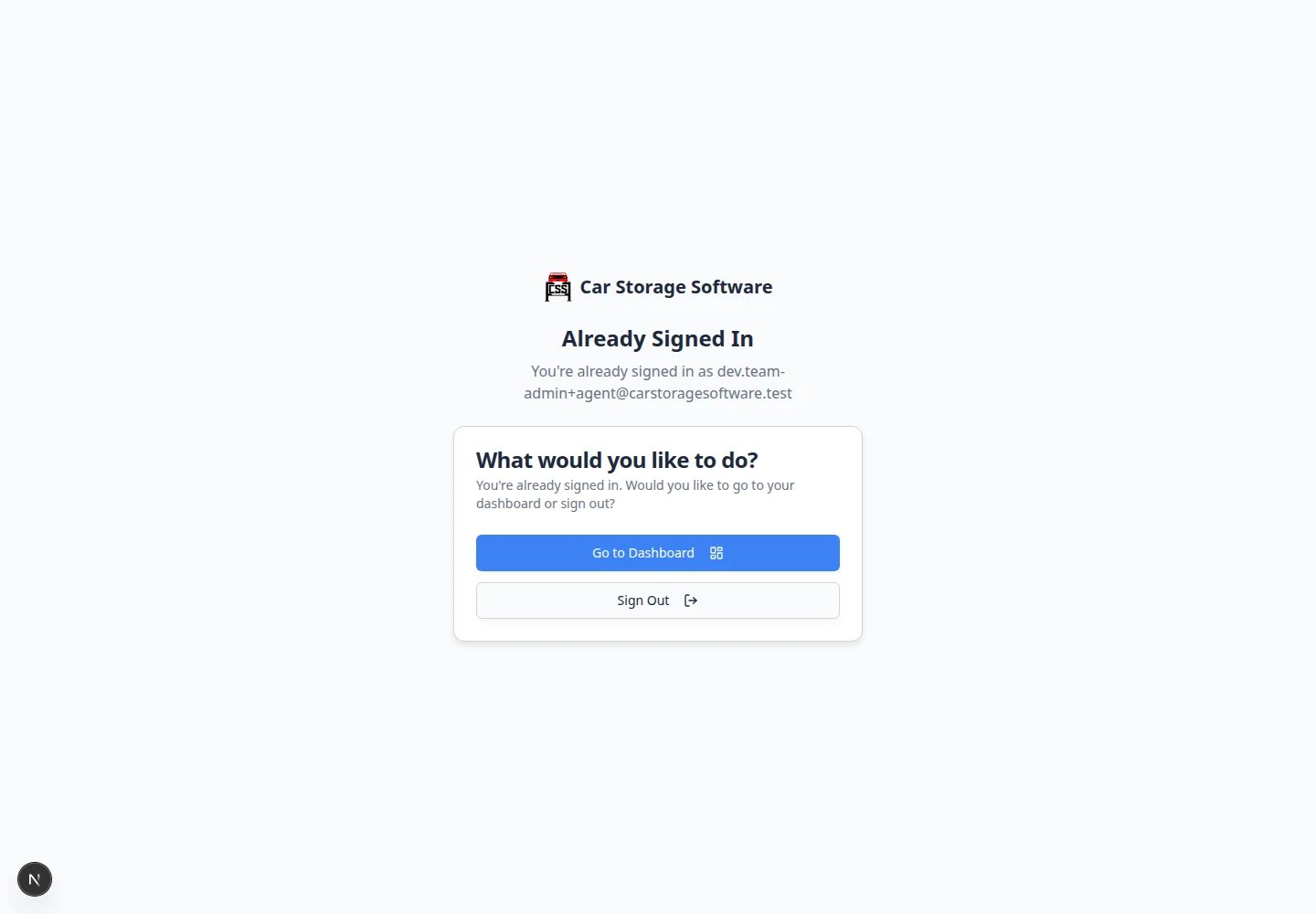 *The staff sign-in page asks for your work email first. After you add a passkey in [Settings > Security](https://www.carstoragesoftware.com/dashboard/settings/security), your browser may skip the email step on trusted devices.*
**Magic links are still available**
You can still sign in with a magic link if needed. A passkey is an additional secure sign-in option, not a replacement for every other method.
Never forward a magic-link email to another person. Each staff member should use their own account.
## Review admin access
Passkeys protect your own sign-in. Team permissions protect the facility.
*The staff sign-in page asks for your work email first. After you add a passkey in [Settings > Security](https://www.carstoragesoftware.com/dashboard/settings/security), your browser may skip the email step on trusted devices.*
**Magic links are still available**
You can still sign in with a magic link if needed. A passkey is an additional secure sign-in option, not a replacement for every other method.
Never forward a magic-link email to another person. Each staff member should use their own account.
## Review admin access
Passkeys protect your own sign-in. Team permissions protect the facility.
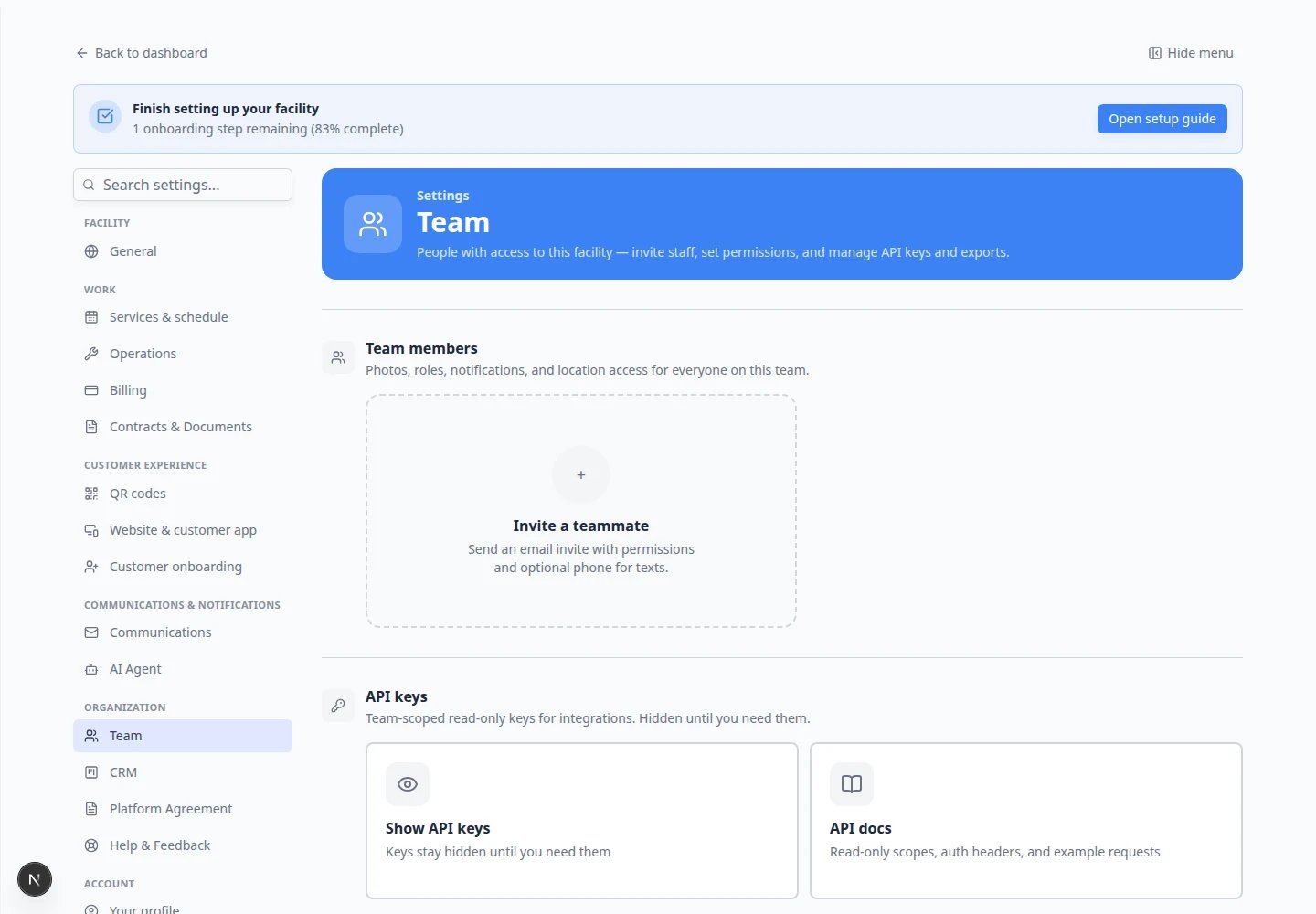 *Open **Settings > Team** to see who has access. The **Permissions** column shows whether someone is an admin or has a custom set of areas.*
Go to [Settings > Team](https://www.carstoragesoftware.com/dashboard/settings/team).
Scroll past **Default dashboard layout** until you see the **Team** table with staff names and emails.
In the **Permissions** column, look for teammates whose button shows **Admin** or **Full Access**.
Admins may be able to change billing, settings, team access, and other sensitive information. A button such as **4/10** means custom access to four areas out of ten.
In the **Permissions** column, click the button on that row—it may show **Admin**, **Full Access**, or a count such as **4/10**.
**Expected result:** A window titled **Manage Permissions** opens with checkboxes for each dashboard area.
If someone no longer needs admin access, reduce their permissions in that window and save.
If someone left your company, remove their access from the Team table.
**Expected result:** The **Permissions** column shows **Admin**, a number such as **4/10**, or another label that matches what you intended.
**Need step-by-step help with permissions?**
For a full walkthrough of inviting staff and choosing access levels, read [Manage team permissions](/docs/settings/manage-team-permissions).
## Use a simple monthly security review
Pick one day each month (for example, the first Monday) and walk through this short list. It usually takes less than 15 minutes.
Open [Settings > Security](https://www.carstoragesoftware.com/dashboard/settings/security). Confirm your current device still appears under **Passkeys**.
Add a passkey on a new laptop or phone when you start using it for work.
Open [Settings > Team](https://www.carstoragesoftware.com/dashboard/settings/team). Look for people who no longer work with you and remove their access the same day they leave.
**Expected result:** Only current staff can sign in.
In the **Permissions** column, note how many people show **Admin** or **Full Access**.
Ask whether each person still needs that level. Most day-to-day staff should use custom permissions instead. See [Manage team permissions](/docs/settings/manage-team-permissions).
Only people who send invoices, change prices, or connect Stripe should have **Payments** and **Admin** access.
**Why this matters:** Billing mistakes are harder to undo than a wrong appointment note.
* Each staff member uses their own account—no shared logins.
* Owners and managers add passkeys where possible.
* Admin access is limited to trusted people who need it.
* Former employees are removed from **Team** immediately.
* Nobody forwards magic-link emails to coworkers.
## Troubleshooting
**My device will not create a passkey**
Check that your browser and device support passkeys. Try a modern browser such as Chrome, Safari, Edge, or Firefox. If your work device blocks passkeys, use magic-link sign-in and ask your manager or IT helper.
**I lost the device with my passkey**
Sign in with a magic link from your email. Then open [Settings > Security](https://www.carstoragesoftware.com/dashboard/settings/security) and remove the passkey for the lost device if it appears in your list.
**A former employee still appears in Team settings**
Open [Settings > Team](https://www.carstoragesoftware.com/dashboard/settings/team) and remove their access. If you cannot remove them, ask a team admin to do it immediately.
**Someone has admin access but should not**
Open [Settings > Team](https://www.carstoragesoftware.com/dashboard/settings/team), find the teammate, and remove admin access or reduce their permissions. Admin access should be intentional.
## What to do next
If you are setting up a new team, ask each owner or manager to add a passkey on their primary work device. Then review [Manage team permissions](/docs/settings/manage-team-permissions) so staff have only the access they need—not full admin by default.
When someone starts on a new laptop or phone, repeat **Add passkey** on that device so sign-in stays fast and secure.
## Related topics
- [Configure CRM settings](/docs/settings/configure-crm-settings.md)
- [Manage team permissions](/docs/settings/manage-team-permissions.md)
- [Settings overview](/docs/settings/overview.md)
- [Manage your profile and alerts](/docs/settings/manage-your-profile-and-alerts.md)
- [Connect payment processing](/docs/settings/connect-payment-processing.md)
This documentation is built and hosted on [Mintlify](https://mintlify.com), a developer documentation platform.
*Open **Settings > Team** to see who has access. The **Permissions** column shows whether someone is an admin or has a custom set of areas.*
Go to [Settings > Team](https://www.carstoragesoftware.com/dashboard/settings/team).
Scroll past **Default dashboard layout** until you see the **Team** table with staff names and emails.
In the **Permissions** column, look for teammates whose button shows **Admin** or **Full Access**.
Admins may be able to change billing, settings, team access, and other sensitive information. A button such as **4/10** means custom access to four areas out of ten.
In the **Permissions** column, click the button on that row—it may show **Admin**, **Full Access**, or a count such as **4/10**.
**Expected result:** A window titled **Manage Permissions** opens with checkboxes for each dashboard area.
If someone no longer needs admin access, reduce their permissions in that window and save.
If someone left your company, remove their access from the Team table.
**Expected result:** The **Permissions** column shows **Admin**, a number such as **4/10**, or another label that matches what you intended.
**Need step-by-step help with permissions?**
For a full walkthrough of inviting staff and choosing access levels, read [Manage team permissions](/docs/settings/manage-team-permissions).
## Use a simple monthly security review
Pick one day each month (for example, the first Monday) and walk through this short list. It usually takes less than 15 minutes.
Open [Settings > Security](https://www.carstoragesoftware.com/dashboard/settings/security). Confirm your current device still appears under **Passkeys**.
Add a passkey on a new laptop or phone when you start using it for work.
Open [Settings > Team](https://www.carstoragesoftware.com/dashboard/settings/team). Look for people who no longer work with you and remove their access the same day they leave.
**Expected result:** Only current staff can sign in.
In the **Permissions** column, note how many people show **Admin** or **Full Access**.
Ask whether each person still needs that level. Most day-to-day staff should use custom permissions instead. See [Manage team permissions](/docs/settings/manage-team-permissions).
Only people who send invoices, change prices, or connect Stripe should have **Payments** and **Admin** access.
**Why this matters:** Billing mistakes are harder to undo than a wrong appointment note.
* Each staff member uses their own account—no shared logins.
* Owners and managers add passkeys where possible.
* Admin access is limited to trusted people who need it.
* Former employees are removed from **Team** immediately.
* Nobody forwards magic-link emails to coworkers.
## Troubleshooting
**My device will not create a passkey**
Check that your browser and device support passkeys. Try a modern browser such as Chrome, Safari, Edge, or Firefox. If your work device blocks passkeys, use magic-link sign-in and ask your manager or IT helper.
**I lost the device with my passkey**
Sign in with a magic link from your email. Then open [Settings > Security](https://www.carstoragesoftware.com/dashboard/settings/security) and remove the passkey for the lost device if it appears in your list.
**A former employee still appears in Team settings**
Open [Settings > Team](https://www.carstoragesoftware.com/dashboard/settings/team) and remove their access. If you cannot remove them, ask a team admin to do it immediately.
**Someone has admin access but should not**
Open [Settings > Team](https://www.carstoragesoftware.com/dashboard/settings/team), find the teammate, and remove admin access or reduce their permissions. Admin access should be intentional.
## What to do next
If you are setting up a new team, ask each owner or manager to add a passkey on their primary work device. Then review [Manage team permissions](/docs/settings/manage-team-permissions) so staff have only the access they need—not full admin by default.
When someone starts on a new laptop or phone, repeat **Add passkey** on that device so sign-in stays fast and secure.
## Related topics
- [Configure CRM settings](/docs/settings/configure-crm-settings.md)
- [Manage team permissions](/docs/settings/manage-team-permissions.md)
- [Settings overview](/docs/settings/overview.md)
- [Manage your profile and alerts](/docs/settings/manage-your-profile-and-alerts.md)
- [Connect payment processing](/docs/settings/connect-payment-processing.md)
This documentation is built and hosted on [Mintlify](https://mintlify.com), a developer documentation platform.