> ## Documentation Index
> Fetch the complete documentation index at: https://www.carstoragesoftware.com/docs/llms.txt
> Use this file to discover all available pages before exploring further.
# Set up general facility settings
> Set your facility name, logo, address, hours, and regional defaults so dates, times, and public pages look correct.
**General** is the first Settings page most new facilities should finish. It stores your facility name, logo, address, phone number, hours, closed days, and regional defaults (country, time zone, date format, and language).
Use this guide when you are setting up a new facility, opening a second location, or fixing dates, times, or addresses that look wrong.
**Why do this before anything else?**
If the time zone or date format is wrong on day one, every appointment, reminder, and invoice your team creates will look off. Fixing General settings first saves hours of confusion later.
## What you will accomplish
* Open [Settings > General](https://www.carstoragesoftware.com/dashboard/settings/general) and find **Facility profile**.
* Set your facility name, logo colors, address, and phone number.
* Confirm **Regional defaults** (country, time zone, date, time, language, and address format).
* Add **Website contacts** your public page can show.
* Choose **Hours of operation** and add **Closed days** when the shop is shut.
## Before you start
* You should be signed in as a team owner, manager, or admin.
* Have your official facility name and a square logo file ready (PNG or JPG works well).
* Know your street address and main phone number.
* Know the time zone your team uses for appointments (for example **Chicago** or **Los Angeles**).
## Open General settings
From the [Dashboard](https://www.carstoragesoftware.com/dashboard), look at the **bottom of the left sidebar**. Click **Settings**.
You can also click your facility name at the bottom of the sidebar, then choose **Settings**.
In the Settings list, click **General**. Or type **timezone** in **Search settings…** and choose **General**.
Direct link: [Settings > General](https://www.carstoragesoftware.com/dashboard/settings/general).
**Expected result:** The page title is **General**. The first section is **Facility profile**.
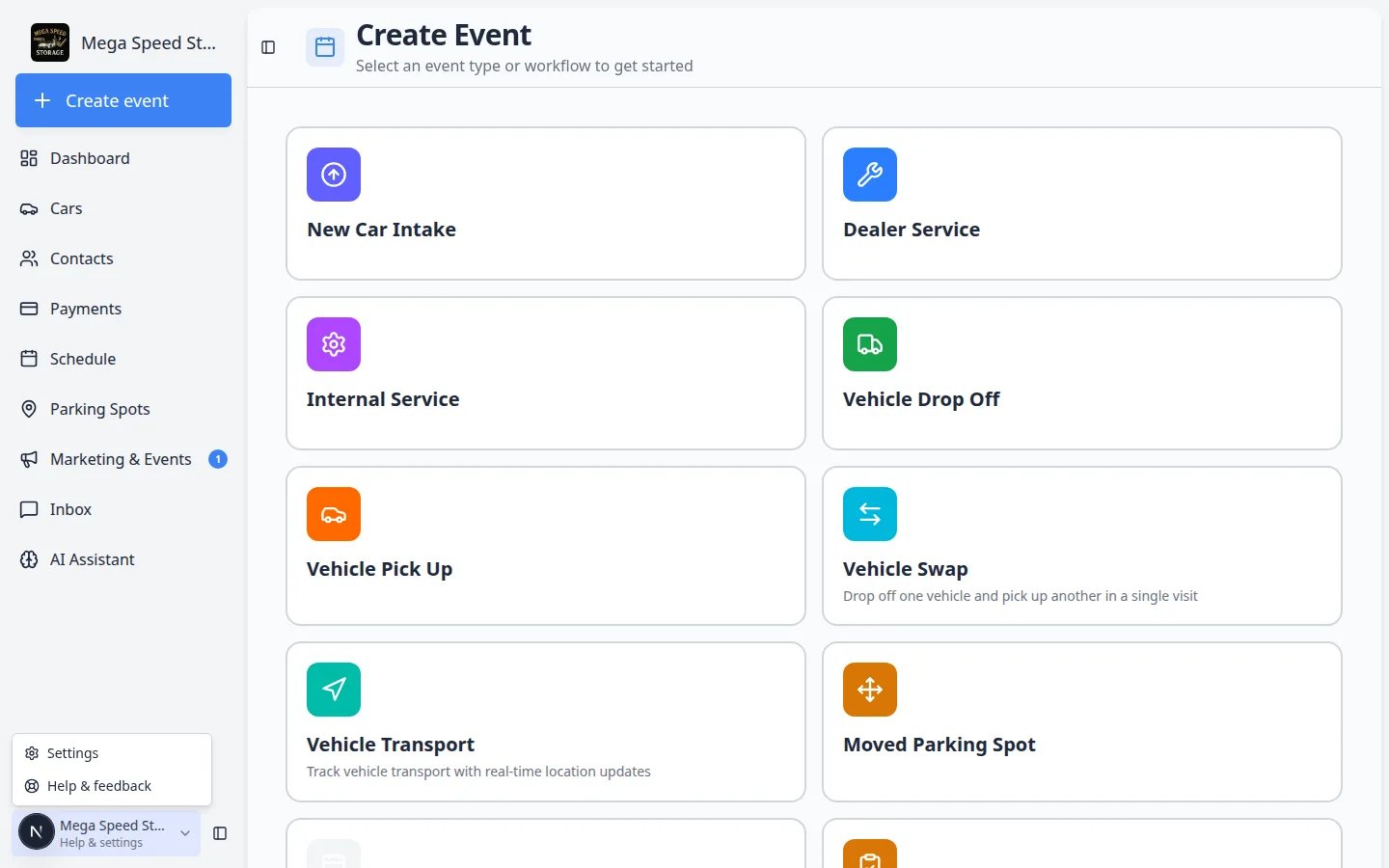 ***Settings** lives near the bottom of the left sidebar, under the main work pages. Click it, then choose **General**.*
**You may see a setup reminder**
A blue banner that says **Finish setting up your facility** can appear at the top. You can keep working on this page. Click **Open setup guide** only if you want the longer first-week checklist.
## Fill in Facility profile
**Facility profile** is your company card: name, logo, colors, address, and phone. Logo colors and address also fill in most of the regional defaults below.
***Settings** lives near the bottom of the left sidebar, under the main work pages. Click it, then choose **General**.*
**You may see a setup reminder**
A blue banner that says **Finish setting up your facility** can appear at the top. You can keep working on this page. Click **Open setup guide** only if you want the longer first-week checklist.
## Fill in Facility profile
**Facility profile** is your company card: name, logo, colors, address, and phone. Logo colors and address also fill in most of the regional defaults below.
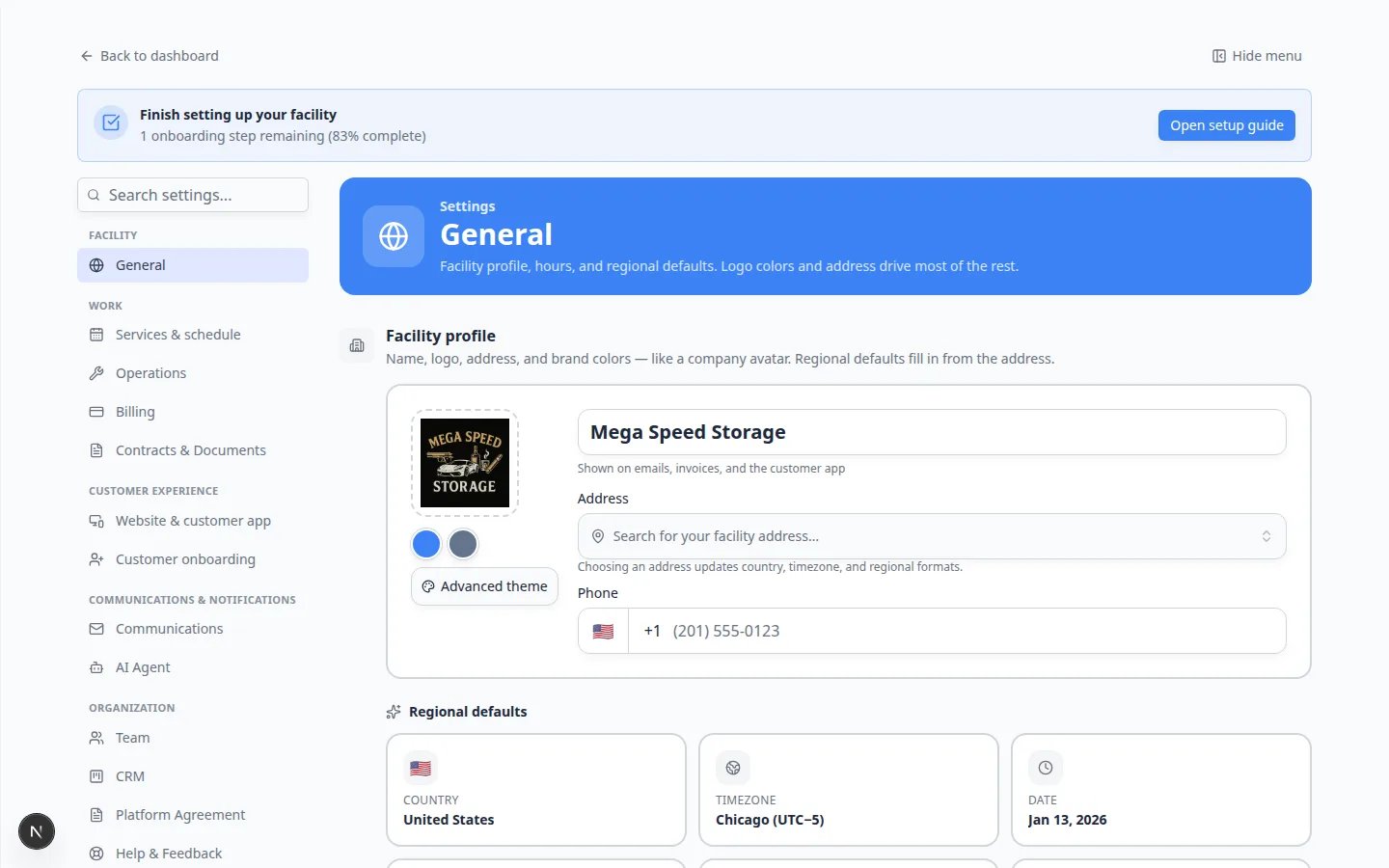 ***Facility profile** is the company card. The **Regional defaults** cards under it control country, time zone, date, time, language, and address format.*
The large name field at the top (for example **Mega Speed Storage**) is what customers see on emails, invoices, and the customer app.
Click the field, type the name customers should recognize, then click outside the field to save.
**Why this matters:** A clear name is the first trust signal when a customer opens a magic link or invoice.
Click the logo square on the left. Upload a square PNG or JPG.
**Expected result:** The logo appears on the card. Two color dots next to **Advanced theme** update to colors from the logo.
In **Address**, start typing your street address and pick the matching row.
**Why this matters:** Choosing an address updates **Country**, **Time zone**, and other regional formats so calendars and invoices match your location.
Use the **Phone** field for the number customers should call. Include the country code if you serve more than one country.
**Logo and colors used to live on a Branding page**
They now live here, under **Facility profile**. The old [Settings > Branding](https://www.carstoragesoftware.com/dashboard/settings/branding) link still works — it opens this same section. See [Set up facility branding](/docs/settings/set-up-facility-branding) for logo and theme details.
## Set Regional defaults
Under **Facility profile** you will see six small cards: **Country**, **Time zone**, **Date**, **Time**, **Language**, and **Address format**.
These cards often fill in automatically from the address you chose. Tap a card only when you need to override one value.
***Facility profile** is the company card. The **Regional defaults** cards under it control country, time zone, date, time, language, and address format.*
The large name field at the top (for example **Mega Speed Storage**) is what customers see on emails, invoices, and the customer app.
Click the field, type the name customers should recognize, then click outside the field to save.
**Why this matters:** A clear name is the first trust signal when a customer opens a magic link or invoice.
Click the logo square on the left. Upload a square PNG or JPG.
**Expected result:** The logo appears on the card. Two color dots next to **Advanced theme** update to colors from the logo.
In **Address**, start typing your street address and pick the matching row.
**Why this matters:** Choosing an address updates **Country**, **Time zone**, and other regional formats so calendars and invoices match your location.
Use the **Phone** field for the number customers should call. Include the country code if you serve more than one country.
**Logo and colors used to live on a Branding page**
They now live here, under **Facility profile**. The old [Settings > Branding](https://www.carstoragesoftware.com/dashboard/settings/branding) link still works — it opens this same section. See [Set up facility branding](/docs/settings/set-up-facility-branding) for logo and theme details.
## Set Regional defaults
Under **Facility profile** you will see six small cards: **Country**, **Time zone**, **Date**, **Time**, **Language**, and **Address format**.
These cards often fill in automatically from the address you chose. Tap a card only when you need to override one value.
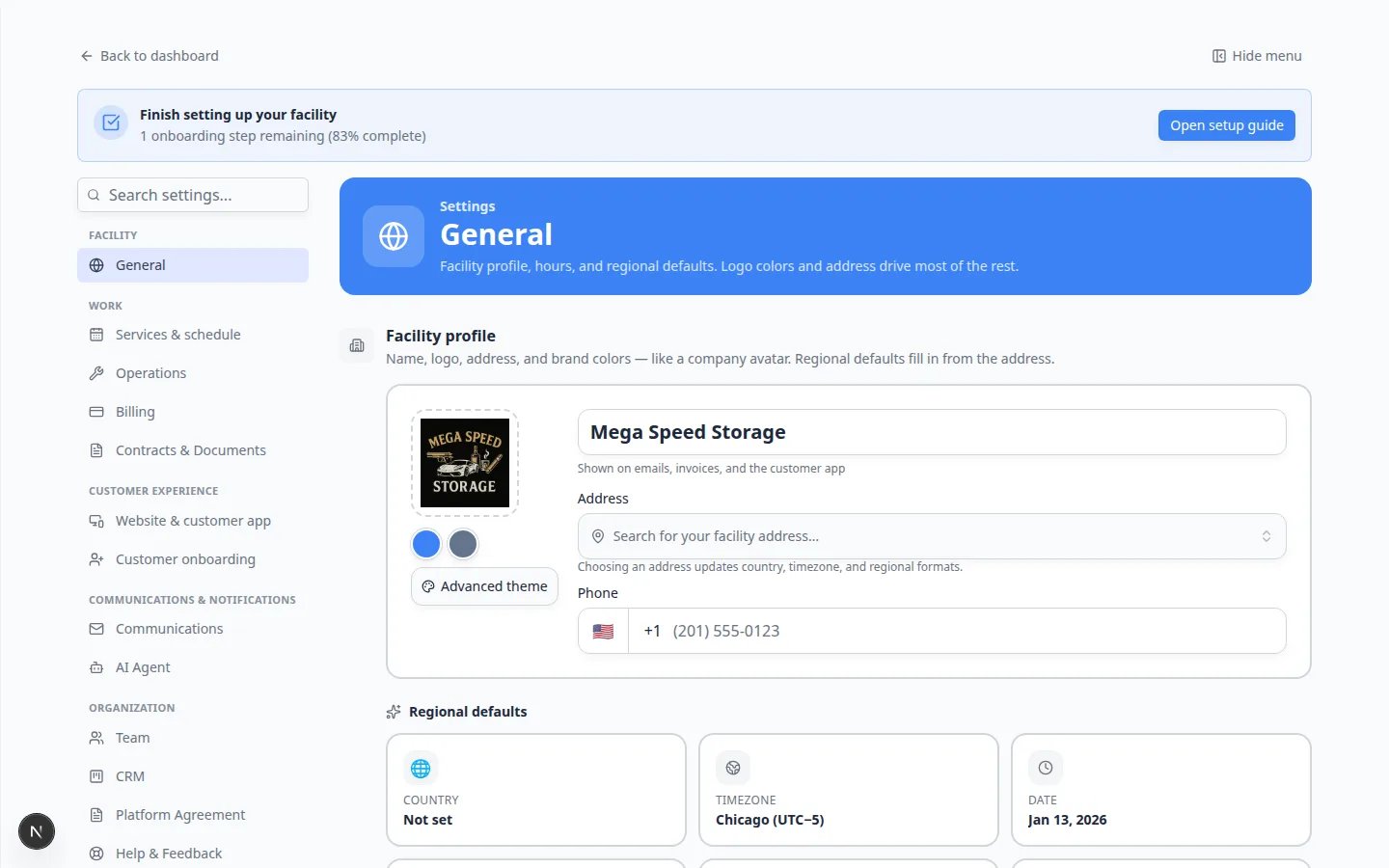 *Tap a **Regional defaults** card to change one setting. Most teams only need to confirm the time zone once.*
### Change the time zone
On [Settings > General](https://www.carstoragesoftware.com/dashboard/settings/general), click the **Time zone** card (for example **Chicago (UTC−5)**).
A **Time zone** window opens. Search a city, or pick a common option such as **Chicago**, **New York**, **Denver**, or **Los Angeles**.
Click **Use my time zone** if the list already matches the clock on this computer.
Open [Schedule](https://www.carstoragesoftware.com/dashboard/schedule) and look at an appointment you know (for example a 9:00 AM drop-off).
**Expected result:** The calendar shows the same hour your team told the customer — not one hour early or late.
*Tap a **Regional defaults** card to change one setting. Most teams only need to confirm the time zone once.*
### Change the time zone
On [Settings > General](https://www.carstoragesoftware.com/dashboard/settings/general), click the **Time zone** card (for example **Chicago (UTC−5)**).
A **Time zone** window opens. Search a city, or pick a common option such as **Chicago**, **New York**, **Denver**, or **Los Angeles**.
Click **Use my time zone** if the list already matches the clock on this computer.
Open [Schedule](https://www.carstoragesoftware.com/dashboard/schedule) and look at an appointment you know (for example a 9:00 AM drop-off).
**Expected result:** The calendar shows the same hour your team told the customer — not one hour early or late.
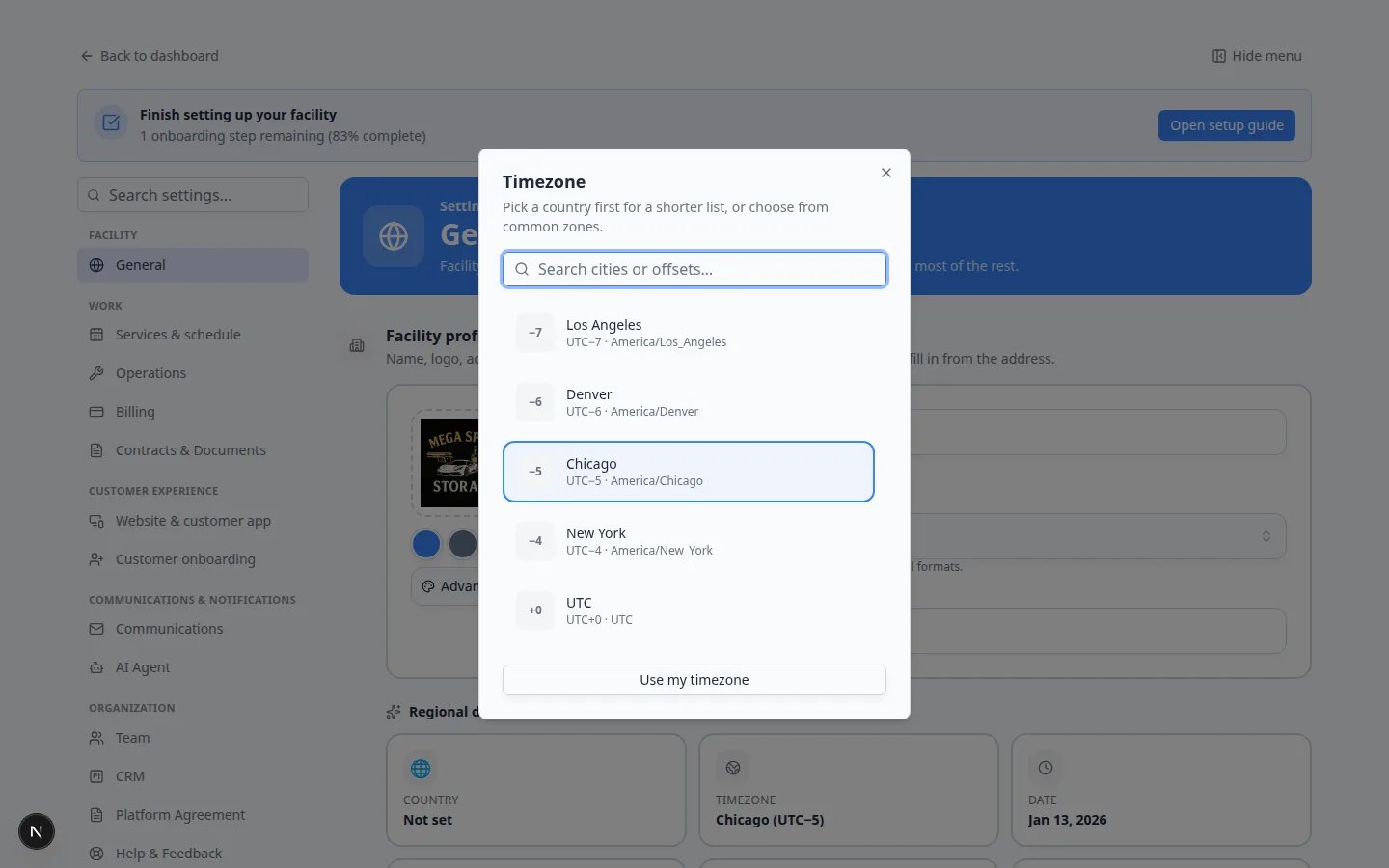 *The **Time zone** window lists common cities. Pick the zone your front desk uses when they book appointments.*
**Country** — used for address format, phone defaults, and vehicle lookup tools.
**Date** — how dates appear (for example **Jan 13, 2026**). The sample date on the card is a format preview, not a deadline.
**Time** — **12-hour** (9:00 AM) or **24-hour** (21:00).
**Language** — the language customers see in the customer app.
**Address format** — how street addresses print on invoices and the portal (for example **United States**).
## Add Website contacts
**Website contacts** are the people shown on your public website — name, role, email, phone, and optional photo.
On [Settings > General](https://www.carstoragesoftware.com/dashboard/settings/general), find **Website contacts** under the regional cards.
Click the dashed **Add a contact** card.
Use a role customers can call, such as **Member Services Manager**. Add a work email and phone.
**Expected result:** A contact card appears with a check mark when that person is shown on the website.
*The **Time zone** window lists common cities. Pick the zone your front desk uses when they book appointments.*
**Country** — used for address format, phone defaults, and vehicle lookup tools.
**Date** — how dates appear (for example **Jan 13, 2026**). The sample date on the card is a format preview, not a deadline.
**Time** — **12-hour** (9:00 AM) or **24-hour** (21:00).
**Language** — the language customers see in the customer app.
**Address format** — how street addresses print on invoices and the portal (for example **United States**).
## Add Website contacts
**Website contacts** are the people shown on your public website — name, role, email, phone, and optional photo.
On [Settings > General](https://www.carstoragesoftware.com/dashboard/settings/general), find **Website contacts** under the regional cards.
Click the dashed **Add a contact** card.
Use a role customers can call, such as **Member Services Manager**. Add a work email and phone.
**Expected result:** A contact card appears with a check mark when that person is shown on the website.
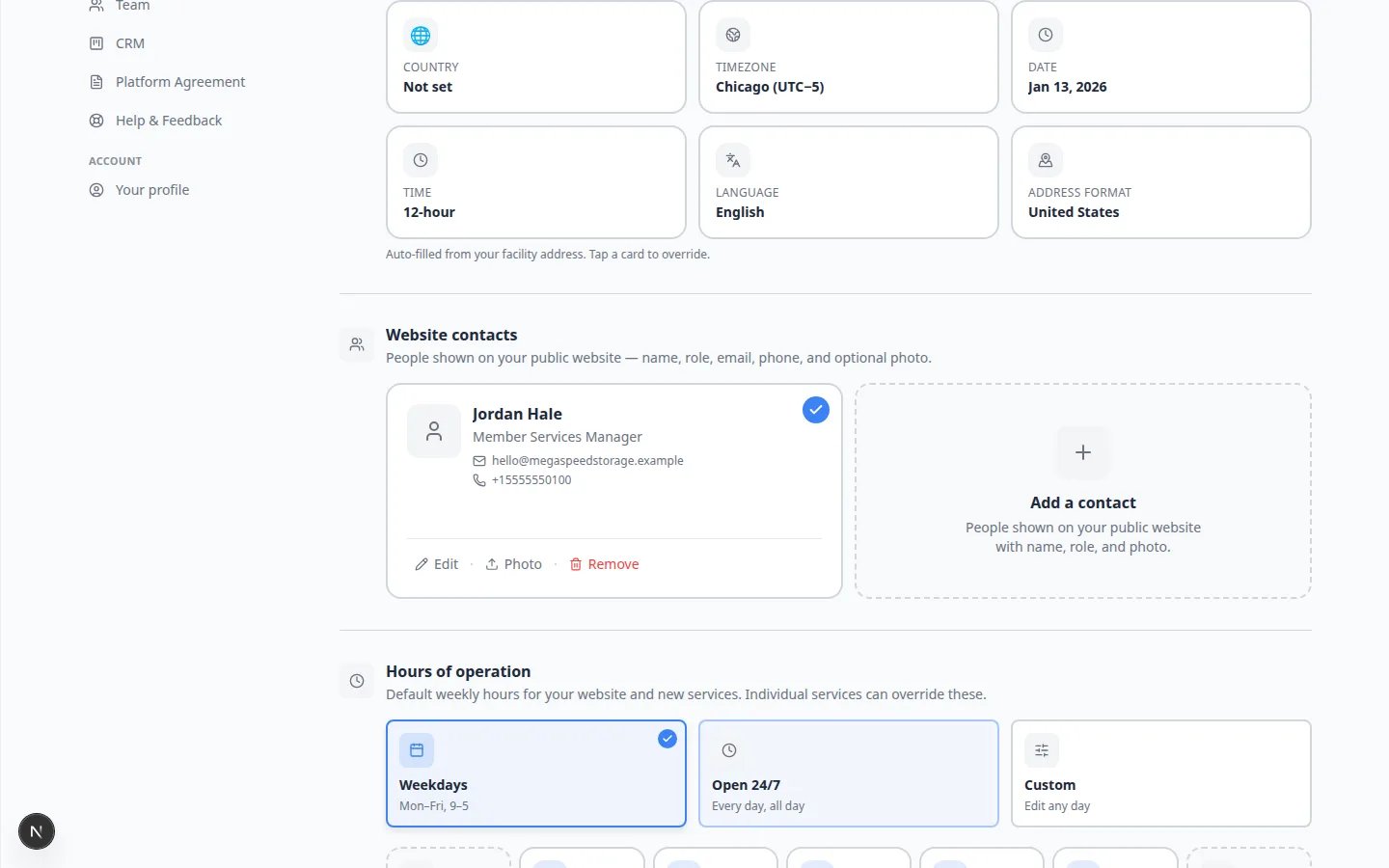 *Add the people customers should reach. These cards can appear on your public facility page.*
**Use a work email, not a personal one**
Customers may copy this address. A shared inbox such as **[hello@yourfacility.com](mailto:hello@yourfacility.com)** is easier to cover when someone is out.
## Set Hours of operation
**Hours of operation** are the default weekly hours for your website and for new services. Individual services can override these later.
Pick **Weekdays** (Mon–Fri, 9–5), **Open 24/7**, or **Custom**.
The day cards under the presets update when you click a preset. Click a day card to change just that day.
**Expected result:** The selected preset shows a check mark, and the day cards match what you want customers to see.
*Add the people customers should reach. These cards can appear on your public facility page.*
**Use a work email, not a personal one**
Customers may copy this address. A shared inbox such as **[hello@yourfacility.com](mailto:hello@yourfacility.com)** is easier to cover when someone is out.
## Set Hours of operation
**Hours of operation** are the default weekly hours for your website and for new services. Individual services can override these later.
Pick **Weekdays** (Mon–Fri, 9–5), **Open 24/7**, or **Custom**.
The day cards under the presets update when you click a preset. Click a day card to change just that day.
**Expected result:** The selected preset shows a check mark, and the day cards match what you want customers to see.
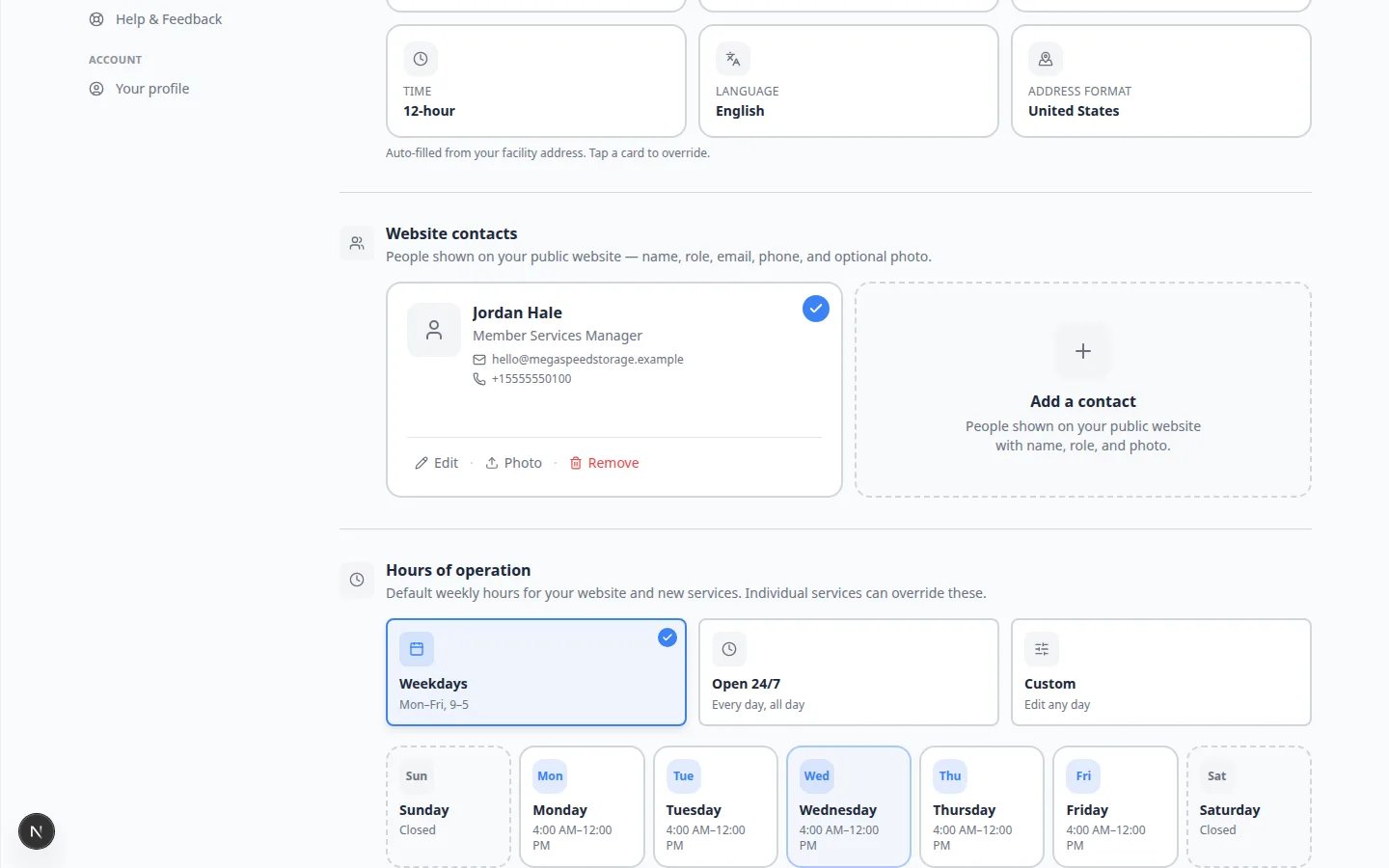 ***Weekdays**, **Open 24/7**, and **Custom** are the three presets. Day cards underneath show the live hours.*
## Add Closed days
**Closed days** are holidays and full-facility closures. You can also block dates on a single service later.
Find **Closed days** under hours.
Click the dashed add card. Pick the date (and a name such as **Thanksgiving**) in the window that opens.
Upcoming closures appear as cards. Past closures stay collapsed so the list stays short.
**Expected result:** Staff cannot drop new bookings on those dates, and your public hours stay honest.
***Weekdays**, **Open 24/7**, and **Custom** are the three presets. Day cards underneath show the live hours.*
## Add Closed days
**Closed days** are holidays and full-facility closures. You can also block dates on a single service later.
Find **Closed days** under hours.
Click the dashed add card. Pick the date (and a name such as **Thanksgiving**) in the window that opens.
Upcoming closures appear as cards. Past closures stay collapsed so the list stays short.
**Expected result:** Staff cannot drop new bookings on those dates, and your public hours stay honest.
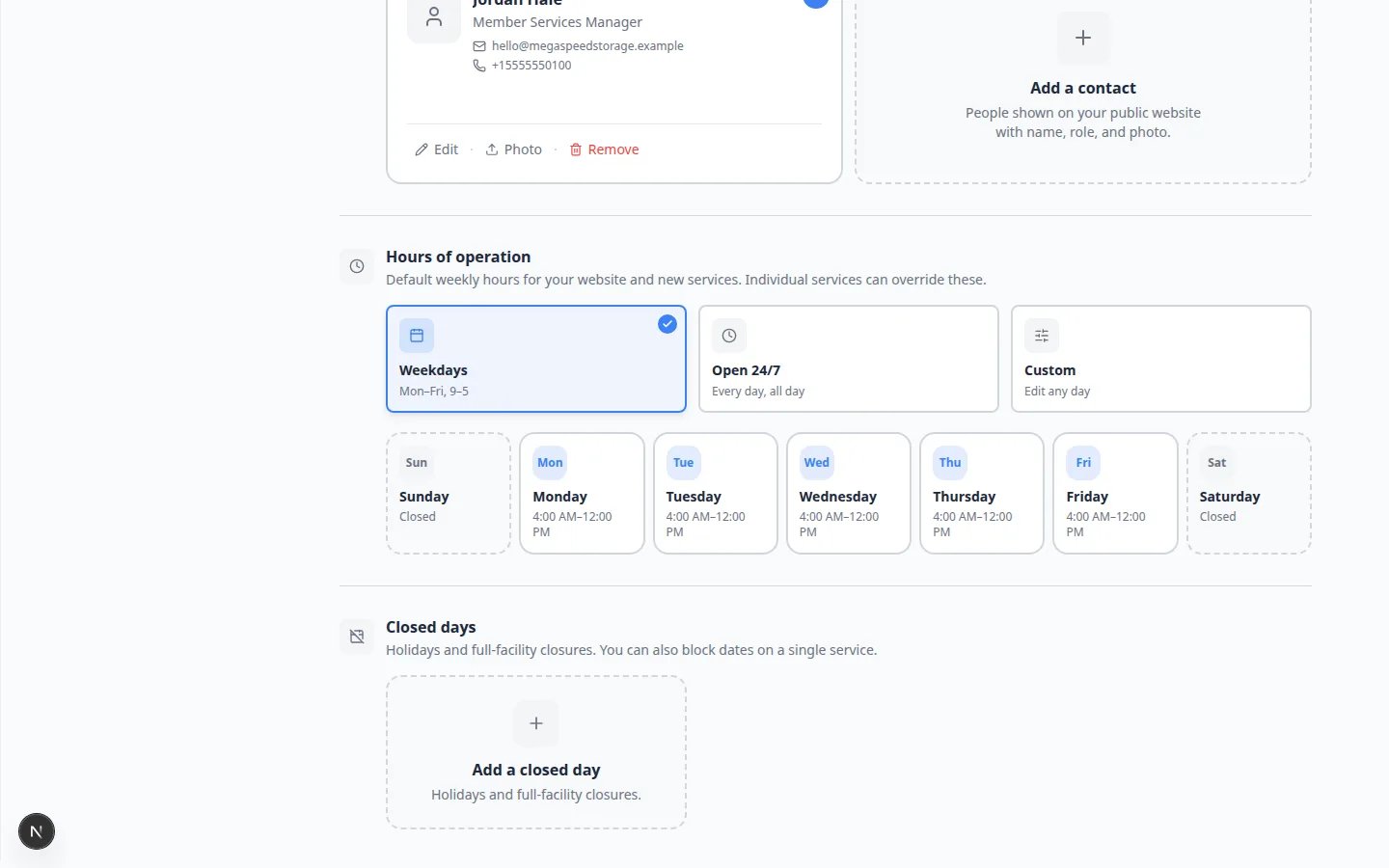 *Add holidays here so the calendar and public page stay in sync. You can still block one service on a different day.*
## Locations (only if you have more than one site)
If your team turned on multiple locations, a **Locations** section appears at the bottom of General. Use it for branch names, addresses, time zones, and assigned staff.
If you do not see **Locations**, you have a single-site facility. That is normal.
## Troubleshooting
**Times look wrong by one hour**
Open the **Time zone** card again. Daylight saving can change the UTC offset on the card (for example Chicago showing UTC−5 or UTC−6). Pick the city name, not a raw UTC number.
**I cannot edit the name or logo**
Most Facility profile fields require admin access. Ask a team owner to update them, or to give you access in [Settings > Team](https://www.carstoragesoftware.com/dashboard/settings/team).
**The address search finds nothing**
Type the street number and street name first. If search still fails, pick **Country** and **Address format** on the regional cards by hand, then add the street later.
## What success looks like
* The facility name and logo look correct on [Settings > General](https://www.carstoragesoftware.com/dashboard/settings/general).
* **Time zone** matches how your front desk talks about the day.
* Hours and closed days match the signs on your building.
* A test appointment on [Schedule](https://www.carstoragesoftware.com/dashboard/schedule) shows the expected clock time.
## What to do next
* Finish colors and preview in [Set up facility branding](/docs/settings/set-up-facility-branding).
* Connect payments in [Connect payment processing](/docs/settings/connect-payment-processing) before you send a live invoice.
* Set phone and email in [Configure communications](/docs/settings/configure-communications).
## Related topics
- [Set up your facility profile](/docs/basics/set-up-your-facility-profile.md)
- [Set up your facility name, logo, and colors](/docs/settings/set-up-facility-branding.md)
- [Settings overview](/docs/settings/overview.md)
- [Configure services and schedule settings](/docs/settings/configure-events-and-schedule-settings.md)
- [Add hours, map, contacts, and social links to your website](/docs/facility-web-pages/add-hours-map-contacts-and-social-to-your-website.md)
This documentation is built and hosted on [Mintlify](https://mintlify.com), a developer documentation platform.
*Add holidays here so the calendar and public page stay in sync. You can still block one service on a different day.*
## Locations (only if you have more than one site)
If your team turned on multiple locations, a **Locations** section appears at the bottom of General. Use it for branch names, addresses, time zones, and assigned staff.
If you do not see **Locations**, you have a single-site facility. That is normal.
## Troubleshooting
**Times look wrong by one hour**
Open the **Time zone** card again. Daylight saving can change the UTC offset on the card (for example Chicago showing UTC−5 or UTC−6). Pick the city name, not a raw UTC number.
**I cannot edit the name or logo**
Most Facility profile fields require admin access. Ask a team owner to update them, or to give you access in [Settings > Team](https://www.carstoragesoftware.com/dashboard/settings/team).
**The address search finds nothing**
Type the street number and street name first. If search still fails, pick **Country** and **Address format** on the regional cards by hand, then add the street later.
## What success looks like
* The facility name and logo look correct on [Settings > General](https://www.carstoragesoftware.com/dashboard/settings/general).
* **Time zone** matches how your front desk talks about the day.
* Hours and closed days match the signs on your building.
* A test appointment on [Schedule](https://www.carstoragesoftware.com/dashboard/schedule) shows the expected clock time.
## What to do next
* Finish colors and preview in [Set up facility branding](/docs/settings/set-up-facility-branding).
* Connect payments in [Connect payment processing](/docs/settings/connect-payment-processing) before you send a live invoice.
* Set phone and email in [Configure communications](/docs/settings/configure-communications).
## Related topics
- [Set up your facility profile](/docs/basics/set-up-your-facility-profile.md)
- [Set up your facility name, logo, and colors](/docs/settings/set-up-facility-branding.md)
- [Settings overview](/docs/settings/overview.md)
- [Configure services and schedule settings](/docs/settings/configure-events-and-schedule-settings.md)
- [Add hours, map, contacts, and social links to your website](/docs/facility-web-pages/add-hours-map-contacts-and-social-to-your-website.md)
This documentation is built and hosted on [Mintlify](https://mintlify.com), a developer documentation platform.