Product update
Vehicle reporting workspace
Open Cars Report to reorder columns, sort the grid, and export the visible fields to Excel for inventory reviews.
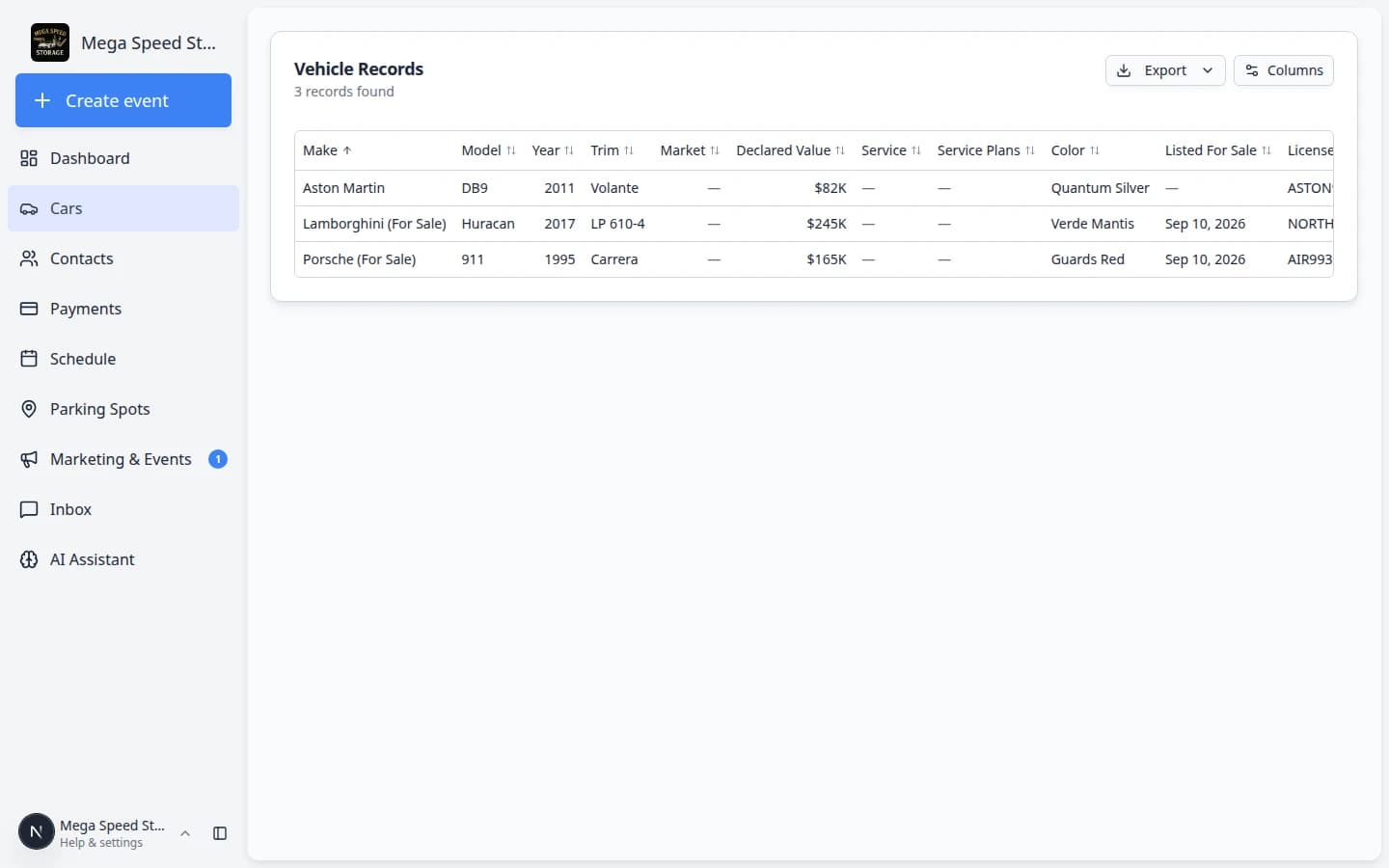
Insurance audits and owner reviews need the whole fleet in one spreadsheet—not fifty individual car tabs.
Why we built it
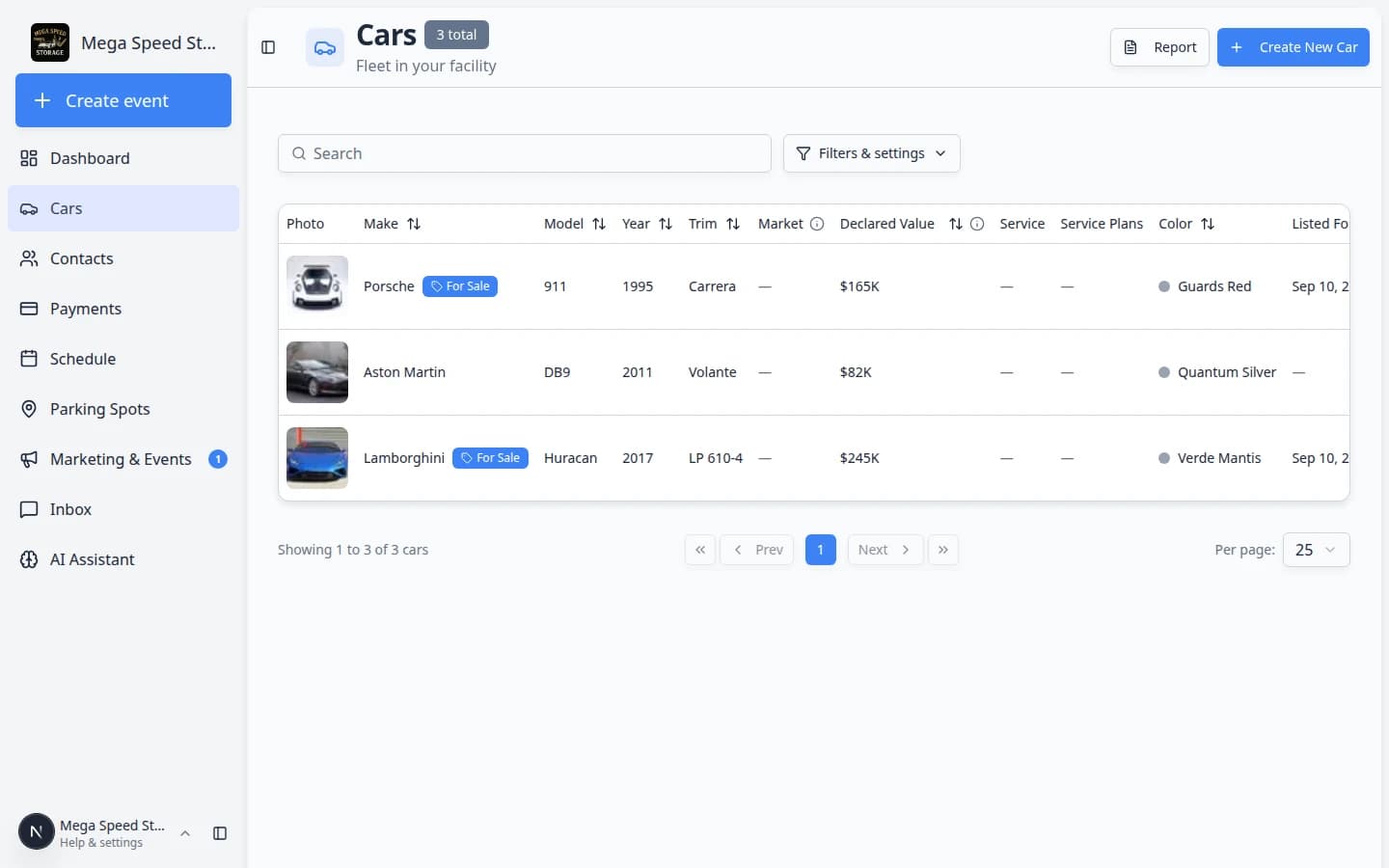
The main Cars list is built for daily search and filters, not for reshaping dozens of columns before handoff. The vehicle reporting workspace (Cars Report) is a dedicated surface to choose and reorder columns, sort the grid, and export exactly what is on screen to CSV or Excel—one row per vehicle for accountants, insurers, and offline analysis.
Who it is for
- Office staff preparing inventory exports before audits or renewals.
- Managers comparing declared value, parking, customer, and compliance dates across many cars at once.
- Teams that already filter on Cars and need the same cohort in a file—see Export your vehicle inventory report.
What you can do
- Open Report from the Cars page header (file icon on mobile).
- Use Columns to show, hide, and reorder fields such as spot, VIN, owner, and expiration columns.
- Sort columns in the grid before export so the spreadsheet matches your review order.
- Click Export for CSV or Excel with the visible column set and current sort.
How it fits your day
Run exports after tightening filters on the main Cars page if you only need active or archived units. Pair with Customizable customer list columns when you are reconciling owner names in contacts vs. car rows.
Get started
Open Cars Report, add Declared Value and Parking Spot to the grid, sort by spot, and download a test Excel file to confirm the layout matches what your team expects.
Questions about this update?
Book time with our team or browse the rest of the changelog.