Product update
Customizable customer vehicle pages
Arrange the signed-in Cars page with vehicle grids, collection value, car sliders, and custom action buttons—each with a live preview in Website settings.
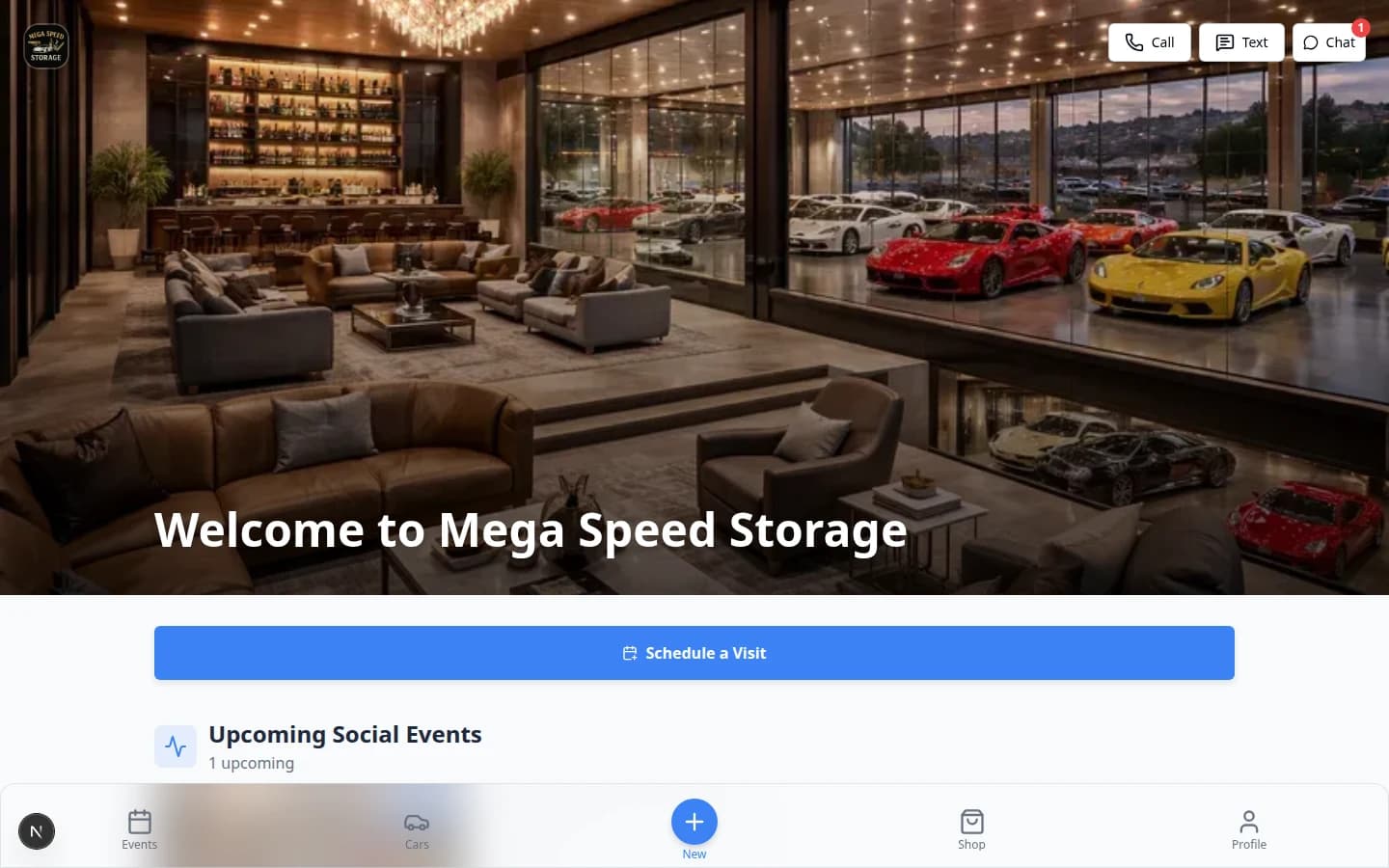
The Cars tab should highlight what your facility wants owners to see—not a fixed template.
Why we built it
Collectors live in the customer app Cars page for photos, values, and next steps. Facilities already customized Home; Customizable customer vehicle pages extends the same widget editor to /customer/cars: reorder sections, add or remove blocks, and watch a live preview before customers see changes. Available sections include My cars (grid), My cars (slider), Collection value, Schedule a visit-style action buttons, and Quick actions link grids you can point at scheduling, shop, documents, or other portal routes.
Who it is for
- Admins with access to Settings → Website & customer app who brand the signed-in portal.
- Clubs and storage facilities promoting Customer portfolio value on the dedicated Cars tab—not only on Home.
- Teams pairing layout with Customer-added vehicles when Customers can add cars should sit next to the grid.
What you can do
- Open Website & customer app, select the Cars page tab, and drag widgets into the order you want.
- Add Collection value above or below the vehicle grid depending on whether trends or thumbnails should lead.
- Insert Action button or Button grid sections for sourcing-style CTAs (schedule service, open shop, contact the facility).
- Compare the live preview with Home, Events, and other tabs—see also Customizable customer portal pages for the full multi-page rollout.
How it fits your day
Lead with Collection value for investment-focused memberships; lead with My cars (grid) when owners mostly check parking and photos. Keep heavy CTAs in a Button grid at the bottom so the vehicle list stays scannable. Per-vehicle detail fields on customer car pages are configured separately from this Cars list layout (staff website settings).
Learn more
Questions about this update?
Book time with our team or browse the rest of the changelog.