

Before you start
Door access must be set up. Staff need the Door access permission (off by default for new invites) to see and answer requests.What the customer sees
On the customer home screen, the Door access card shows the door name and a Request entry button. They choose Now, 5 min, or 15 min for when they’re arriving, then tap Send. The card changes to Waiting for staff with a Cancel button.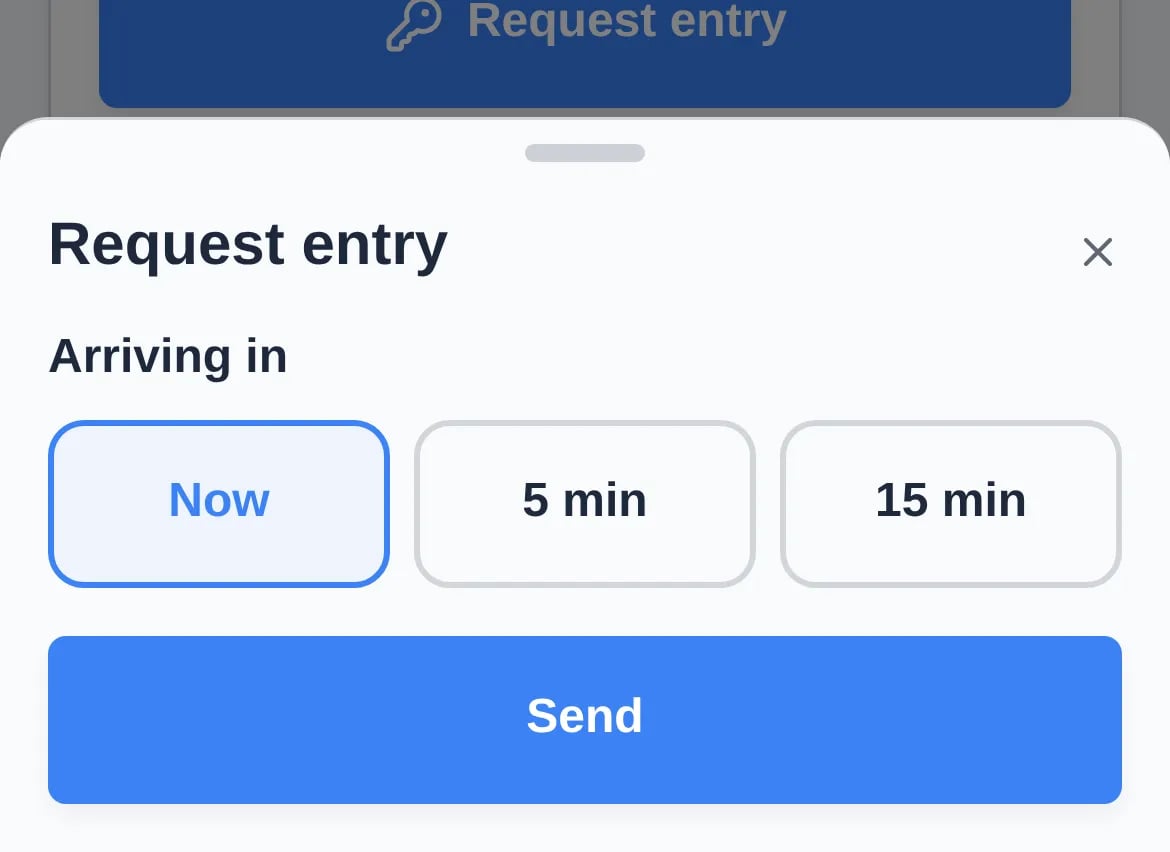
Answer a request
1
Open the request
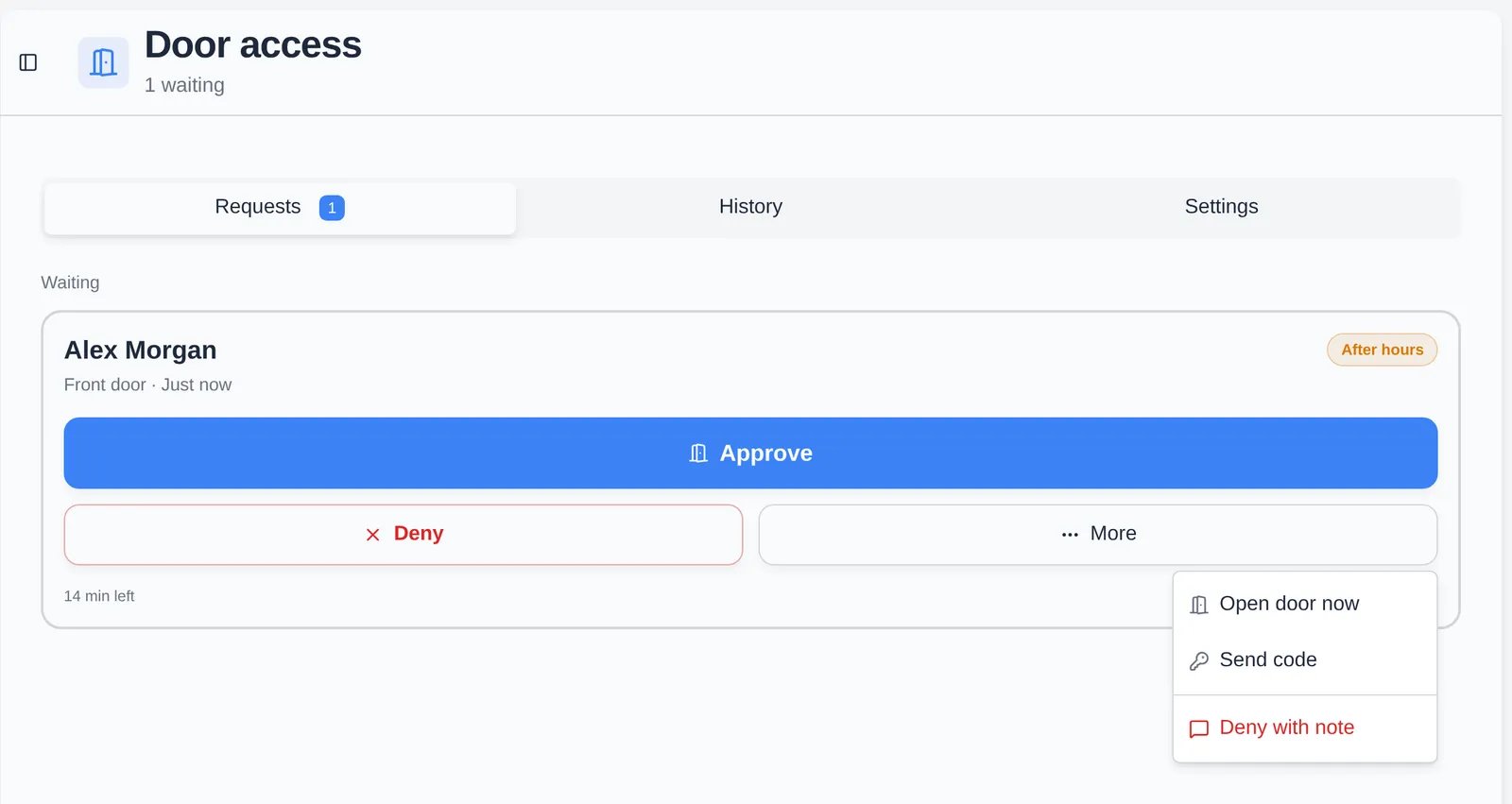
Tap the push notification, or open Door access and stay on the Requests tab. Each waiting request shows the customer, the door, how long ago they asked, and how many minutes are left before it expires. After hours marks requests outside your facility hours.
2
Check who it is (optional)
Click the customer’s name for the request page: a Call button, Open customer, today’s appointments under Today, and their cars under Cars here. A First time tag shows if they’ve never opened a door before.
3
Approve or deny
Click Approve or Deny. What Approve does depends on timing:
- The customer is arriving now: it opens the door. You confirm it’s you first, with a passkey or an emailed six-digit code (Confirm it’s you), then click Open and the door name.
- The customer is arriving later: it sends a door code or QR pass that works for the Code lasts time.
The customer’s card then shows You’re approved with Open door, Your door code, or Request declined. If nobody answers in time it shows No response. When someone else already answered, you see their name and your tap does nothing.
Below the queue, Can get in lists customers who currently have an open window. Click Remove to cancel one.
Review door history
The History tab shows what the doors did. Choose a door in All doors to filter.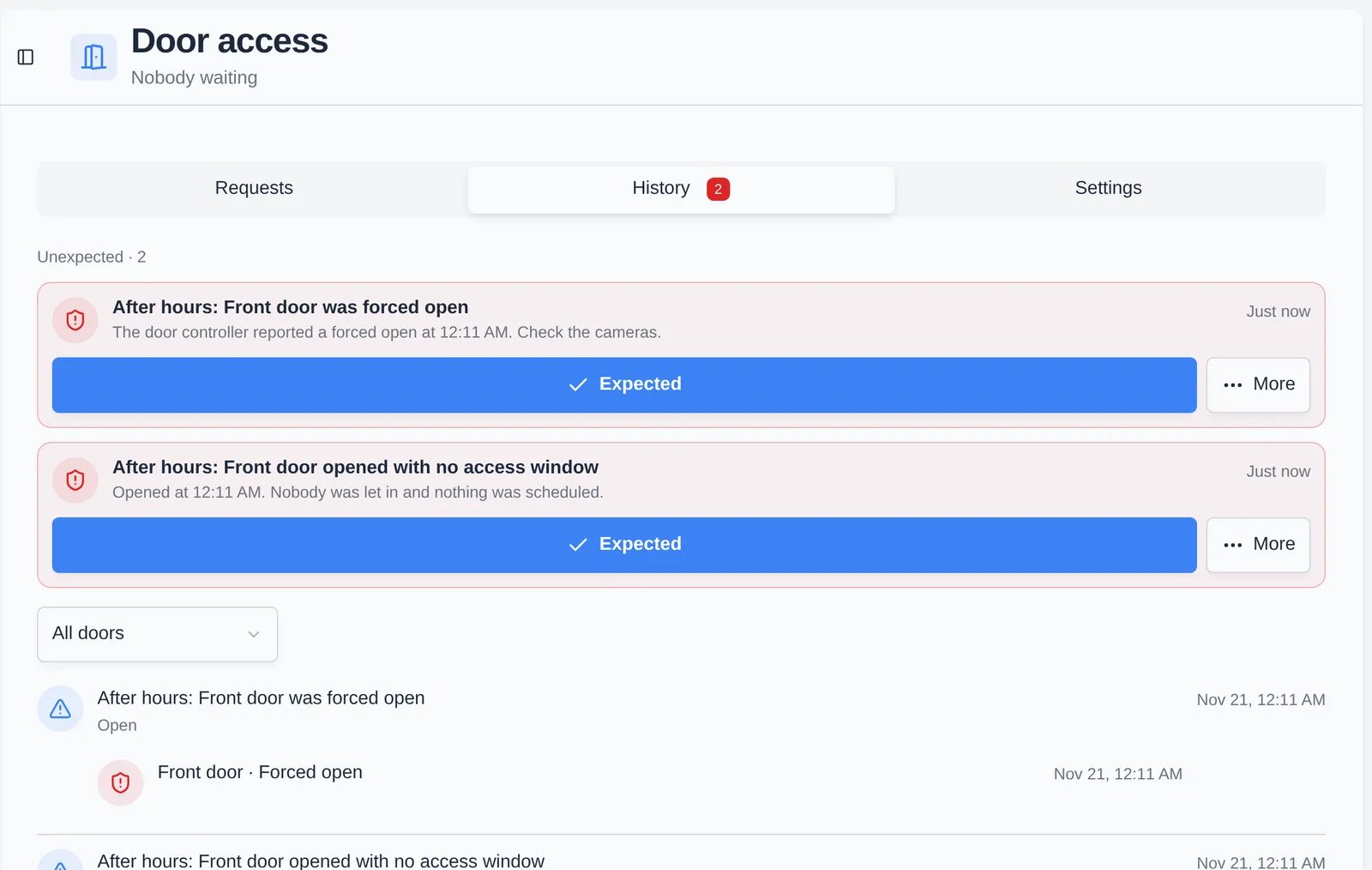
- Unexpected alerts appear at the top when a door was forced open, held open, or opened with no access window. The tab shows a red count. Click Expected if it was fine, or More → Handled or False alarm. See car opens the matching camera clip when there is one.
- The timeline lists unlocks, refused codes, and door events, with Car seen when a camera matched a car.
- Decisions lists recent approvals and denials and who made them.
Stop all doors
Anyone with the Door access permission can stop doors. Open the Settings tab, scroll to Emergency stop, click Stop doors, and confirm Stop all doors? with Stop doors. Every open window and pass is cancelled and a Doors are stopped banner appears. Only a team admin can click Resume doors. A team admin can also stop a single location with the location’s edit button under Locations.Troubleshooting
- No one gets push notifications. Staff need the mobile app with notifications allowed. The request also appears in the Inbox and on this page, which refreshes every few seconds.
- The door doesn’t open. Check that Doors are stopped isn’t showing, then run Check on the controller under Controllers on the Settings tab.