

Before you start
You need the Schedule permission to add or edit event types. Without it, you can see the list but not change it.Create the event type
1
Open Services & schedule
2
Click Add a service
It’s the last tile under Services & event types. The guided editor opens.
3
Name it
Enter a Name (shown on the calendar, booking pages, and to customers). Click the square next to the name to pick an icon and color. Description and Tags are optional. Click Continue.
4
Choose the type
Under What do staff pick when they book this?, choose:
- Vehicle: intake, detailing, service, transport, pickup, drop-off.
- Customer: consultations, tours, meetings, amenity bookings.
- Facility: inspections, pest control, maintenance. Facility events are team-only.
5
Work through the remaining steps
Each step has sensible defaults, so you can click Continue past anything you don’t need:
- Walkthrough and Details: checklist, photos, stages, and what staff must record. See Set up the event walkthrough.
- Service plans: what finishing this event counts toward. See Set up service plans.
- Scheduling: who can see and book it, hours, length, and capacity. See Configure scheduling and booking options.
- Pricing: price, tiers, and add-ons. See Set up pricing and add-ons.
- Notifications: which messages the customer gets. See Set up event notifications and reminders.
6
Review and create
On Review, check each card (you can edit right there), then click Create event type.
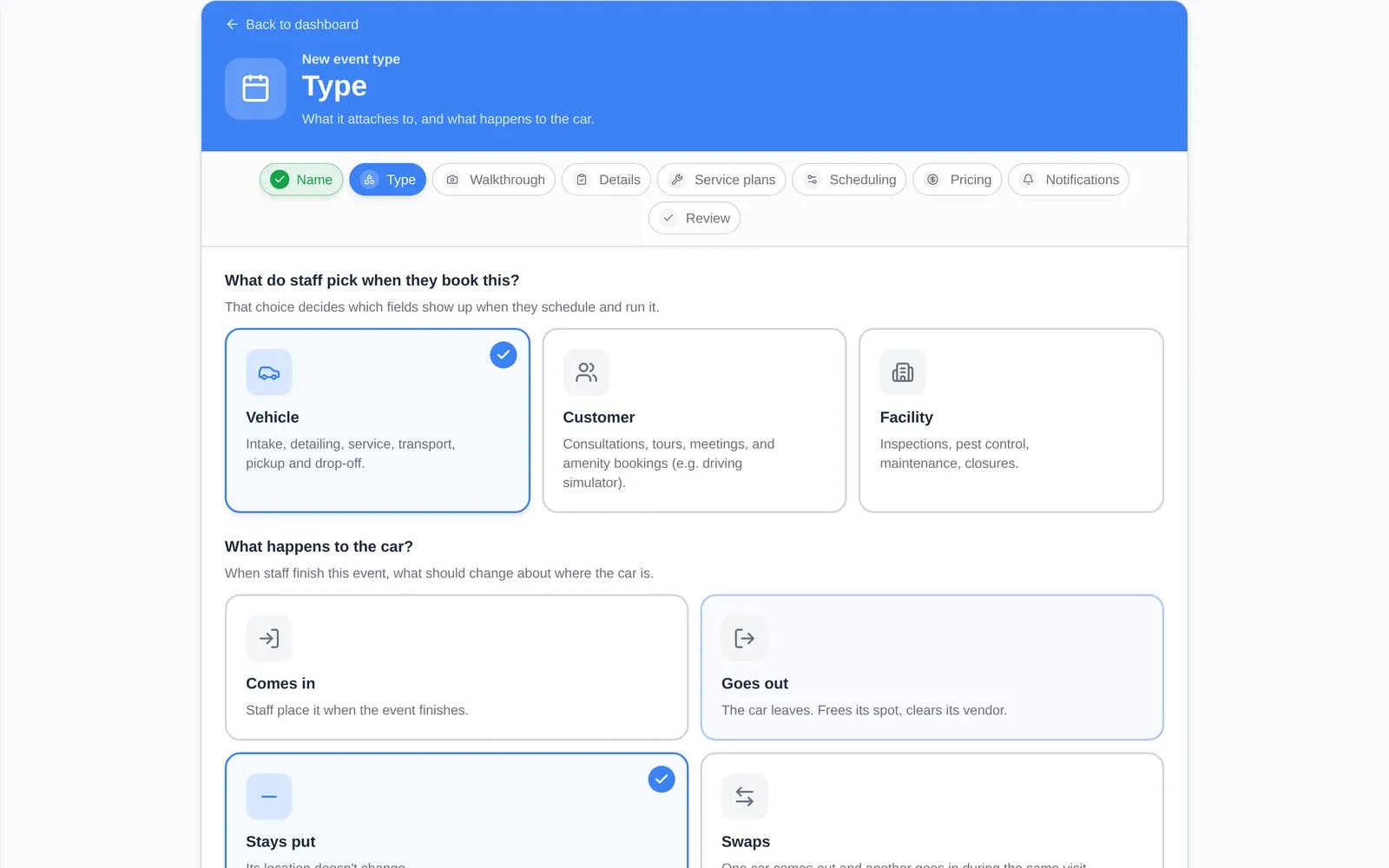
What happens to the car
Edit an event type
On Services & event types, click the card or its Set up link. Changes in the guided editor save automatically (watch for Saved at the top). Click Done when you’re finished.Guided or Advanced editor
Click Advanced (top right of the editor) to see every setting on one long page. A few settings only exist there:- Active: turn an event type off without archiving it.
- Hide Skip Walkthrough, Require Signature, VIN Scanning, Create New Car from VIN, and other feature switches.
- Booking Options with per-option duration, notice, capacity, linked amenity, and default assignee.
- Closed dates for this service only.
- Reminder Settings for this service.