Every public page has its own link. Send existing customers the sign-in link, prospects the main page or registration form, and vendors the invoice link. All of them are on one screen.
1

Open Shareable links

Go to Settings → Website & customer app (open). Shareable links is the first section.
2

Copy or test the link

On the card you need, click Copy to put the link on your clipboard, or Open to see the page in a new tab the way a visitor would.
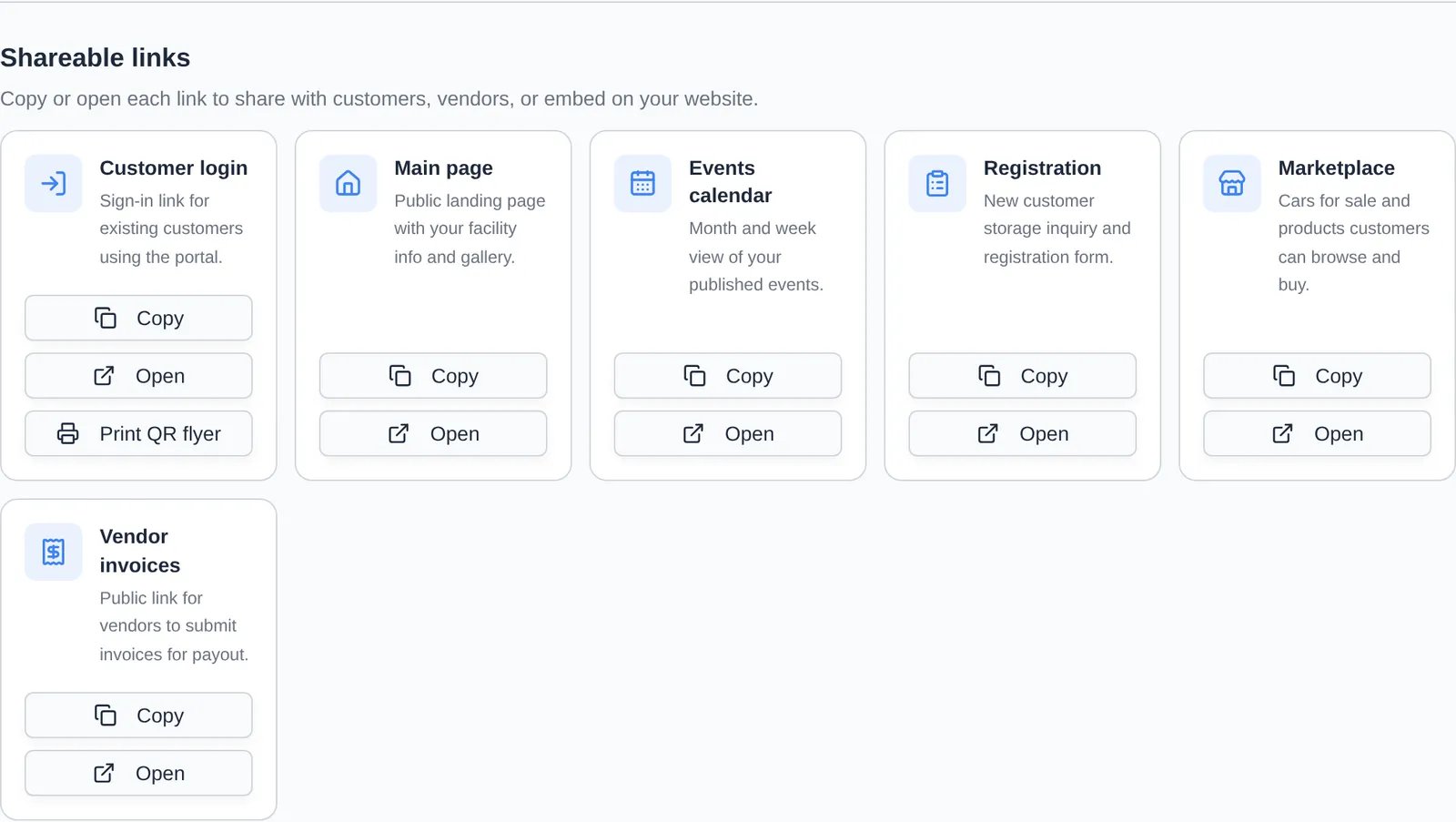
Shareable links cards, each with Copy and Open buttons; the Customer login card also has Print QR flyer.
Only Customer login is always there. The other cards appear once public pages are on and you have a page address, and Registration, Marketplace and Vendor invoices each disappear when you turn that feature off. If you see only the login card, read the note under the cards. It tells you what’s missing. Public links look like https://www.carstoragesoftware.com/facility/your-facility. To change the last part, edit Page address under Public website → Header & page settings. Old links stop working when you change it, so update your website and emails too. If you connect a custom domain, the cards switch to your domain automatically.
Never send customers a link that starts with /dashboard. Those are staff pages, and customers will get a staff sign-in screen.
A flyer at the front desk or in a welcome packet lets customers scan straight to your sign-in page.
1

Open the flyer

On the Customer login card, click Print QR flyer.
2

Edit the wording

Change the Headline and Message on the left, and turn Show address and phone on or off. The preview on the right updates as you type. It shows your logo, the QR code, the sign-in address and three short steps for customers.
3

Print or save

Click Print / Save as PDF (top right). Choose your printer, or Save as PDF to email it.
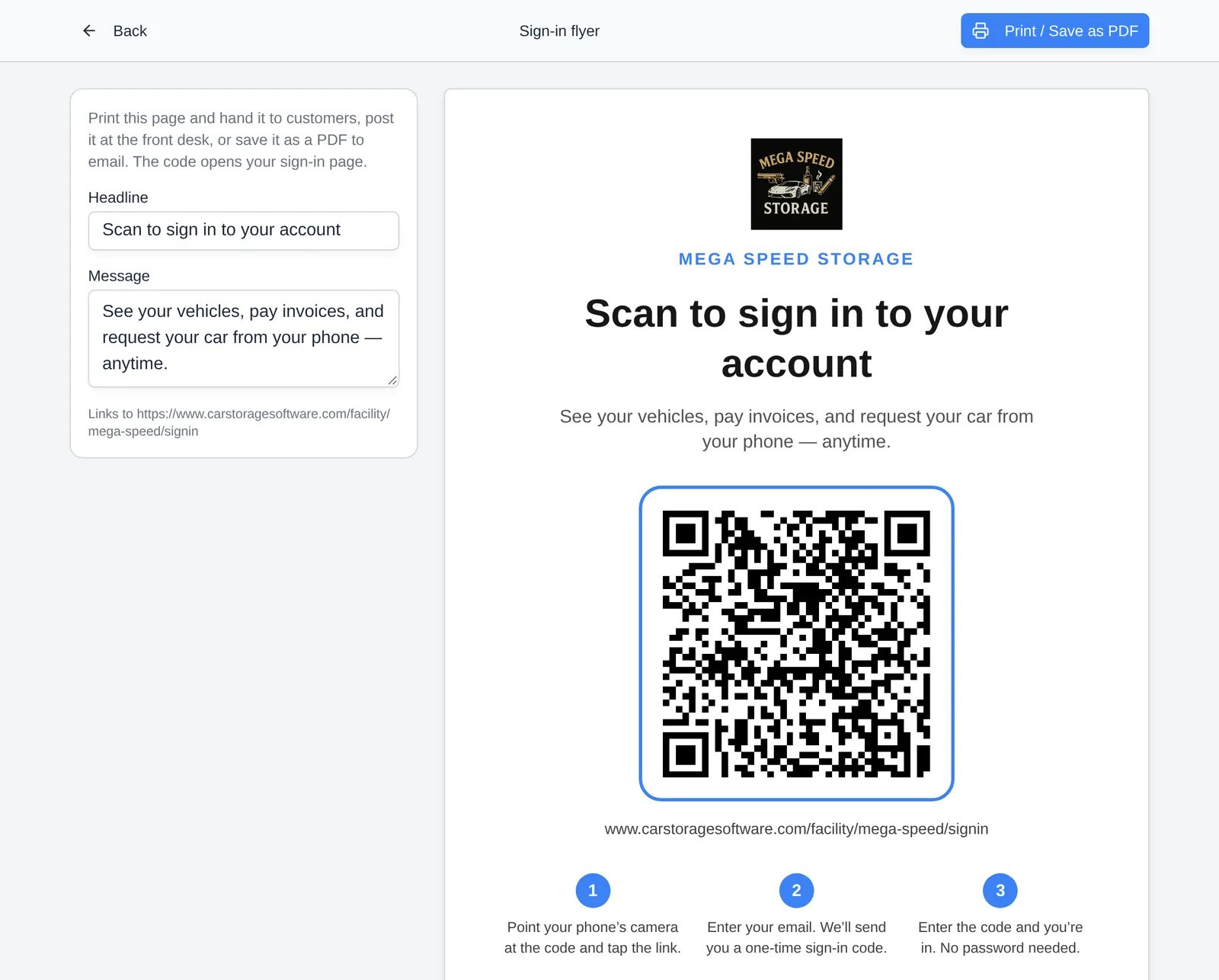
The Sign-in flyer page with Headline and Message fields on the left and a printable flyer with the facility logo and QR code on the right.
For QR codes that point somewhere else, like a parking spot or a marketing form, use Settings → QR codes. See Set up printable QR codes.

Troubleshooting

The customer says the link doesn’t work. Open the link yourself in a private browser window. If it says the page isn’t found, check that public pages are still on and that the Page address hasn’t changed since you sent it. The customer can’t sign in. The sign-in page sends a link and code to the email on their contact record. Check the address in Contacts and ask them to look in spam. If they see “This facility doesn’t have a customer account for this email”, no contact has that email. Add them as a contact or fix the email, then have them try again. Can new people create an account from the sign-in page? Only when your registration form is On and On complete is set to Email and start onboarding (see Set up customer registration). The flyer then says “New here? Your account is created for you.” Otherwise only existing contacts can sign in.