

What you will accomplish
Customers will open links that use your business web address—for examplestorage.yourfacility.com or yourfacility.com—instead of a default Car Storage Software address. That helps people trust the link and recognize your brand.
When to use this guide
Use this guide when:- Your website helper asks for DNS records
- You want customer login or public pages on your own domain
- You are ready to update links on your website, emails, and printed materials
Before you start
- You own a domain name (for example
smithstorage.com). - You can sign in to the company that manages that domain (GoDaddy, Namecheap, Cloudflare, Squarespace, and similar services).
- You know whether you want a subdomain, your primary website, or both.
- You have the name and email of the person who can add DNS records if you do not manage the domain yourself.
- You can enable Custom domains from Settings > Integrations. That adds $200/month to your Car Storage Software subscription.
DNS in plain EnglishDNS is the internet’s address book. When someone types your domain, DNS tells their browser where to go. Car Storage Software shows you the records to copy. You or your domain helper paste them at your domain company—nothing installs on your computer.
Step 1: Enable Custom domains
1
Open Integrations
From the Dashboard, click Settings, then Integrations.Direct link: Settings > Integrations.
2
Enable the Custom domains card
Search for domain or open the Custom domains card under Website. Confirm the $200/mo add-on, then turn it on.Expected result: The card shows On, Custom domain appears in the settings sidebar, and $200/month is added to your Car Storage Software subscription (prorated).
Step 2: Open Custom domain settings
Go to Settings > Custom domain. You can also click Open custom domain in the Integrations dialog.Do not see Custom domain in Settings?Enable Custom domains from Settings > Integrations. That adds a $200/month item to your Car Storage Software subscription (prorated). You need the Payments permission and a card on the subscription. Until it is enabled, use the default Shareable links on Settings > Website & customer app—they work without a custom domain.
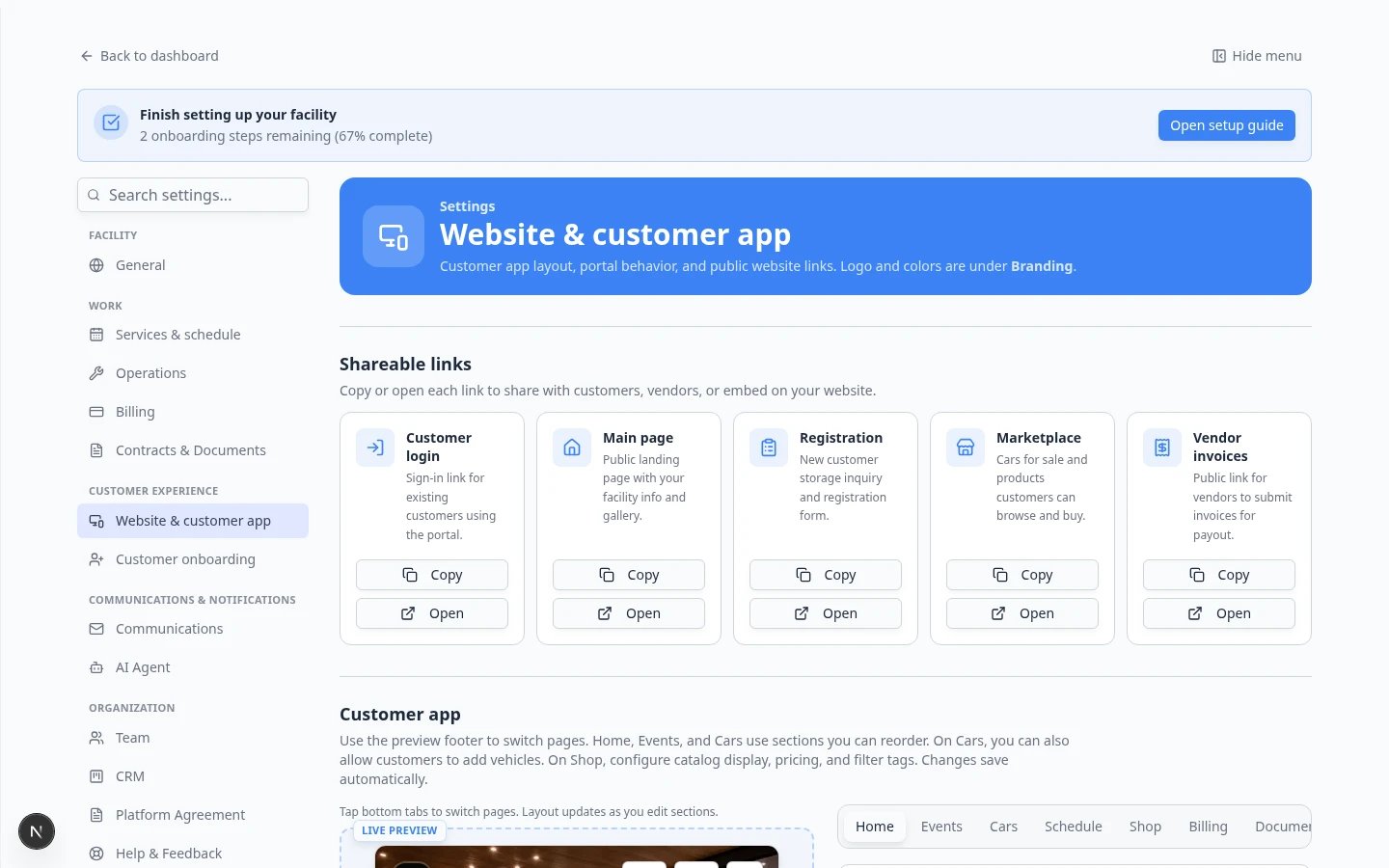
Expected result
You see the domain field and three choices: Subdomain, Primary website, and Both.Step 3: Choose where the site should live
On Settings > Integrations, open Custom domain after it is enabled. You can also open Settings > Custom domain. Enter the primary domain your facility owns, such asmegaspeedstorage.com. Then choose one option:
- Subdomain — host the customer site at an address such as
storage.megaspeedstorage.com. Your existing marketing site stays where it is. - Primary website — host at
megaspeedstorage.comandwww.megaspeedstorage.com. - Both — public pages on the primary domain, customer login on the subdomain you choose.
Step 4: Add the DNS records
The dialog shows the records for the choice you made.- A subdomain uses a CNAME.
- The primary domain uses A records (and AAAA when shown). Also add the www record when you chose the primary website or both.
- Add any TXT verification row before the domain shows as verified.
Expected result
You have a complete list of records ready to paste at your domain company.Step 5: Add the records at your domain provider
Sign in where your domain is managed. Open a section named DNS, DNS settings, Manage DNS, or Advanced DNS.1
Add each record
Create a new record for each row from Car Storage Software. Match Type, Host, and Value carefully.Why this matters: Your domain company may call Host something else—Name, Hostname, or Points to. If you are unsure, send your website helper a screenshot of the Car Storage Software table and ask them to add matching rows.
2
Watch for automatic domain suffixes
Some providers add your domain name automatically in the Host field. If Car Storage Software says
app but your provider shows app.yourfacility.com, that is often correct. If both the full address and the short name appear, you may have a duplicate—ask your helper before saving.3
Save or publish
Click Save, Publish, or Apply at your domain provider when you are done.Expected result: Each new row appears in your provider’s DNS list with the same type and value Car Storage Software showed.
Expected result
Your domain provider shows the new records and confirms they were saved.Step 6: Check DNS in Car Storage Software
Return to Settings > Custom domain. Click Check DNS for the setup option you changed. You may see:- Verified or Complete when the records are found
- DNS pending when changes are still spreading across the internet
- Missing when one or more records still need to be added or corrected
What each status meansComplete means your team can test the branded link. DNS pending means the internet is still updating—wait and check again. Missing means a record is wrong or not saved at your domain company yet—compare the table in Car Storage Software with your domain provider line by line.
Expected result
The status tells you whether the domain is ready or needs another fix.Step 7: Test the custom domain in a browser
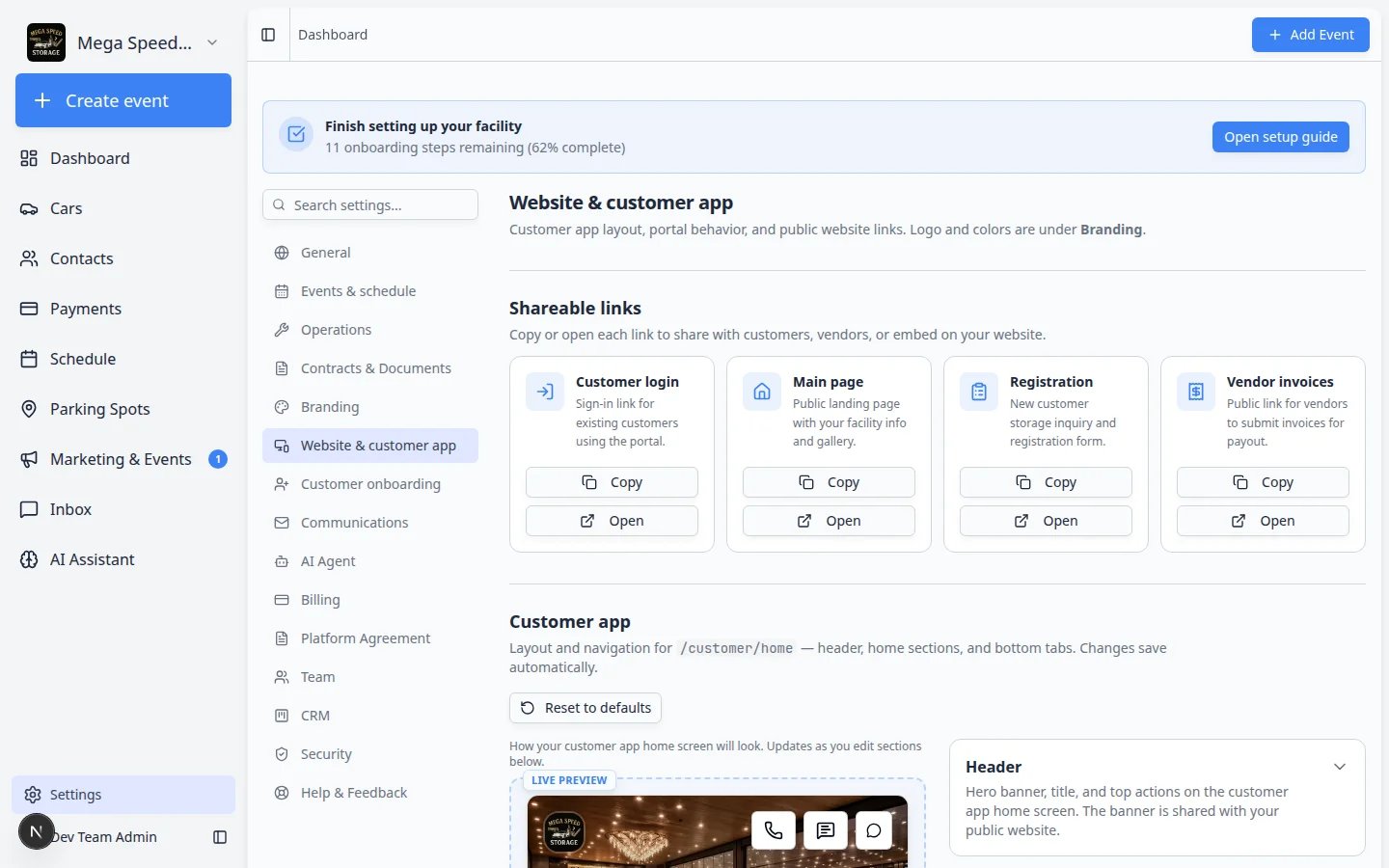
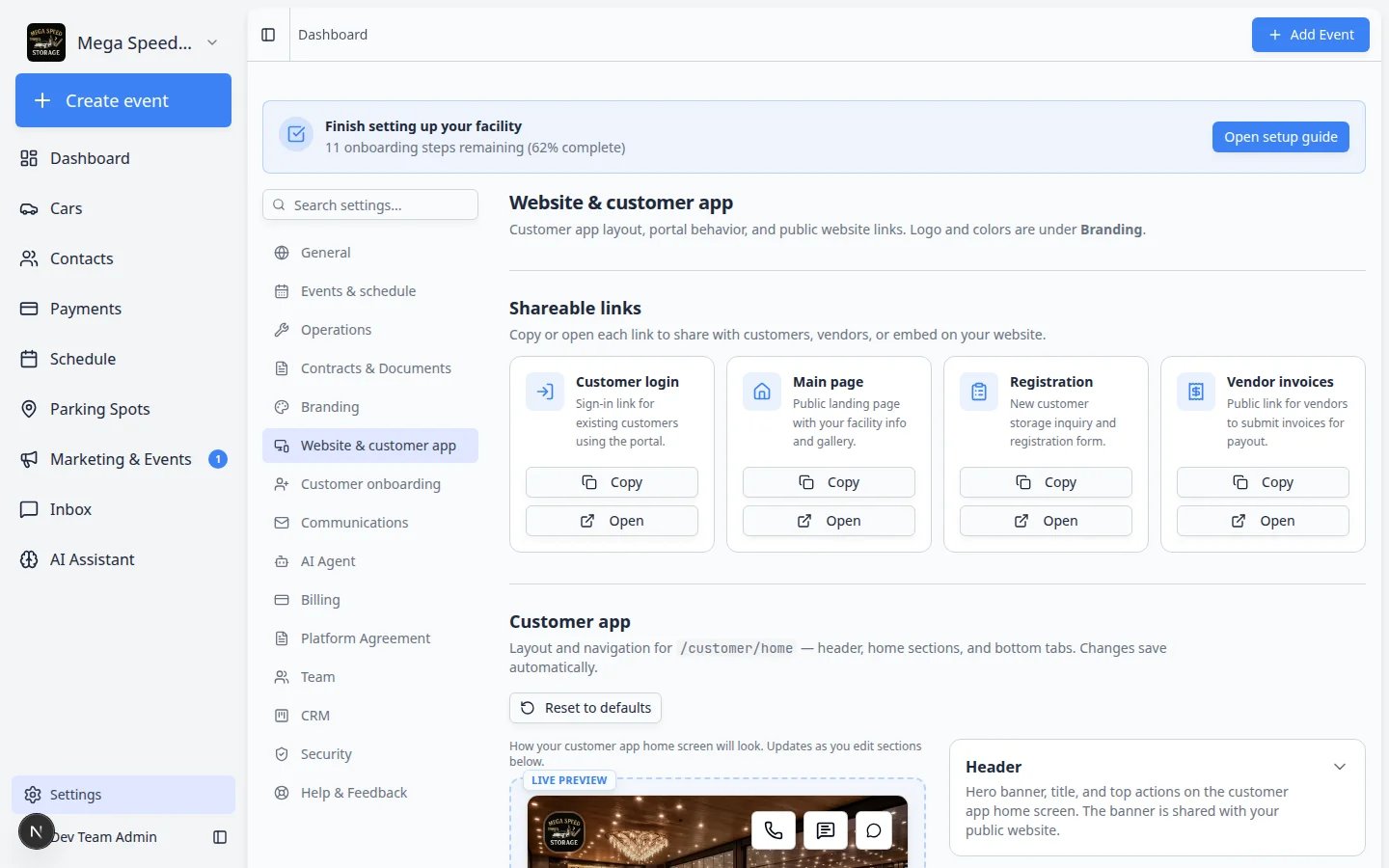
After the domain shows verified or complete, copy every link again from Shareable links on Settings > Website & customer app. Customer login, registration, and marketplace URLs may now use your branded domain.1
Open Shareable links
Go to Settings > Website & customer app and find Shareable links near the top.
2
Copy each link your team uses
Click Copy on Customer login, Main page, Registration, Marketplace, and Vendor invoices (if enabled).Why this matters: Old bookmarks and printed materials still point at the previous address until you update them. Marketplace may be new on your materials if you recently started sharing cars or products online.
- The page opens without an error
- Your facility name looks correct
- Registration, marketplace, login, or vendor buttons go to the right pages
- The address bar shows your domain
What success looks like
- Your custom domain is saved in Car Storage Software
- DNS records are added at your domain provider
- The domain status is verified or complete
- Your team tested the page like a customer would