

What you will accomplish
You will open a car that already has a linked customer, choose the customer’s active recurring plan from the Payments section, and save so the car shows a Recurring plan badge. Expected outcome: The Payments block on the car record shows which subscription is tied to this vehicle.When to link recurring billing on a car
- The customer already has an active recurring charge for storage or membership.
- One customer has more than one stored vehicle and you need to show which car each monthly fee covers.
- Your team asks “is this car on monthly billing?” and you want the answer on the car record.
This is not the same as a service planService plans schedule recurring work (detailing, battery checks). Recurring billing charges money on a schedule. A car can have one, both, or neither. For care packages, see Assign service plans on a vehicle.
Before you start
- The car has a linked customer on its record. Open View and edit vehicle details to link one if needed.
- Payment processing is connected if you bill online. See Connect payment processing.
- The customer already has at least one active recurring plan in Payments > Recurring. If not, create one first with Manage recurring billing.
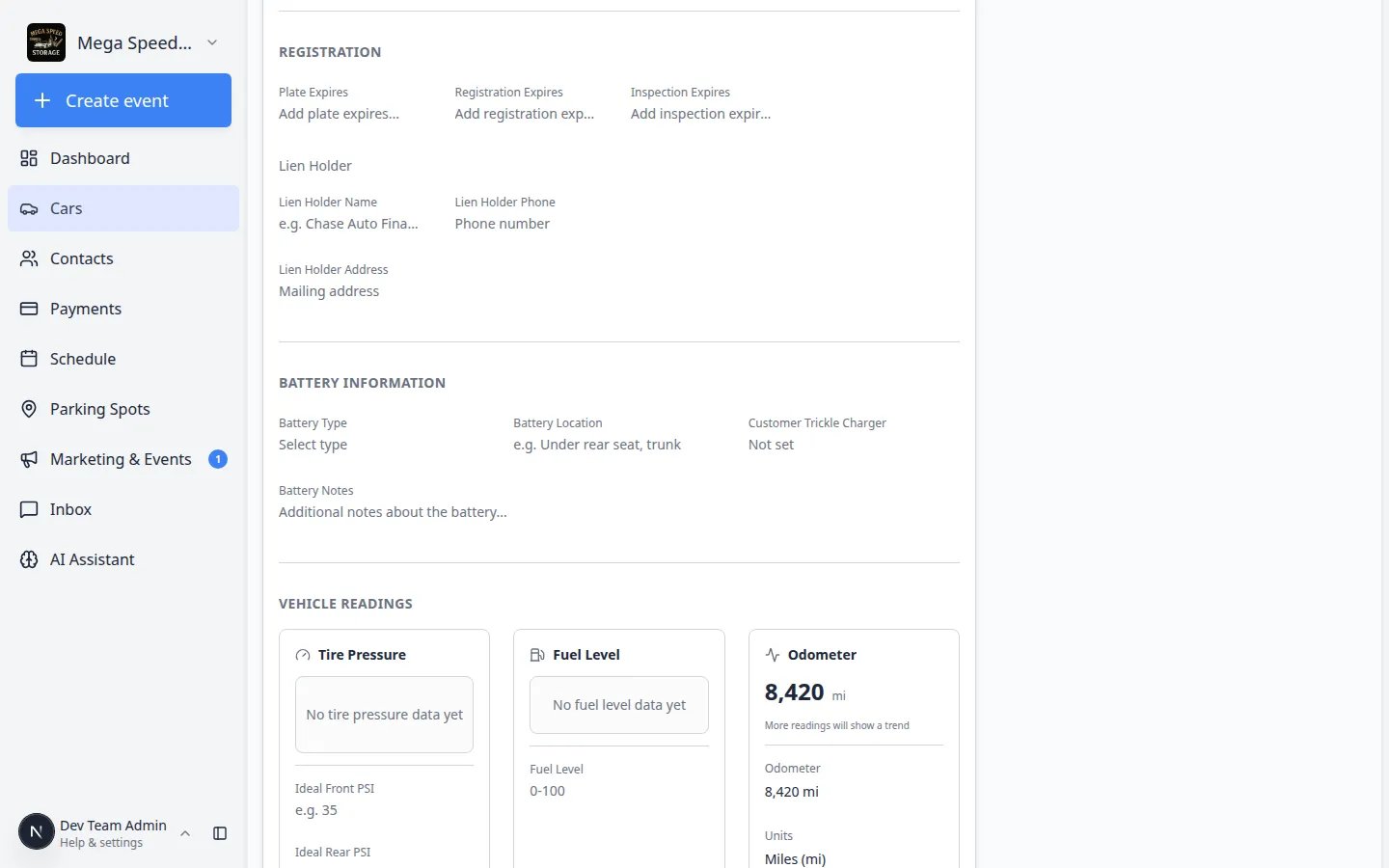
Step 1: Open the car and confirm the customer
The Payments block only appears after a customer is linked. If you skip this step, you will not see recurring billing at all.1
Open the vehicle
Go to Cars and click View on the car you need.Expected result: The car detail page opens with the year, make, and model at the top.
2
Check the Customer section
Scroll to Customer inside Vehicle Details. The owner’s name should appear.If you see No customer linked, click Link customer, choose the correct person, and save before continuing.Why this matters: Recurring plans belong to customers, not to anonymous car records. A Lamborghini on file without an owner cannot show which monthly storage fee applies.
3
Confirm the customer has an active plan in Payments
Open Payments > Recurring in a second browser tab if you are unsure.Expected result: You see at least one Active recurring charge for that customer before you return to the car record.If nothing is listed, create the plan first with Manage recurring billing, then come back to link it on the car.
Step 2: Link the recurring plan
1
Find the Payments section
Scroll to Payments below the customer block.Expected result: You see Recurring plan text and either a dropdown or “No recurring plan linked.”
2
Open the dropdown
Click the dropdown (placeholder Link recurring plan or the current selection).
3
Choose the correct subscription
Select the plan that matches this vehicle’s storage or membership fee. Each option shows the product name and current price.Choose None to remove a link without canceling the customer’s actual subscription.Expected result: A Recurring plan badge appears when a plan is selected.
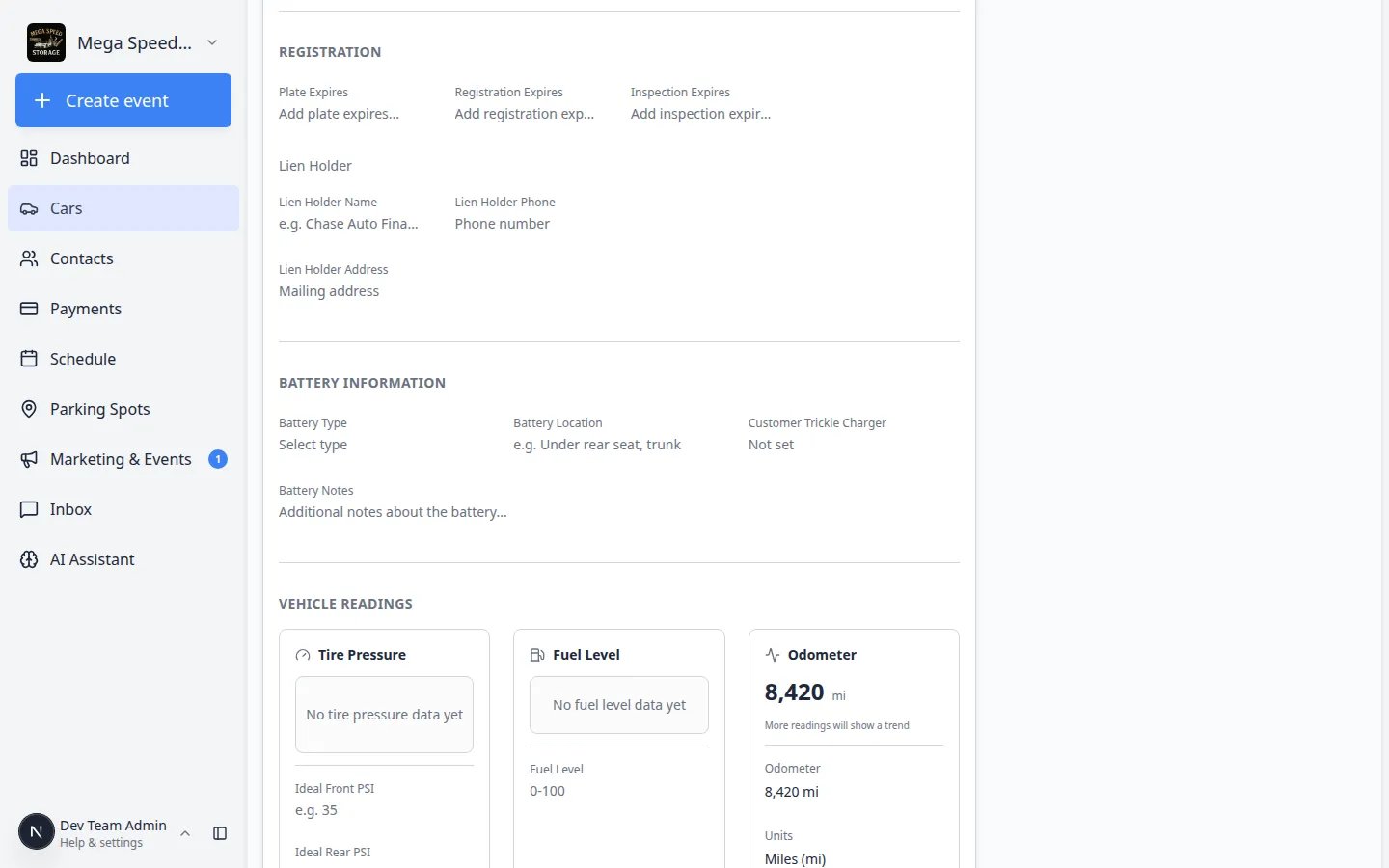
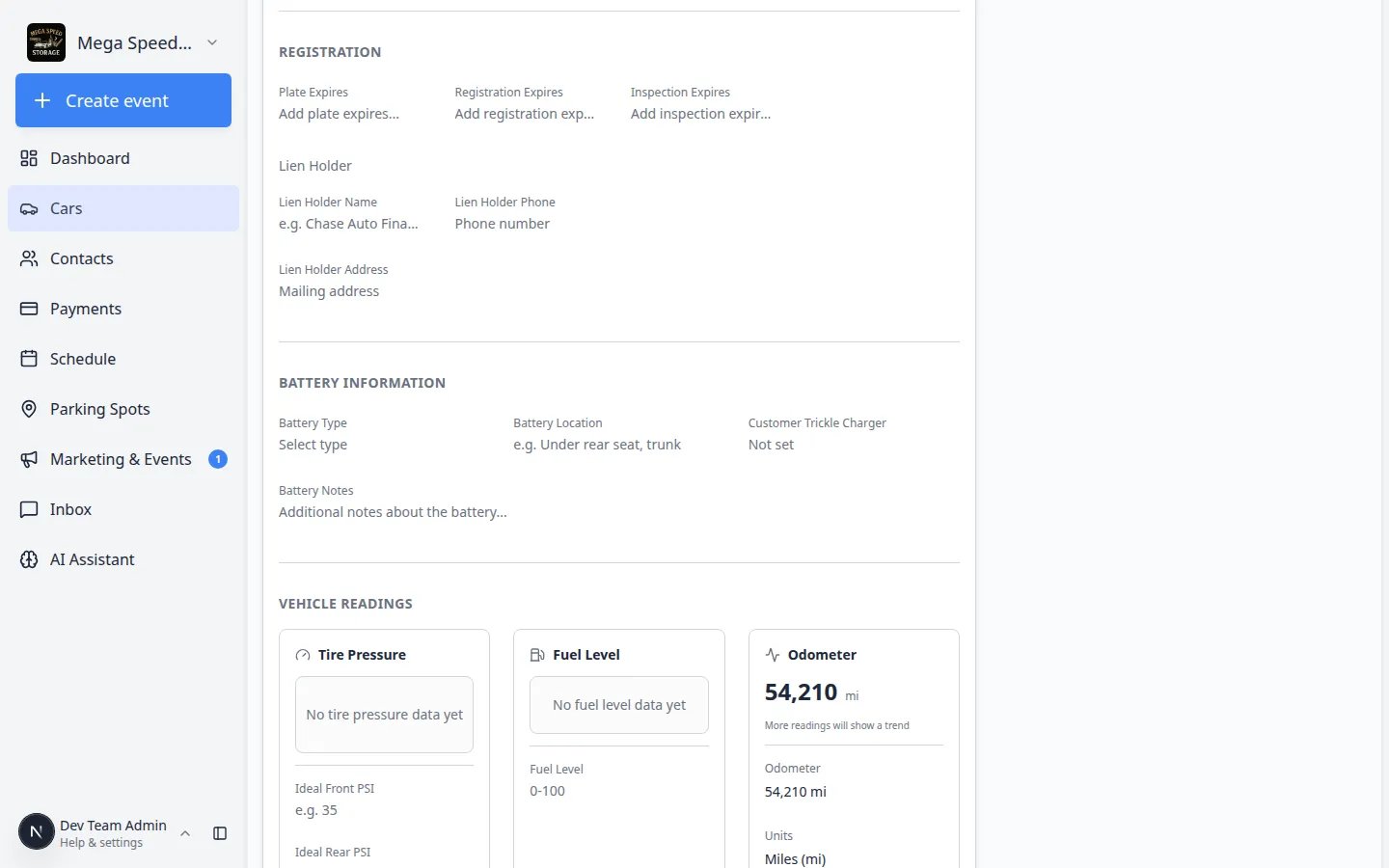
No plans in the dropdown?If the list is empty, the customer may not have an active recurring charge yet. Create one in Payments > Recurring first, then return to this car record and link it.
Step 3: Verify on the customer record (optional)
1
Open the customer in Contacts
Click the customer name on the car record, or find them on All Contacts.
2
Review billing
Open the billing area on the customer record and confirm the recurring plan is still active.Expected result: The car link on the vehicle record matches the plan you expect to charge each month.
Link cars to line items
By default, cars link to a recurring plan as a whole invoice. If one plan bills several spots, such as an SUV spot and a quantity-2 Sports car spot, you can link each car to the line item it is billed under.Turn on line-item linking
1
Open Billing settings
Go to Settings > Billing and find Link vehicles on recurring plans to.
2
Choose a mode
- Whole invoice (default) lists vehicles on the recurring plan as a whole. This works the same as before.
- Line items lets you assign each vehicle to the line item it is billed under.
Assign cars on the recurring plan
In Line items mode, each line item holds as many cars as its quantity. For example, a quantity-2 Sports car spot holds 2 cars.1
Open the recurring plan
Go to Payments > Recurring and click Manage on the plan.
2
Find Vehicles by line item
The Vehicles by line item card lists each line item with its price, quantity, and a count such as 1 of 2 assigned.
3
Select cars for each line item
Click a customer’s car under a line item to assign it. Click it again to remove it. Changes save automatically.When a line item is full, you cannot pick more cars for it until you remove one. If a car is already on another line item, its card shows Also on with that item’s name.
- From plan means a single-item plan is using the car already linked to the plan. Single-item plans start with that car, so you do not need to assign it again.
- Add-on means the product has Vehicles are assigned to this product turned off, such as a trickle charger. See Manage products and services.
How cars appear on invoices
In Line items mode, the invoice memo groups cars by line item on one Vehicles: line. For example:Common mistakes to avoid
- Do not link a recurring plan before the customer exists and is linked to the car.
- Do not confuse linking (which car the plan is for) with creating a new recurring charge. Use Manage recurring billing to set up the plan itself.
- Do not assume None cancels billing. It only removes the visual link on this car record.
Troubleshooting
What to do next
- Keep plans in step with dropoffs and pickups with Automate billing updates on dropoff and pickup.
- Assign care work with Assign service plans on a vehicle when the monthly fee includes scheduled maintenance.
- Send one-time invoices with Create an invoice for charges outside the recurring plan.
- Review the customer’s full billing history from Manage billing on a customer record.