

What you will accomplish
You will send a secure sign-in email so the customer can open the portal on their own. When they sign in, they see the cars, documents, billing, and events your team has already linked to their record. Sending a portal invite is the step that connects a customer record to a live sign-in account.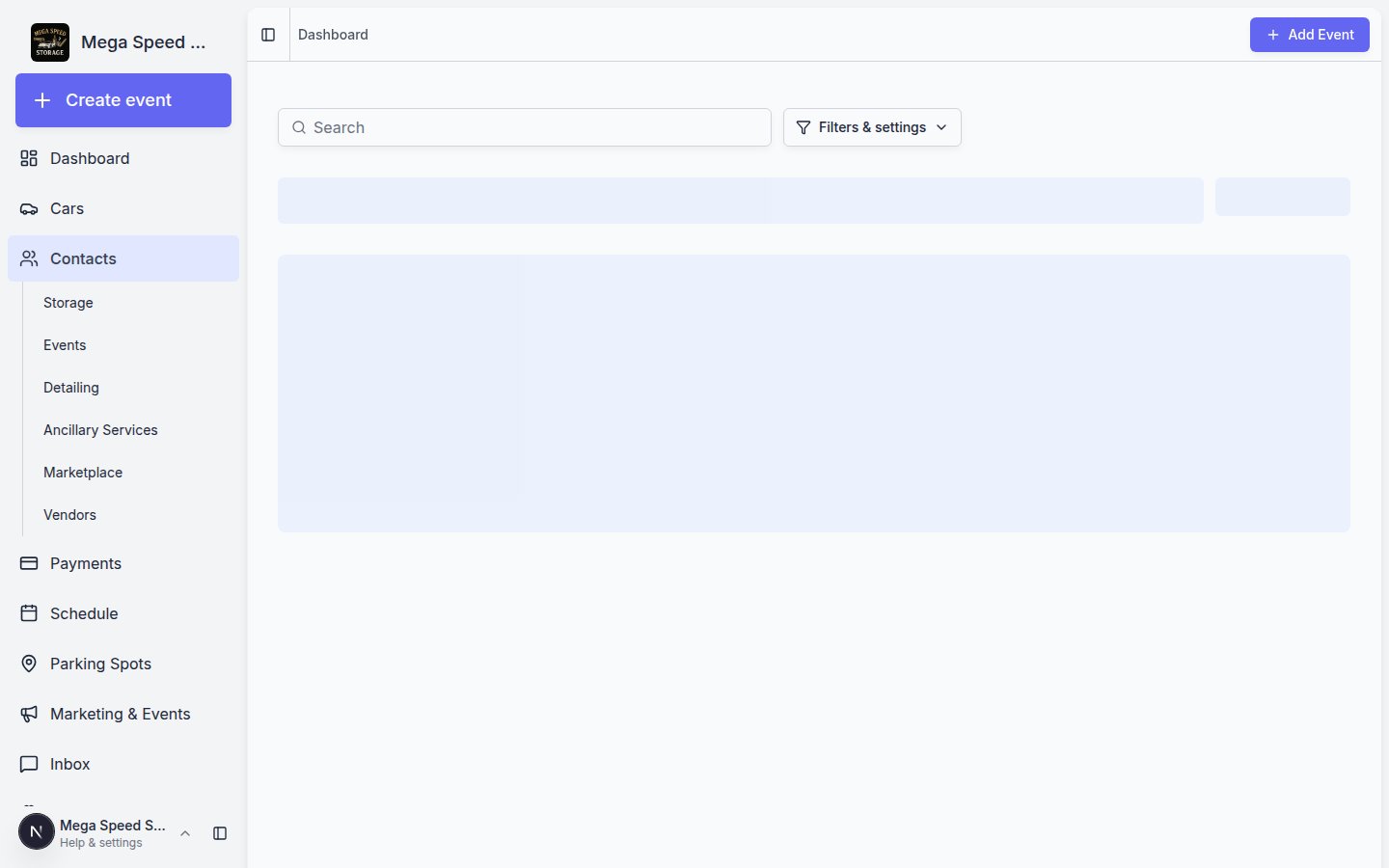
Before you start
- The customer record must have a valid email address — the invite is sent as a magic-link email to this address.
- Confirm the customer is linked to the right cars, invoices, and documents — whatever is linked will be visible to them in the portal.
- Review Settings > Website & customer app to confirm the right customer app sections are enabled and visible.
- If your onboarding flow includes contracts (storage agreements, liability waivers), consider whether those should be in place before or after the invite.
- If you want an additional contact, such as an assistant or spouse, to have portal access instead of or in addition to the primary customer, add them in the Contacts section of the customer detail page first. See Manage additional contacts.
Understand Account Status before you invite
On All Contacts, the Account Status column tells you where the customer is in the sign-in process. This is separate from Portal Access (Full vs Ticket-only).Account Status vs Portal AccessAccount Status tracks whether they have signed in. Portal Access tracks what they can see after sign-in (Full storage portal vs Ticket-only event access). Turn both columns on under Filters & settings → Columns when you are preparing a batch of invites.
Send an invite from the Contacts list
The fastest way to invite a customer is directly from the Contacts list page using the inline action button.1
Open All Contacts
Navigate to All Contacts. Find the customer you want to invite in the list.
2
Click Send Invite
On the customer’s row, look for the Send Invite button (or Resend Invite if an invite was already sent). Click it to open the invite confirmation dialog.Important: This button only appears when the customer has an email address and has not signed in yet (Account Status is not Signed In). After first sign-in, the customer can request a new link from your facility login page.
3
Review the confirmation dialog
The dialog shows:
- The customer’s name and email address where the invite will be sent.
- Whether the customer has cars assigned (helpful context if your onboarding contracts reference vehicle details).
- Whether Stripe/payment setup is connected (if your facility uses billing through the portal).
4
Choose whether to email the customer
A window titled Notify the customer? asks if you want to send the portal invite now. Choose Yes to send the magic-link email. Choose No or close the window to cancel without sending.Expected result: After Yes, a success message confirms the invite was sent. The customer’s row may show when the last invite was sent.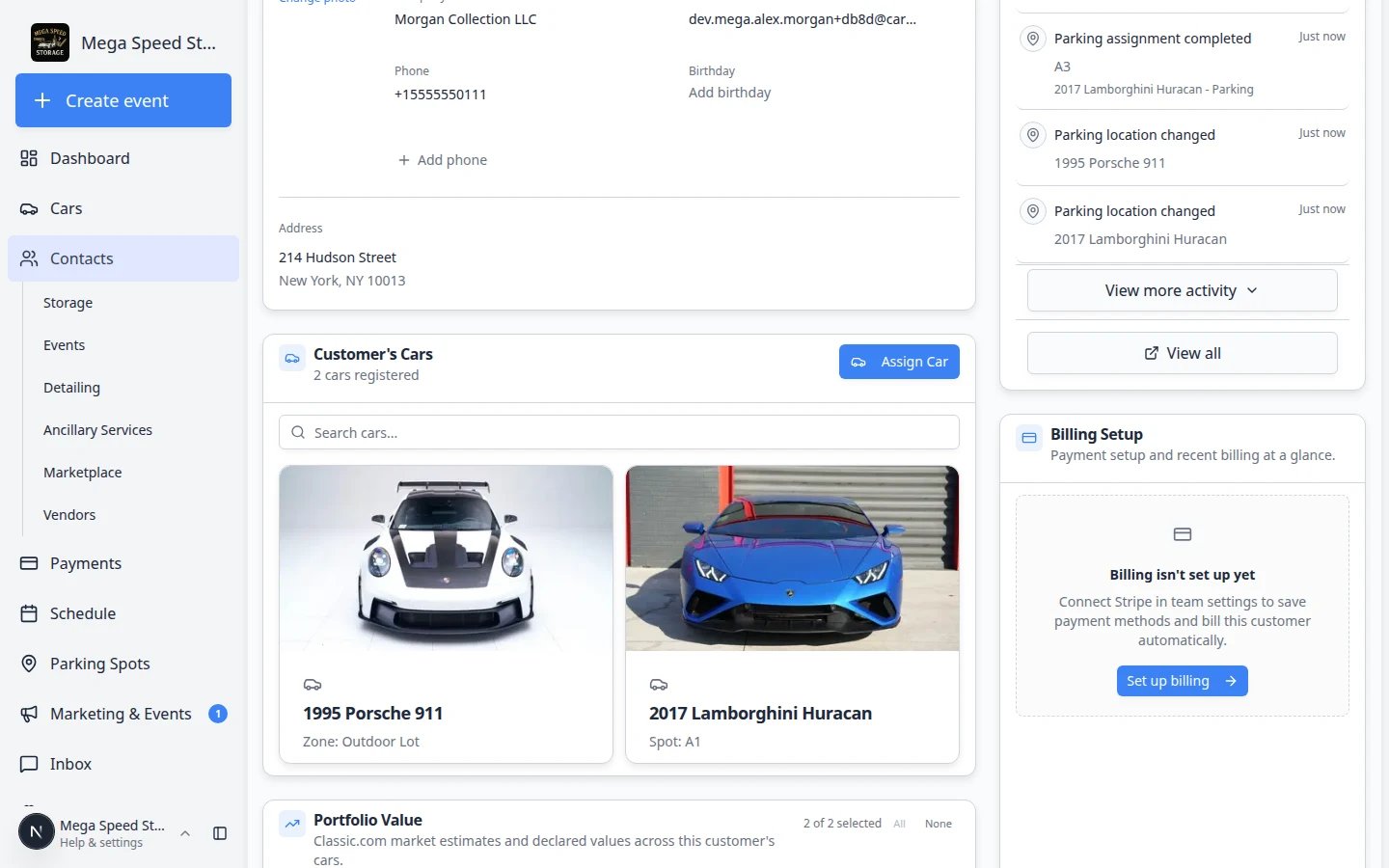
Understand Account Status on the customer list
After you send an invite, use the Account Status column on All Contacts to see whether the customer has signed in yet. This saves phone tag when someone says, “I never got access.”Account Status is not the same as Portal AccessAccount Status tracks sign-in progress. Portal Access shows Full vs Ticket-only (what they can use after sign-in). Read both columns together—see Understand portal access levels.
Send an invite for a sub-contact
If a customer account has additional contacts (spouse, assistant, bookkeeper, vehicle handler) who need their own portal access, you can send individual invites from the customer detail page.1
Open the customer record
Go to All Contacts and click the customer whose sub-contact needs portal access.
2
Scroll to the Contacts section
On the detail page, scroll down to the Contacts section. This lists all additional people associated with the customer account.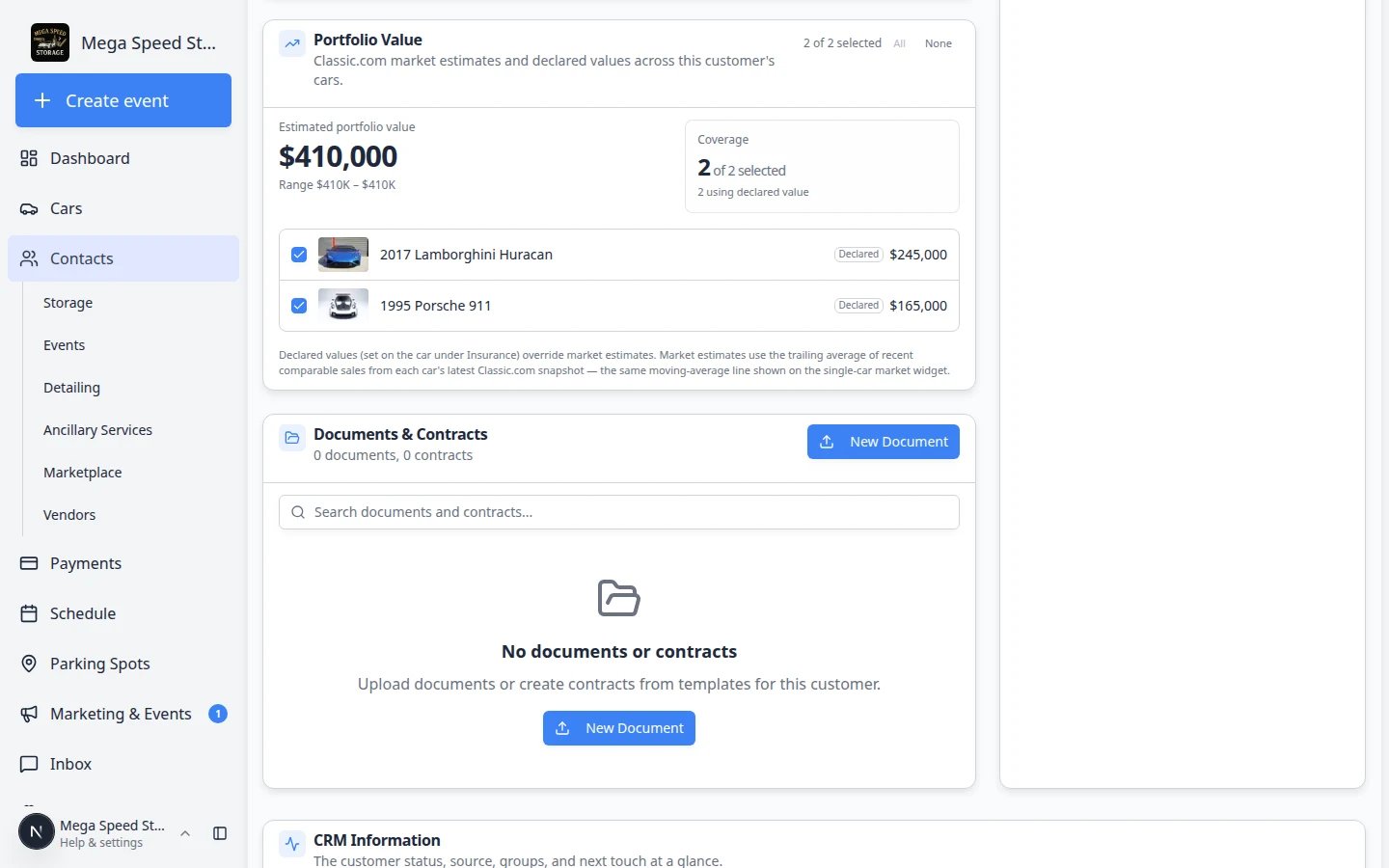
3
Ensure the contact has an email and portal access enabled
The sub-contact must have: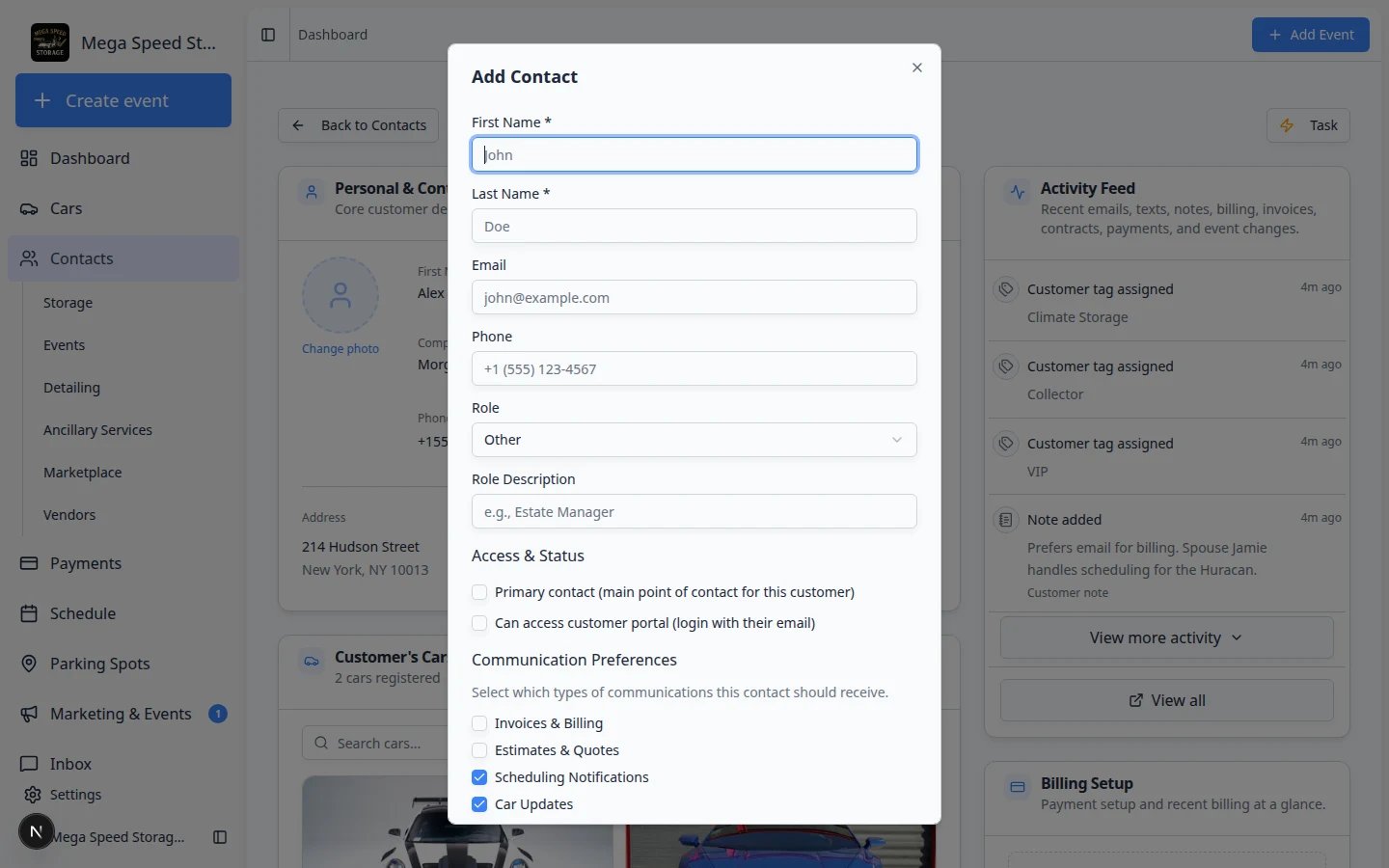
- A valid email address entered.
- Can access customer portal (login with their email) turned on in the contact’s edit dialog.
4
Click Send Invite on the contact
Once the contact has an email and portal access enabled, click the Send Invite action on that contact’s row. The system sends a magic-link email directly to the sub-contact’s email address.
What the customer receives
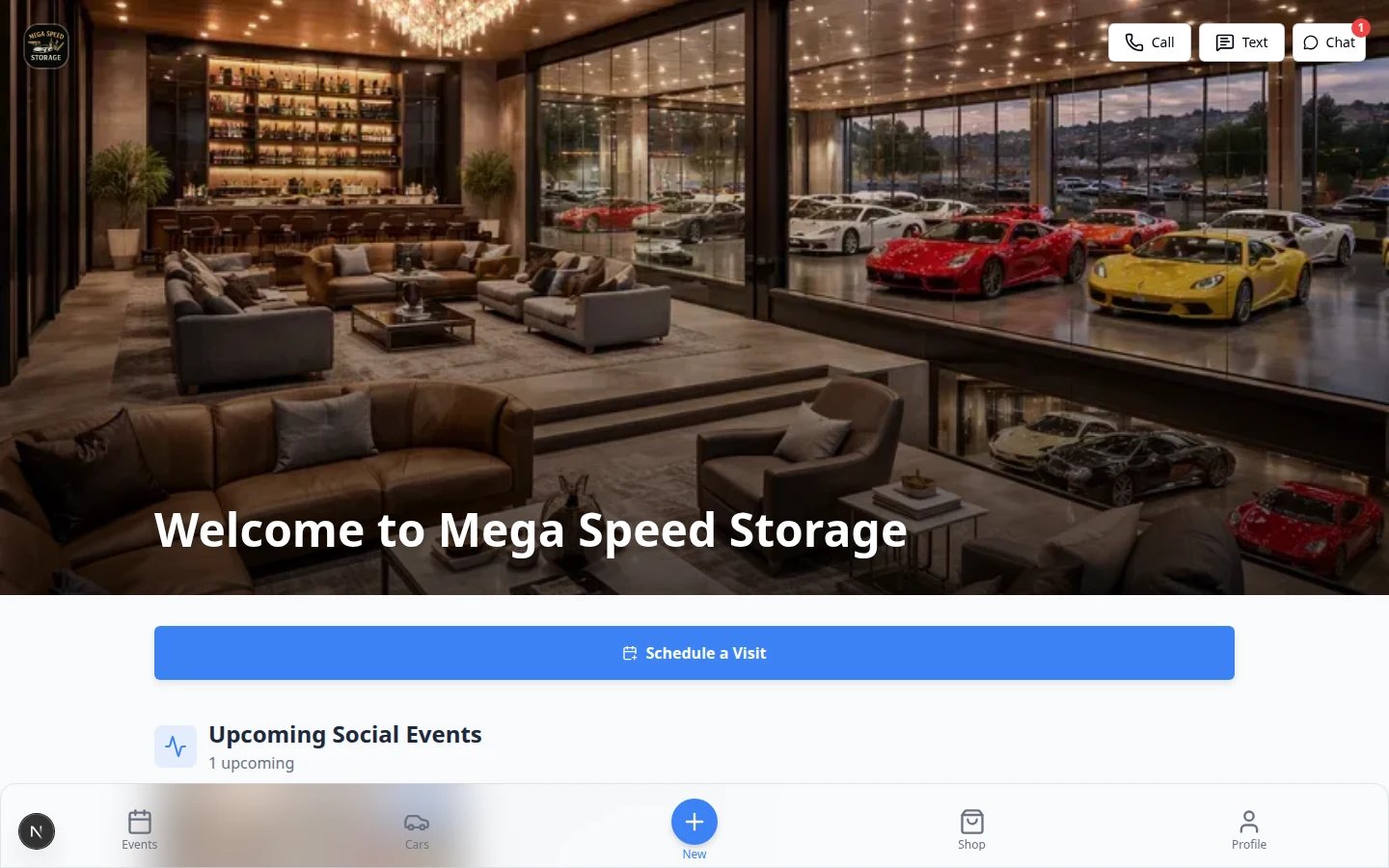
When you send a portal invite, the customer receives an email containing:- A brief welcome message from your facility.
- A sign-in button that opens the portal for them. They do not need to create or remember a password.
- A link to complete any onboarding steps your team has configured (contracts, payment method, profile completion).
Sign-in links expireThe sign-in link in the email is valid for a limited time. If the customer does not click it before it expires, they can request a new link from the portal sign-in page by entering their email address. If they have not signed in yet, you can also use Resend Invite from All Contacts.
What the customer sees in the portal
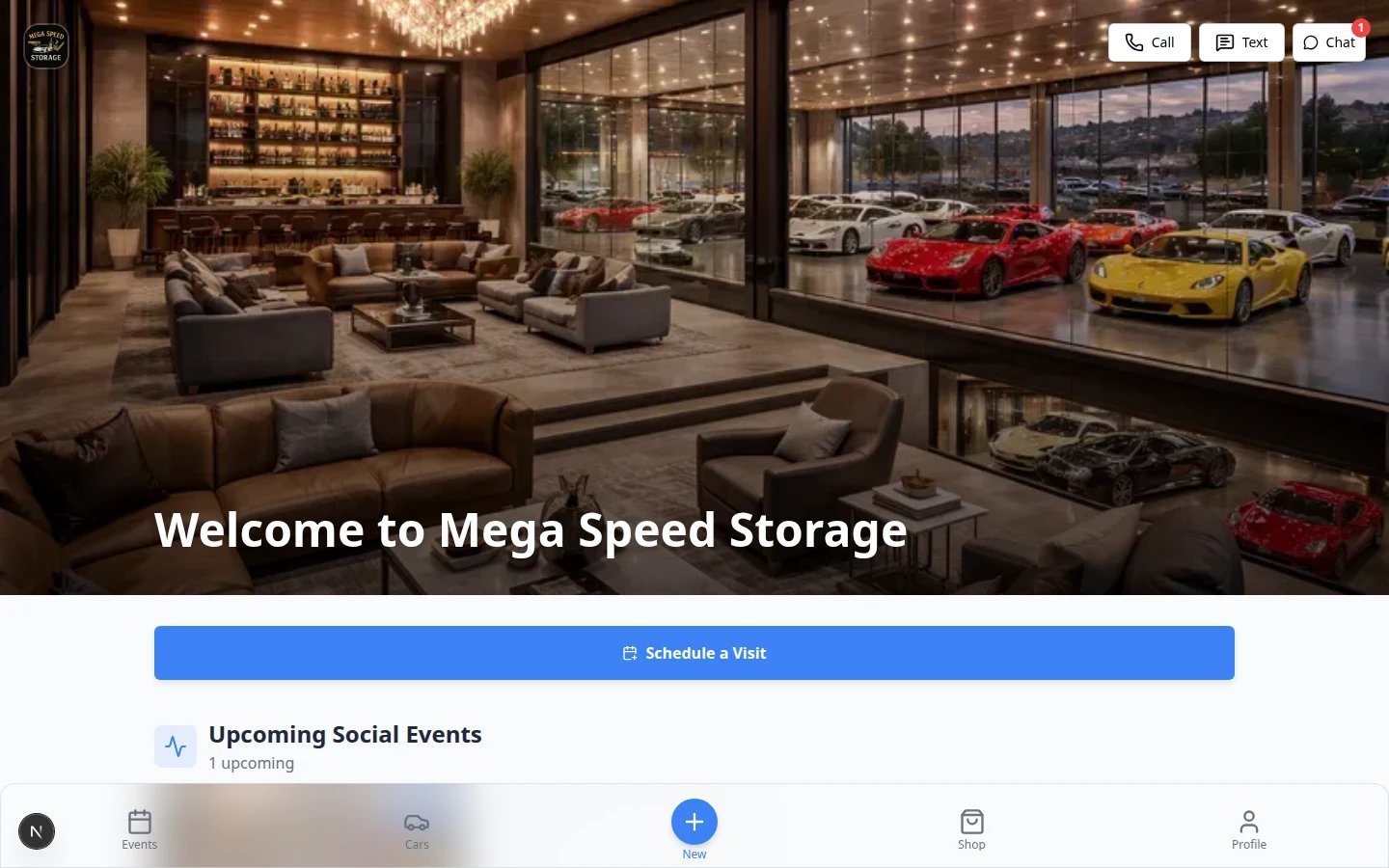
Once signed in, the customer can access (depending on your team’s portal configuration):- Their vehicles — photos, status, event history, and condition reports for every car linked to their account.
- Billing — invoice history, outstanding balances, and payment methods (if your facility uses Stripe billing through the portal).
- Documents — contracts, agreements, and uploaded files shared by your team.
- Events & Schedule — upcoming appointments, sessions, and activity related to their cars.
- Messages — conversation history with your team (if inbox/messaging is enabled).
Control who can access the portal
The main customer can receive a portal invite when their record has a valid email address and is prepared with the cars, documents, invoices, or events they should see. For assistants, spouses, bookkeepers, or other additional contacts, turn on Can access customer portal (login with their email) before sending that person their own invite.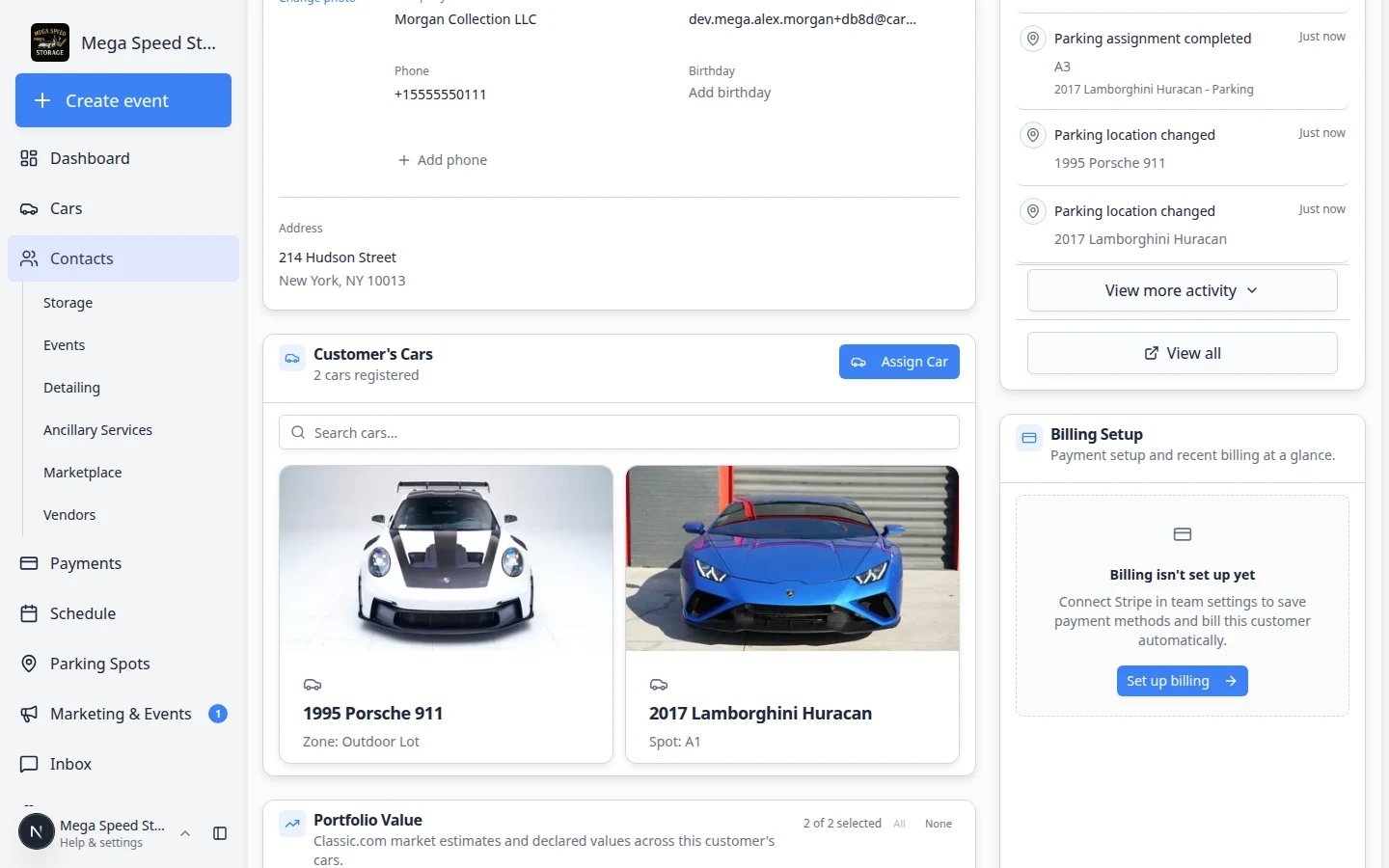
Communication preferences for portal contacts
Each sub-contact can have individual communication preferences that control which types of notifications they receive:- Invoices — billing notifications and payment receipts.
- Estimates — quote and estimate communications.
- Scheduling — appointment and event reminders.
- Car Updates — vehicle status changes, photo sessions, and condition reports.
- Contracts — document signing requests and agreement notifications.
- Social Events — invitations to community events and gatherings.
- Marketing — promotional communications and newsletters.
Tips for smooth portal onboarding
A good onboarding experience builds trust and reduces support requests:
- Add cars before inviting — when the customer signs in for the first time and sees their vehicles already there, it feels polished and professional.
- Prepare contracts in advance — if your onboarding includes document signing, have the contracts ready so the customer can complete everything in one session.
- Set up billing first — if you use portal-based billing, link the customer’s Stripe record before inviting so payment setup is seamless.
- Tell the customer to expect the email — a quick phone call or text saying “I’m sending you a portal invite now, check your inbox” dramatically improves open rates.
- Check spam folders — if a customer says they did not receive the invite, the email may have been caught by spam filters. Resend and ask them to check spam/junk.
Troubleshooting
What to do next
- Walk the customer through their first sign-in: Guide a customer through the portal
- Explain Full vs Ticket-only access: Understand portal access levels
- Review who still needs to sign in: Export and use the customer report
- Set up billing before they pay online: Manage billing on a customer record