

What you will accomplish
You will create a community channel—a shared space in the customer portal where customers read announcements or join discussions. When you finish, customers who use the portal can open the channel from their community area. Channels are a home base for ongoing updates. They are not the same as a one-time email—use a campaign when you need to push a message out, and use a channel when customers should be able to come back and read posts later.When to use community channels
- Facility-wide announcements (hours, weather closures, policy updates).
- Event reminders after you create a social event.
- Member discussion for car clubs or interest groups.
- A permanent place to paste links customers should bookmark (open house RSVP, storage tips).
Community vs campaignA campaign sends a message out to customers. A community channel is a place customers visit in the portal to read ongoing posts. Use both when you want an email blast plus a permanent home for updates.
Before you start
- Decide the channel purpose (announcements only, event updates, or open discussion).
- Confirm the customer portal community feature is on in Settings > Website & customer app (customer app home sections).
- Decide whether customers may post, or only staff.
- Prepare a one-sentence description customers will understand.
Step 1: Open Community
1
Open Marketing & Events
Go to Marketing & Events.
2
Click Community
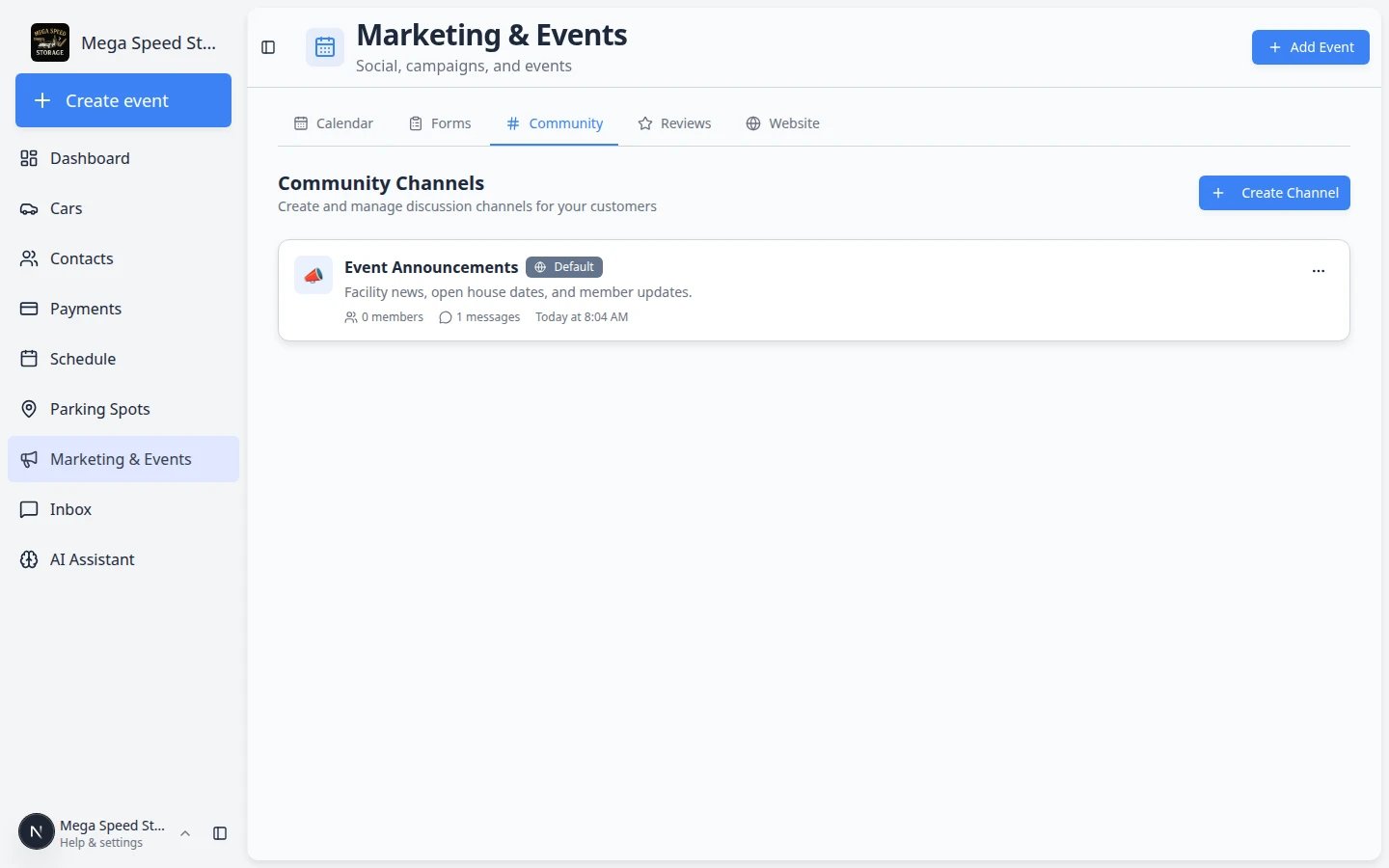
Click the Community tab near the top of the page. You can also open Marketing & Events > Community directly.Expected result: You see the Community Channels list.
3
Review existing channels
Each card shows the channel name, description, member count, and message count.You may also see small badges on a channel card:
- NEW (or a number) — unread messages your team has not opened yet.
- DEFAULT — new portal customers are added to this channel automatically.
Step 2: Create a channel
1
Click Create Channel
Click Create Channel in the top-right area.
2
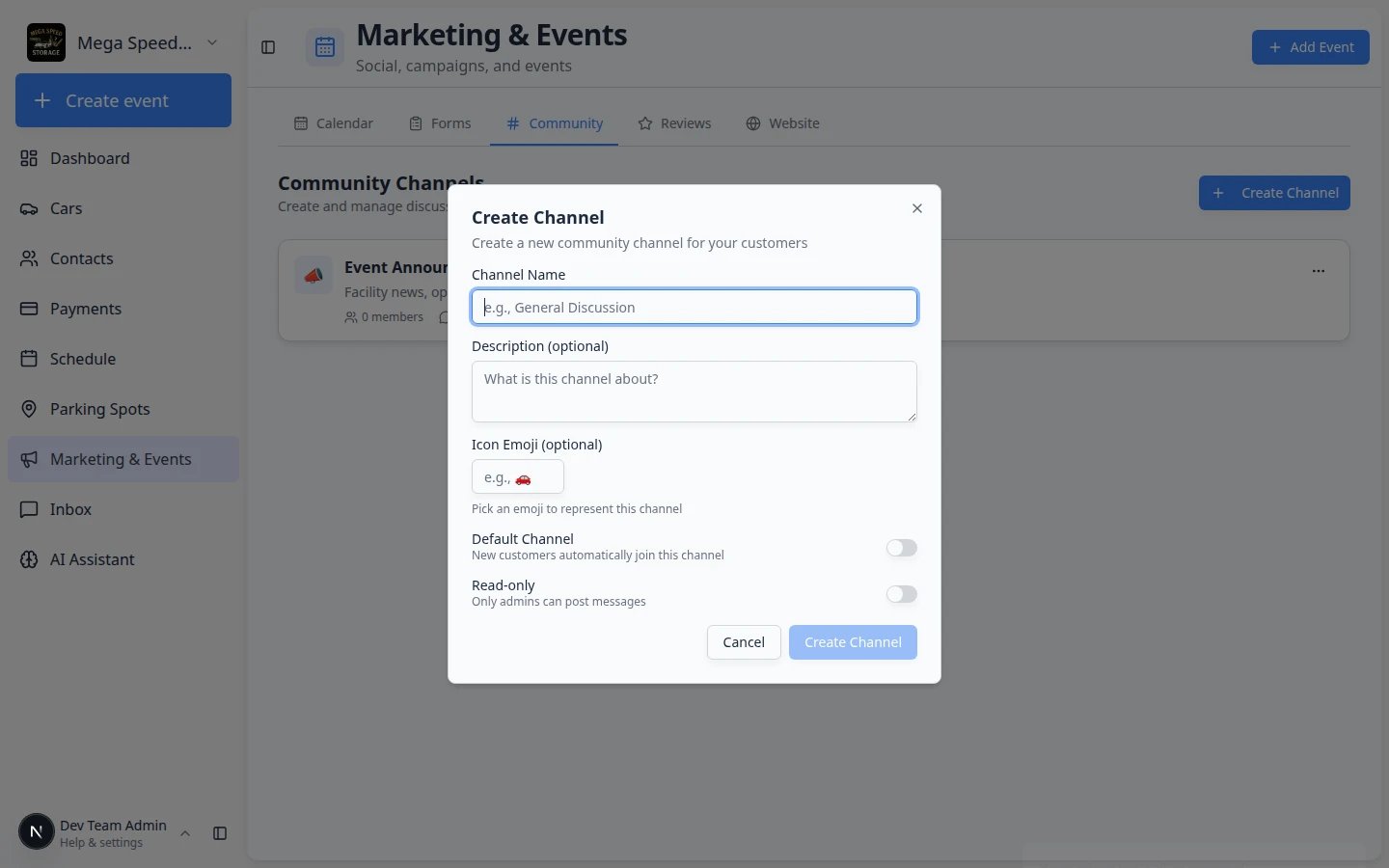
Enter Channel Name
Type a short name customers will understand. Examples: Announcements, Event Updates, Member Discussion.Expected result: The name is friendly enough that a customer knows what belongs in the channel.
3
Add a Description
Explain what belongs in this channel. Example: “Important facility updates and event reminders.”
4
Add an Icon Emoji (optional)
Pick one emoji so the channel is easy to spot in the portal list.
5
Choose Default Channel
Turn on Default Channel if every new customer should join automatically—good for facility-wide announcements.Why this matters: New portal users see default channels without extra setup.
6
Choose Read-only
Turn on Read-only if only staff should post. Leave it off if customers may reply.Why this matters: Announcement channels stay calm when only staff can post. Discussion channels need read-only turned off.
7
Click Create Channel
Click Create Channel to save.Expected result: The new channel appears in the list.
Step 3: Post and maintain the channel
1
Open the channel
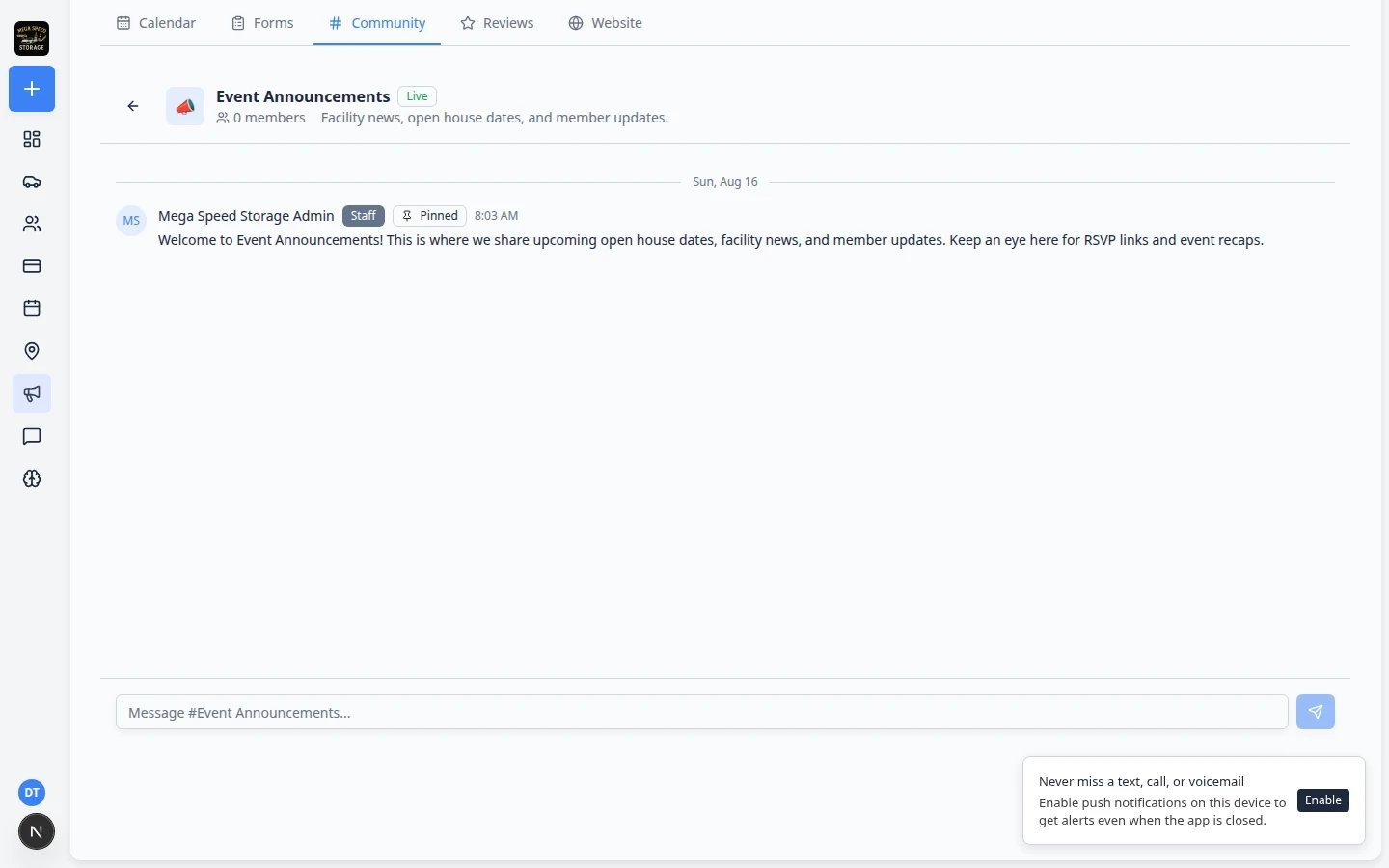
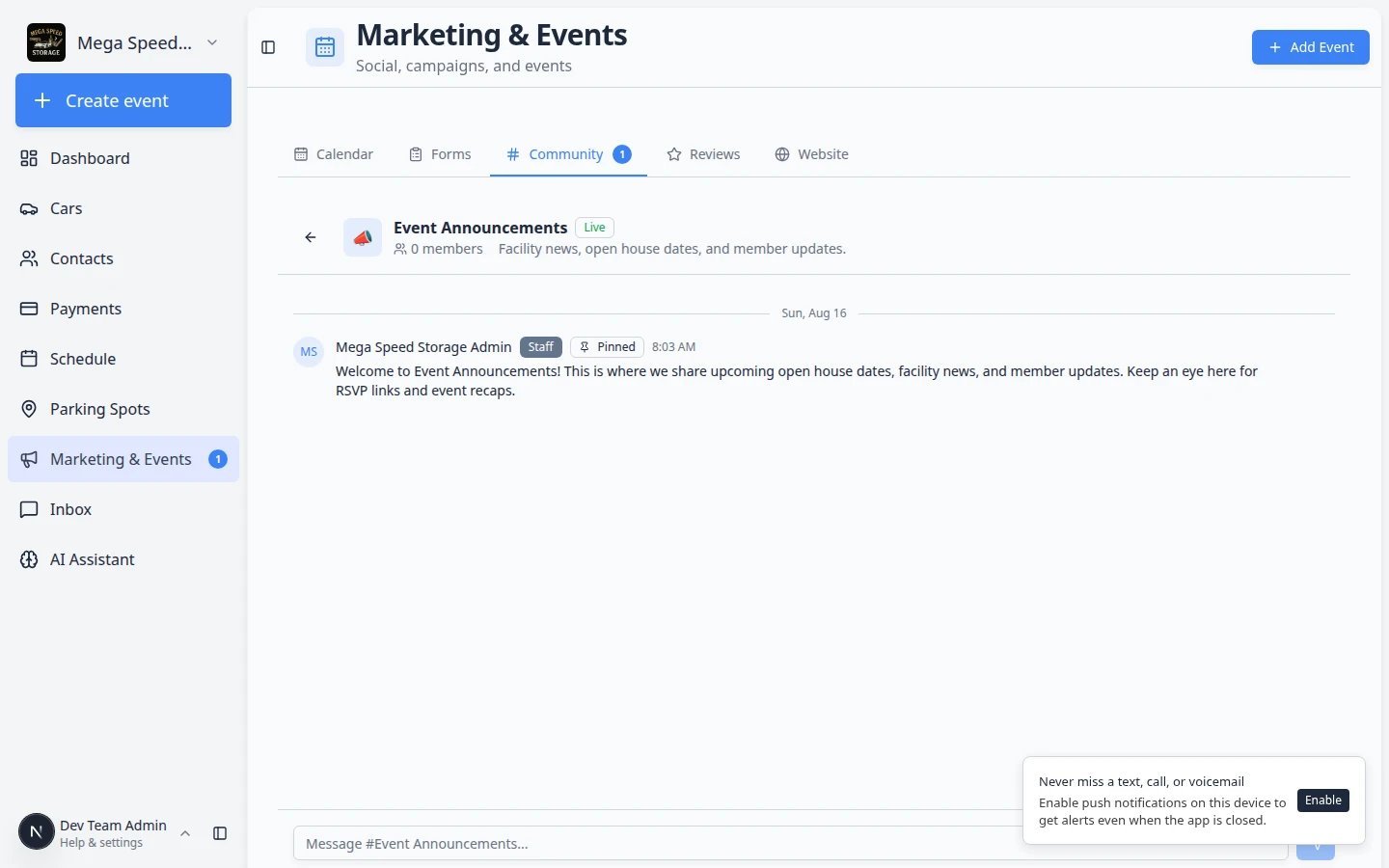
Click the channel card (for example Event Announcements) to open the message thread.Expected result: You see the channel name at the top and a message box at the bottom where staff can post.
2
Post a welcome message
Add a first post that sets expectations.Example: “Welcome to Event Announcements. We post facility updates and open house dates here.”Why this matters: The first post tells customers what to expect and encourages them to check back.
3
Pin important posts (optional)
When a post must stay at the top (holiday hours, weather closure), open the message thread and use Pin on that post if your facility uses pinned messages.Why this matters: New customers who join the channel later still see the most important update first.
4
Watch unread badges
A number badge on a channel means unread messages. Check channels regularly so customer questions are not missed.Why this matters: Customers may ask a question in an open discussion channel. Unread badges help your team respond before the question sits for days.
5
Edit channel settings when plans change
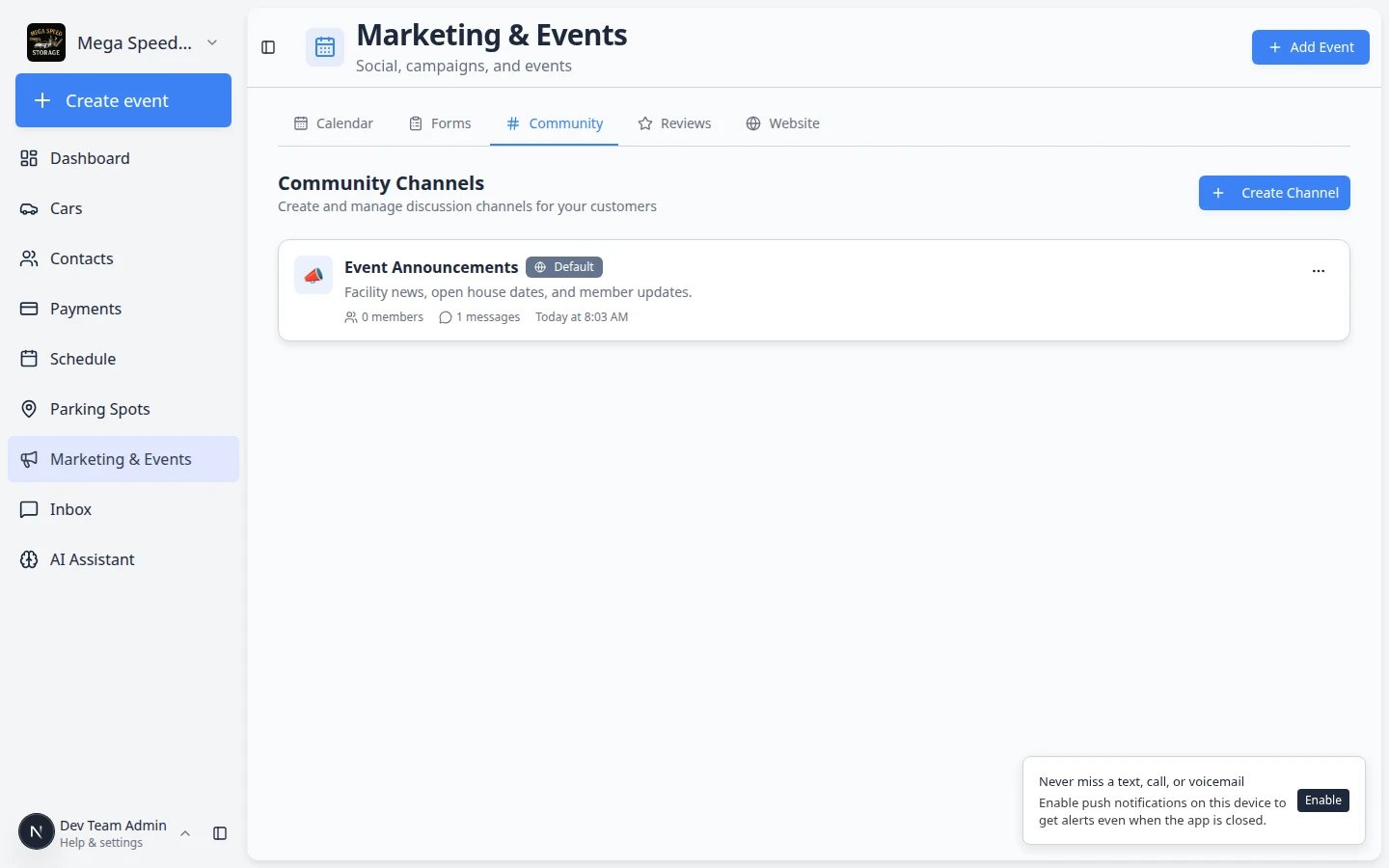
On the Community Channels list, find the channel card (for example Event Announcements). Click the three-dot menu (⋯) on the right edge of the card—do not click the card title, or you will open the message thread instead.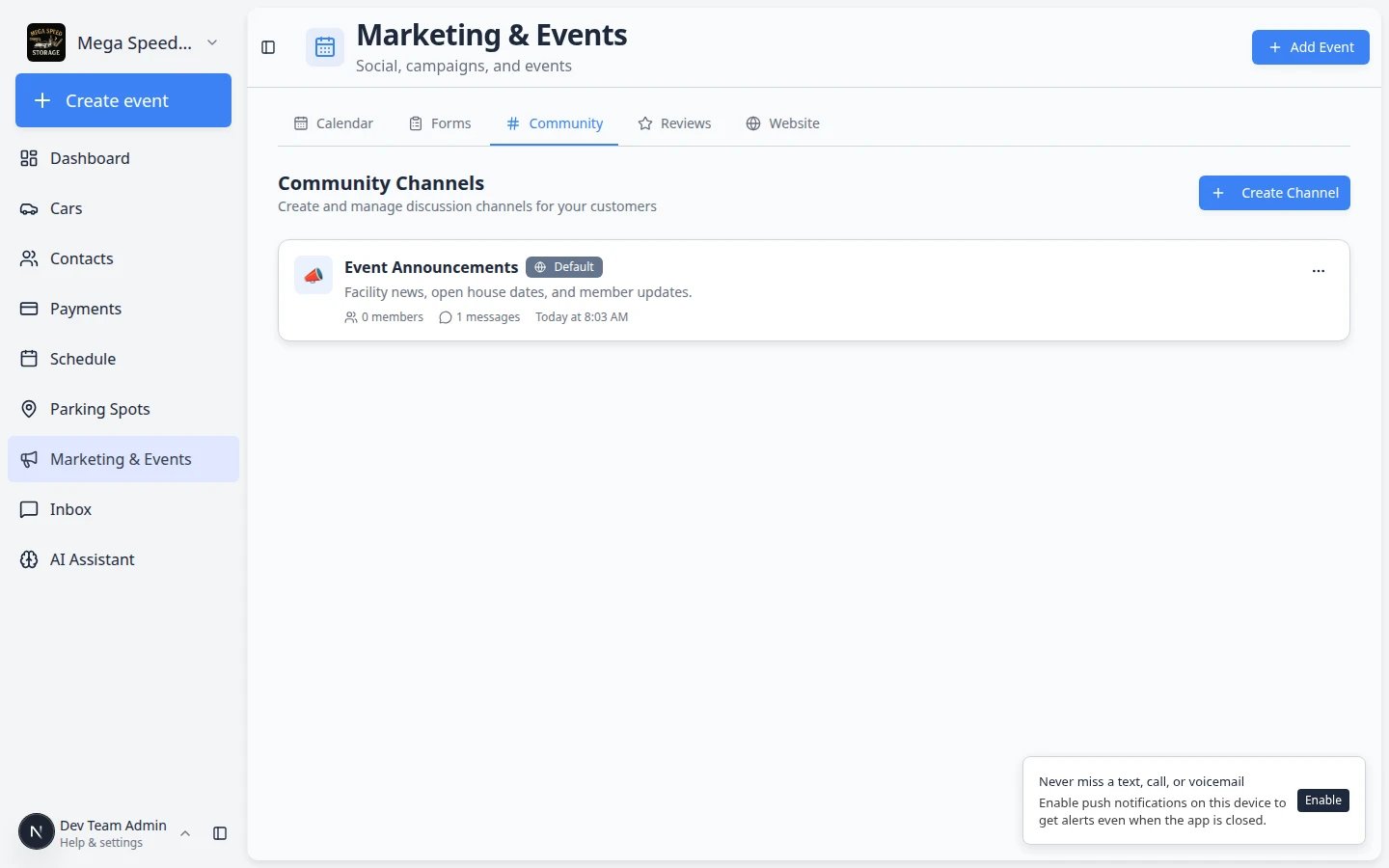
6
Remove a channel you no longer use
From the same three-dot menu (⋯), choose Delete only when you are sure customers no longer need that space. The app will ask you to confirm.Why this matters: Deleting removes the channel from the portal. Prefer Read-only if you want to stop new posts but keep old announcements visible.
What customers see
Customers do not use the staff dashboard. After they sign in to the customer portal, they open Community (wording may vary slightly by facility) and see the channels your team created.1
Confirm Community is turned on
Open Settings > Website & customer app and make sure the Community section is enabled on the customer app home screen.Why this matters: If Community is hidden in settings, customers will not see your channels even though staff can post here.
2
Test with a customer login
Ask a teammate to open a customer portal login, or use a test customer account. Open Community in the portal and confirm the channel name and welcome post appear.Expected result: Customers see the same channel name and posts your team created on the staff Community tab.
What success looks like
- At least one channel exists with a clear name customers understand (for example Event Announcements).
- A welcome post explains what customers will find in the channel.
- Staff check unread badges regularly so customer questions do not sit for days.
- Announcement channels use Read-only; discussion channels allow customer replies when you want conversation.
- A test customer login shows the same channel and posts in the portal Community area.
Common mistakes to avoid
- Do not create five announcement channels—one clear Announcements channel is easier for customers.
- Do not leave read-only off on a channel meant only for staff news.
- Do not forget to post after creating a channel—an empty channel confuses customers.