

What you will accomplish
You will read the car’s timeline, internal notes, and photos so you can answer customer questions or plan the next step without guessing. Expected outcome: You know what work already happened, what is still scheduled, what your team wrote down internally, and which photos belong to which event.When to use this guide
Use these steps when:- A customer asks what happened during a recent inspection, intake, pickup, or delivery.
- A teammate needs context before moving, servicing, or releasing a car.
- You want to check whether photos or notes were added during an event.
- You need to see whether a car has upcoming or previous work.
Before you start
- Open the correct car from Cars.
- If you are not sure which car to open, use Find and filter cars.
- Remember that notes may be internal. Do not copy internal notes to a customer unless your team has confirmed they are appropriate to share.
Read the Activity Feed
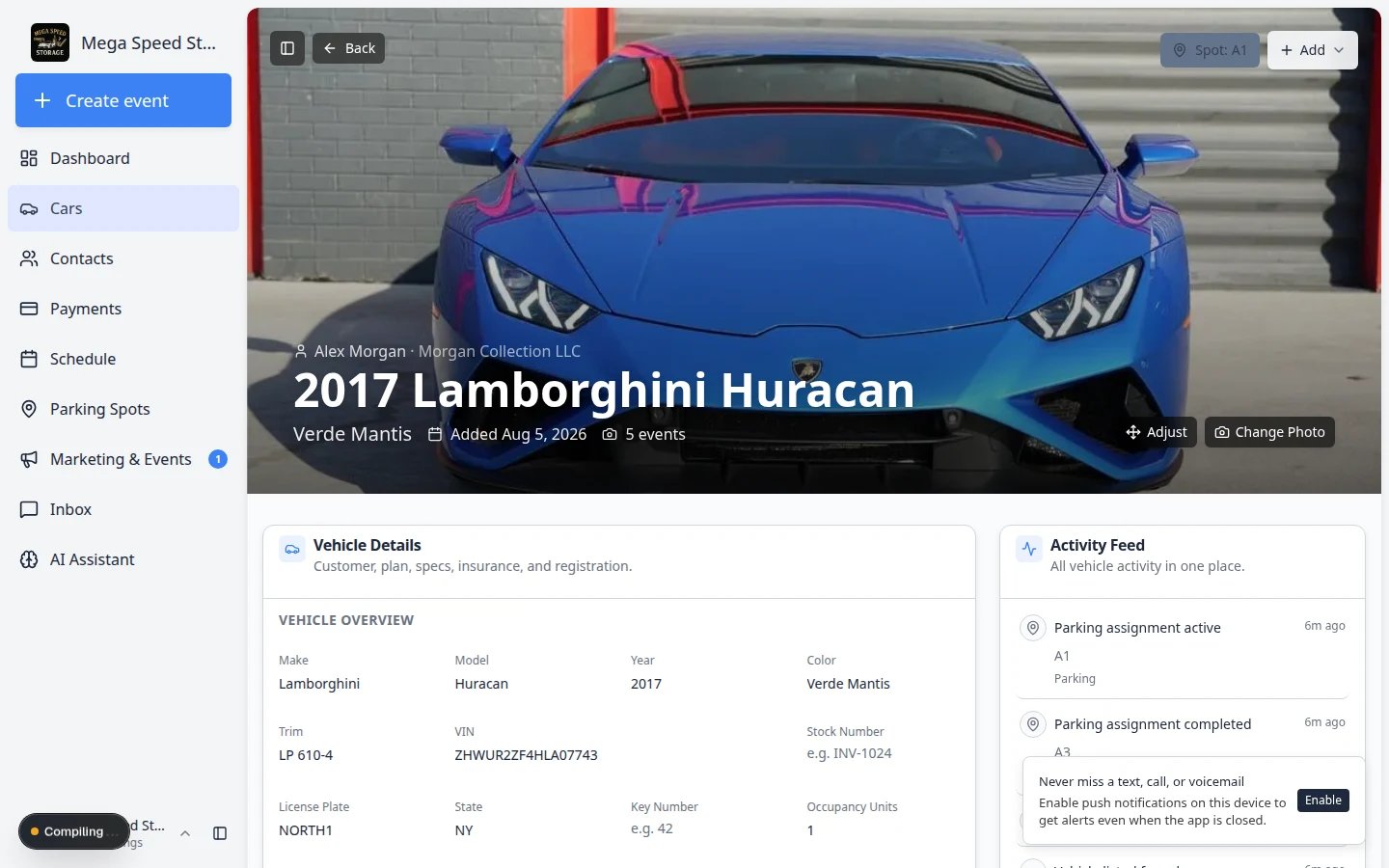
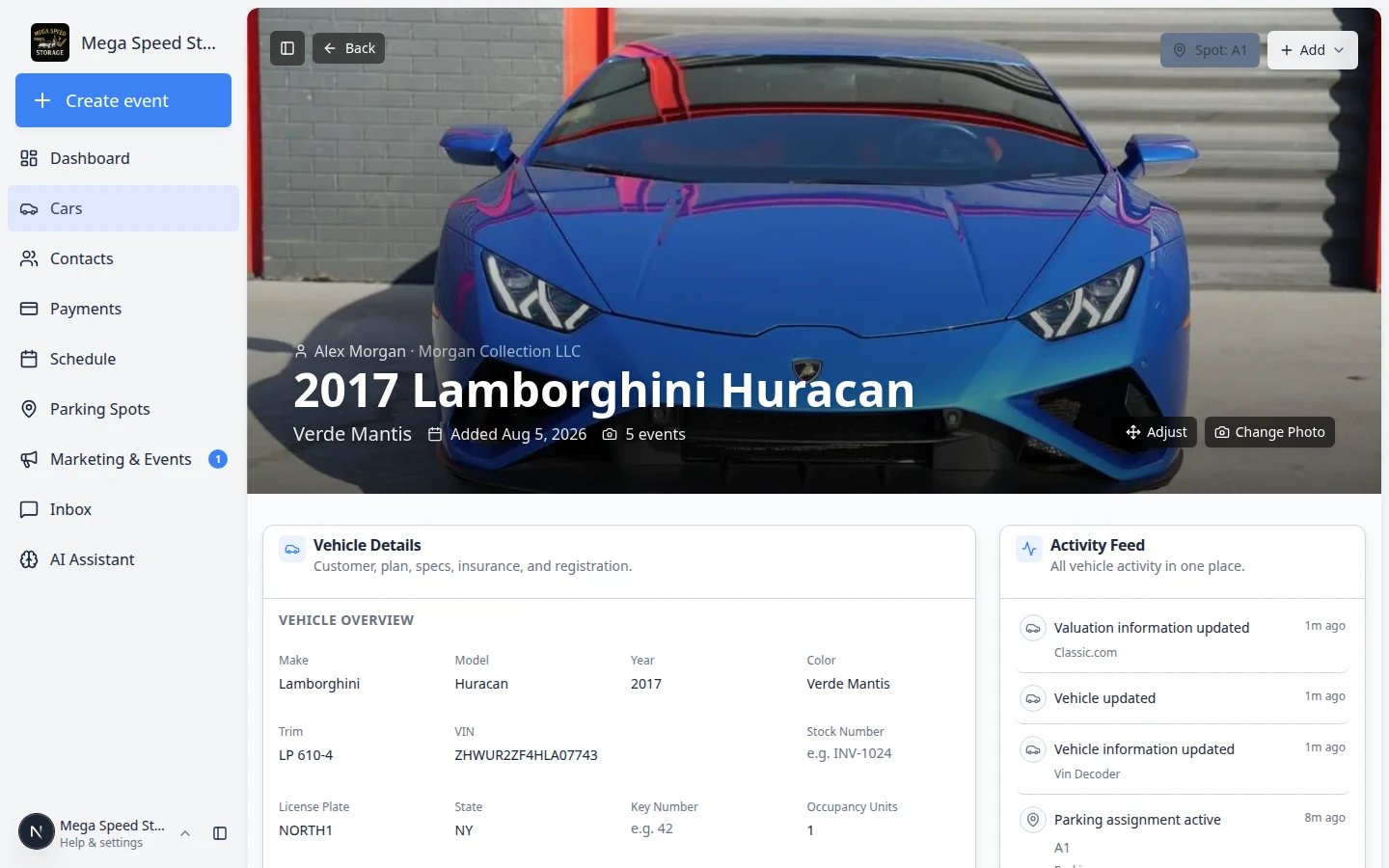
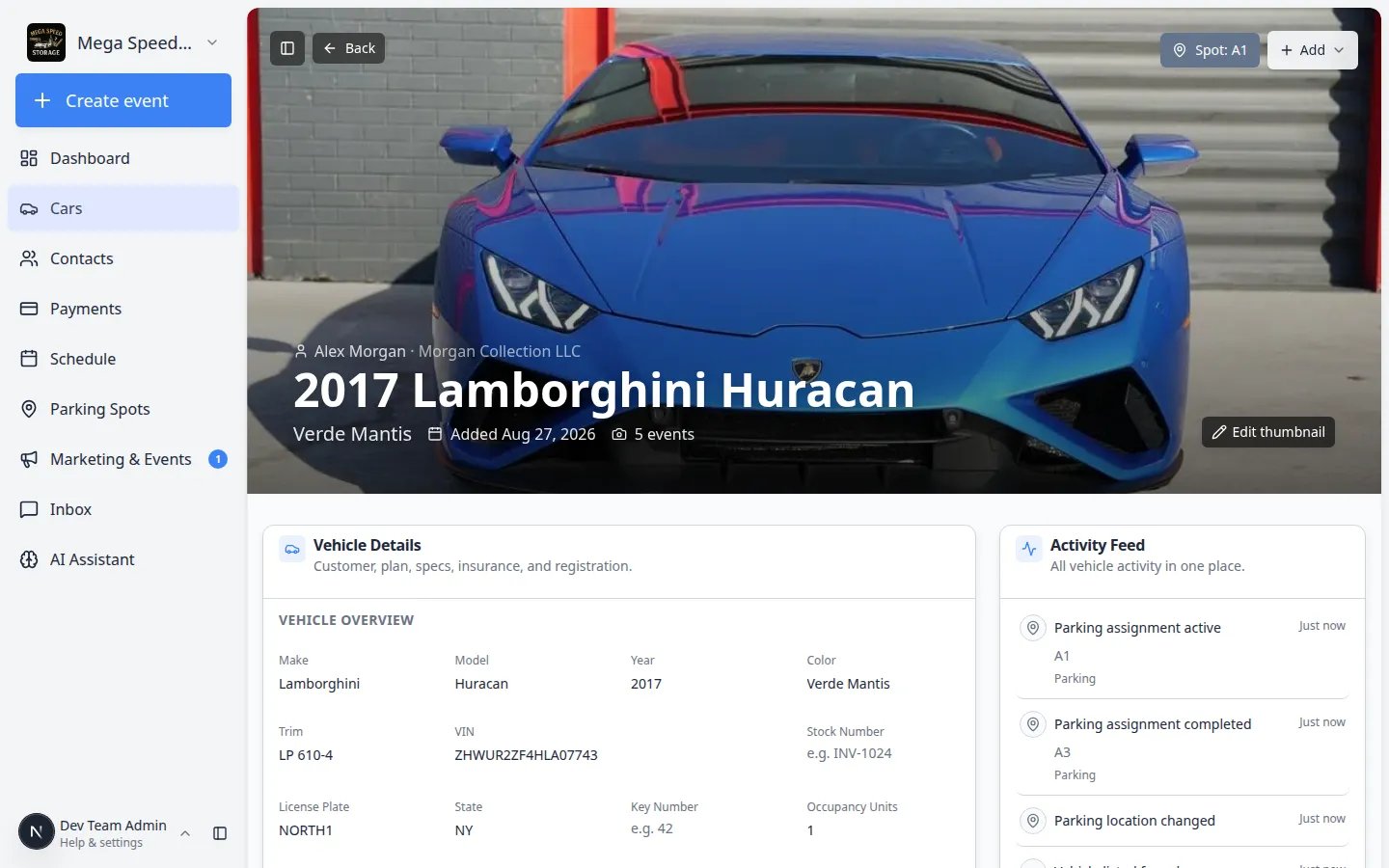
The Activity Feed is the car’s timeline. It helps your team answer, “What has happened with this car?” On wide screens, the Activity Feed appears on the right side of the car detail page. On smaller screens, scroll down past Vehicle Details to find it.Open the car record
Find the Activity Feed card
Review each row
- The event name (for example, dealer service, internal service, or vehicle transport)
- The date or time
- The status (scheduled, in progress, or complete)
- Short summaries such as parking changes, listing updates, or completed work
Open the event if you need more detail
View all activity when the list is long
Open the full Vehicle activity page
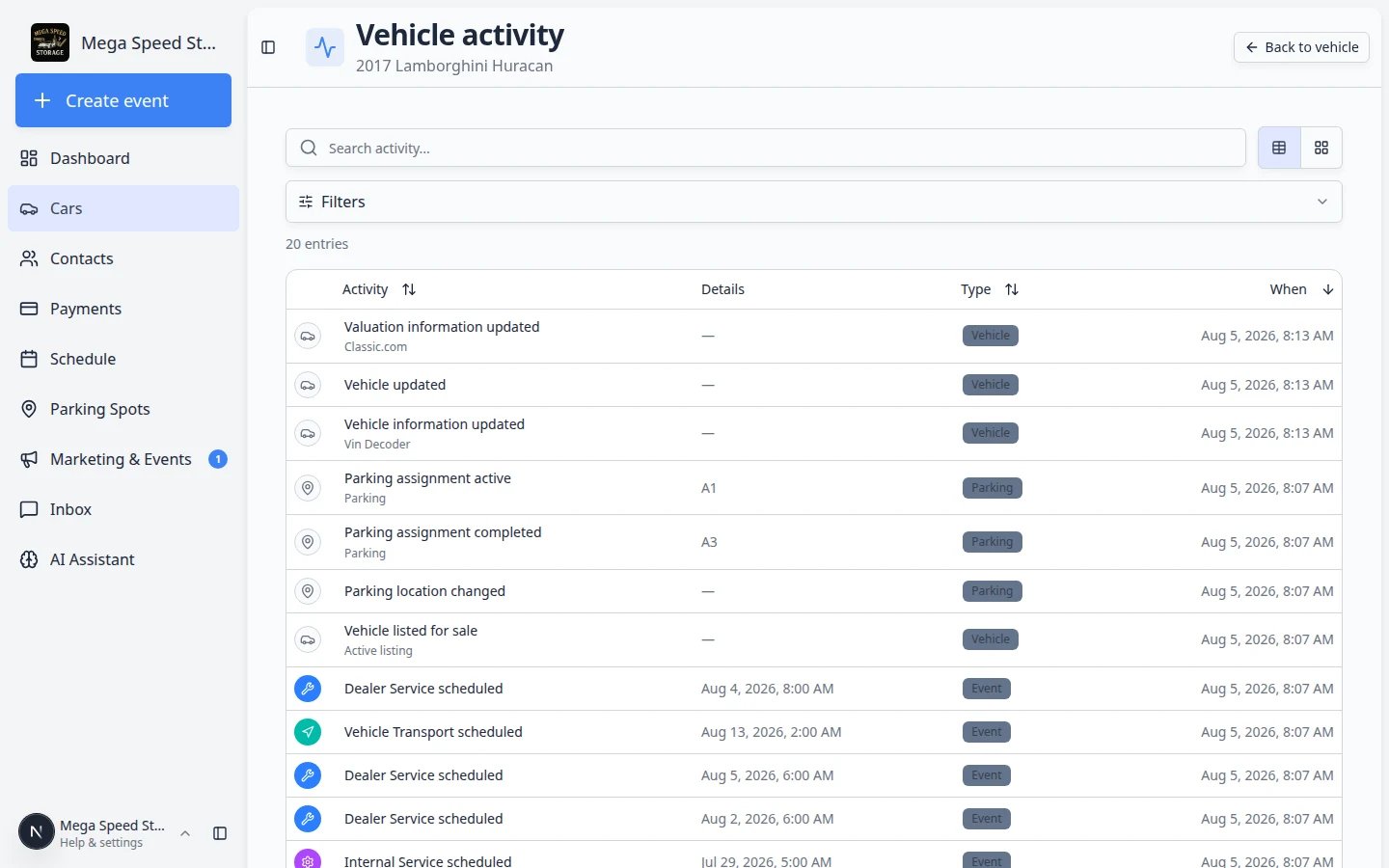
When the short Activity Feed on the car detail page is not enough, open the dedicated Vehicle activity page for the same car. This page is built for deep searches across months of history.Start from the car record
/dashboard/cars/[car id]/activity (your browser will show the real car ID in the address bar after you open it once).Use search and filters
Open any row for details
Parking moves appear in the Activity Feed too
When staff assign or move a car on the Parking Spots map—or from the car record—the change often shows up as its own line in the Activity Feed.Look for parking or location rows
Open the row when the customer disputes location
Fix the map if the feed and the building disagree
Understand activity status
Statuses tell you where an event stands. Look at the label on each row before you promise a customer that work is finished.
- Scheduled means the work is planned but has not happened yet.
- In progress means someone started the workflow but has not finished it.
- Completed means the event was finished and saved.
- Cancelled means the event will not happen.
Review internal notes
Notes help teammates share context without relying on memory.Find Notes
Read the newest notes first
Click Add note when you need to record context
Choose who can see the note
- Customer visible — the customer can see this note in their portal (use only for information you are comfortable sharing).
- Internal only — only your staff see the note (default for shop talk, pricing, or sensitive details).
Save the note
Write useful notes
Good notes help the next teammate take action.- Write what matters for the next step, not every small detail.
- Use clear names and dates when helpful.
- Explain special handling instructions, customer preferences, or follow-up needs.
- Keep the tone professional, even for internal notes.
Find documents uploaded for this car
Insurance scans, signed contracts, and registration files usually live on the customer record even when you start the upload from a car.Start from the car banner
Open the Documents area on the customer
Upload a missing file from the car
Review photos
Photos appear when they were captured during a session (such as intake or inspection) or added to the car record another way.Look for Latest Photos
Open a photo to inspect it
Check the related event when needed
Open the full gallery for older photos
Find documents linked to this car
Uploaded insurance cards, registration scans, and signed contracts are usually stored on the customer record, not inside the car’s photo gallery.Open the linked customer
Go to Documents
Upload from the car when needed
What success looks like
After reviewing activity, notes, and photos:- You understand the most recent work or upcoming work for the car.
- You know whether there are internal notes your team should consider.
- You can find photos or know why none are available.
- You can take the next step with more confidence.
Common mistakes to avoid
- Do not assume a note was sent to the customer. Check whether the note was saved as Customer visible or Internal only.
- Do not rely on memory when a note should be added. If the next teammate needs to know it, write it down.
- Do not treat an unfinished session as complete. Check the status before promising a customer that work is done.
- Do not share photos outside your team unless your facility’s policy allows it.
Troubleshooting
What to do next
- Open the full gallery with Manage vehicle photos.
- If details on the record are wrong, fix them with View and edit vehicle details.
- If the car needs new work, use Start a car session.
- If the car moved since the last note, update the spot with Move a car.
- To see the same event on the facility calendar, open Schedule.