

What you will accomplish
After an invoice already exists, you will know how to find it on Payments > Invoices, resend the payment email, charge a saved payment method (when allowed), or record cash or check so the status updates correctly. This is useful when a customer says they did not receive an invoice, wants to pay by cash or check, has a card or bank account on file, or asks what they still owe.Start here only after the invoice existsIf you still need to create the bill, start with Create an invoice. To understand statuses first, read Review a customer invoice.
At the top of this guideRead Review a customer invoice first if you need to understand what a status means. Return here when you are ready to resend, charge, or record payment.
Before you start
- The customer invoice should already exist on Payments > Invoices.
- Make sure the customer record has the correct email address if you plan to email the invoice.
- Confirm the amount due before collecting payment.
- Ask a manager before voiding, recreating, or issuing credits for an invoice.
Open the invoice list
1
Go to Payments > Invoices
Sign in to your dashboard. In the left sidebar, click Payments, then Invoices. You can also open Payments > Invoices directly.Expected result: You see the Invoices page with a search bar and Filters button.
2
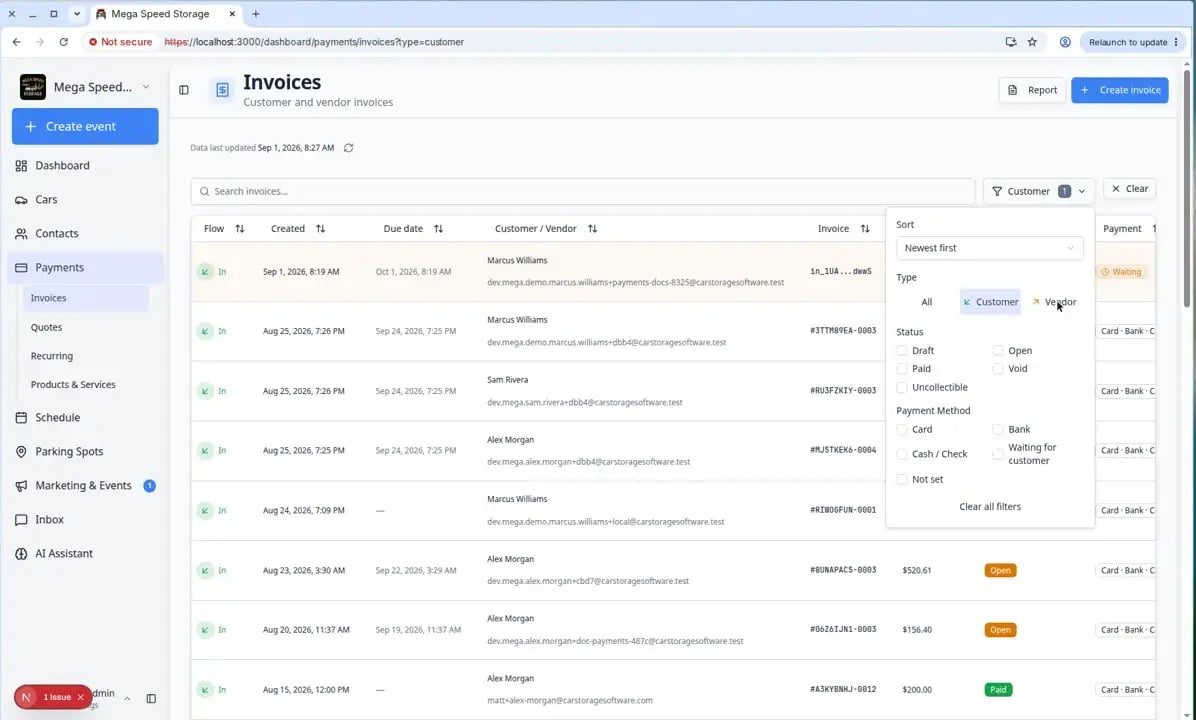
Filter to customer invoices
Click Filters. Under Type, choose Customer.Why this matters: Vendor rows are for bills your facility receives from outside providers. Customer rows are bills you send to customers.
Find the right customer invoice
1
Search if the list is long
Use the search box to search by customer name, email address, invoice number, or invoice ID.Expected result: The invoice you need appears in the table.
2
Check the status
Look at the Status column before you take action. The status tells you what should happen next.
3
Open the invoice
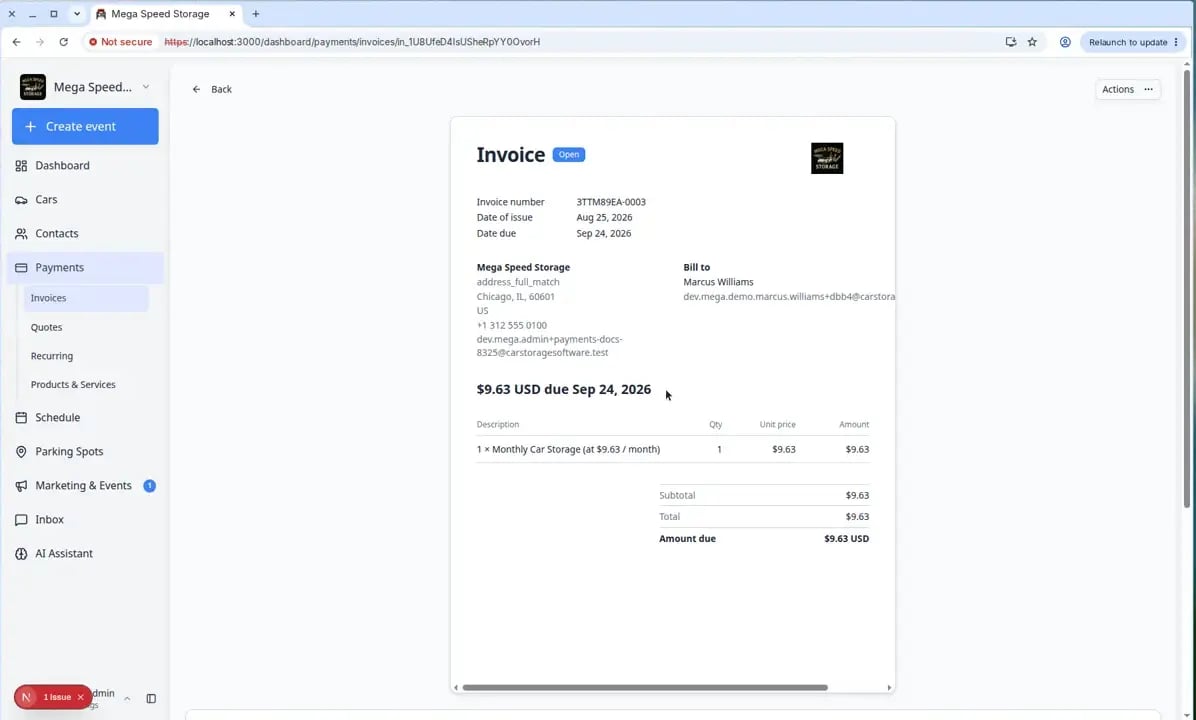
Click the invoice row.Expected result: The invoice detail page opens. You see the customer name, invoice number, status, amount due, line items, and buttons such as Actions or Finalize invoice near the top-right.
What customer invoice statuses mean
Draft means the invoice is not final yet. Your team can still review or edit it.Open means the invoice is ready for payment.Paid means the invoice has been paid.Void means the invoice was canceled and can no longer be paid.Uncollectible means your team does not expect to collect the money.Waiting for customer means the customer still needs to choose a payment method before the invoice can continue.
Send or resend an invoice email
Use this when the customer did not receive the invoice, lost the email, or needs a fresh payment link. The invoice should be Open (or Waiting for customer), not Draft.1
Open the invoice
From Payments > Invoices (with Filters → Type → Customer if needed), click the invoice row.Expected result: You land on the invoice detail page. Near the top you see the customer name, Open (or similar) status, and Actions on the right.
2
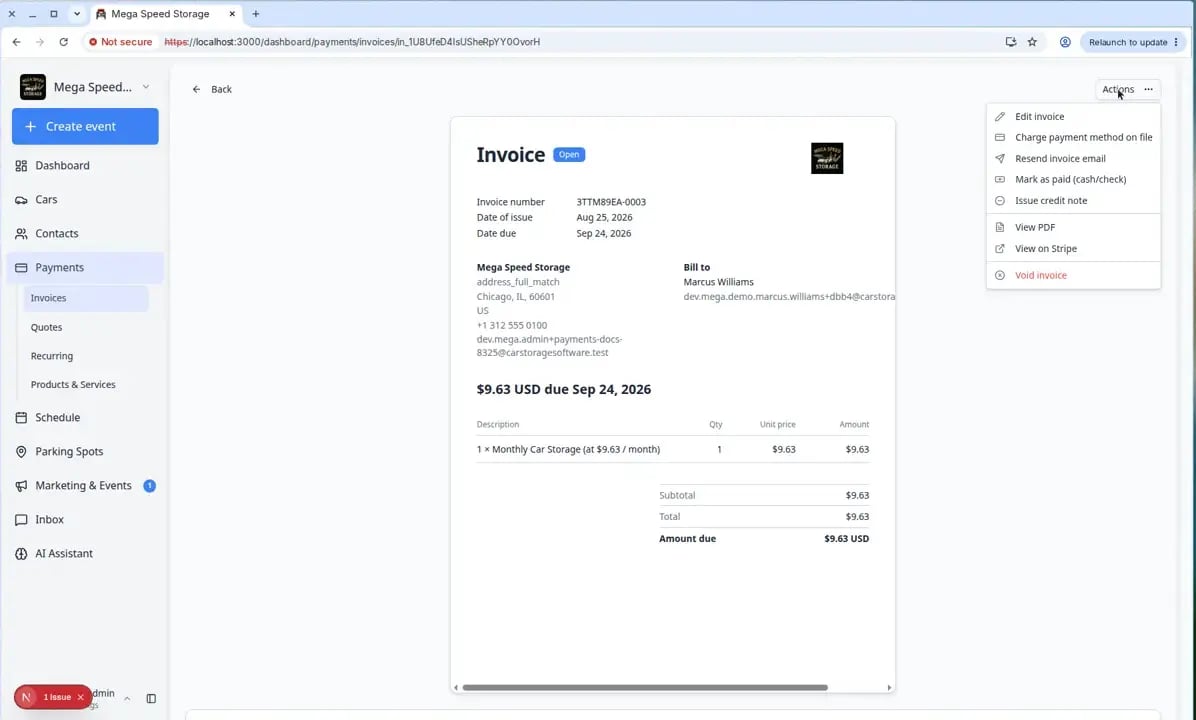
Open the Actions menu
Click Actions in the top-right area.Expected result: A menu opens with follow-up choices.
3
Choose the email action
If the invoice is Open, choose Resend invoice email.If the invoice is Waiting for customer, choose Remind customer or Send reminder email.To stop automatic daily follow-ups for this invoice only, turn off Daily reminders on the invoice page. Manual reminder emails still send. This does not turn off reminders for other invoices.Why this matters: The customer gets a fresh link by email. You do not need to create a new invoice.
4
Confirm whether to email the customer
A window titled Notify the customer? asks if you want to email them about this update. Choose Yes to send. Choose No or close the window to cancel the resend.Expected result: A success message appears when the email is sent.
What success looks like
- The customer receives an email with a link to review or pay the invoice.
- The invoice remains on the Invoices page so your team can track it.
- If the customer pays online, the invoice status updates to Paid after payment is processed.
Finalize a draft invoice before collecting payment
If the invoice still shows Draft, the customer cannot pay yet—even if you emailed them informally about the amount.1
Open the draft invoice
From Payments > Invoices (Filters → Type → Customer), click the invoice with Draft status.
2
Review line items and total
Confirm descriptions, tax, due date, and the final total match what the customer expects. To print the draft or save it as a PDF before you finalize, click Print and use your browser print dialog. See Review a customer invoice.Why this matters: Finalizing tells the system the bill is official. After this step, payment links and charges use the finalized amount.
3
Click Finalize invoice
Near the top-right, click Finalize invoice (not Actions—that appears after the invoice is open for payment).Follow any prompts to send the email or charge on file, depending on how the invoice was created. When Notify the customer? appears, choose Yes to email them or No to finish the update without emailing.Expected result: Status changes to Open or Waiting for customer, and Actions becomes available for follow-up steps.
Charge a saved payment method
Use this when the customer has already given your facility permission to charge a saved card or bank account.1
Open an open invoice
Open the customer invoice from Payments > Invoices. The invoice should show Open.
2
Click Actions
In the top-right area of the invoice detail page, click Actions.
3
Choose Charge payment method on file
Select Charge payment method on file.Why this matters: This uses the payment method the customer already saved. It is faster than waiting for them to open an email link.
4
Choose the payment method if more than one appears
If the customer has more than one saved payment method, select the correct one.
5
Click Charge now
Review the amount, then click Charge now.When Notify the customer? appears, choose Yes to send a receipt or No to charge without emailing. Closing the window cancels the charge.Expected result: A confirmation may appear. After you confirm, the payment attempt shows under Payments & transactions. When it succeeds, status changes to Paid.
Issue a credit note instead of marking paid
If the customer should pay less than the full invoice—not zero—your manager may ask you to issue a credit note rather than recording cash or check.1
Open the Open invoice
From Payments > Invoices (Filters → Type → Customer), open the invoice.
2
Open Actions and choose Issue credit note
Click Actions, then Issue credit note.Why this matters: A credit note adjusts the bill in the system. Mark as paid (cash/check) should only be used when the customer actually paid the remaining balance.
3
Follow your manager's instructions
Choose Credit processing fees only, Credit full balance, or Custom amount as directed.Expected result: Amount due updates. If money is still owed, resend the invoice or collect payment using the steps above.Full walkthrough: Review a customer invoice (see Issue a credit note).
What success looks like
The invoice payment attempt appears in Payments & transactions. If the payment succeeds, the invoice changes to Paid.Record a cash or check payment
Use this when the customer paid outside the online payment link—for example at the front desk with cash or by mailing a check.1
Open the invoice
Open the customer invoice from Payments > Invoices.
2
Open Actions and choose Mark as paid
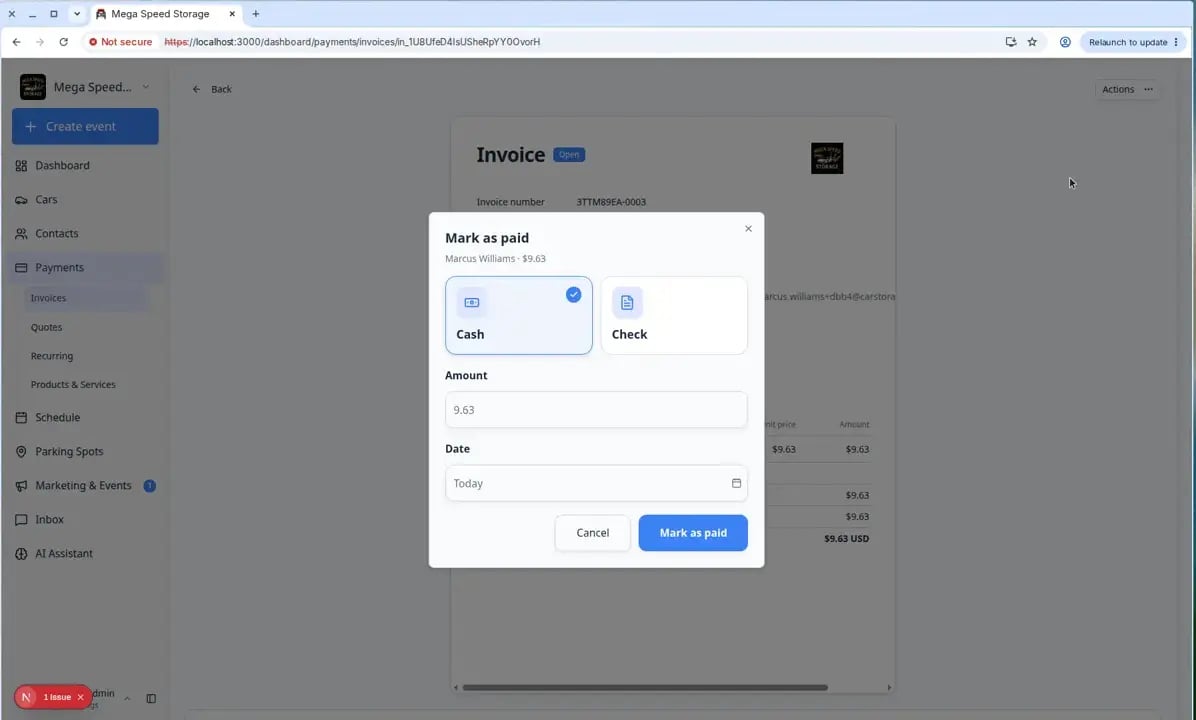
If the invoice is still a Draft, click Finalize invoice first, then continue.If the invoice is Open, click Actions, then choose Mark as paid (cash/check).Expected result: A window opens asking how the customer paid.
3
Choose Cash or Check
Select Cash or Check. If you choose Check, enter the check number when you have it.
4
Confirm the payment amount
Leave the amount as the full total unless your team allows partial payments and you only received part of the bill.
5
Choose the payment date
Use today’s date, or choose the date when the customer actually paid.
6
Click Mark as paid in the window
Click Mark as paid to save.When Notify the customer? appears, choose Yes to send a receipt or No to record payment without emailing. Closing the window cancels the mark-paid step.Why this matters: This records payment in Car Storage Software. It does not replace putting cash in the safe or depositing the check at the bank—that is still your team’s physical process.
What success looks like
- The invoice status changes to Paid when the full amount is recorded.
- Cash or check details are saved for your team to review later.
- Processing fees are removed when the payment is recorded as cash or check.
Common mistakes to avoid
- Do not resend an invoice before checking that the customer email address is correct in Contacts.
- Do not charge a saved payment method unless your team has permission from the customer.
- Do not mark an invoice as paid until the cash, check, or outside payment has actually been received.
- Do not void or recreate an invoice without checking with your billing manager.
Troubleshooting
Fix the invoice instead of chasing payment
If the customer says the amount is wrong or the service was canceled, collecting payment is not the right next step.1
Open the invoice and read the status
Draft mistakes can be fixed before you finalize. Open mistakes use Actions on the detail page.
2
Follow the correction guide
Use Void, credit, or correct an invoice to choose between Edit invoice, Void invoice, or Issue credit note.Why this matters: Fixing the bill first prevents the customer from paying the wrong amount.