

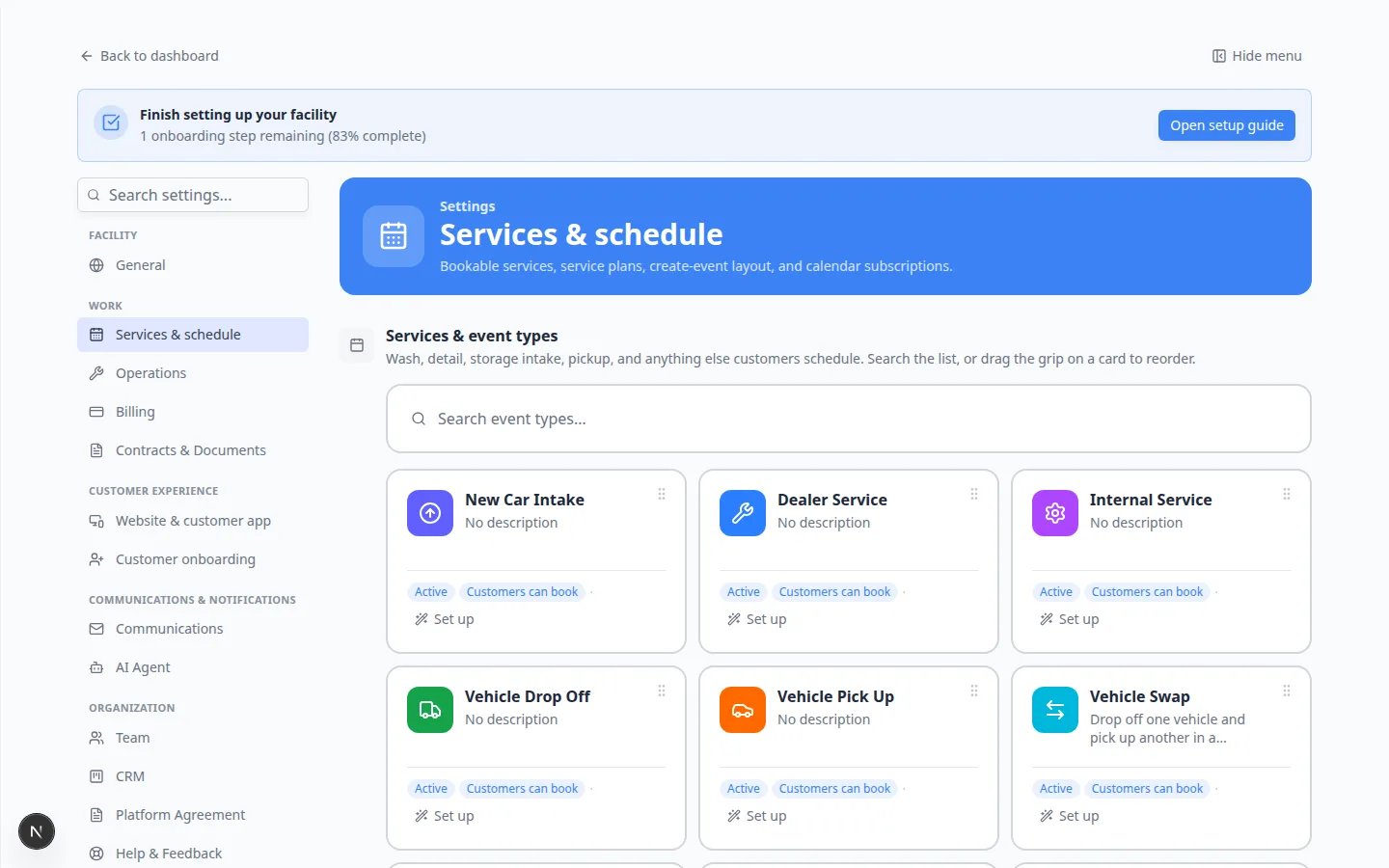
Workflows is no longer a section on OperationsThe Workflows block used to live on Settings > Operations. That page now covers bays, odometer units, cars for sale, and parking audits. See Configure operations settings.To set up the services each checklist step uses, open Settings > Services & schedule. To run work on a specific day, open Schedule.If your facility already has a workflow, staff can still open it from a vehicle or a scheduled event. New facilities can start with clearly named services instead of a multi-step checklist.
What you will accomplish
- Plan a named process such as New Vehicle Intake or Vehicle Departure.
- Link each step to a service from Settings > Services & schedule.
- Set durations and optional delays between steps.
- Test the checklist once on Schedule before asking the whole team to use it.
When to use a workflow (and when not to)
- Use a workflow when the same steps happen in the same order every time (intake, departure, transport handoff).
- Use a single appointment when the job is one visit with no checklist—for example a one-hour detail with no follow-up steps.
- Build services first in Settings > Services & schedule before you link them in a workflow.
Before you start
- You should be signed in as a team admin or manager.
- Open Settings > Services & schedule and confirm each step already exists as a service.
- Know the real-world process you want to turn into a checklist.
Plan the workflow before you build it
Write the steps in plain English first. This keeps the setup simple. Example: New Vehicle Intake- Confirm drop off
- Photo intake and condition check
- Assign first care task
Build the same process with services
Until a Workflows settings page returns, create each step as its own service, then book those services in order.1
Write the steps in the order staff do them
Example for New Vehicle Intake:
- Vehicle Drop Off
- Photo intake and condition check
- Assign first care task
2
Create each step as a service
Open Settings > Services & schedule and add a service for every step that does not already exist.Use the same names you wrote down. Follow Configure services and schedule settings.
3
Book the first visit on Schedule
Open Schedule and create the first appointment (for example Vehicle Drop Off).Add the later visits on the same car when they should happen.Expected result: Staff see the same order you planned, one appointment at a time.
Test the workflow on Schedule
Before you ask the whole team to use a new checklist, run it once on a sample vehicle or test event.1
Create a test appointment
Open Schedule and follow Create an appointment for a test vehicle.Choose an event type that matches the first step of your workflow.
2
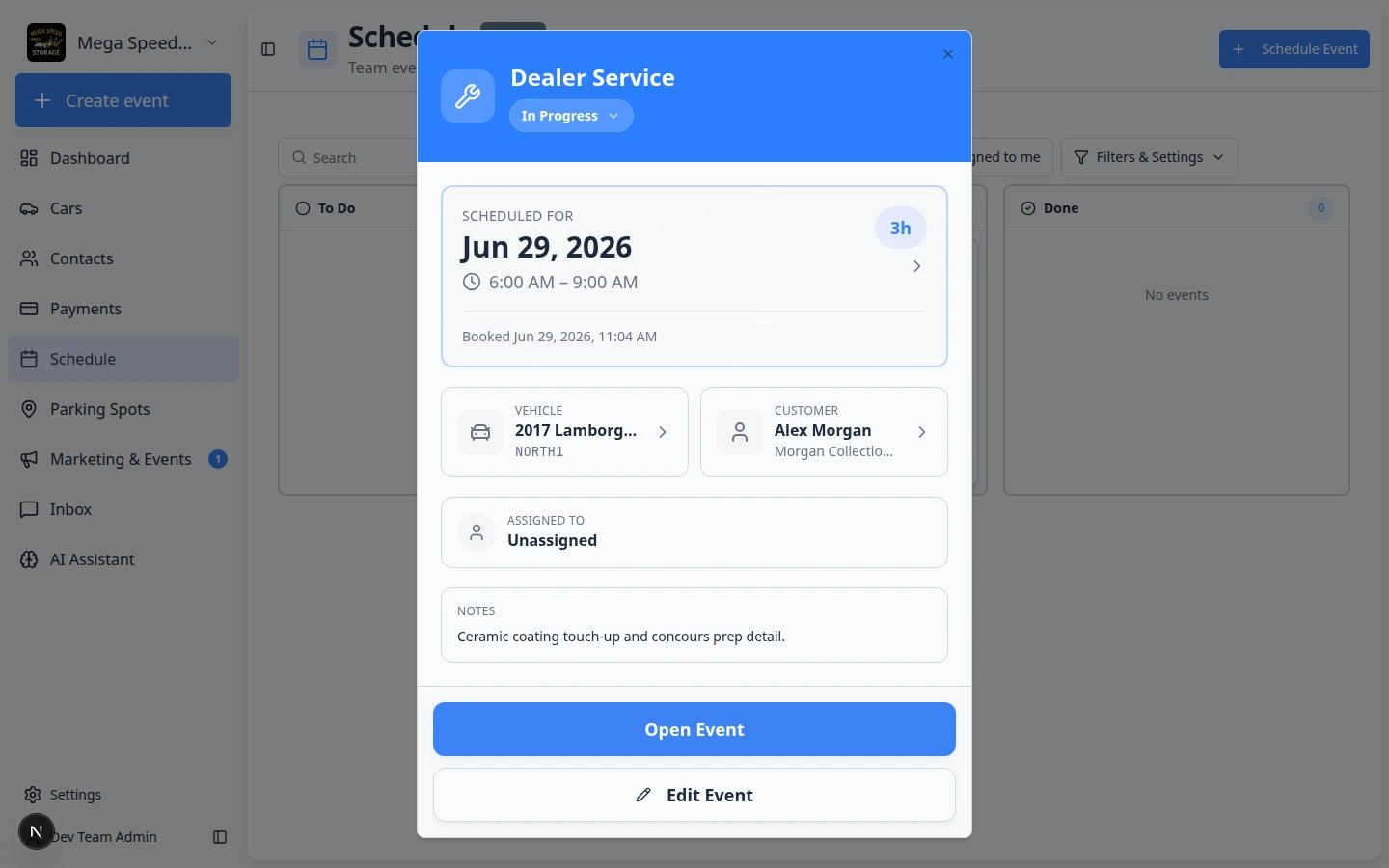
Open the event and click Open Event
Click the calendar block to open the event detail panel on the right.Look for Open Event near Edit Event at the top of that panel.Expected result: The floor workflow screen opens with the checklist steps you configured.
3
Walk through each step
Complete or skip optional steps the way a technician would on a real visit.Why this matters: Testing catches missing event types, wrong durations, or steps marked optional by mistake.
What success looks like
- The workflow name matches how your team talks about the job.
- Each step exists as an active service on Settings > Services & schedule.
- Required steps are not marked optional.
- A test event shows Open Event and the checklist opens correctly.
- Staff know when to start the workflow from Schedule or a vehicle record.
Helpful tips
Workflow is another word for a repeatable checklist.Some teams also say “SOP,” which means standard operating procedure. You do not need to use that term with your staff. A simple name like New Vehicle Intake is easier to understand.