

What you will accomplish
You will learn how to open search, type a useful query, read the grouped results, and jump straight to the correct record. Expected outcome: You open the right car, customer, spot, or event in one or two clicks instead of scrolling long lists.When to use facility search
- A customer calls asking about their vehicle and you need the car record fast.
- You remember part of a license plate, VIN, or customer name but not the full spelling.
- You need to confirm which parking spot or zone a car uses.
- You want to open a scheduled event without browsing the full Schedule calendar.
Search vs. full list pagesFacility search is for finding one record quickly. When you need to filter dozens of cars or export a report, use the search and filters on Cars or Contacts instead. See Find and filter cars and Find and filter contacts.
Before you start
- You are signed in to the staff dashboard.
- You know at least two characters to search — a name fragment, plate, VIN segment, spot name, or event title.
Open facility search
You can open search in two ways:1
Use the keyboard shortcut (fastest)
On Windows or Linux, press Ctrl+K.On Mac, press ⌘K (Command + K).Expected result: A search window titled Search your facility opens in the center of the screen.
2
Or click the search bar (when visible)
On some dashboard pages — such as Dashboard — you may see a search bar that says Search cars, customers, parking, events… with a ⌘K hint on the right.Click that bar to open the same search window.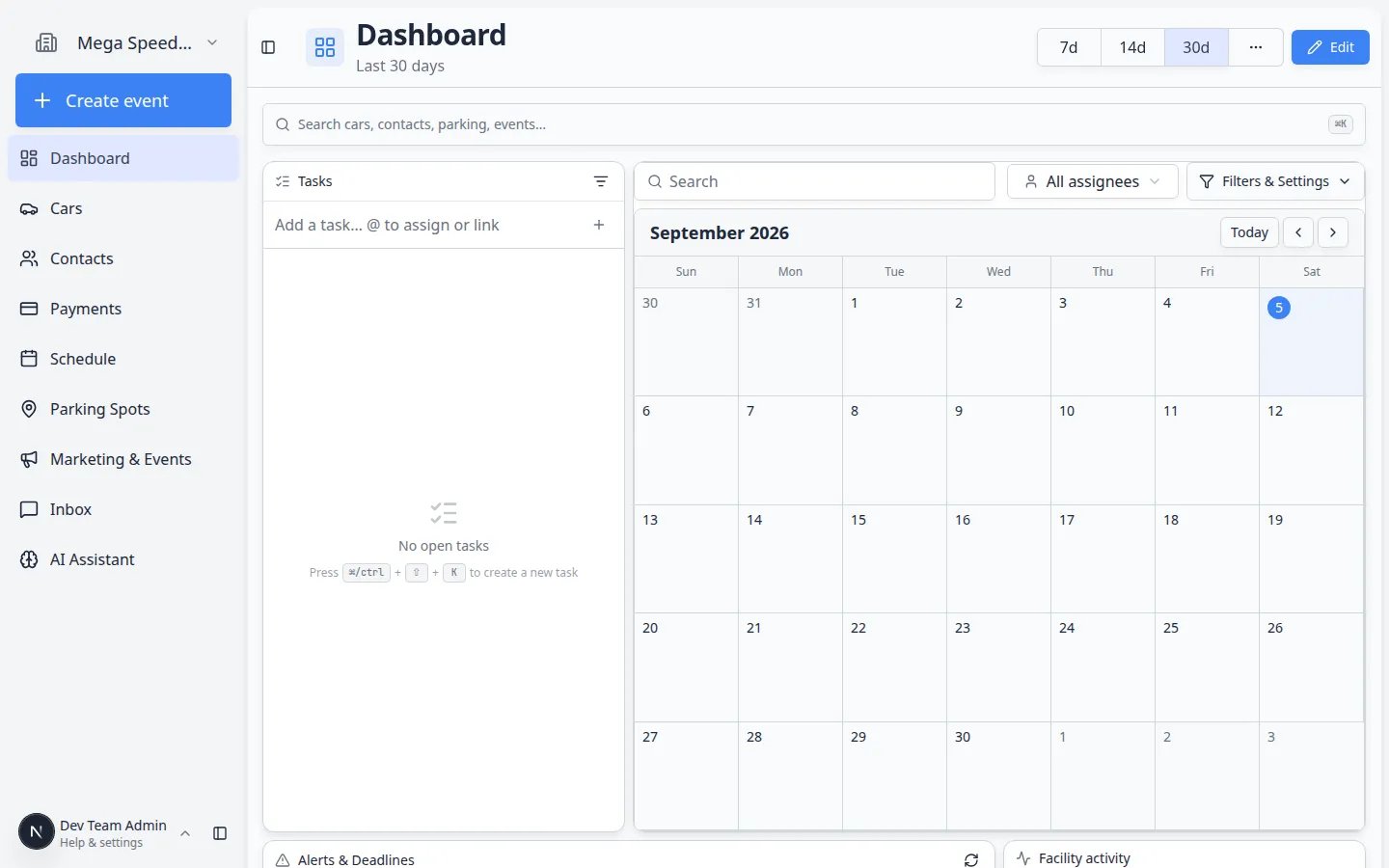
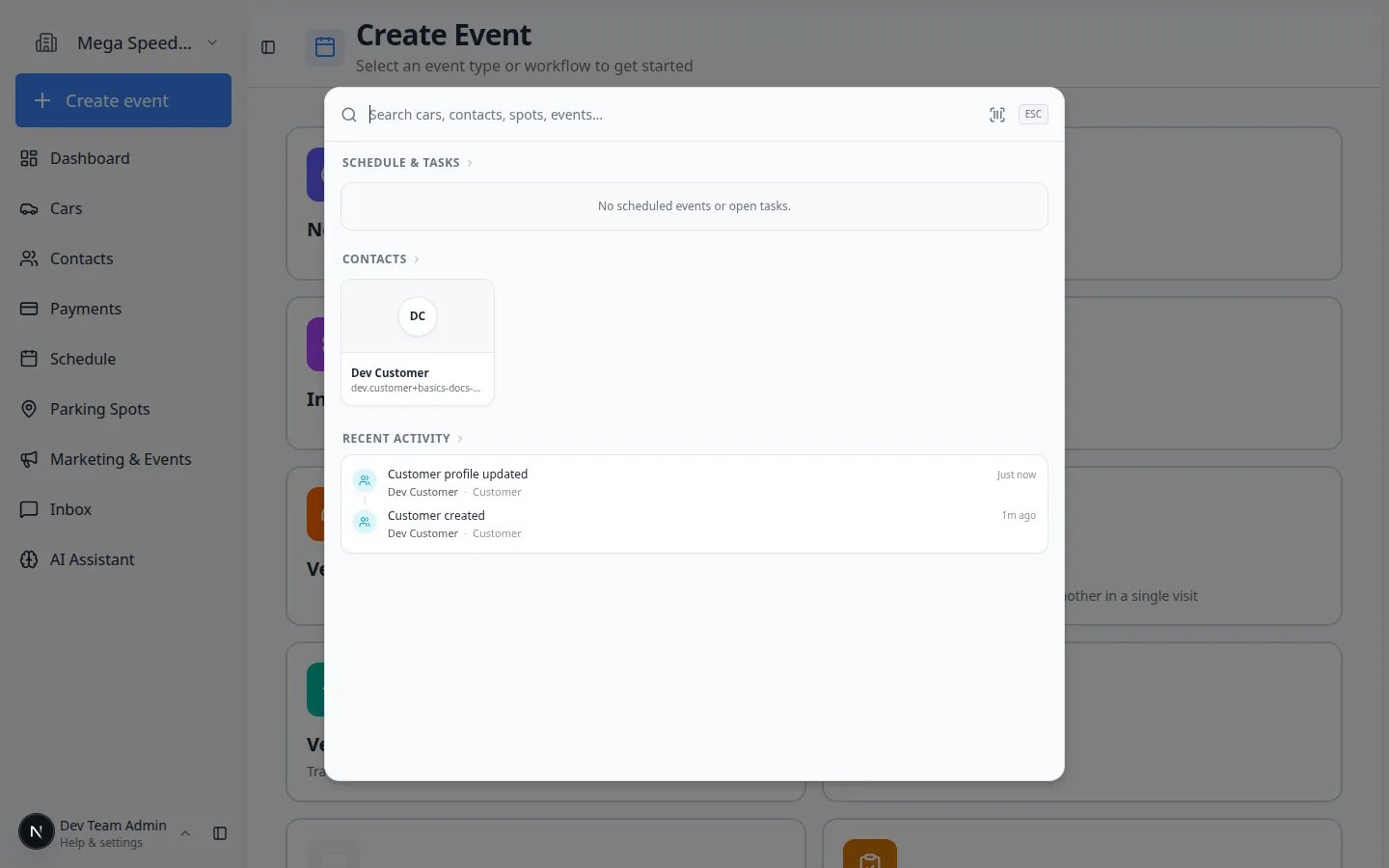
Type your search
1
Click in the search box
The cursor should already be in the search field when the dialog opens. If not, click once inside the box.
2
Type at least two characters
Examples that work well:
- Customer last name: Morgan
- Make or model: Lamborghini or Huracan
- Plate fragment: ABC
- VIN segment: last six characters
- Parking spot name: A1 or Front Row
- Event or customer name tied to an appointment
3
Read the result groups
Results are organized under headings such as Cars, Customers, Parking spots, Parking zones, and Events.Each row shows a colored badge (Car, Customer, Spot, and so on), a title, and sometimes a subtitle with extra detail (year, plate, customer name).Why this matters: The badge color tells you what kind of record you are about to open before you click.
4
Click a result to open it
Click the row you need. The search window closes and the app opens that record’s page.Expected result: You land on the car detail page, customer record, parking spot, or event you selected.
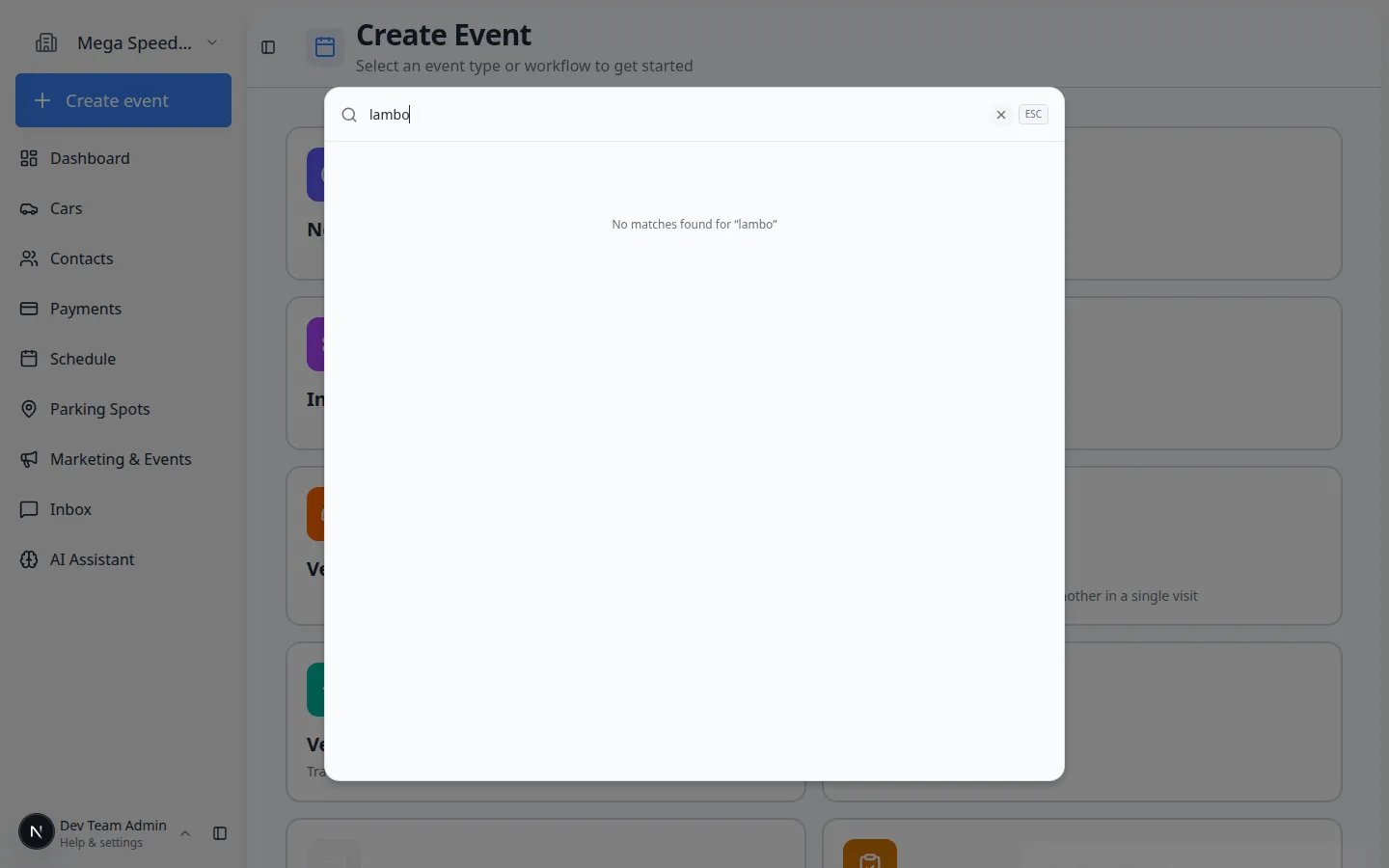
Search for parking spots and events
The same search window also finds parking spots, zones, and scheduled events. Try typing a spot name (for example Bay 1) or part of an event title.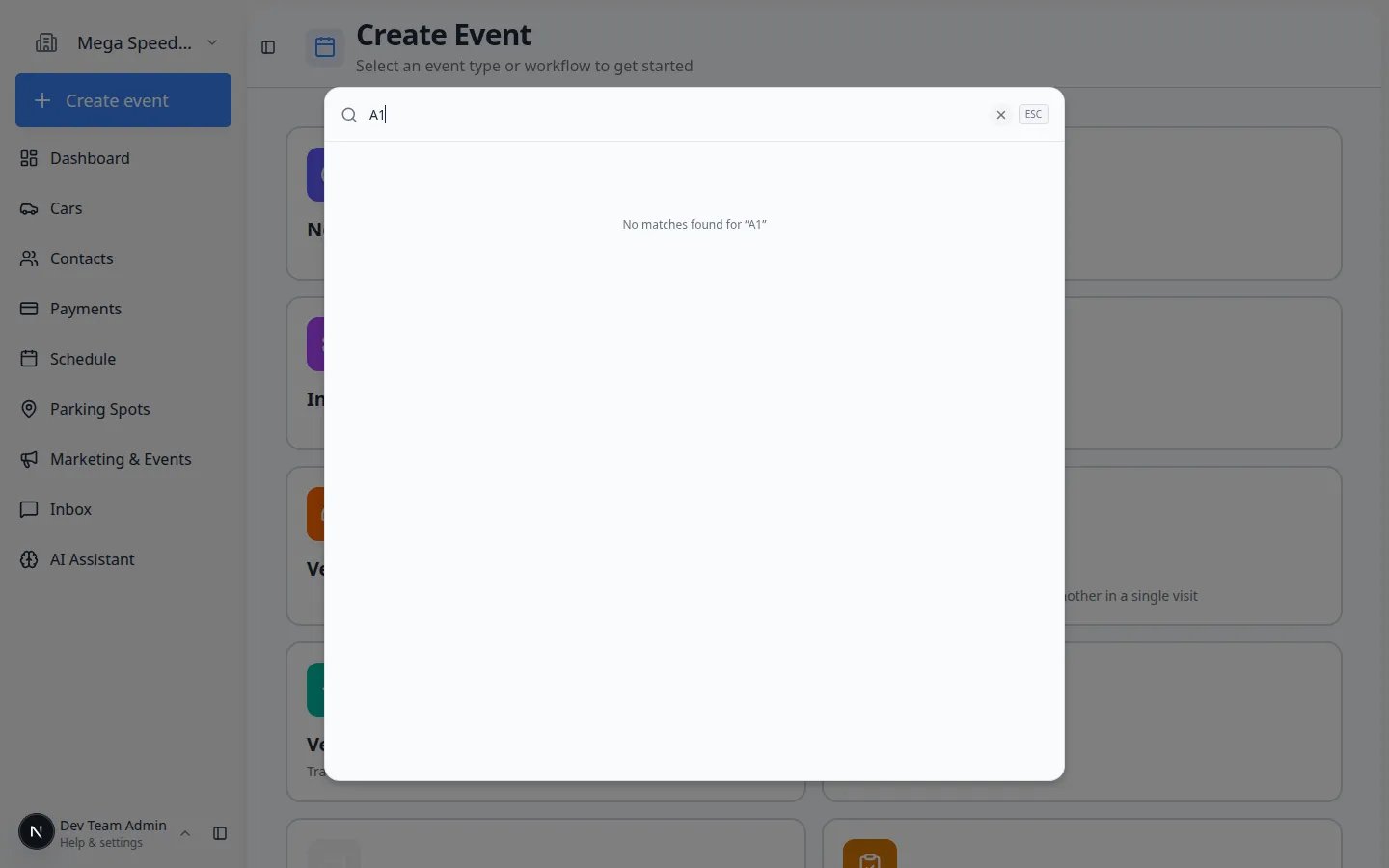
Tips for better searches
Start simple. Try the customer’s last name or the car’s make before you type a long VIN.Use unique fragments. A rare model name or the last four characters of a plate often finds one match faster than a common first name.Try again with fewer characters if nothing appears — you may have mistyped, or the record may use a different spelling in the system.Open the full list page if search shows too many matches. Cars and Contacts have stronger filters for large fleets.
What search does not include
- Invoices and quotes — open Payments > Invoices or Quotes.
- Inbox messages — open Inbox and search inside a conversation list.
- Settings pages — use the sidebar Settings menu or Settings overview.
- Team members by name — use Settings > Team to manage staff.
Troubleshooting
I opened the wrong recordPress the browser Back button or use the sidebar to return to your previous page. Search again with a more specific term.
What to do next
After you find the record you need:- Car work — assign parking with Move a car or start intake with Start a car session.
- Customer questions — review Review customer activity and history.
- Parking — open Parking Spots for the full map view.