

What you will accomplish
You will record where a vehicle is parked right now so the map, the car record, and the parking report all agree.When to use this guide
Use this guide when a vehicle enters storage, changes spaces, moves onto a lift, or needs its location corrected. When you assign the spot in the app, the Parking Spots map, the Cars record, and the parking report all stay in sync. That helps every teammate see the same location without calling around the building.When the app asks you to park during an event
Some event types—such as Storage Intake—can prompt staff to choose a parking spot when the appointment is finished.Complete the work on Schedule
Look for the destination window
Search for the spot or zone
Save and check the map
Before you start
- The car should already exist in Cars.
- The parking spot or zone should already exist in Parking Spots.
- Confirm the real destination before changing the record.
- If your team uses photos or inspection events for moves, complete that workflow before or during the move.
Park a car after a scheduled drop-off
When a customer arrives for a drop-off, intake, or storage start appointment on Schedule, parking the vehicle in the app should happen in the same few minutes as parking it in the building.Confirm the appointment on Schedule
Open Parking Spots and find an open space
Assign the car to that spot or zone
Return to Schedule if your team tracks completion there
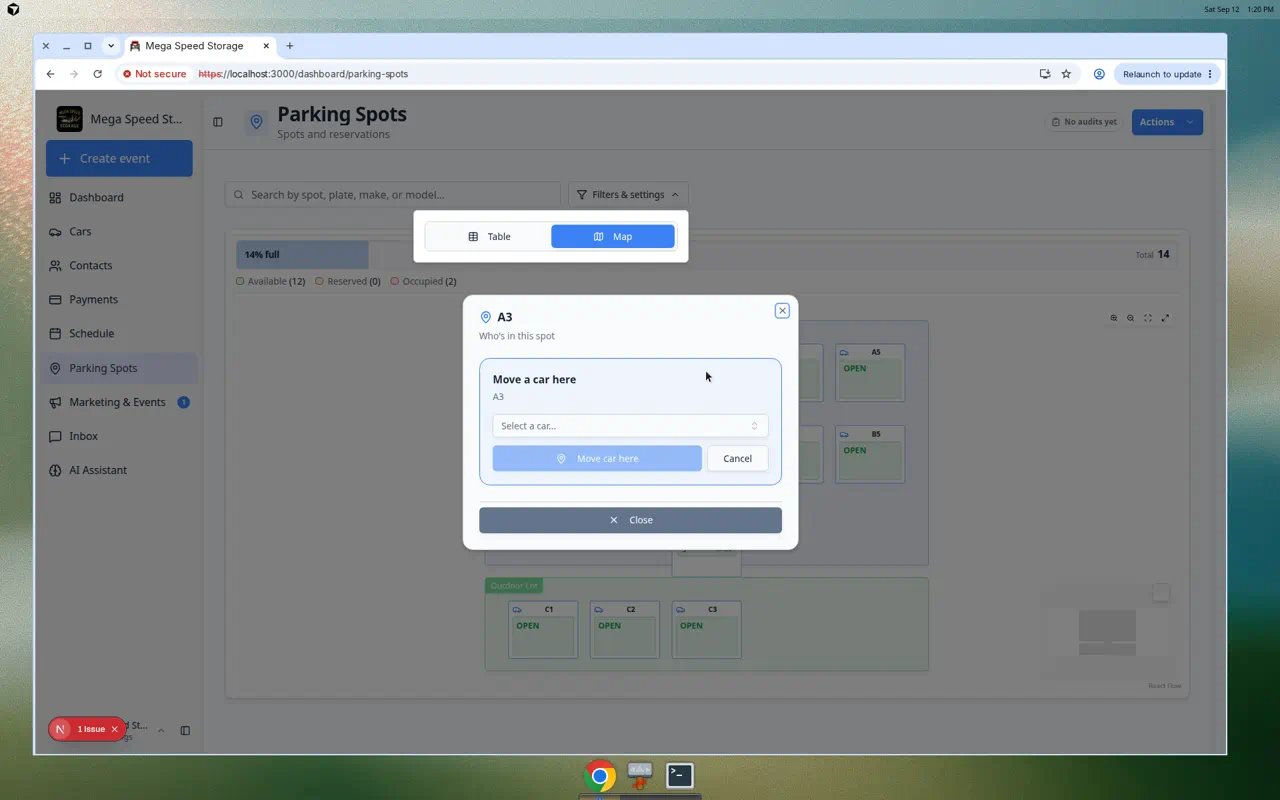
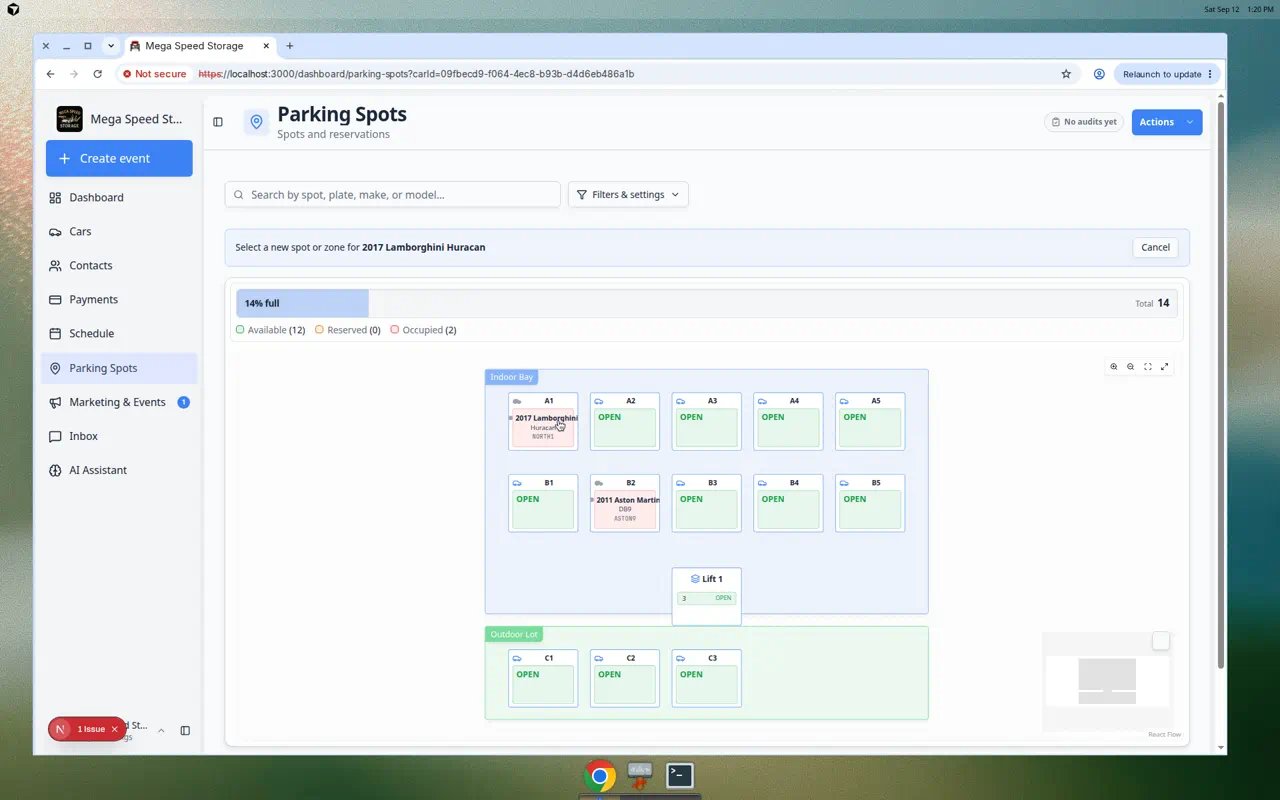
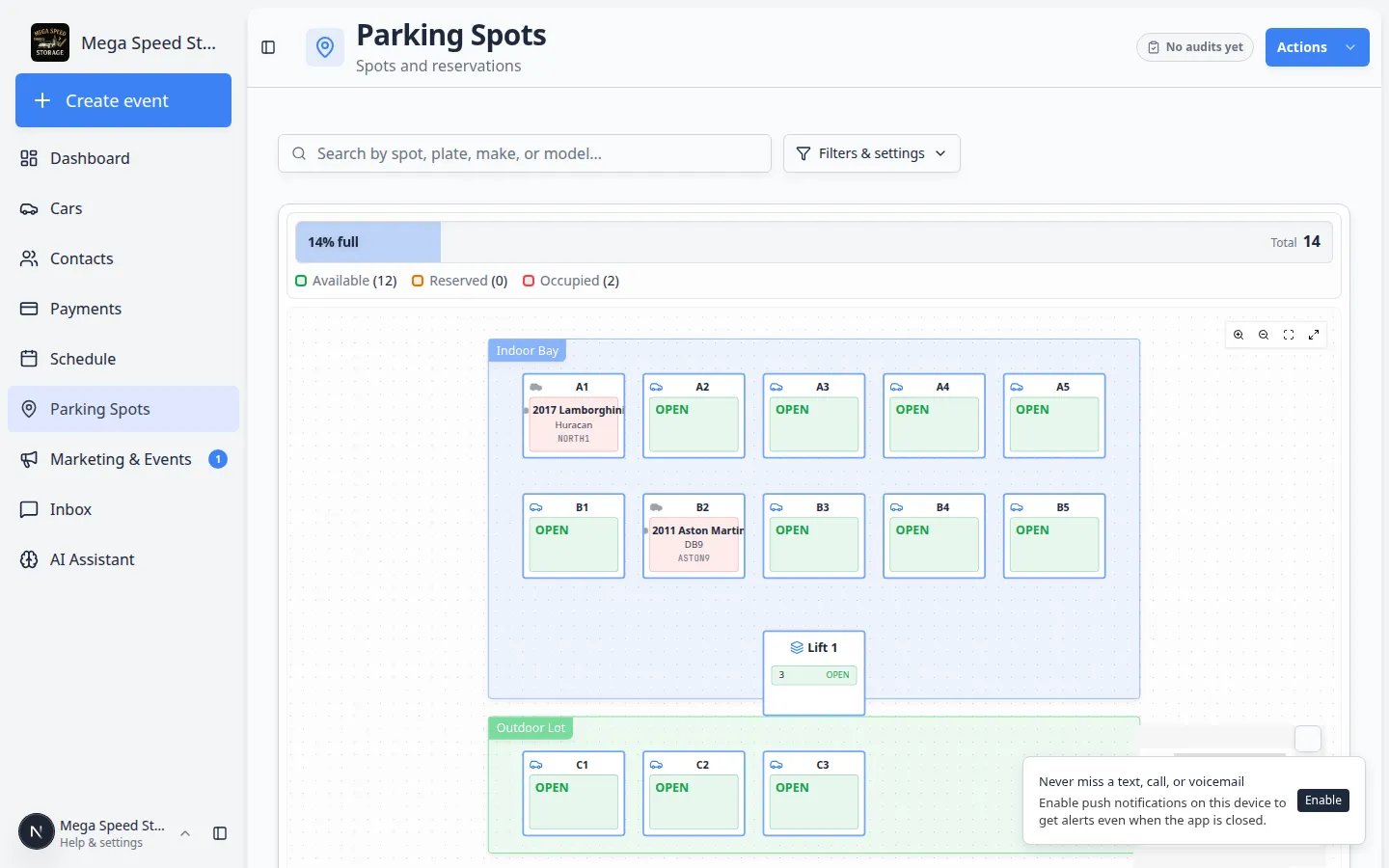
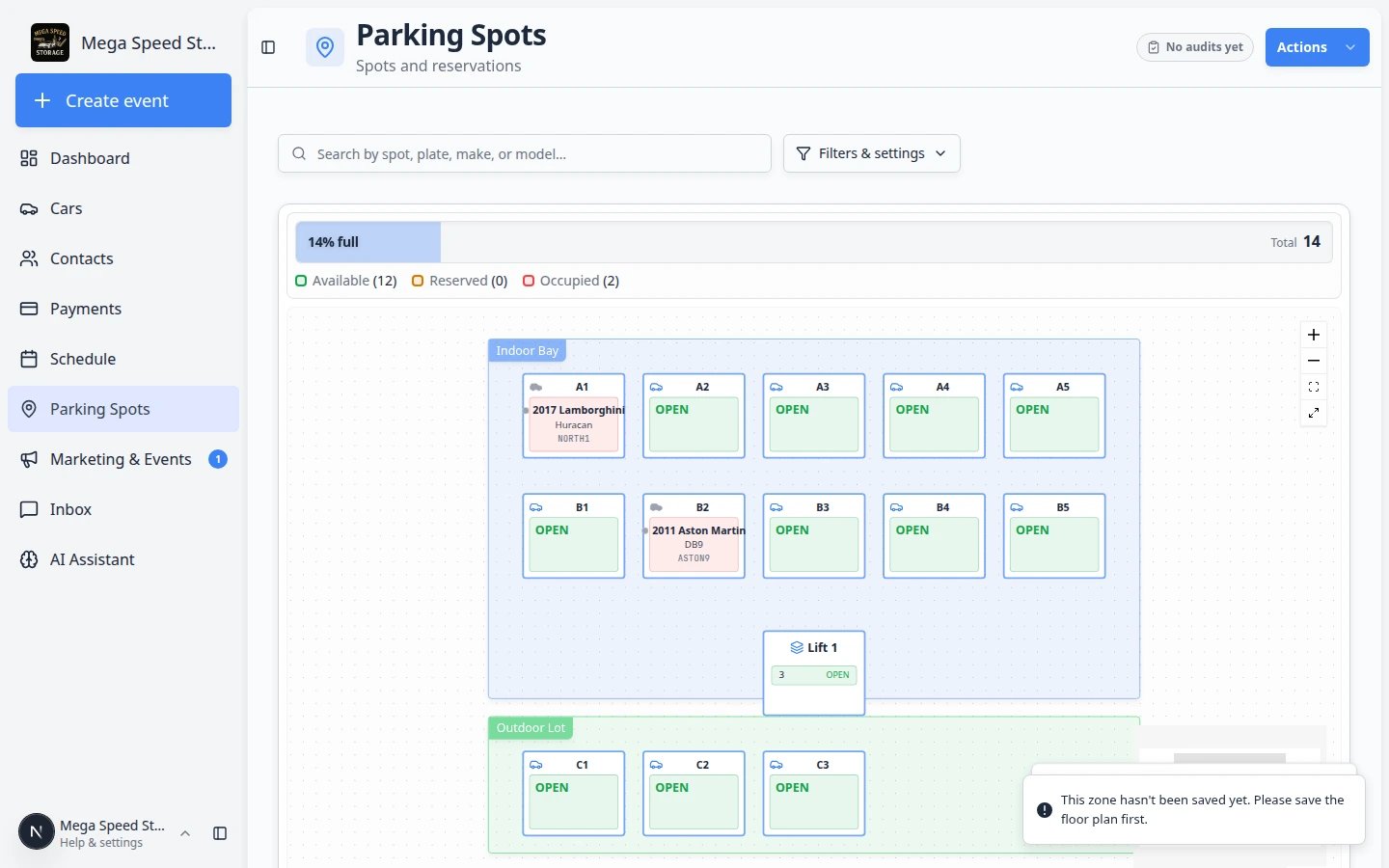
Assign a car from the Parking Spots map
Open Parking Spots
Use Map view
Find the destination spot
Click the spot
Choose the car
Save the assignment
Check the map
Move a car from one spot to another
Use this when a car already has a location and needs to move.Open the current spot
Choose Move Vehicle
Pick the destination
Save the move
Verify both spots
Assign a car from the car record
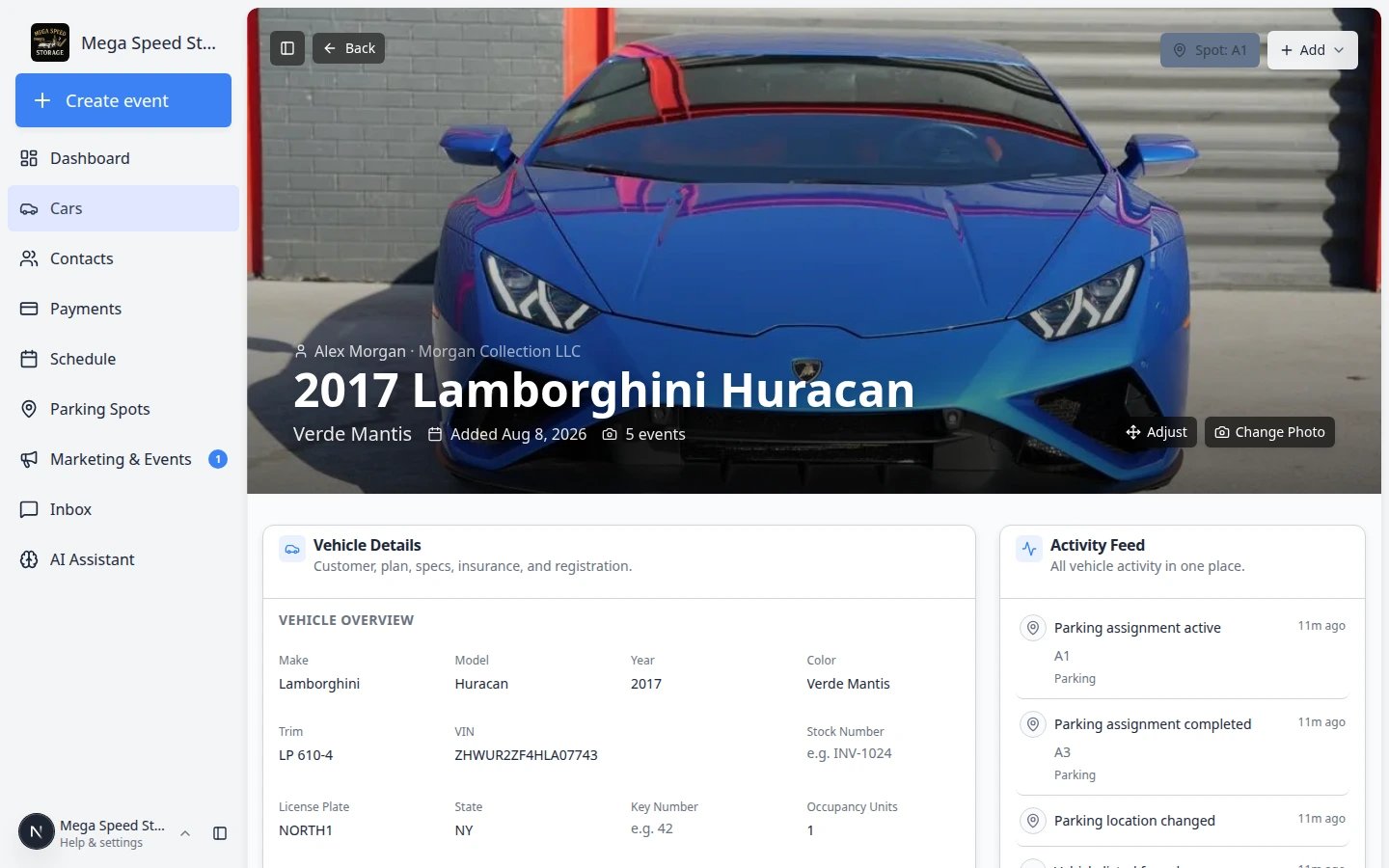
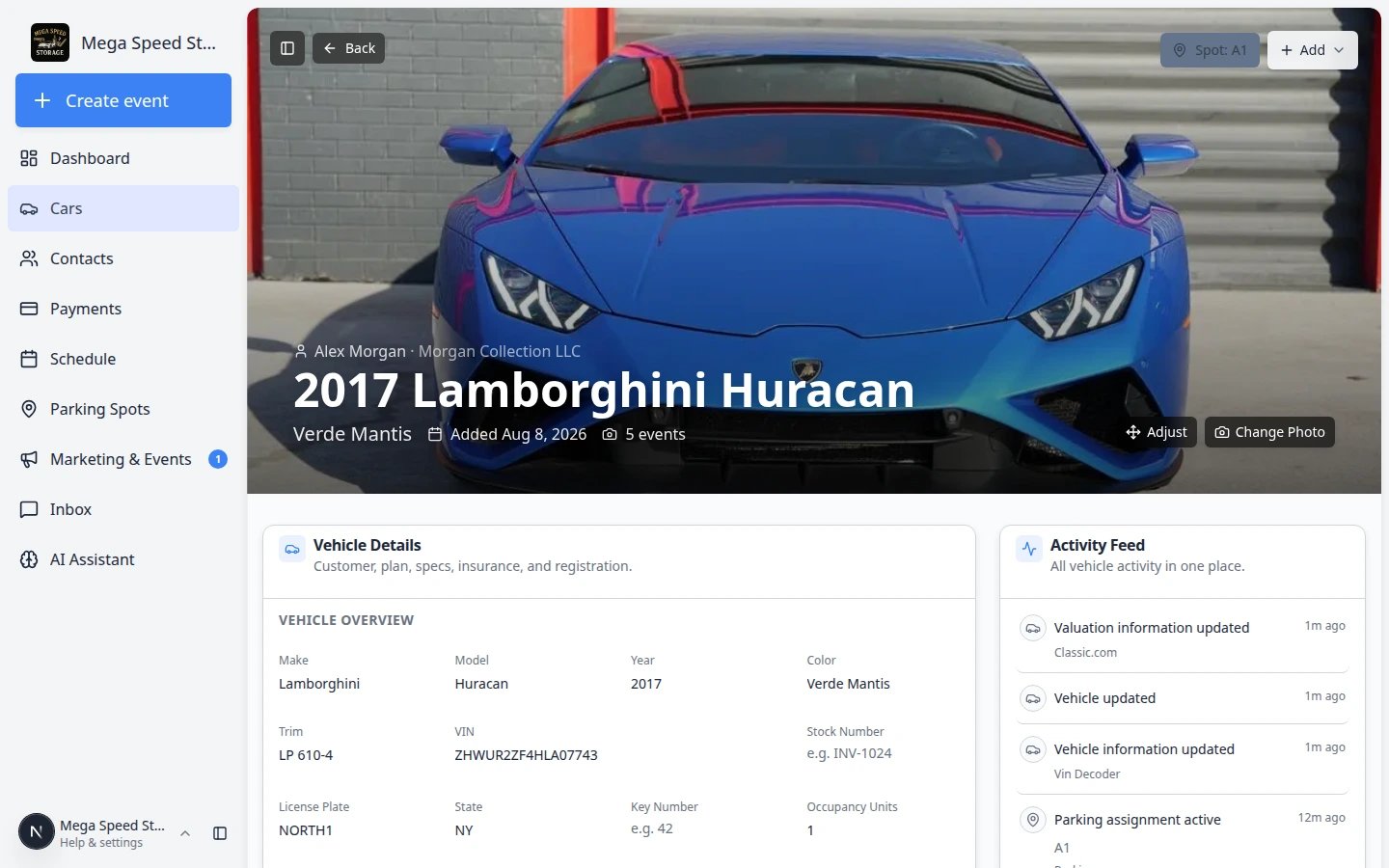
Sometimes staff are already looking at the car record—for example during intake or when a customer calls about their vehicle. In that case, start on the car page instead of the map.Open the car
Use the parking location control
Choose the spot or zone
Save and confirm
Assign a car to a zone from the map
When cars park in a flexible area, you can start on the zone instead of a numbered spot.Click the colored zone on the map
Add or move the car
Confirm Zone on the car record
Send a car to an outside vendor from the map
Use this when the vehicle leaves your building for transport, detail, mechanical work, or another outside company.Open the spot where the car is now
Click Move Vehicle
Confirm the move
Assign a car to a zone (no exact spot number)
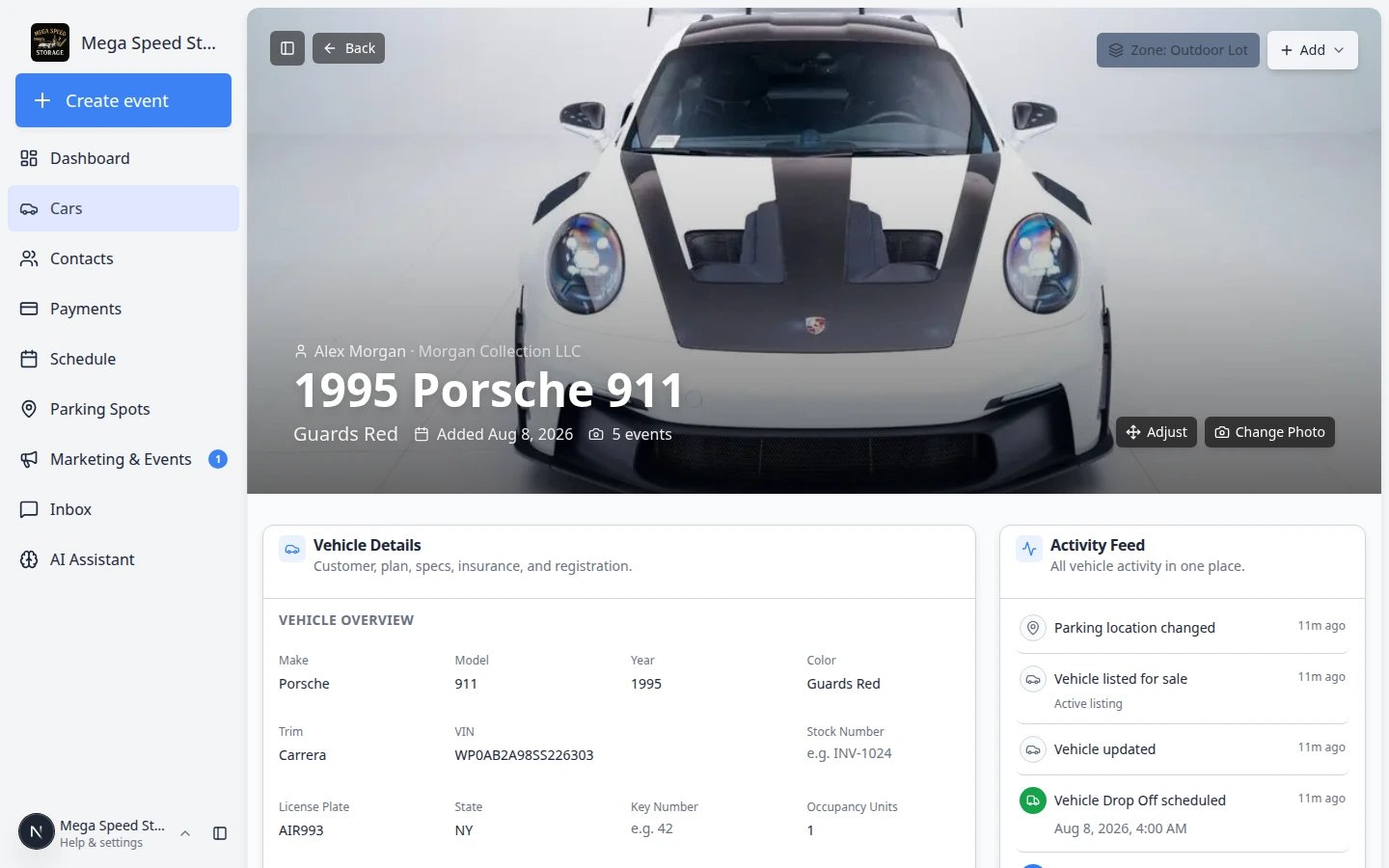
Some facilities park cars in a larger area—such as an outdoor lot or overflow lane—without assigning a numbered spot. Use a zone when the exact box does not matter.Open the car record
Click the parking location button
Choose a zone name
Save and confirm on the map
Assign a car on a lift spot
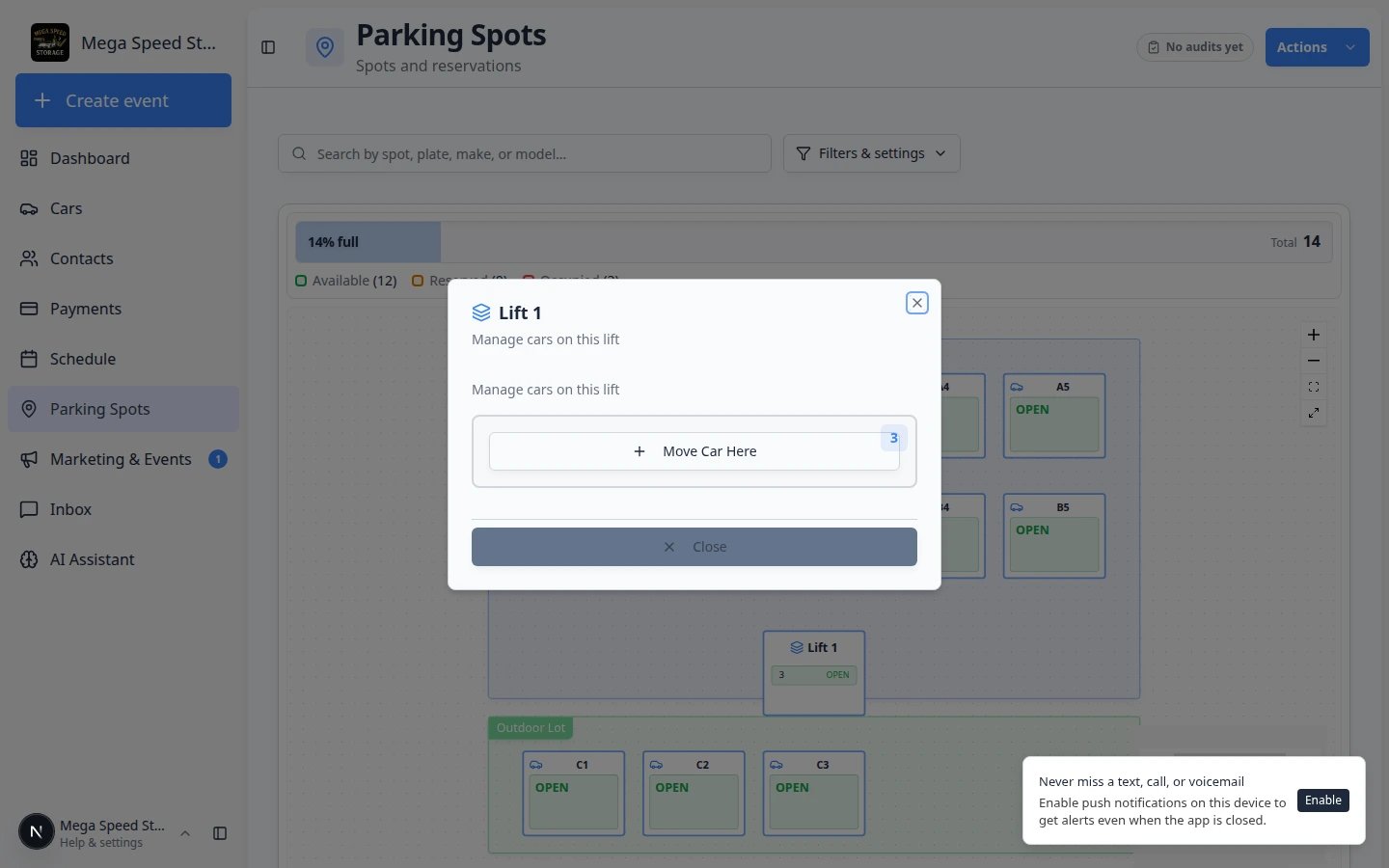
Lift spots can hold more than one vehicle (for example ground level and upper level). Always check the level before you save.Find the lift on the map
Click the lift spot
Pick the correct level
Save and verify
What the status colors mean
- An empty or available spot has no car there now and no reservation showing on the map.
- An occupied or present spot has a car physically there now.
- A reserved spot is planned for a car or customer, but the car may not be there yet.
- A lift can show more than one level. Check each level label before you move a car on a stacked lift.
Common mistakes to avoid
- Do not assign a car to a spot until you know where it is physically parked.
- Do not use a zone when your team needs an exact space number.
- Do not create a new spot just because you cannot find one. Search first, then ask an admin if the spot is missing.
- If a customer has more than one car, check the year, make, model, plate, and VIN before saving.
Troubleshooting
What to do next
- If the spot was reserved before the car arrived, confirm the reservation row on Parking Spots looks correct after you assign the car.
- If the spot was only planned ahead of time, you may also have a reservation to clear. See Reserve a parking spot.
- If you finished a calendar drop-off or intake, see Assign parking during a Schedule event.
- If the car left for transport or detail off-site, see Send a car to an outside vendor.
- To review parking history for billing or audits, open Review the parking report.
- If staff cannot find the spot quickly, review Find parking spots and available spaces with the team.