

What you will accomplish
You will permanently delete one car record and all data tied directly to that vehicle in your facility. Expected outcome: The car no longer appears on Cars, parking maps, or customer-linked lists. This cannot be undone from the dashboard.When to delete vs. when to use another option
- Delete permanently when the record was created by mistake, is a duplicate, or is test data that should not exist.
- Archive (see Archive or restore a vehicle) when the vehicle sold or left your facility but you may need photos, activity, or billing history later.
- Remove from spot (see Move a car) when the vehicle left your building today but the record should stay active with full history.
- Update customer link (see View and edit vehicle details) when the car is correct but the wrong owner is attached.
Before you start
- Confirm with a manager or owner when the car has real customer history, invoices, or signed contracts.
- Make sure you opened the correct vehicle from Cars.
- Your role must allow deleting cars. If you do not see the Danger Zone, ask an admin about permissions.
Delete a car from the record
1
Open the car record
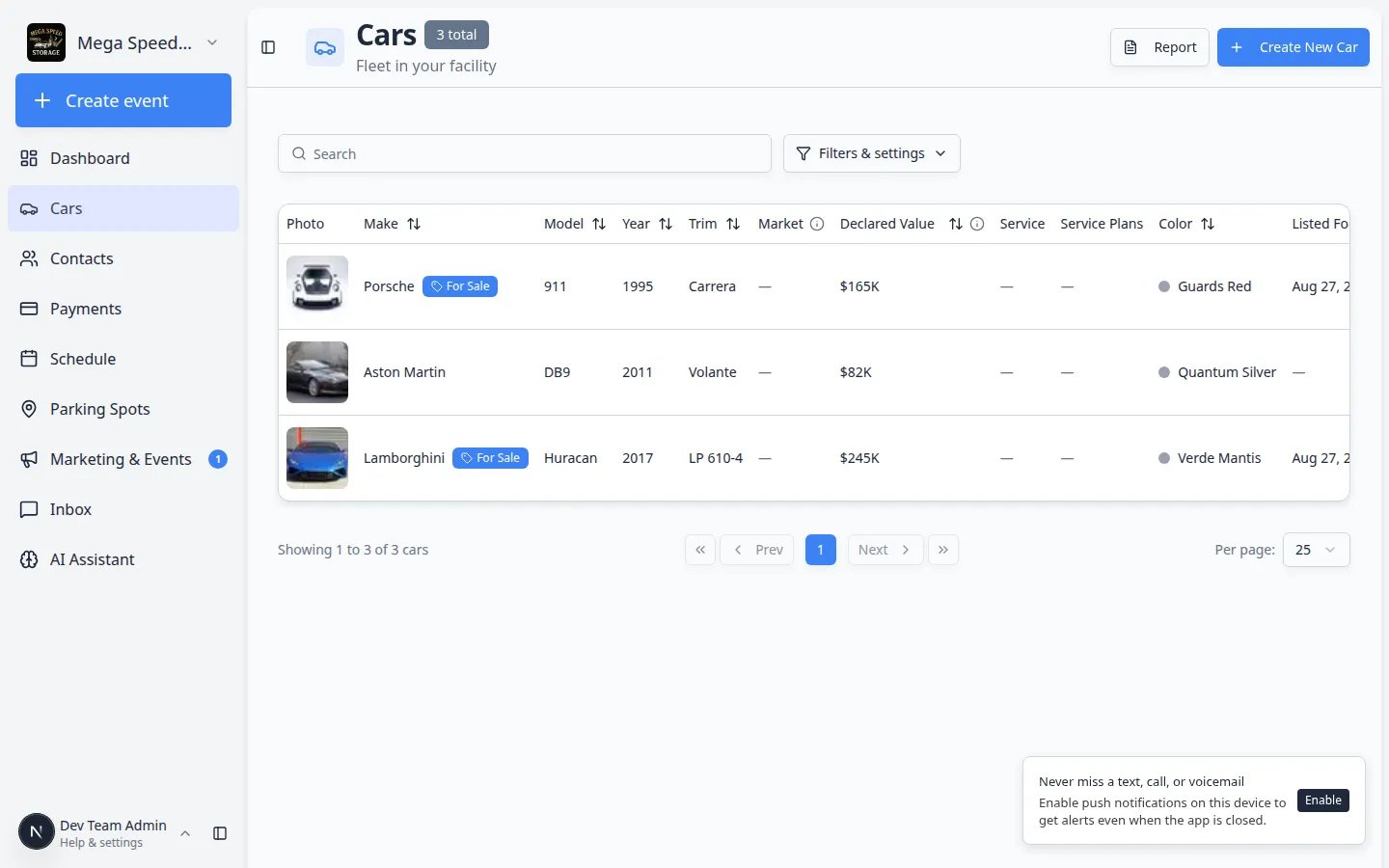
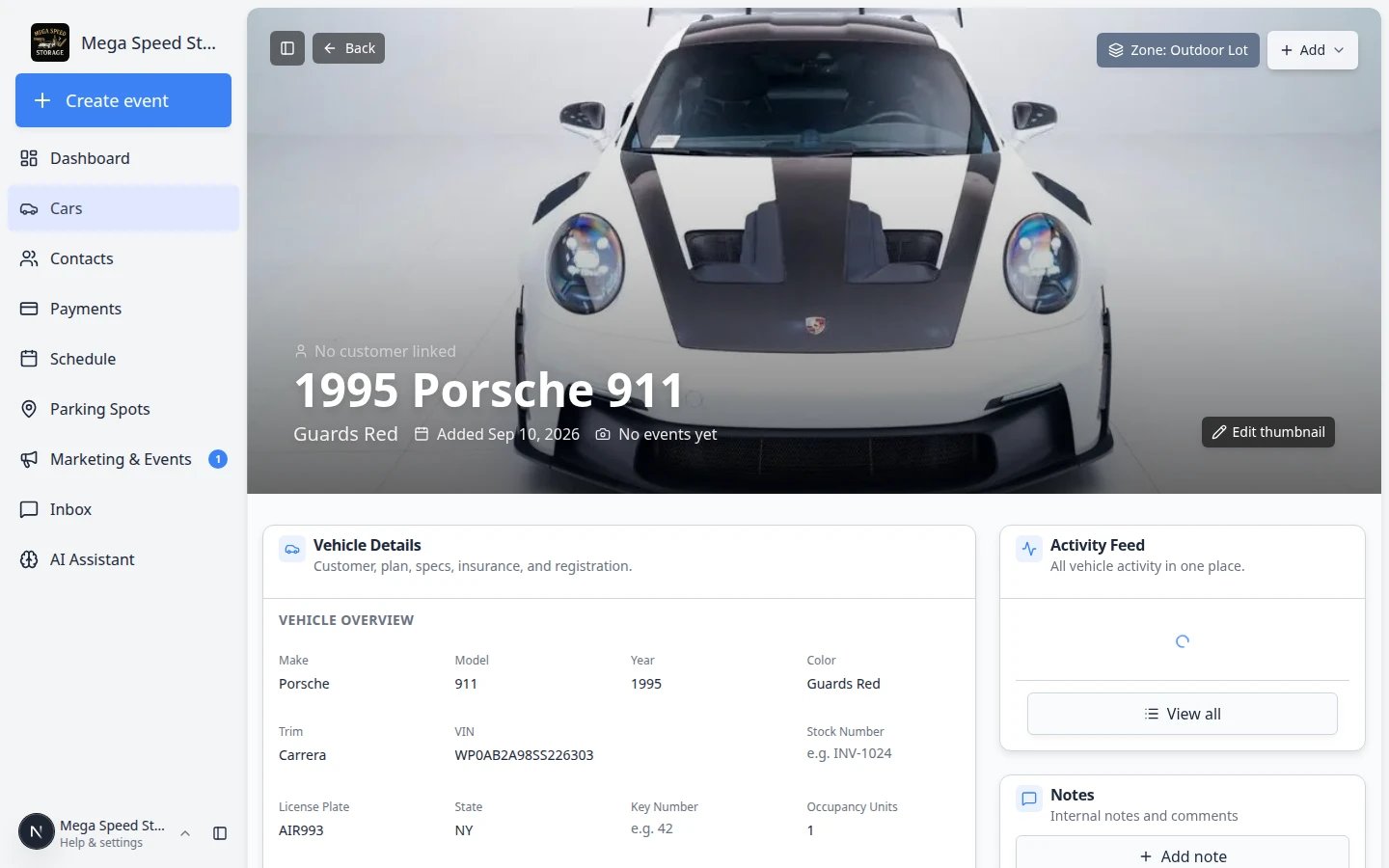
Go to Cars and click View on the vehicle you need to remove.Expected result: The car detail page opens. Double-check the year, make, model, and VIN before continuing.
2
Scroll to Danger Zone
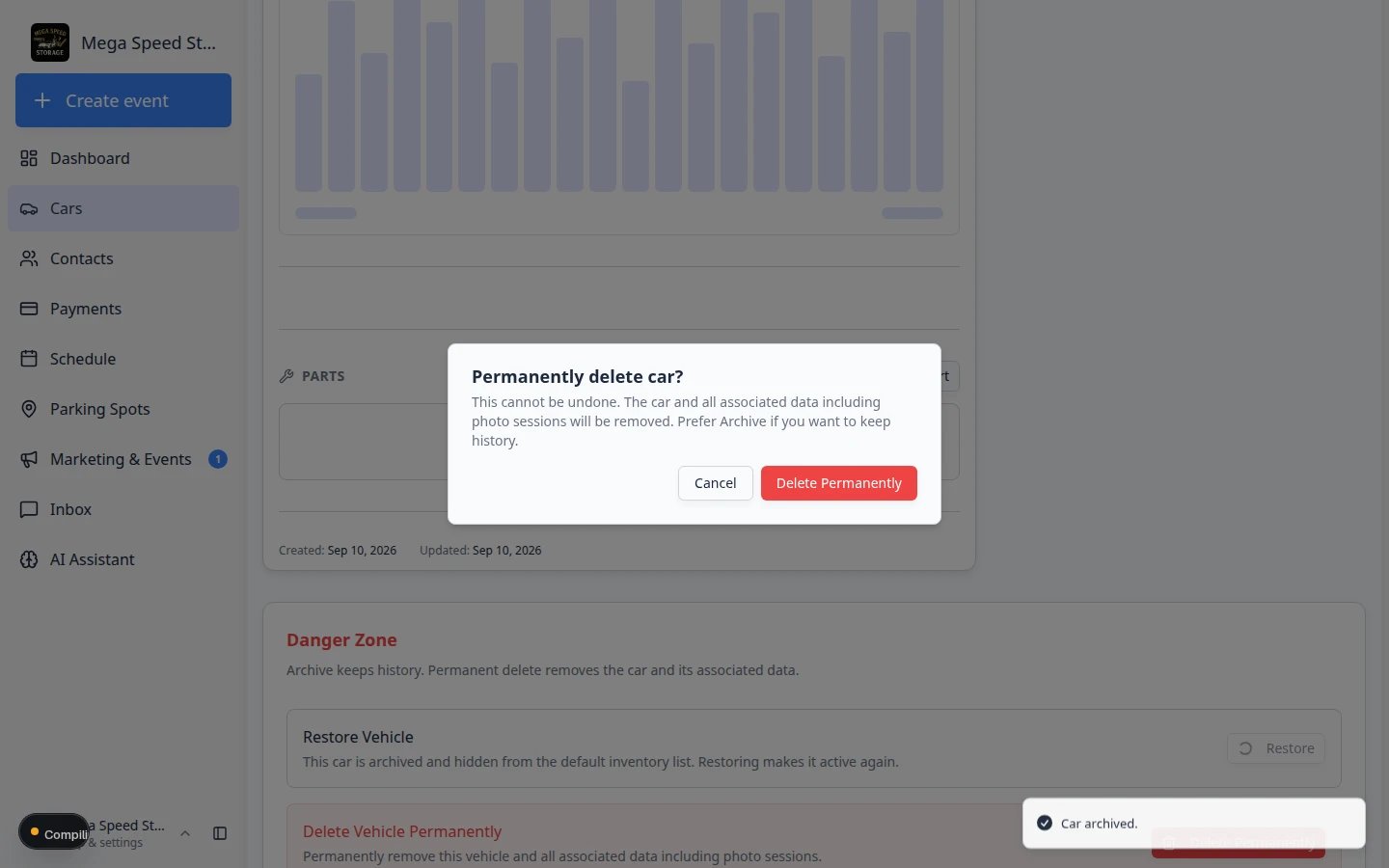
Scroll to the very bottom of the page past Vehicle Details, Activity Feed, and Notes.Look for the red Danger Zone heading with the subtitle Irreversible and destructive actions.You will see two sections:
- Archive Vehicle — hides the car from your daily list but keeps history (see Archive or restore a vehicle)
- Delete Vehicle Permanently — removes the record forever
3
Click Delete Permanently
In the Delete Vehicle Permanently row, click the red Delete Permanently button.Expected result: A confirmation window titled Permanently delete car? appears. It warns that the action cannot be undone and will remove photo sessions and associated data.
4
Confirm only when you are certain
Read the message carefully. Click Cancel if you changed your mind—or if Archive is the better choice.When you are sure, confirm permanent deletion in the dialog.Expected outcome: The app deletes the record and returns you to the Cars list. The vehicle no longer appears in search results—even when you show archived cars.
What gets removed
Deleting a car permanently removes the vehicle record and associated data such as:
- Photo sessions and walkthrough images tied to this car
- Activity and event history on this record
- Parking assignment for this vehicle
- Parts entries and notes on the car page
Troubleshooting
What to do next
- If you removed a duplicate, search Cars for the correct record and link the customer there.
- If a customer’s car left your facility, prefer Archive or restore a vehicle instead of permanent delete.
- Export your remaining inventory with Export your vehicle inventory report when an owner or insurer needs a full list.