

What you will accomplish
- Open HubSpot from Settings > Integrations.
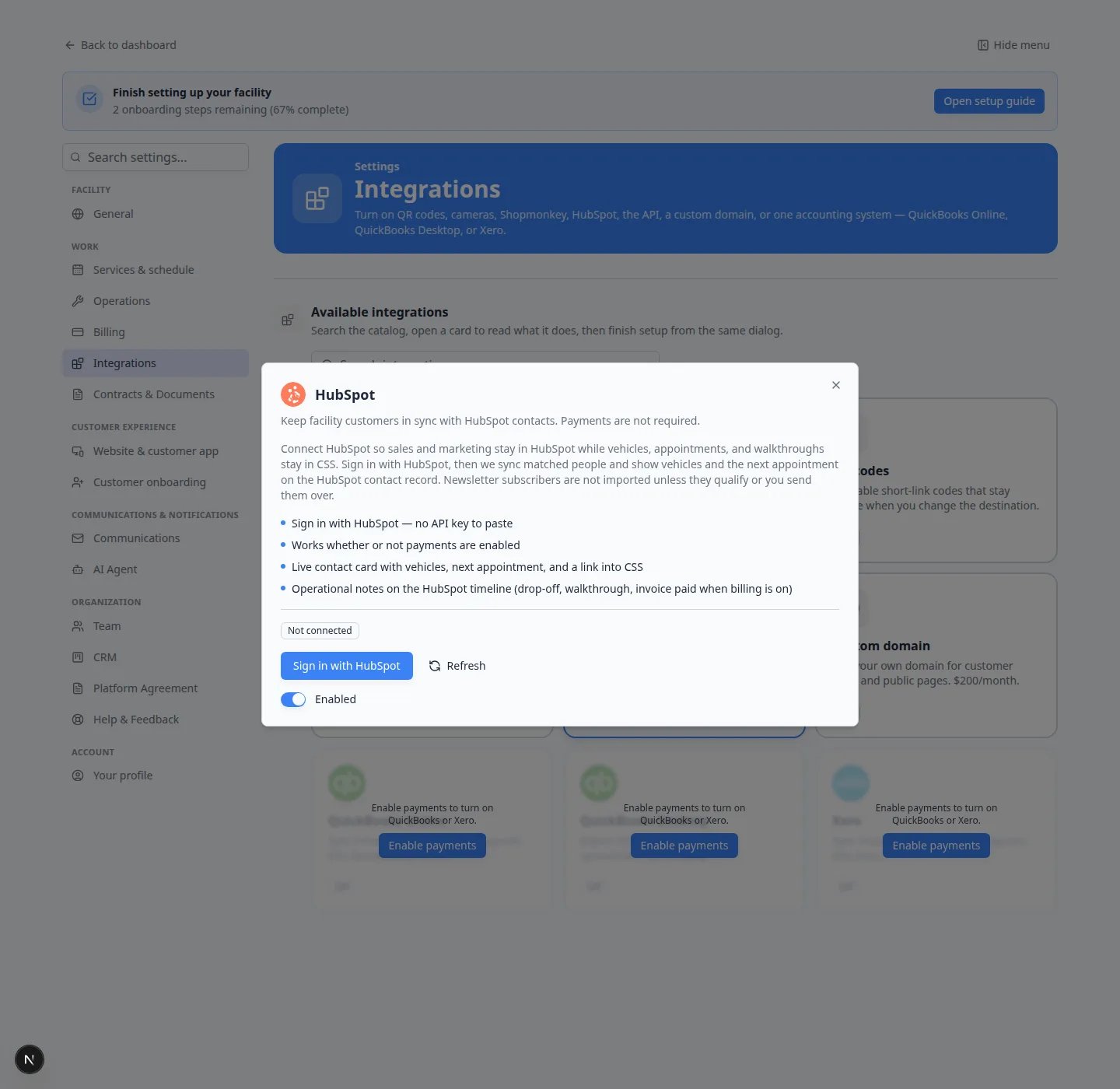
- Turn on Enable this integration, then click Sign in with HubSpot.
- Choose which HubSpot stages can create a customer here.
- Confirm a matched contact shows vehicles and the next appointment in HubSpot.
When to connect HubSpot
Use this when your sales team already lives in HubSpot and your storage team lives here. The goal is one shared person — not two copies you have to keep in sync by hand. Skip this if you do not use HubSpot.Before you start
- You need Customers permission to turn HubSpot on and sign in.
- You need Schedule permission to open Settings > Integrations.
- Have a HubSpot login that is allowed to connect an app.
- Know which HubSpot stages mean “this person is a real facility customer,” such as Opportunity, Customer, or Evangelist.
Connect HubSpot
1
Open Integrations
Go to Settings > Integrations.If the list is long, type hubspot in Search integrations…
2
Open the HubSpot card
Click HubSpot. A window explains that sales stay in HubSpot and vehicles stay here.Expected result: You see Sign in with HubSpot, Refresh, and a switch labeled Enable this integration or Enabled.
3
Turn the switch on
If the switch says Enable this integration, turn it on.Why this matters: The sign-in button only works after HubSpot is on for this facility. Payments do not need to be on.
4
Sign in with HubSpot
Click Sign in with HubSpot. Approve the HubSpot screens. You never paste a secret key.Expected result: The HubSpot card shows Connected. The window shows Connected and, after the first sync, a last-sync time.
Choose who becomes a customer here
After HubSpot is connected, the same window lets you pick HubSpot stages.1
Review the default stages
The default stages are Opportunity, Customer, and Evangelist. Keep those unless your sales team uses different names.
2
Add or remove a stage
Click a stage name to turn it on or off. Newsletter Subscriber names should stay off unless you truly want them as facility customers.
3
Optional inbound list
If your team keeps a special HubSpot list for storage customers, choose it under Optional inbound list.
Not every HubSpot contact becomes a customerA person is created here only when they already match someone by email or phone, they sit on an allowed stage or list, or a teammate clicks Create in CSS on the HubSpot contact card.
What stays in sync
Matched people update both ways. Name, email, phone, company, relationship stage, location, and vehicle count can appear on the HubSpot contact. Notes such as a new customer, a booked appointment, a drop-off, or a walkthrough can land on the HubSpot timeline. If billing is on, a paid invoice can add a note too.Confirm it worked
- The HubSpot card on Settings > Integrations shows Connected.
- Editing a customer here updates the matching HubSpot contact.
- A qualifying HubSpot contact appears as a customer here, or you can create one from the HubSpot card.