

This used to be its own pageBranding is no longer a separate Settings page. It lives in Settings > General under Facility profile. If you still have an old bookmark to Settings > Branding, the software sends you to the same place.
What you will accomplish
- Open Settings > General and find Facility profile.
- Set the facility name customers already know.
- Upload a logo and choose primary and secondary colors.
- Add the people who can appear on your public website.
Before you start
- You should be signed in as a team owner, manager, or admin.
- Have a logo file ready. A square PNG or JPG works well.
- Know your brand colors, or be ready to pick two colors that look good together.
- Know the street address and main phone number customers should use.
Open Facility profile
1
Open Settings
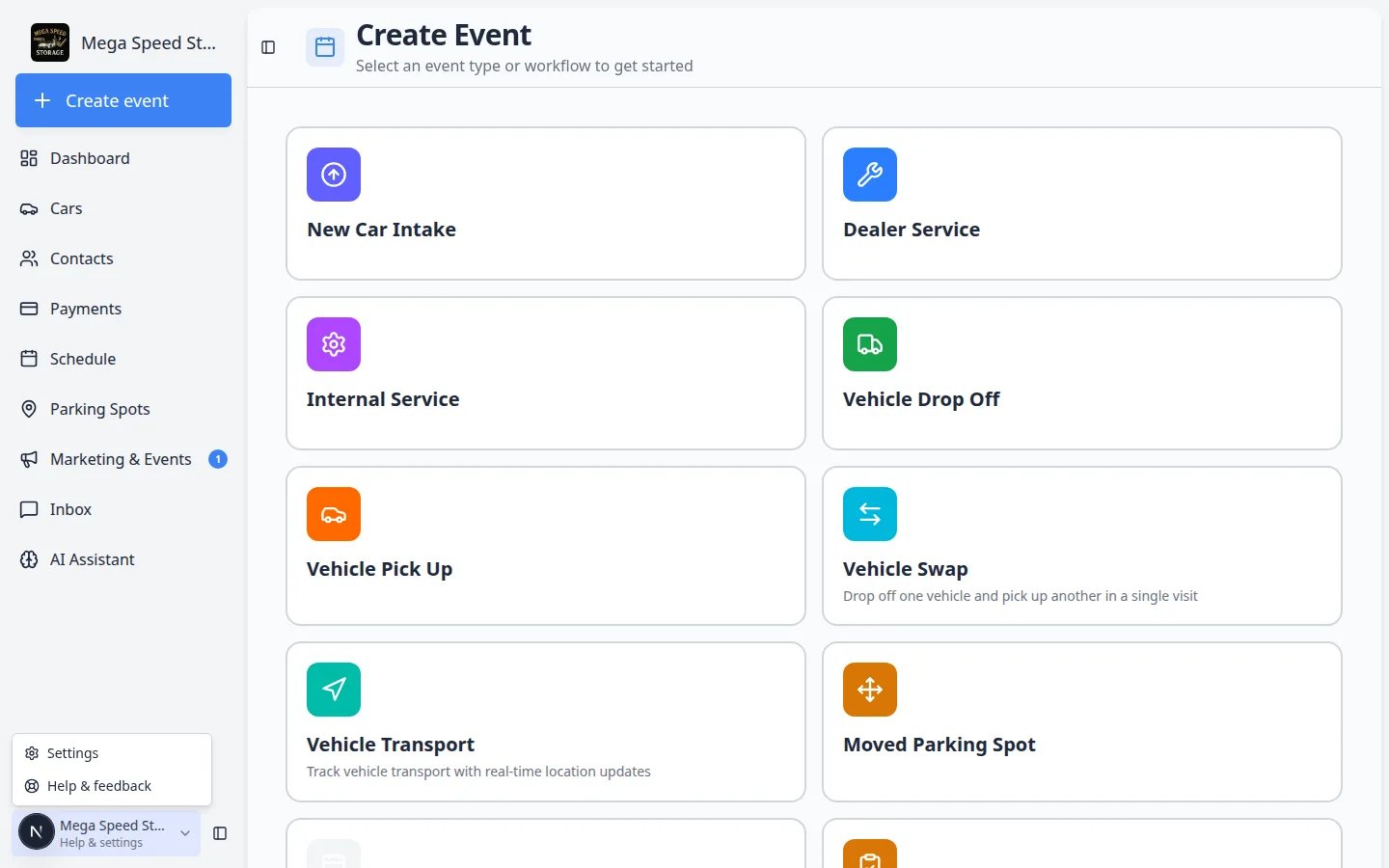
From the Dashboard, look at the bottom of the left sidebar. Click Settings.You can also click your name at the bottom of the sidebar, then choose Settings.
2
Choose General
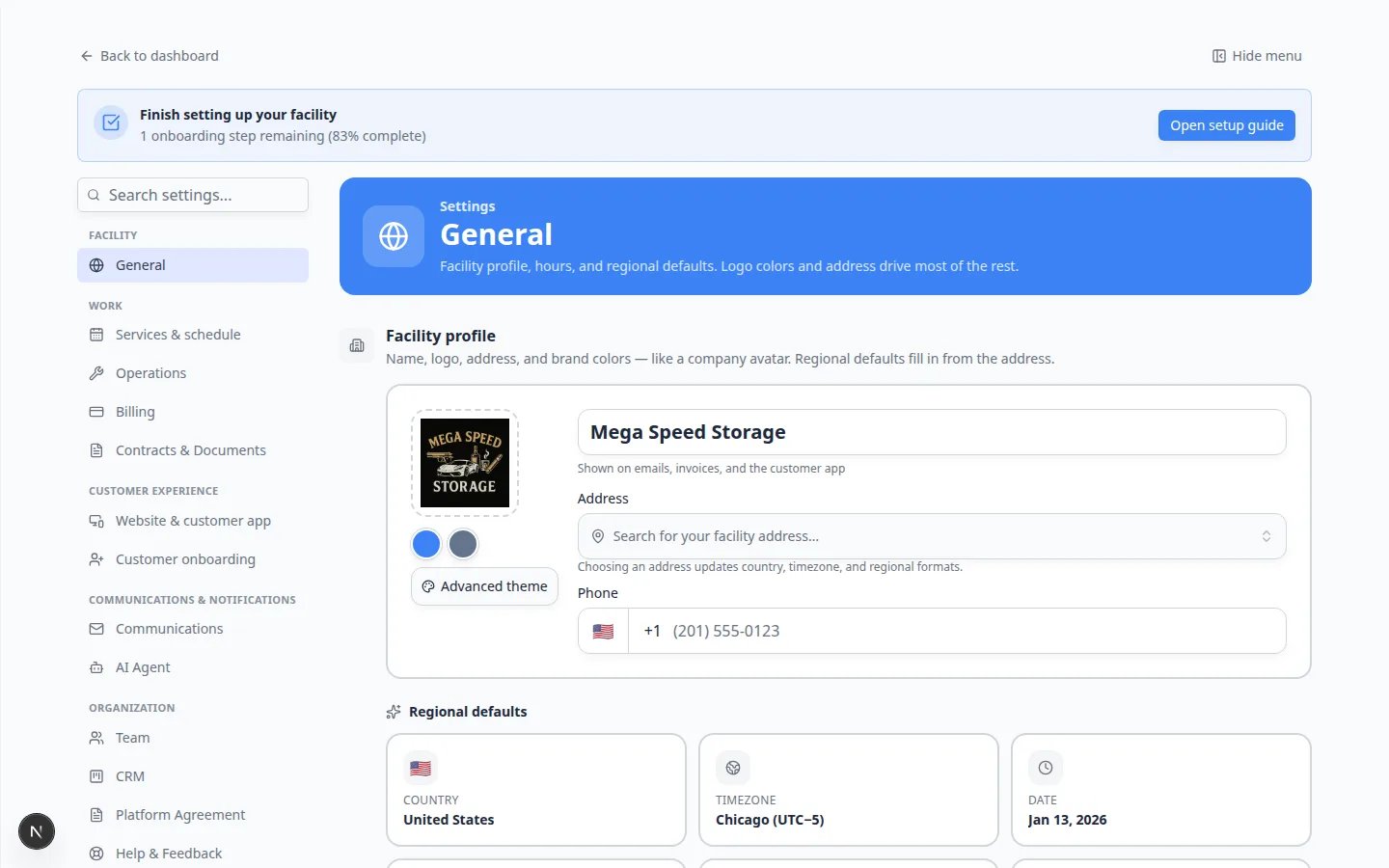
In the Settings list, click General.Direct link: Settings > General.
Set your facility name and contact details
1
Type your facility name
In the large name field (for example Mega Speed Storage), type the name customers already know.Click outside the field to save.Why this matters: This name appears on invoices, emails, quotes, and your public website. Use the name on your building sign, not a legal name customers never say out loud.
2
Search for your street address
Click Search for an address. Start typing your street. Choose the matching row.Expected result: Your city, state, and postal code fill in so invoices and maps stay accurate.
3
Add phone and website
Fill in Phone number and Website. Use the number customers should call, and the website you want printed on invoices.Expected result: These details travel with your logo on customer paperwork.
Upload your logo
1
Open the logo picker
In Facility profile, click the Logo square (or the image already there).
2
Choose your logo file
Select a PNG or JPG. A clear logo on a simple background looks best on invoices and emails.Expected result: A preview of your logo appears in the Logo square. The color dots next to Advanced theme often update to colors from the logo.
Choose your colors
1
Set your primary color
Click the Primary color swatch. Pick the main color from your logo or website.Expected result: Buttons and highlights on your public pages use this color.
2
Set your secondary color
Click the Secondary color swatch. Pick a second color that still looks like you.Expected result: The software uses this color next to the primary color so pages do not look flat.
You do not need perfect brand guidelinesTwo colors that look good together are enough to start. You can change them later without rebuilding invoices that are already sent.
Add the people who appear on your website
1
Scroll to Website contacts
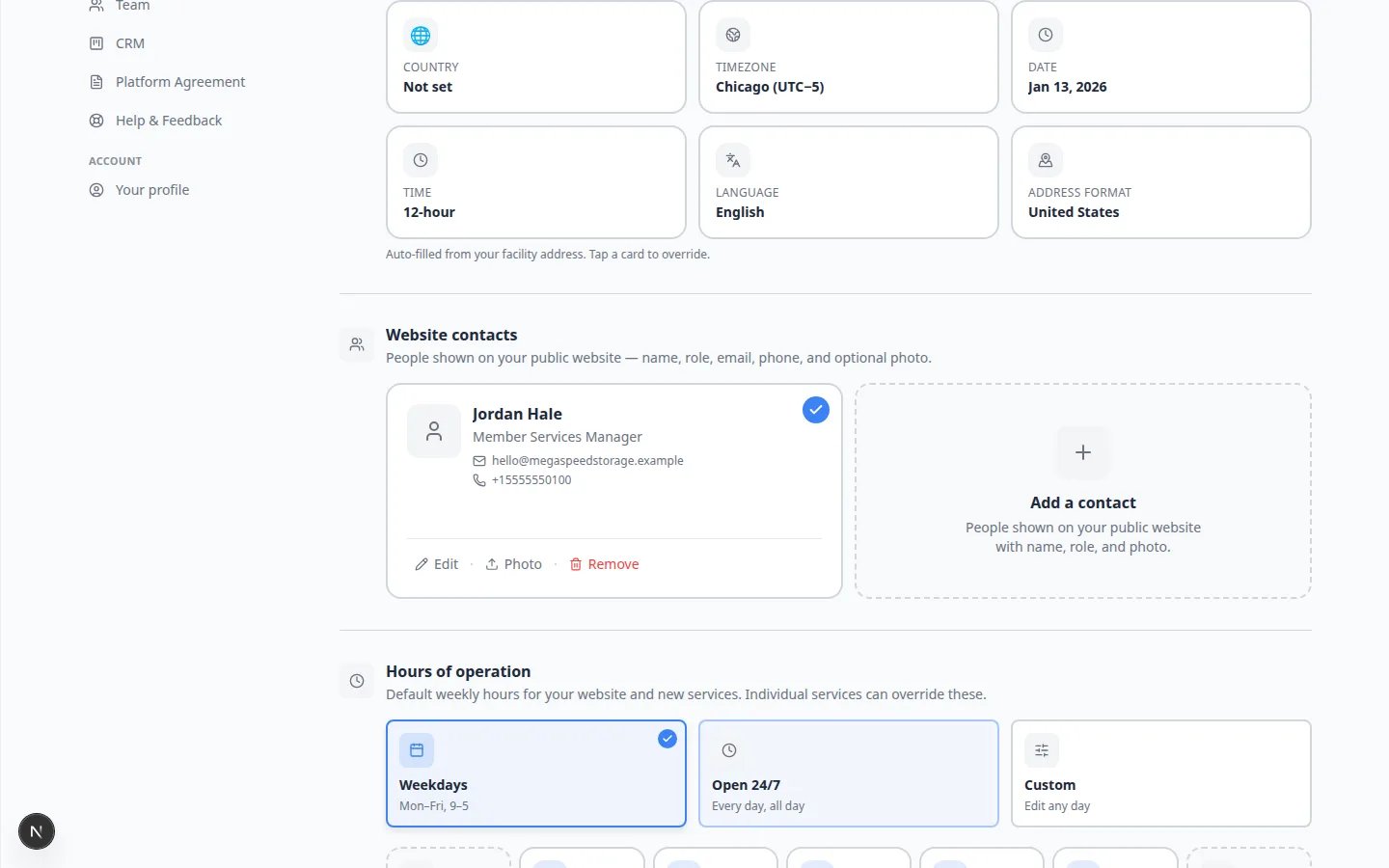
On the same General page, find Website contacts.
2
Add or edit a contact
Click Add a contact, or click an existing card. Enter their name, title, email, and phone.Use a role customers can call, such as Member Services Manager.Expected result: A contact card appears. That person can show on your public website so customers know who to call.
What success looks like
- Your facility name is the name customers already use.
- Your logo preview looks sharp, not blurry.
- Primary and secondary colors match your real brand.
- Phone and website are the ones you want printed on invoices.
- Website contacts list the right people.
Troubleshooting
My old Branding bookmark goes somewhere elseThat is expected. Settings > Branding now opens Settings > General and jumps to the branding fields.
What to do next
- Finish hours and closed days in Set up general facility settings.
- Connect payments in Connect payment processing before you send a live invoice.
- Preview customer-facing pages in Configure portal and website.