

What you will accomplish
You will open Table view on Schedule and use it like a sortable list of every visit on your calendar. This helps when you need to scan a busy week, sort by status, or open several events in a row without hunting for colored blocks on the time grid. When you finish this guide, you will know how to:- Switch from Calendar to Table view in Filters & Settings.
- Sort events by date, status, customer, or vehicle.
- Open full event details from the Details button on any row.
- Show or hide columns your team actually needs.
- Move through long lists using page controls at the bottom.
When Table view helps most
- Monday morning when many events arrived over the weekend and you need a quick scan.
- You want to sort by Status to see everything still Incomplete or waiting on Pending Approval.
- The calendar groups overlapping visits into one block and you need each event on its own row.
- Front desk is clearing overnight Needs Approval requests and wants a sortable list instead of clicking calendar blocks.
Before you start
- Open Schedule from the dashboard sidebar.
- Make sure events already exist on the calendar. If the list is empty, create one with Create an appointment.
- Know what you are looking for: a date range, a customer name, or a status such as Pending Approval.
Open Table view
1
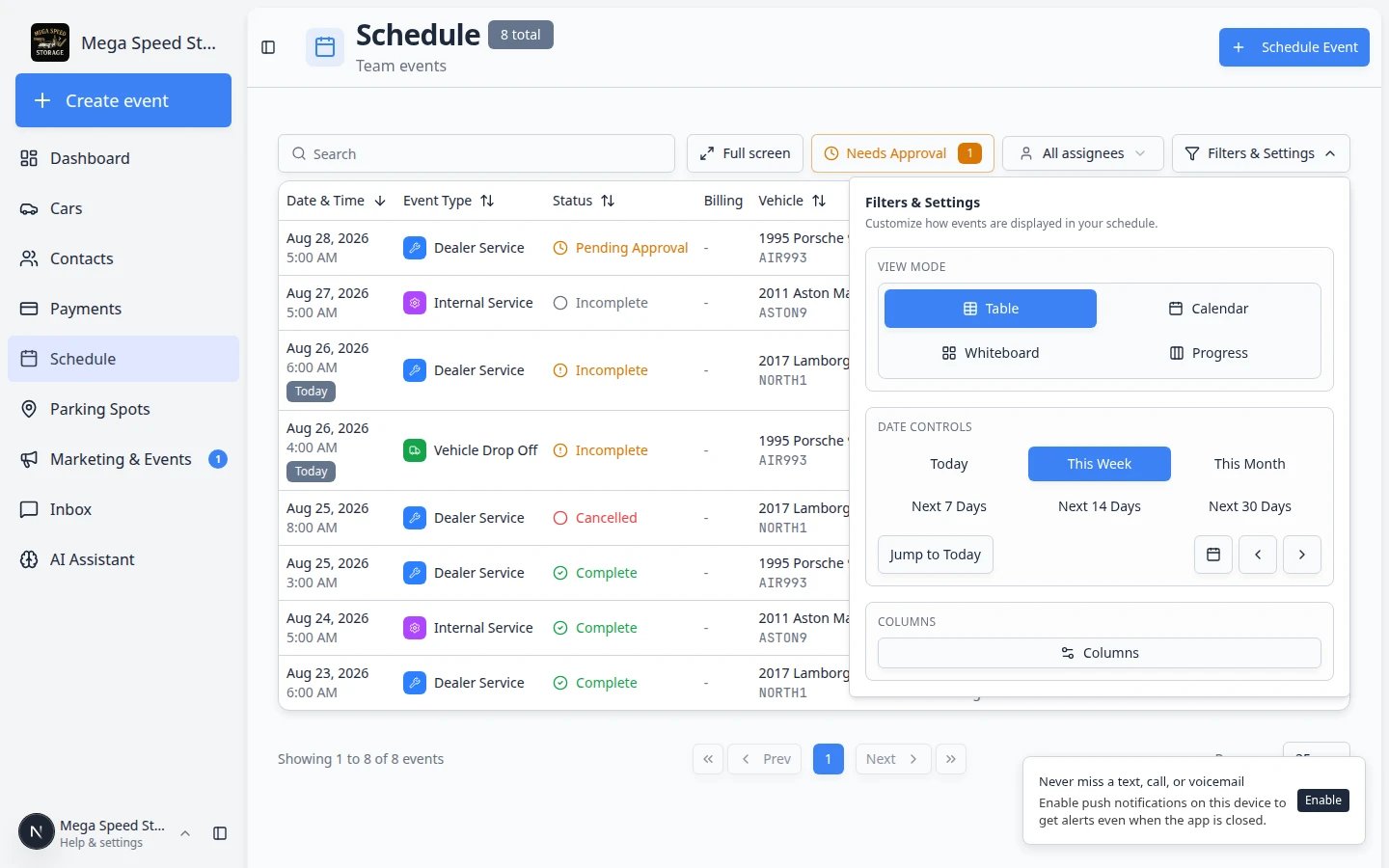
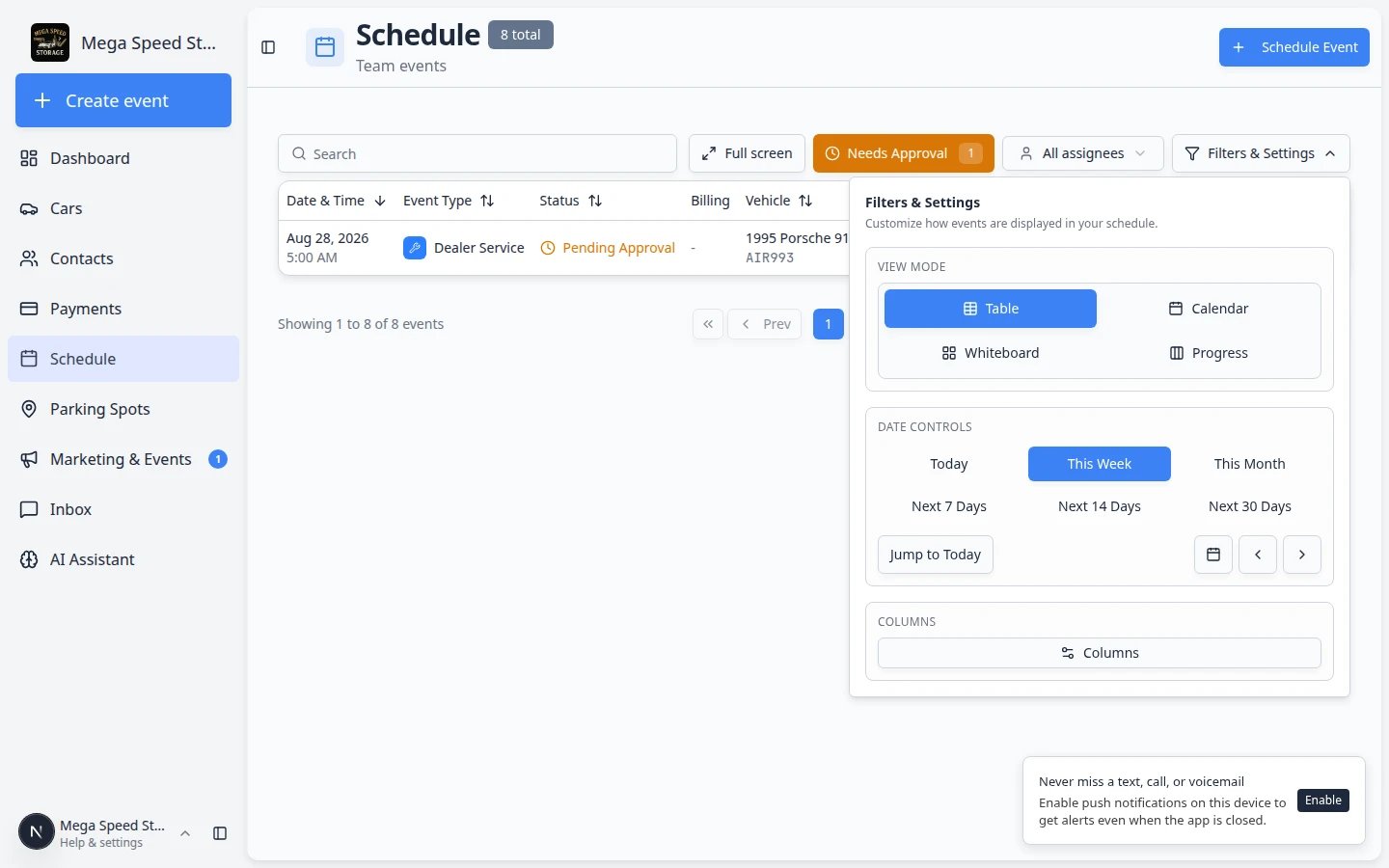
Click Filters & Settings
On Schedule, click Filters & Settings near the top-right.Expected result: A panel opens on the right with VIEW MODE at the top.
2
Choose Table
Under VIEW MODE, click Table.Expected result: The page title area shows TABLE next to Schedule. The time grid disappears and rows of events appear instead.
3
Confirm events are listed
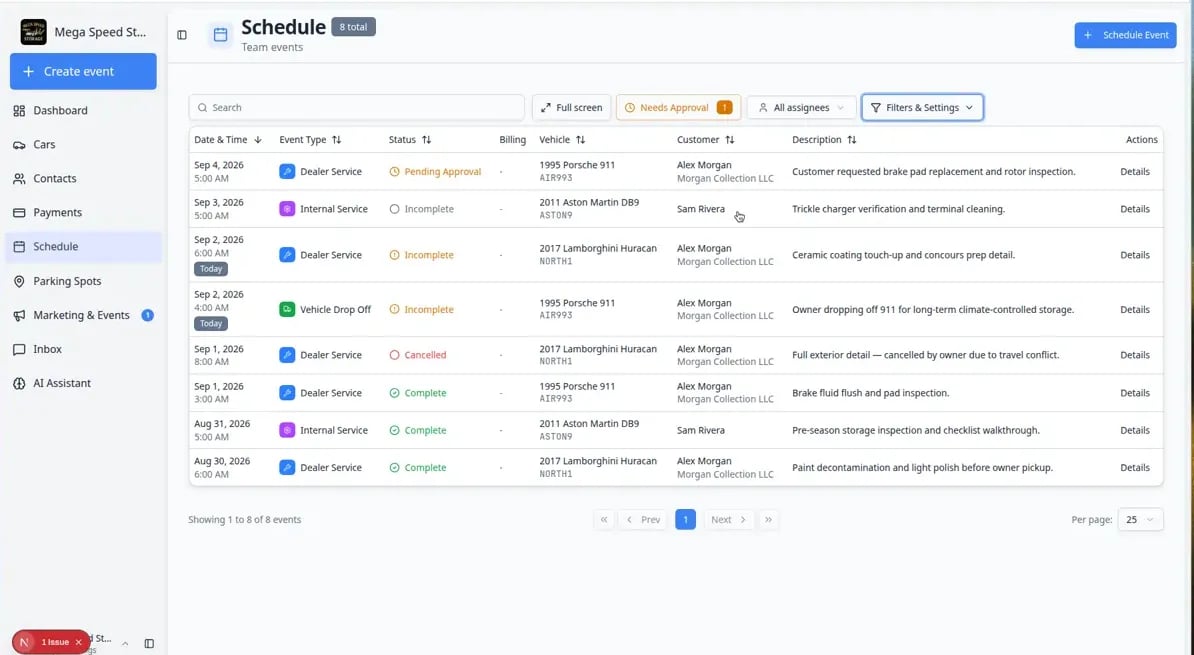
Each row shows one scheduled visit. You should see columns such as Date & Time, Event Type, Status, Vehicle, Customer, and Description.Why this matters: One row equals one event. Nothing is hidden inside a grouped calendar block.
Read the columns
Date & Time — when the visit starts (and often how long it runs).Event Type — the kind of work, such as Dealer Service or Internal Service. Each type has a color badge.Status — where the visit stands. You may also see workflow progress (for example 3 of 5 steps) or a custom status badge when your event type uses one.Vehicle — year, make, and model when the event is tied to a car.Customer — who the visit is for.Description — notes your team added when the event was created.Billing (optional) — invoice or quote status when your team links billing to visits. Turn this column on in Filters & Settings when front desk needs to see who still owes money.Actions — the Details button to open the full event panel.
Sort and group rows
1
Click a column header to sort
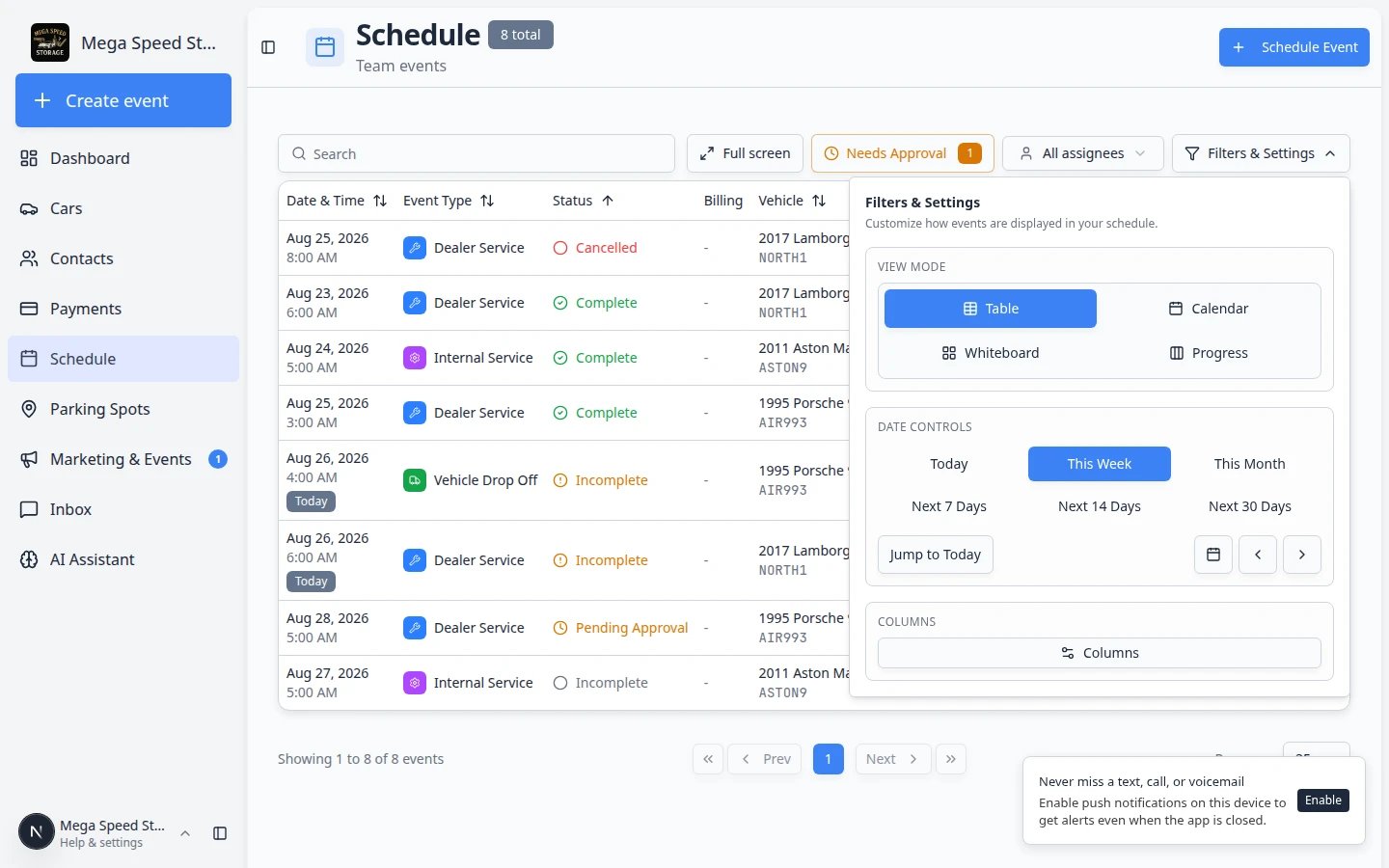
Click Date & Time, Status, Customer, or another column header.Expected result: Rows reorder. Click again to reverse the sort direction.Why this matters: Sorting by Status groups incomplete work together—helpful on Monday mornings.
2
Use Status to find stuck work
Sort by Status to see Pending Approval, Scheduled, or Incomplete events at the top or bottom of the list.Expected result: You can clear overnight booking requests or follow up on visits that never moved to Complete.
Open event details from a row
1
Find the row you need
Scroll the list or use the Search box at the top to narrow rows by customer, vehicle, or notes.Expected result: Only matching rows stay visible.
2
Click Details
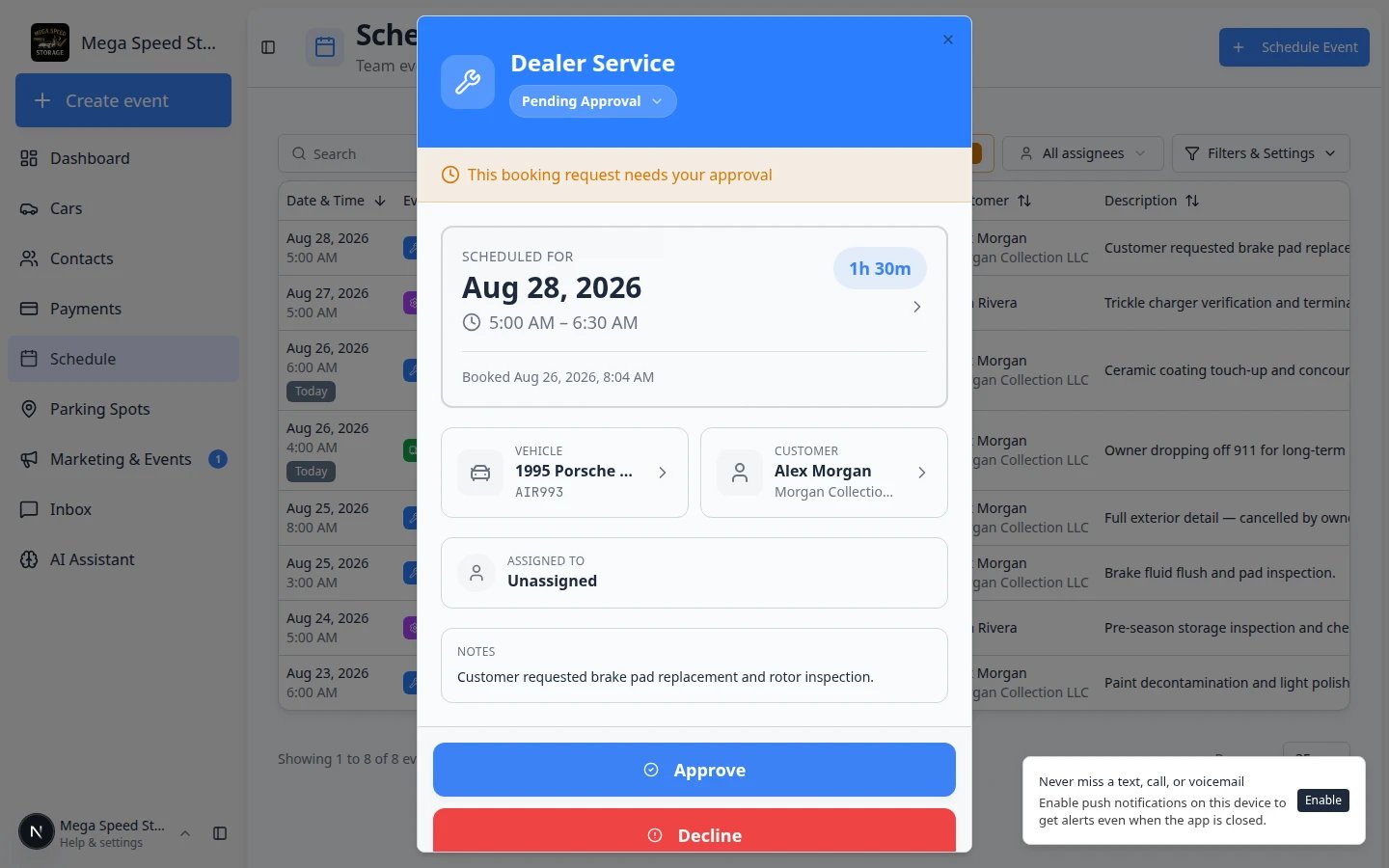
On the right side of the row, click Details.Expected result: The event panel opens on the right (or as a full sheet on a phone). You see the same information as when you click an event on the calendar—time, customer, vehicle, notes, Edit Event, and Open Event when the visit uses a workflow.
Show or hide columns
Some teams want extra columns visible (such as billing). Others hide columns on a small laptop screen.1
Open Filters & Settings while in Table view
Click Filters & Settings again. Look for a COLUMNS section in the panel.
2
Choose which columns appear
Turn columns on or off to match how your team works. Drag column names up or down to change the order they appear in the table.Expected result: The table refreshes with only the columns you selected, in the order you chose. Your choices are saved for your user account the next time you open Schedule.
Move through long lists
When your facility has many events, the table may span more than one page.1
Check the bottom of the table
Look for text such as Showing 1 to 25 of 48 events and arrow buttons to move between pages.
2
Change rows per page if available
Some screens let you pick how many rows show at once (for example 25, 50, or 100).Why this matters: A higher number means fewer page clicks when you are auditing a full week.
Pair Table view with quick filters
Table view works with the same top-bar filters as every other Schedule view.- Search — type a customer name, vehicle, plate, or note to hide rows that do not match.
- Needs Approval — show only online booking requests waiting for your team. See Approve or decline a customer booking request.
- Assigned to me — show only events assigned to your user account.
Common mistakes to avoid
Troubleshooting
What to do next
- Clear online requests with Approve or decline a customer booking request.
- Run floor work with Run event workflow from Schedule.
- Compare all four views in Find and filter scheduled work.
- Return to Schedule overview.