

What you will accomplish
You will prepare the information you need, add a customer, add a car, and check that the records are easy to find afterward.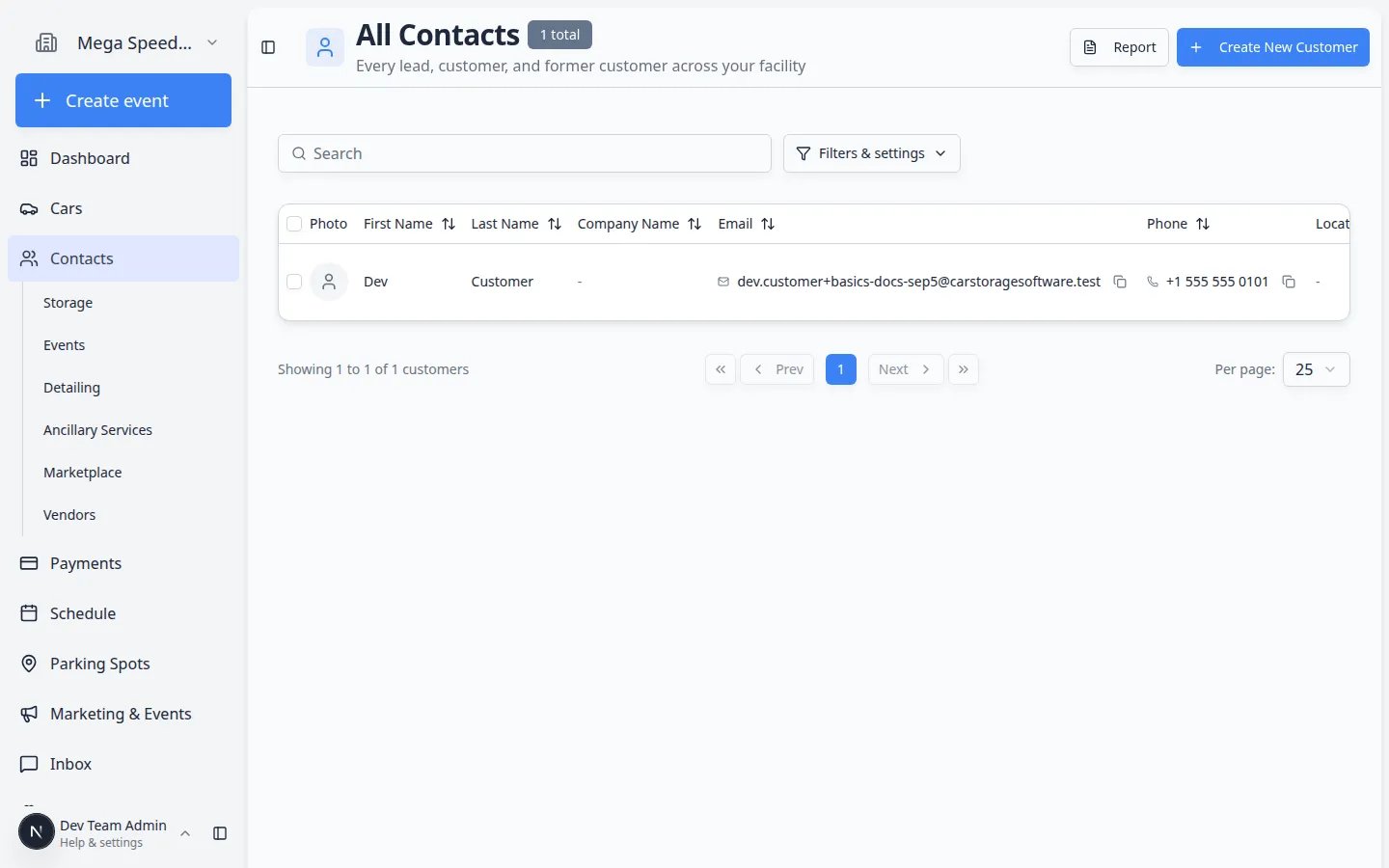
Before you start
Gather the information you know is correct. You can add more later.- Customer name
- Customer email address and phone number, if available
- Vehicle year, make, and model
- VIN or license plate, if available
- Any notes your staff needs to identify the customer or car correctly
Why customers come firstAdding the customer first lets you connect the vehicle to the correct owner while creating the car record. This helps prevent confusion later.
Step 1: Search before creating anything
1
Open Contacts
Go to Contacts.Expected result: You should see the customer list.
2
Search for the customer
Use the search box at the top of Contacts. Type the customer’s name, email address, or phone number.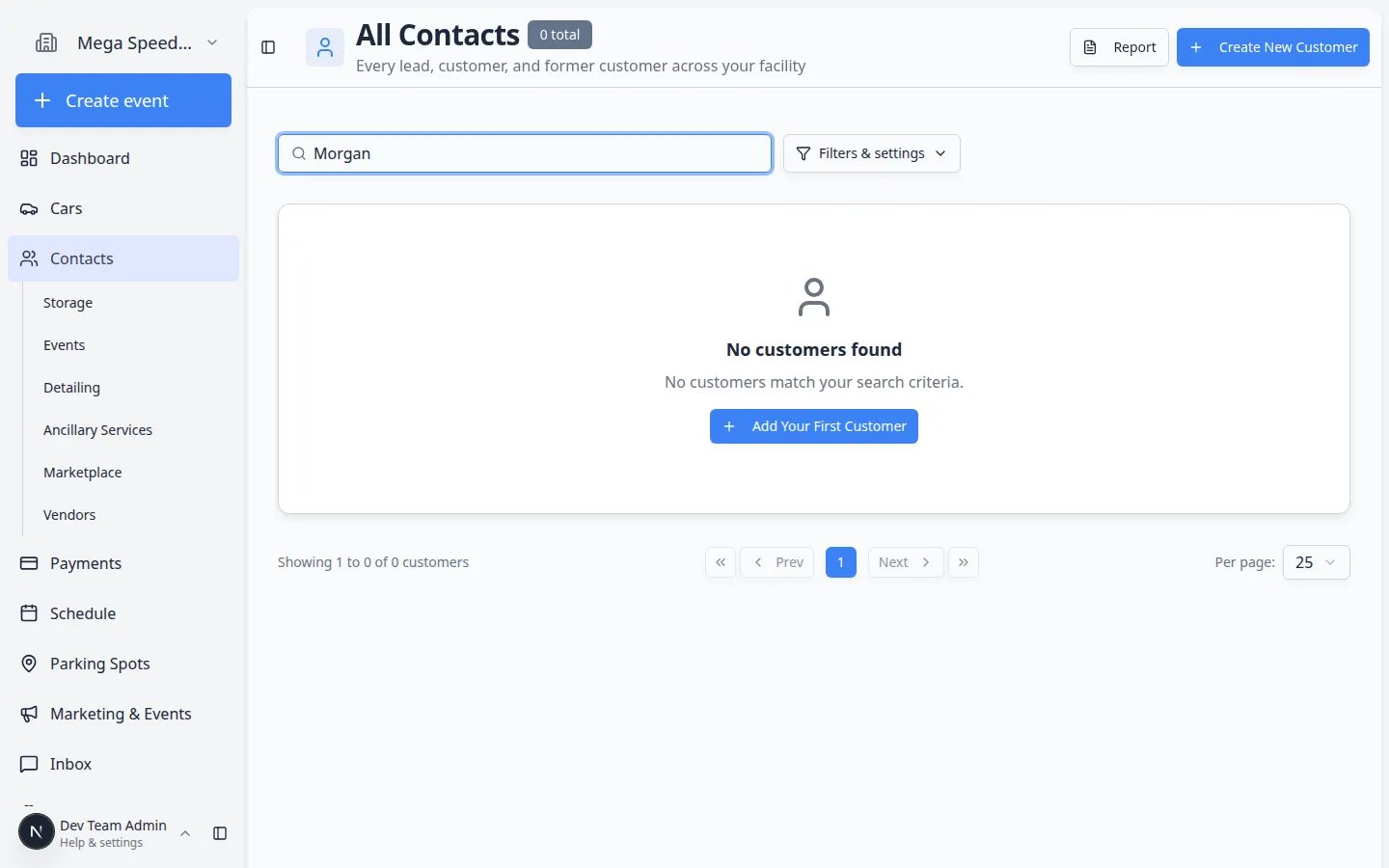
3
Decide whether you need a new record
If the customer already exists, open that customer instead of creating a duplicate.If you cannot find the customer, continue to the next step.
Step 2: Add the customer
1
Click Create New Customer
On Contacts, click Create New Customer in the top-right area of the page.Expected result: A customer form opens in a dialog window.
2
Enter the main contact information
Fill in the customer’s name and any reliable contact details you have.If you do not know an optional field, leave it blank. Do not guess.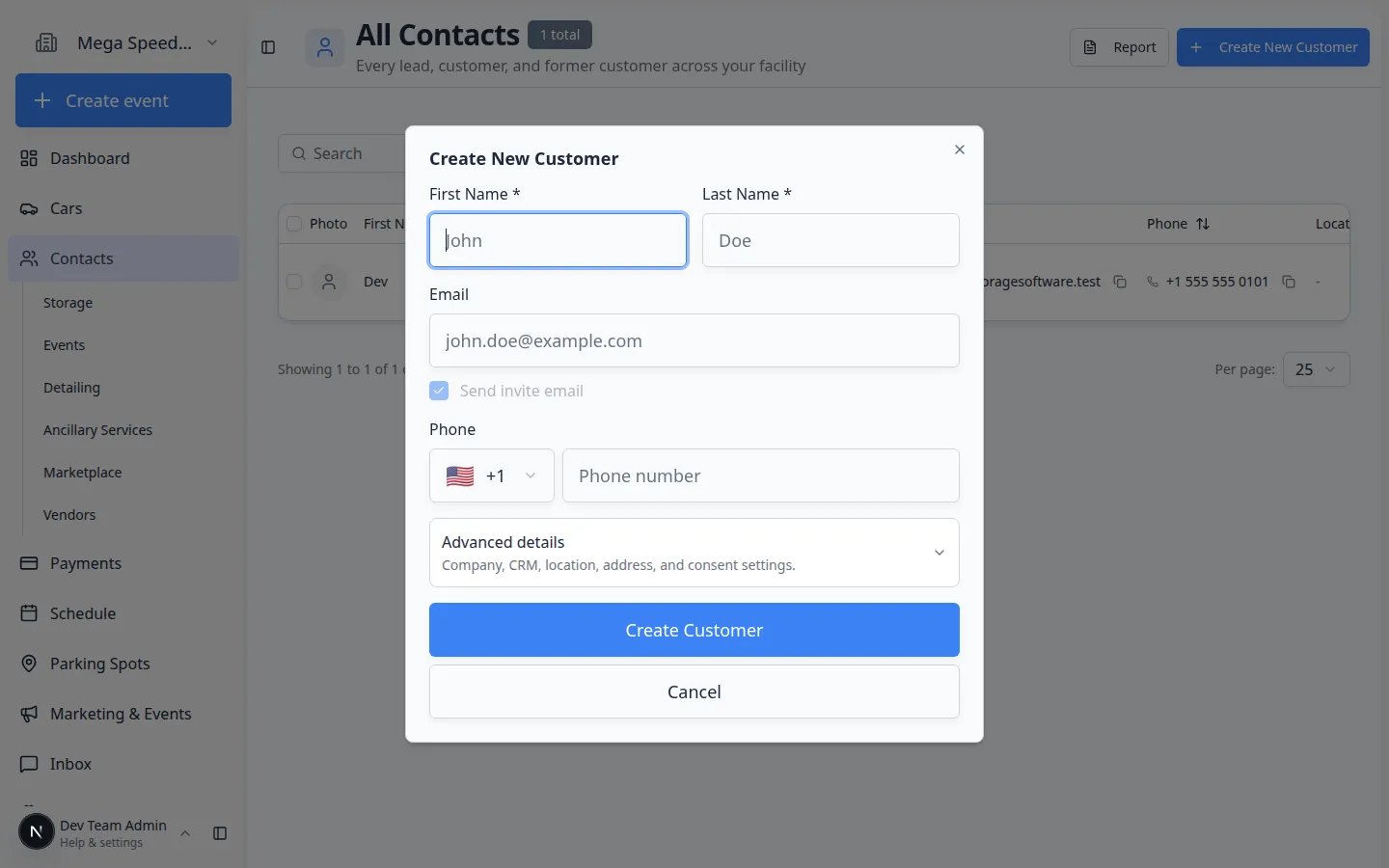
3
Save the customer
Review the information, then save the customer.Expected result: The customer appears in the Contacts list or opens on a customer detail page.
Step 3: Add the car
1
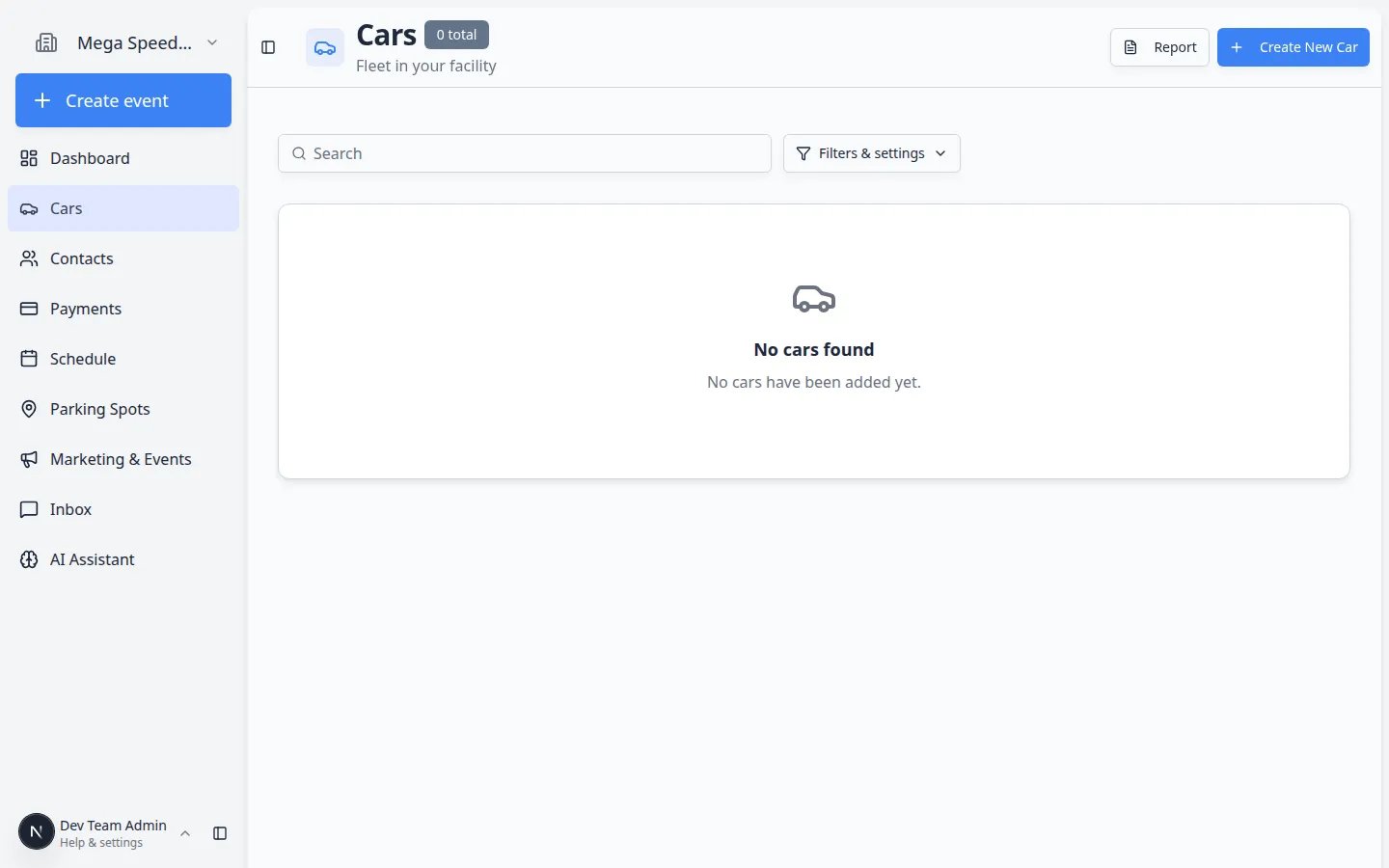
Open Cars
Go to Cars.Expected result: You should see the vehicle list.
2
Search for the car first
Use the search box at the top of Cars. Search by make, model, year, VIN, license plate, stock number, or customer name.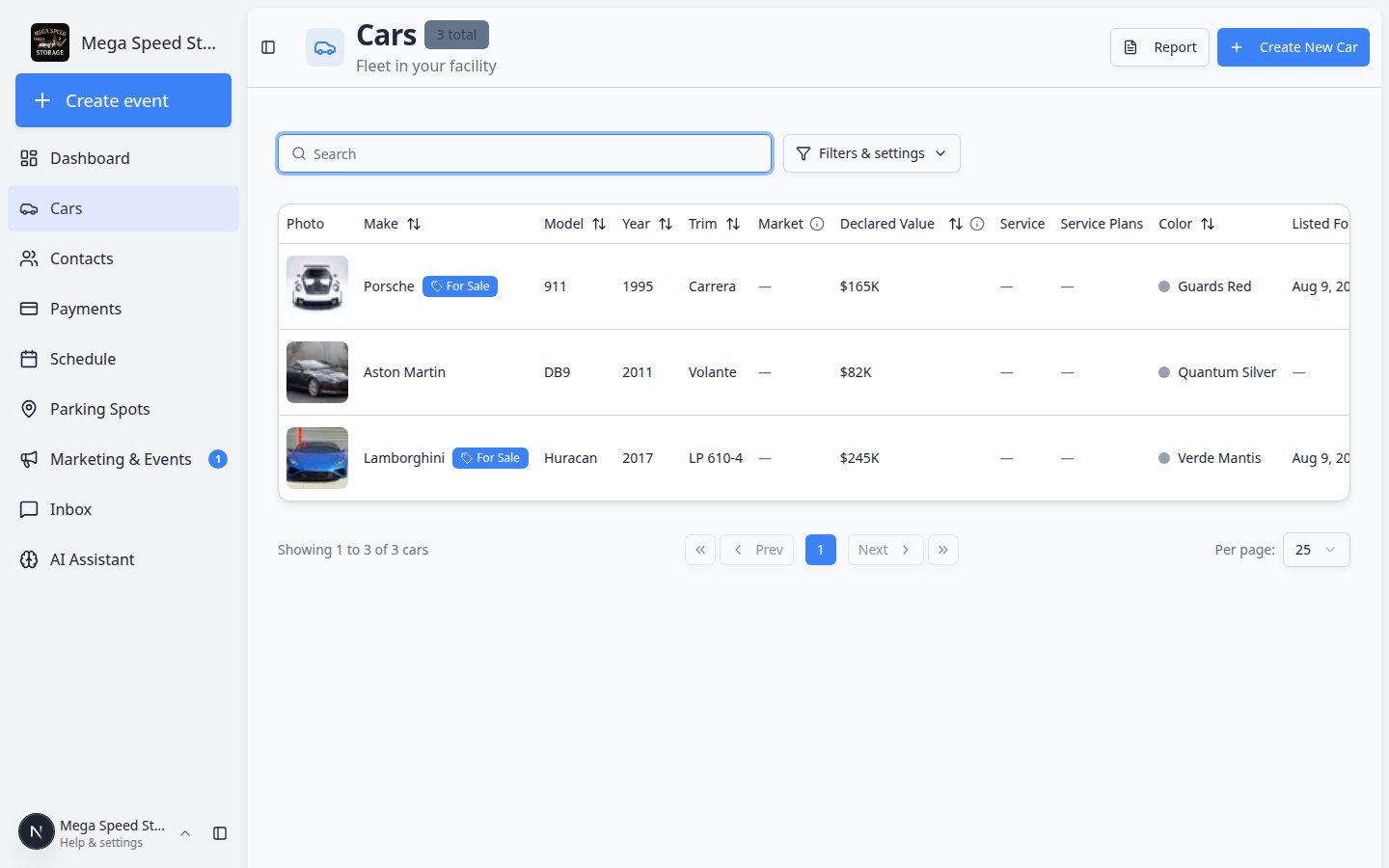
3
Click Create New Car
If the car is not already listed, click Create New Car.Expected result: The app opens the car creation flow. You may see choices for how to add the vehicle (for example, manual entry or lookup tools your facility uses).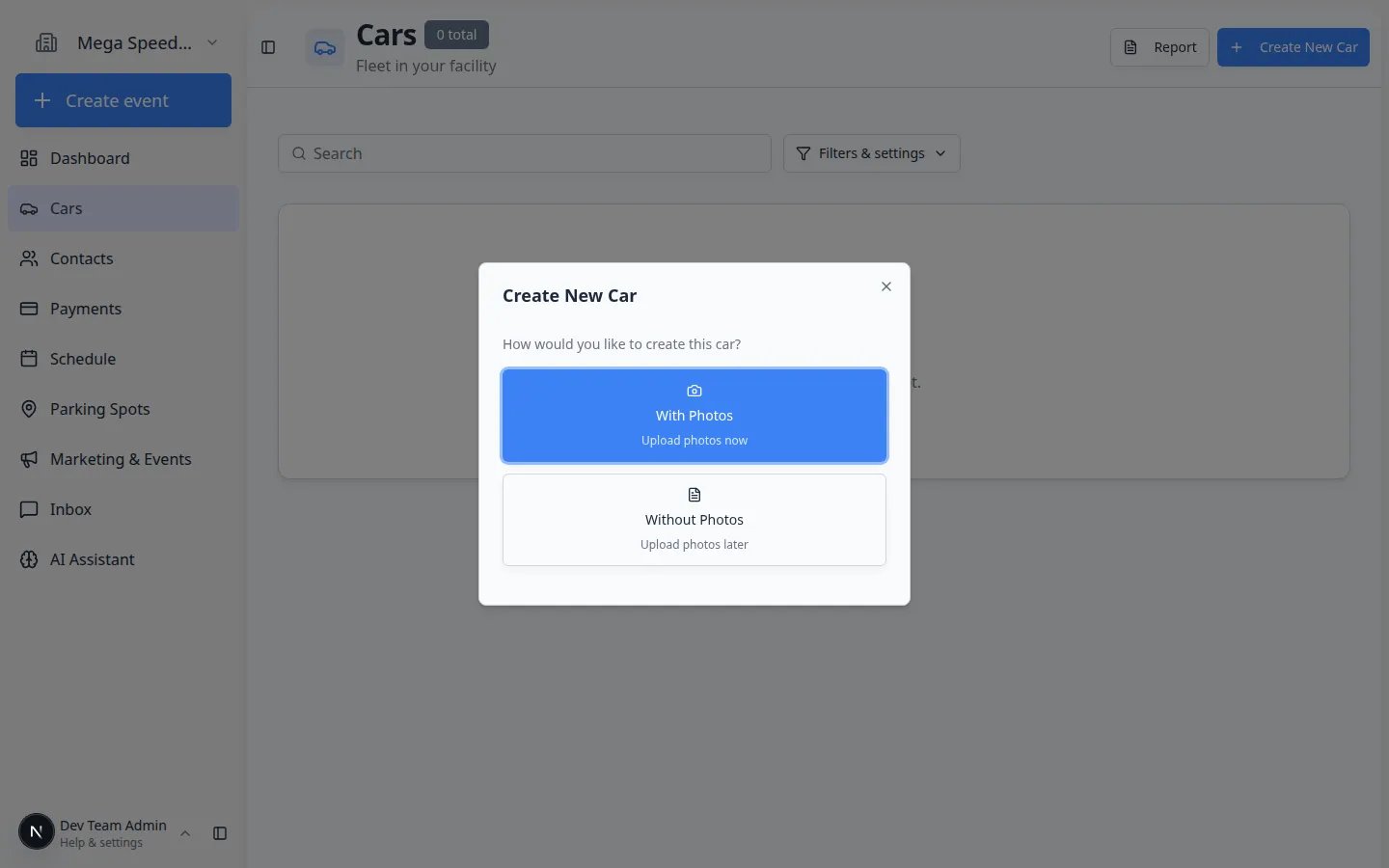
4
Enter the vehicle details you know
Add the year, make, model, VIN, license plate, color, and any other details your team uses to identify the car.If you do not know the VIN or plate yet, enter what you know and return later.
5
Connect the car to the customer
Choose the customer you created earlier as the owner or related customer.Expected result: The car record and customer record are connected.
6
Save the car
Review the details, then save.Expected result: The car appears in Cars and can be found by search.
Step 4: Check your work
1
Find the customer again
Go to Contacts and search for the customer’s name.Expected result: You can quickly find the customer record.
2
Open the customer record
Click the customer name to open their detail page. Scroll to Customer’s Cars (or a similar cars section) and confirm the vehicle is listed.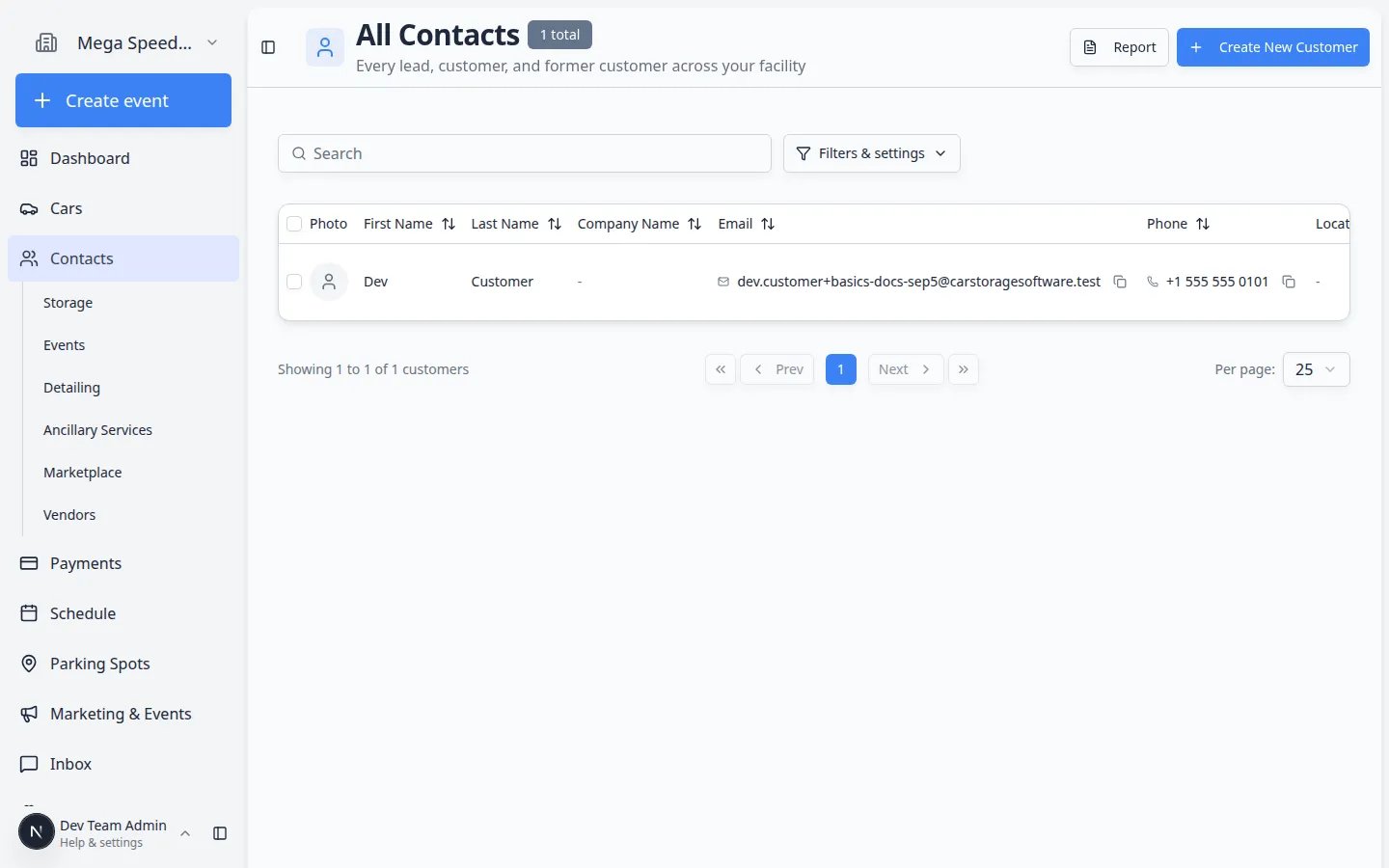
3
Find the car again
Go to Cars and search for the car by make, model, VIN, plate, or customer name.Expected result: You can quickly find the car record and see the correct customer on the car page.
Common mistakes and how to fix them
I do not know the VIN yetThat is okay. Save the record with the details you know, then add the VIN when you have it. Make sure the car can still be identified by year, make, model, color, customer, or plate.
The car belongs to a business, family, or multiple peopleStart with the main person or business your facility bills or contacts most often. Then use customer contacts, notes, or related fields to add other people as needed. Read Manage additional contacts and Invite a customer to the portal when the customer needs portal access.
I created the car before the customerOpen the car record and connect it to the correct customer, or ask a manager if you are unsure which owner to choose. Going forward, add the customer first.
Import instead of typing one by one (optional)
If your facility has a spreadsheet with many customers and cars, you may import them instead of entering each record manually.1
Open Import settings
Go to Import Data.Expected result: You see upload options and may be able to download a template file.
2
Follow the import guide
Read Import customers and cars for column names, file format, and how to fix rows that fail.Why this matters: A clean import saves hours when you are moving from paper or another system.
Troubleshooting
I cannot find the car I just addedRefresh Cars and search by customer name, plate, or VIN. If filters are active, clear them from Filters & Settings near the top of the page.
The customer page does not show the linked carOpen the car record in Cars and confirm the correct customer is selected as owner. Save again if you changed the link.
What to do next
Once the customer and car are ready, choose the next task:- Move a car if you need to assign a parking spot or zone.
- Start a car session if you need an intake, inspection, photo walkthrough, or service event.
- Create an invoice if the customer needs to pay.
- Send a contract for signature if the customer needs to sign paperwork.
- Create an appointment if the customer has a visit scheduled.
- Invite a customer to the portal when the customer should sign in online.
- Import customers and cars if you have a spreadsheet of existing records to upload.