Documentation

How-to guides for Car Storage Software

Practical guides for setting up your facility, managing cars and customers, and running day-to-day operations.

Search documentation

Search documentation guides and how-to articles.

Browse documentation

Parking Spots

Review the parking report

Use the parking report to review where cars were assigned during a date range.

What you will accomplish

You will open the parking report, choose a date range, read assignment history, and export a copy when your team needs records outside the app.

When to use this guide

Use this guide when you need to answer questions such as:

  • Which cars were parked here this month?
  • How long did a car stay in a spot?
  • Which customer used a specific location?
  • What parking history should we review before billing or an internal audit?
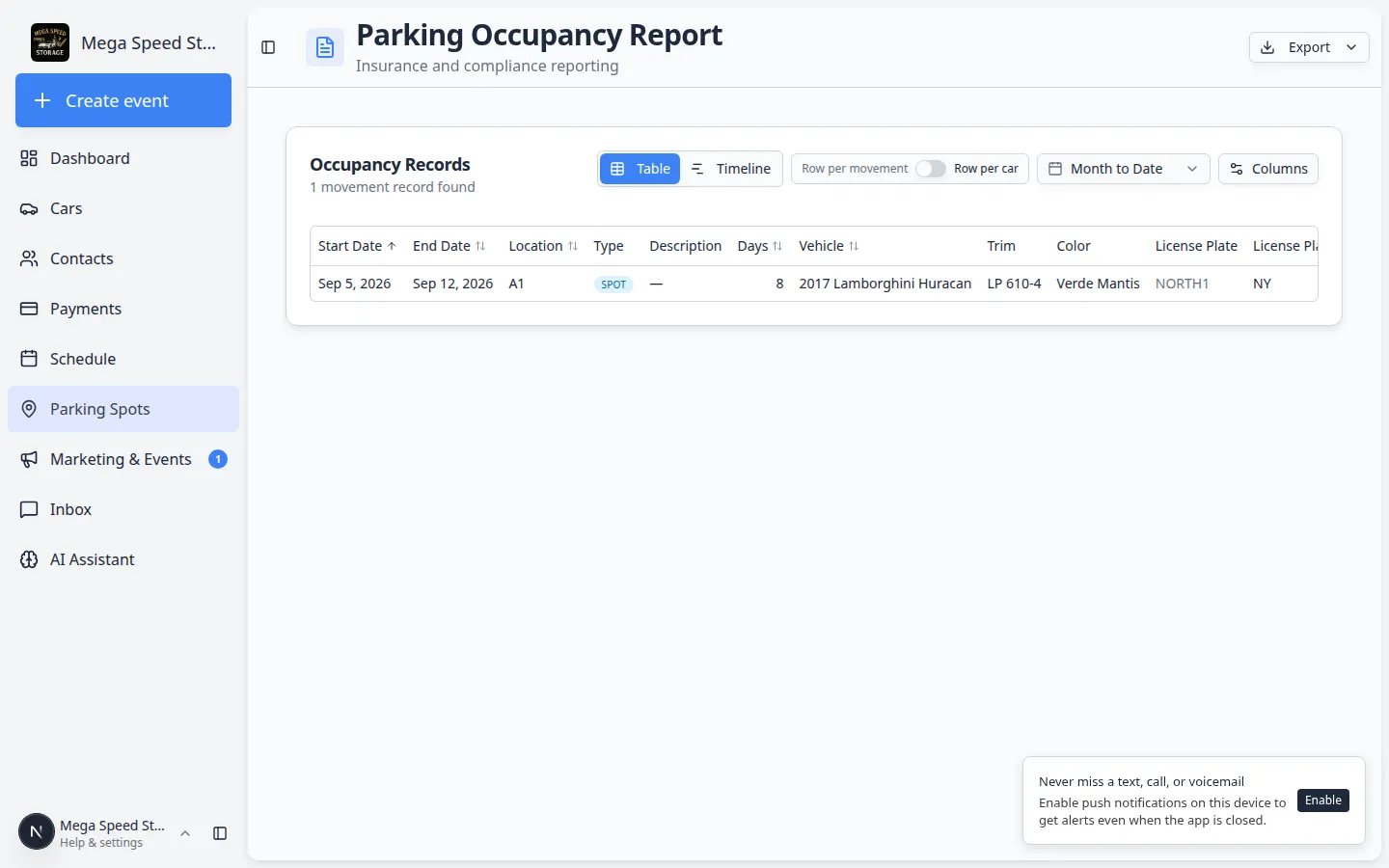
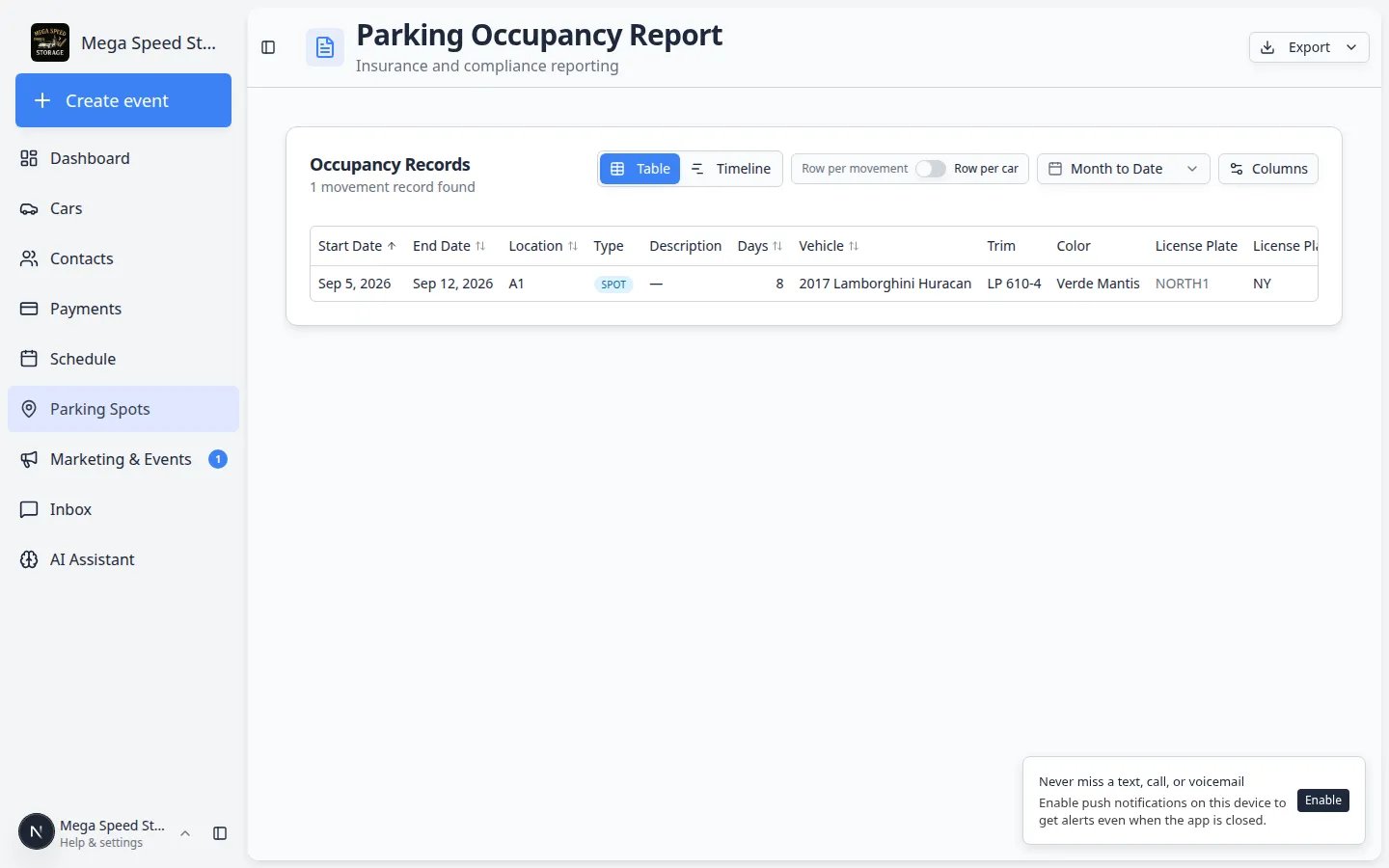
The report is based on parking assignments your team saves in the app. It is only as accurate as the updates made on Parking Spots and on vehicle records.

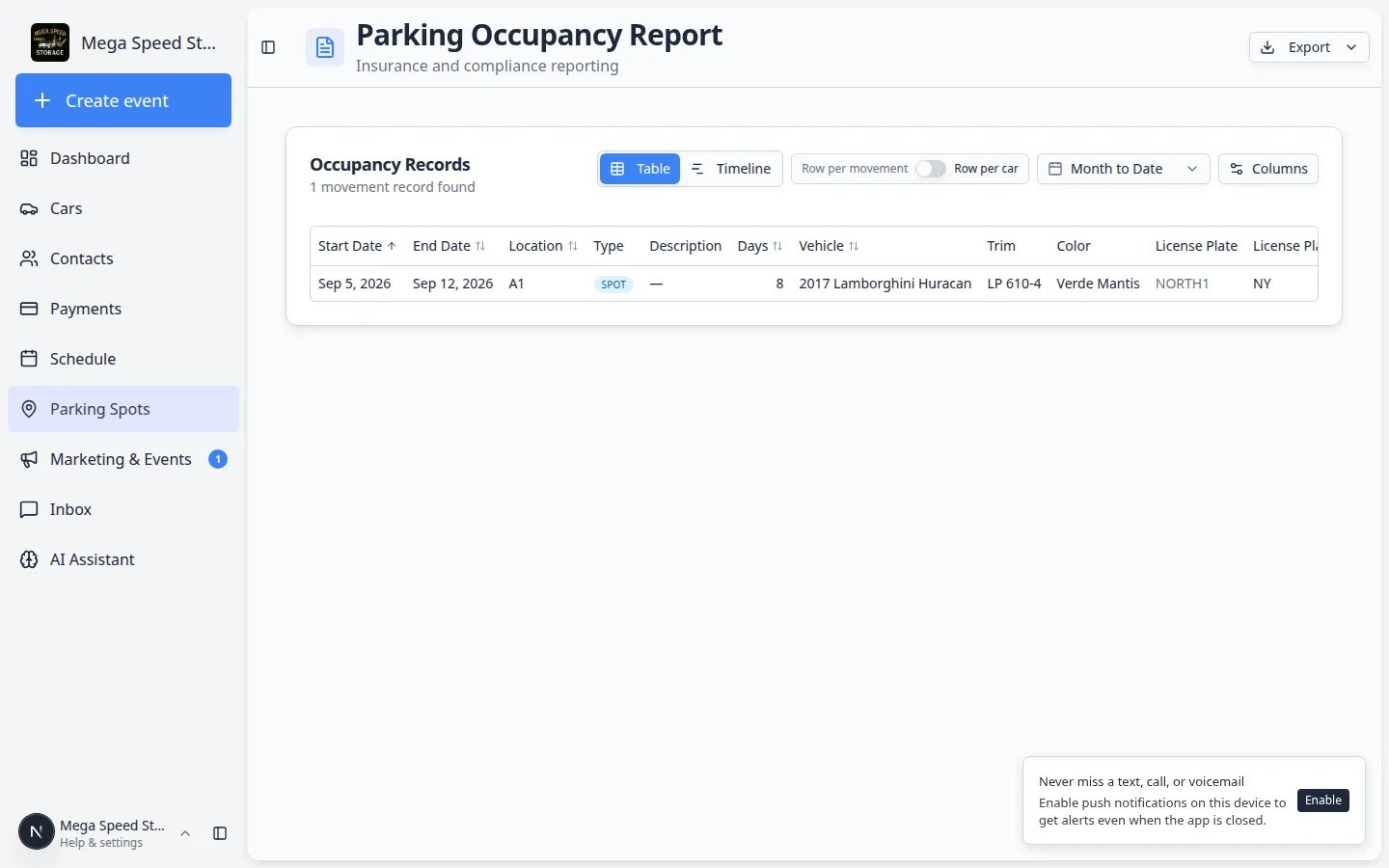
Parking report page showing date range controls, export controls, and parking assignment rows
The parking report lists parking assignments for the date range you choose.

Before you start

  • Your team should be using parking assignments on Parking Spots.
  • Know the date range you want to review.
  • Know whether you are checking one car, one customer, one spot, or overall facility use.
  • If you plan to export the report, decide which columns your team needs first.

Open the report

You can open the report from the main Parking Spots page or go directly to Parking Spots Report. The page title is Parking Occupancy Report.

  1. Go to Parking Spots
  2. Click Report

    In the top-right area of the page (next to Add Parking Spot), click Report. This opens the Parking Spots Report.

    Expected result: You see Parking Occupancy Report at the top and a table of occupancy records below.

  3. Wait for the rows to load

    The report may take a moment if your date range includes many cars. When it finishes, the table shows parking assignments that match your selected range.

Choose the date range

  1. Open the date range control

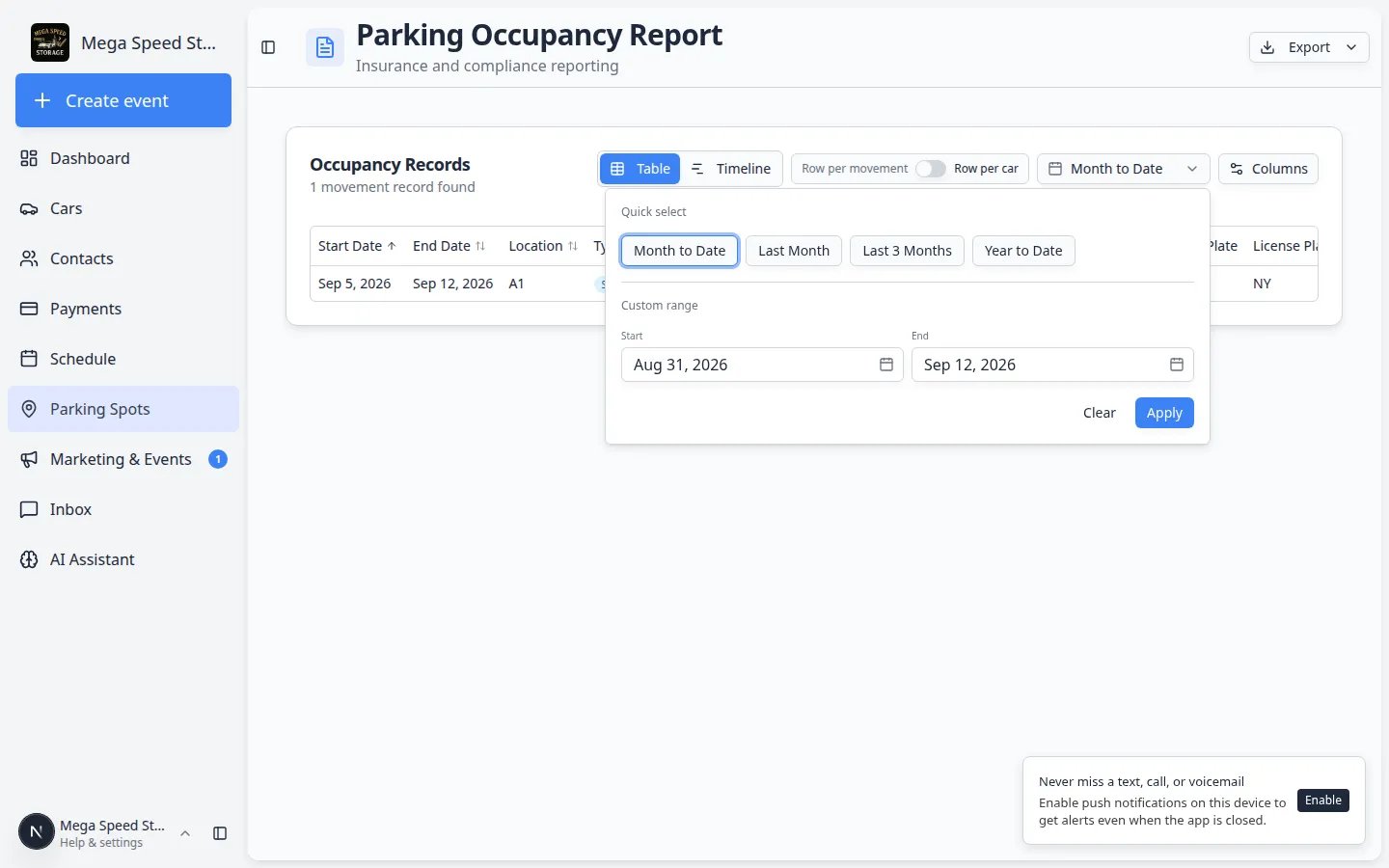
    At the top of the report, use the date range control. The default is usually Month to Date.

  2. Pick a quick range or custom range

    Choose a quick range like Month to Date, Last Month, Last 3 Months, or Year to Date.

    If you need exact dates, choose a custom start date and end date.

  3. Confirm the table updated

    After changing the date range, check that the rows and totals match the time period you selected.

Parking report date range menu open showing quick options such as Month to Date and Last Month plus custom start and end dates
Pick a quick range for routine reviews, or set custom start and end dates when a customer asks about a specific week or month.

Switch between Table and Timeline views

The report has two main ways to read the same history.

Table shows rows and columns. Use it when you need dates, spot names, customers, and Days for billing or audits.

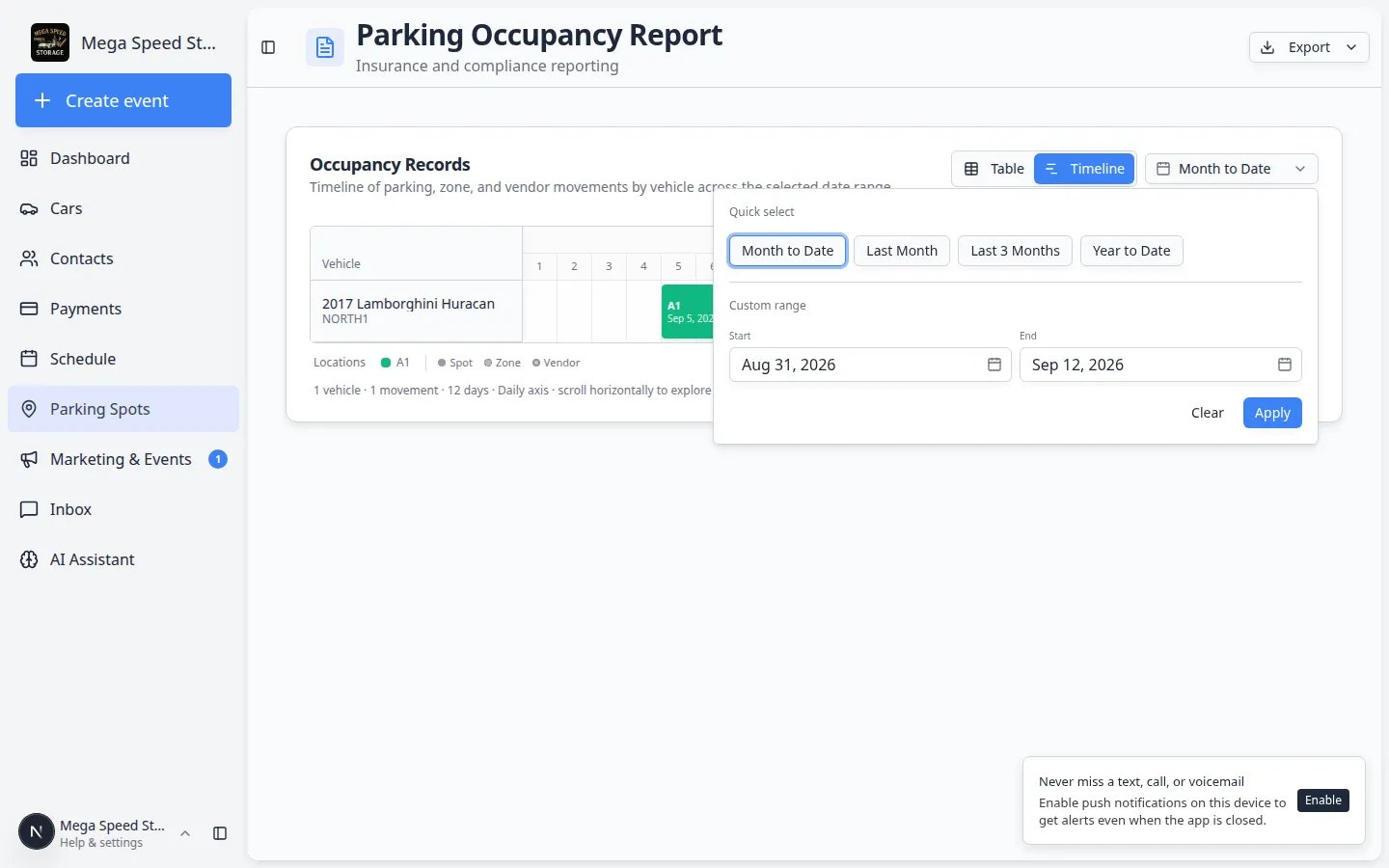
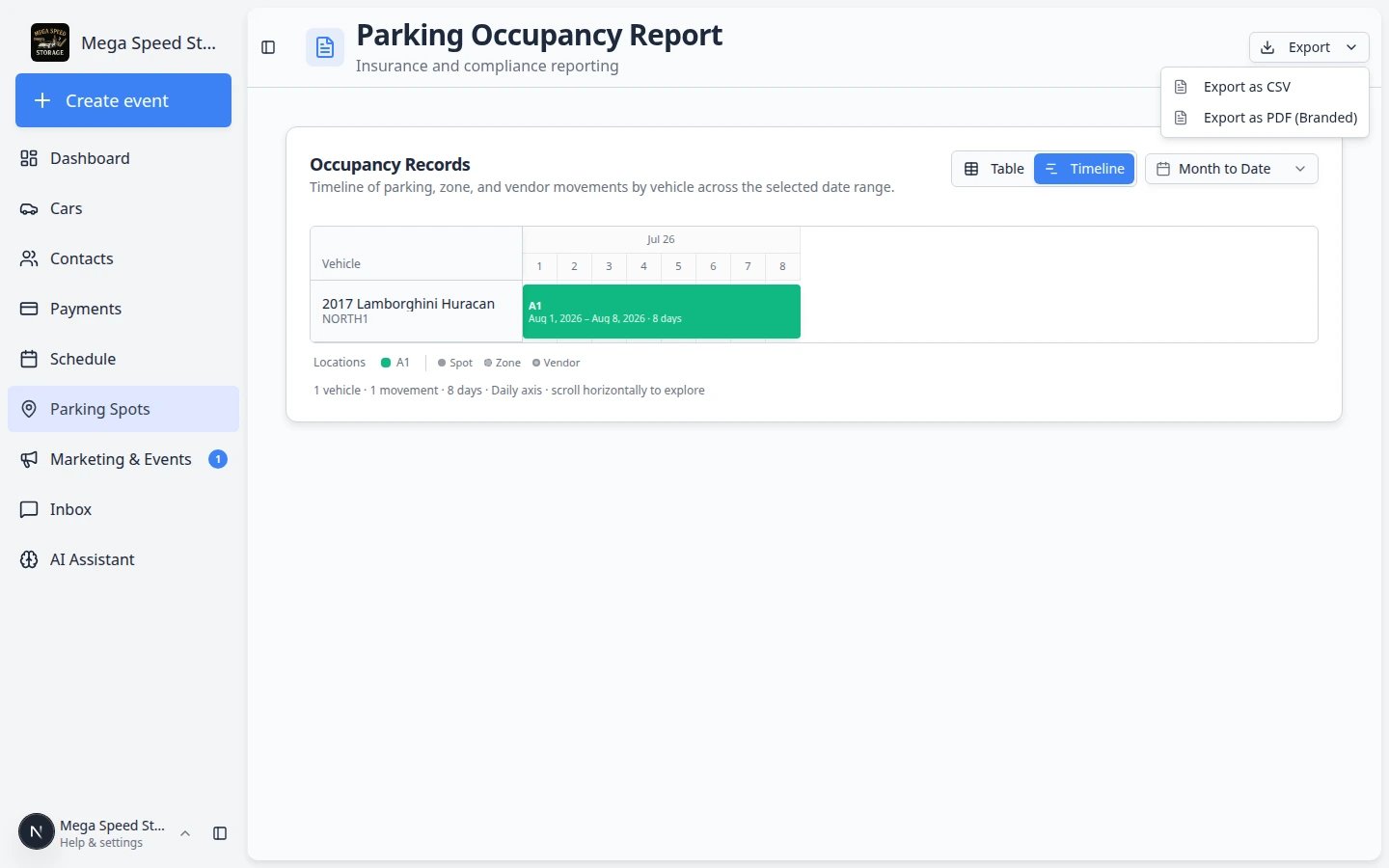
Timeline shows a chart across the date range. Use it when you want to see how long a car stayed in each spot without reading every row.

  1. Find the view switcher

    Near the top of Parking Spots Report, look for two buttons: Table and Timeline.

  2. Click Table for spreadsheets and exports

    Table is best for sorting columns, changing Row per movement vs Row per car, and exporting CSV or PDF.

  3. Click Timeline for a visual history

    Timeline draws bars across the dates you selected. Each bar shows when a car was in a spot during that range.

Parking Occupancy Report in Timeline view showing a Gantt-style chart of vehicle stays across the selected date range
Timeline view helps you explain how long a car was in a spot without reading every table row.

Expected result (Timeline)

You can point to a bar and explain when a vehicle was in a spot. If a car moved twice in the same month, you may see more than one bar.

Choose how rows are grouped

When the report is in Table view (not Timeline), you can switch how rows are listed.

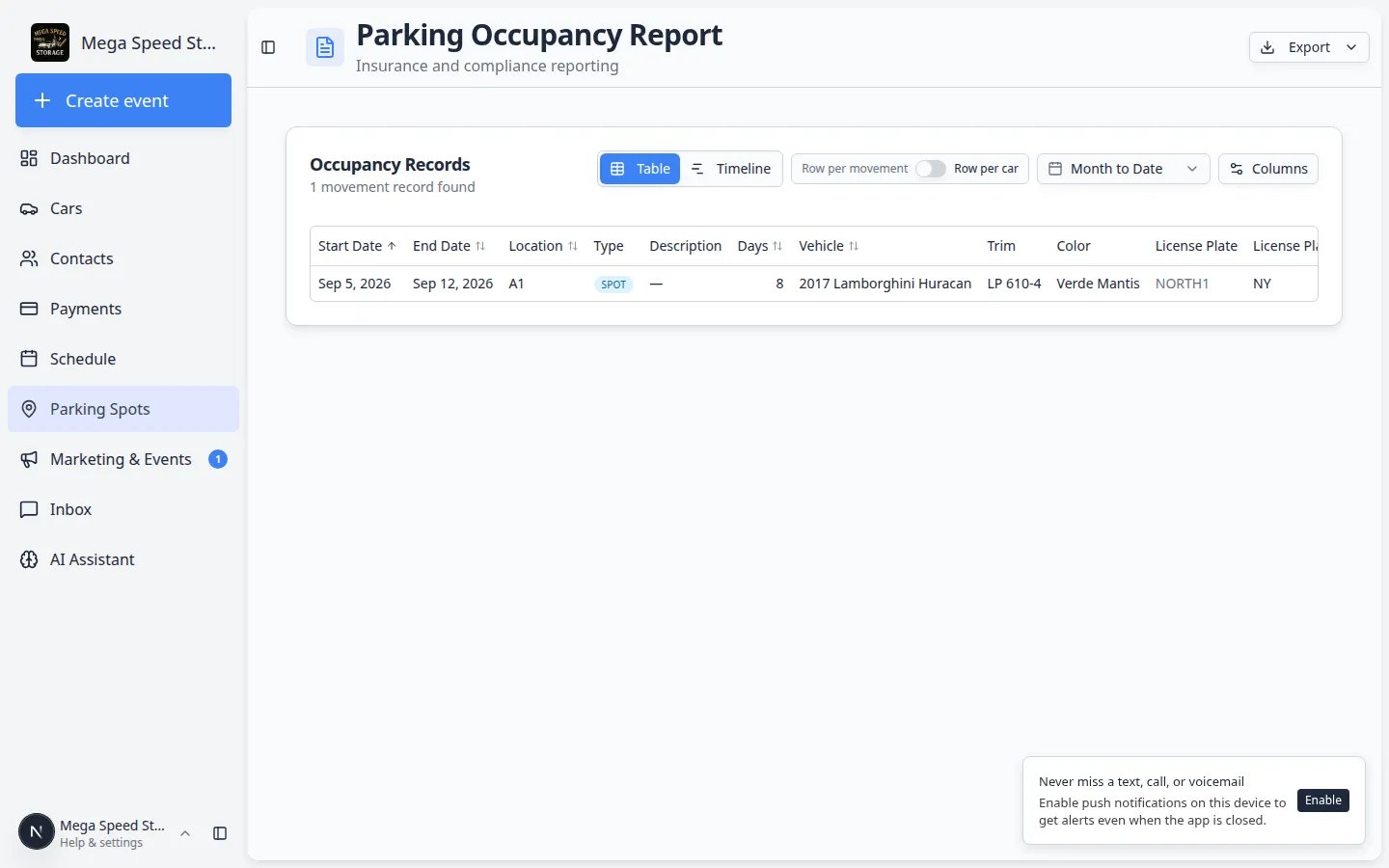
Row per movement shows each parking stay or move as its own row. Use this when you want detailed history.

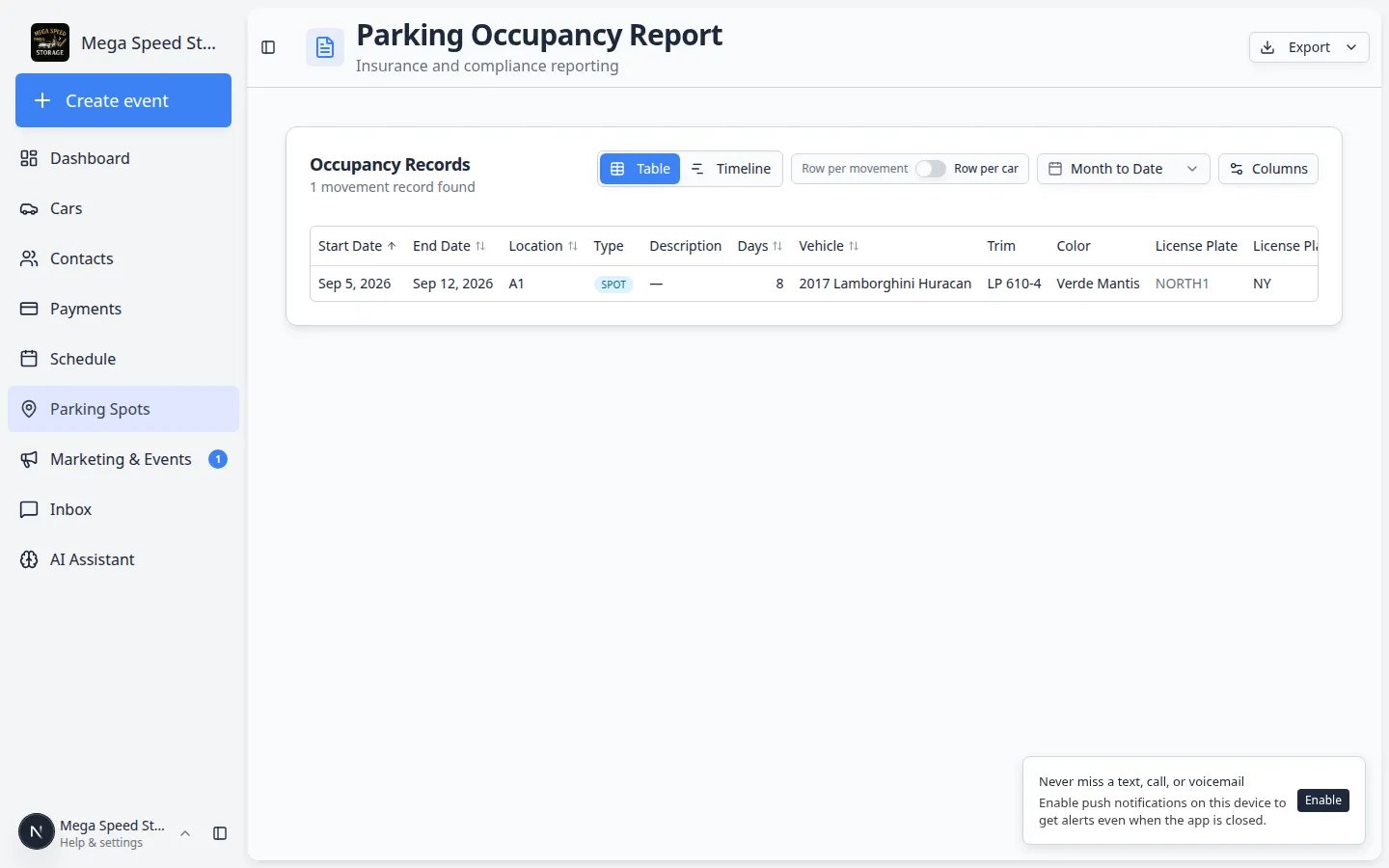
Row per car groups activity by vehicle. Use this when you want a shorter list of which cars were in the facility during the date range.

If you are not sure which to use, start with Row per movement. It gives the most detail.

  1. Find the row grouping control

    Near the top of the Parking Spots Report, look for the switch labeled Row per movement and Row per car.

  2. Leave Row per movement on for detailed history

    Keep Row per movement when you need to see each time a car entered or left a spot.

  3. Turn on Row per car for a shorter vehicle list
    Turn the switch toward Row per car when you mainly need one line per vehicle for the date range.

Parking Occupancy Report table showing one row per parking movement with spot, vehicle, customer, and days columns
Row per movement is best for audits and billing reviews because each stay or move appears on its own line.
Parking Occupancy Report grouped with one row per car summarizing parking activity in the selected date range
Row per car rolls up multiple moves into one line per vehicle when you only need a facility-wide vehicle list.

Expected result

The rows change to match the grouping you picked. Row per movement usually shows more lines because each stay or move is its own row.

Read the main columns

  1. Check Start Date and End Date

    These columns show when the car's assignment started and ended within your selected range. If the car is still assigned, the end date may show the current range end.

  2. Check Location and Type

    Location shows the spot, zone, or vendor name. Type shows Spot, Zone, or Vendor so you can tell numbered spaces apart from flexible areas or off-site locations.

  3. Check Vehicle

    Use the vehicle details to confirm you are looking at the correct car. This is especially helpful when customers own more than one vehicle.

  4. Check Customer

    The customer column helps you connect the parking history to the owner or company.

  5. Check Days

    Days shows how many days the assignment overlaps your selected date range. This is helpful for occupancy review and billing checks.

  6. Optional columns for billing and audits

    Open Columns to add fields your team may need:

    • VIN, License Plate, Customer Email — identify the right vehicle and owner.
    • Insurance Company, Declared Value — confirm coverage details before billing questions.
    • Est. Min / Avg / Max Value — market value estimates when your facility uses vehicle valuation data.
Change which columns you see
  1. Open the columns control

    Near the top-right of Parking Spots Report, click Columns (or the column visibility control).

    Expected result: A checklist of column names appears, such as Days, VIN, License Plate, and Customer Email.

  2. Turn columns on or off

    Check the fields your team needs. For billing reviews, turn on Days. For vehicle identification, add VIN or License Plate.

    Why this matters: The export file includes only the columns that are visible when you click Export.

  3. Keep the report easy to read

    Turn off columns you do not need for the task. A shorter report is easier to review on screen and in a spreadsheet.

Export the report

Use export when you need to share the report outside the app or save a copy for your records—for example before a billing review or when a manager asks for a spreadsheet.
  1. Switch to Table view

    Open Parking Spots Report and click Table if you are on Timeline. Export works from the table.

  2. Set the date range first

    Always choose the correct date range before exporting. The file includes only rows that overlap that range.

  3. Choose the columns you want

    The export uses the visible columns, so turn on the columns you need before downloading. Add Days, VIN, or Customer Email when billing or audit teams need them.

  4. Click Export

    In the top-right area of the report, click Export. Choose Export as CSV for a spreadsheet file you can open in Excel or Google Sheets. Choose Export as PDF (Branded) when you need a formatted copy with your facility logo for a customer or manager.

    Why this matters: CSV is best for sorting and formulas. PDF is best when a customer or owner wants a polished document without editing.

  5. Open the file and spot-check one row

    Open the download and confirm one vehicle, spot name, and Days value look right before you email the file.

    Expected result: Each row matches what you saw in the on-screen table for the same date range.

What to do if the report finds a problem

  • If a car is missing, open the car record and check whether it has a parking assignment.
  • If a car shows the wrong spot, move the car record to the correct spot from Parking Spots or the car record.
  • If a spot name is wrong, update it in Settings > Floor Plan.
  • If staff are not updating moves, review Assign a parking spot with the team.

Troubleshooting

What to do next