

What you will accomplish
You will learn how your team uses the Schedule page to plan work, respond to online booking requests, and track what is finished during a busy day. This overview links to step-by-step guides for each job (create appointments, approve bookings, change times, cancel work, and more). The Schedule page is your team’s daily calendar. Use it to plan customer visits, service work, pickups, drop-offs, facility tasks, and blocks of time when your team is not available. The goal of the Schedule page is simple: everyone should know what is happening, when it is happening, who it is for, and what needs attention next.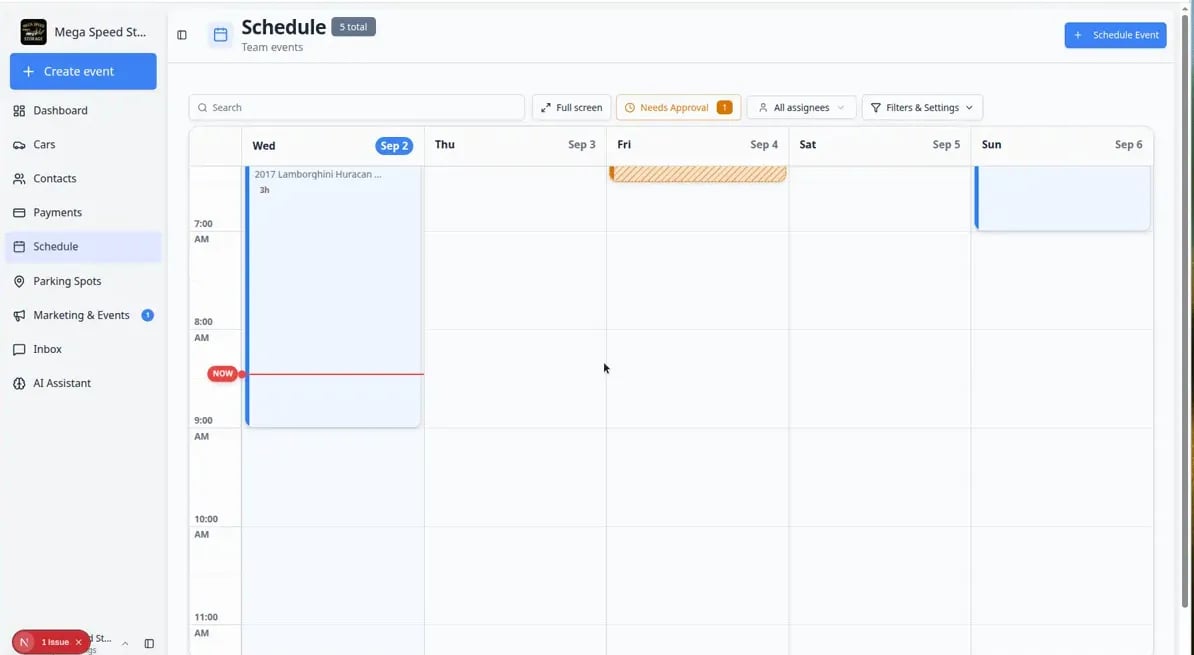
What you can do from Schedule
- Create a customer appointment, service visit, pickup, drop-off, or internal facility event — including All day work that has no clock time.
- Switch between calendar, table, whiteboard, and progress views—including 2 Week planning and optional Day detail panel.
- Search for events by customer, vehicle, event type, or notes.
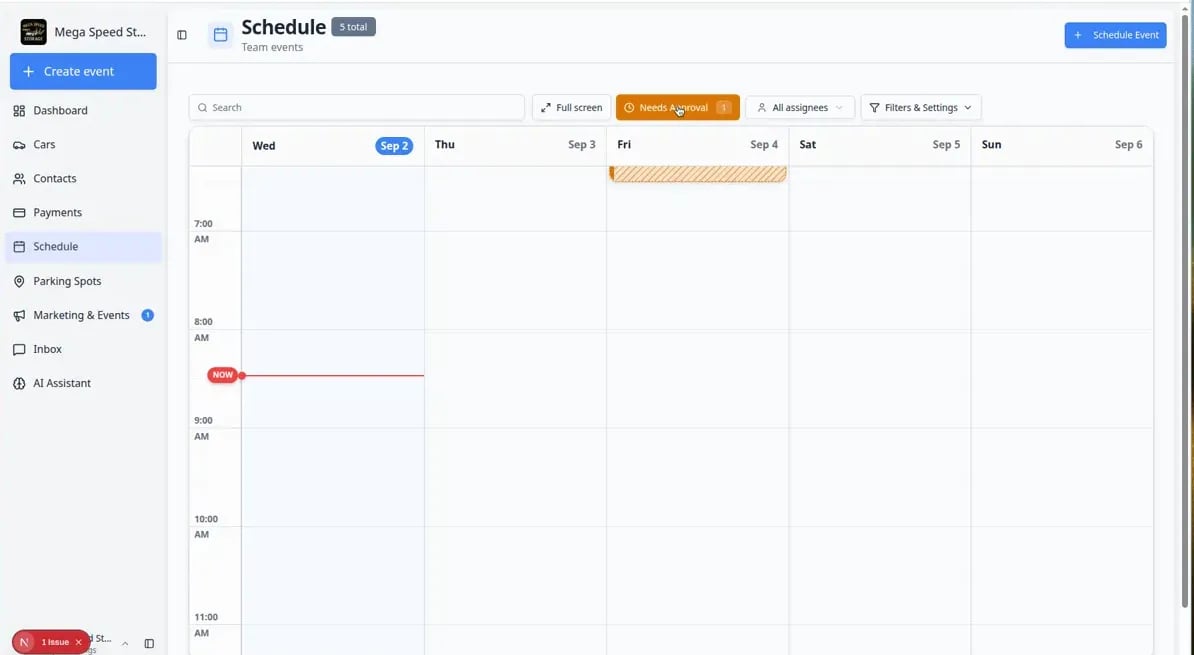
- Filter to work assigned to you or bookings that need approval (watch for the Needs Approval button and its number badge).
- Read corner icons on event blocks—see Read calendar icons and badges.
- Open an event to see the time, customer, vehicle, notes, assignees (staff and vendors), and status.
- Edit the time, duration, event type, assignee, and notes when plans change—or drag an event on the calendar to a new time.
- Mark work as in progress or complete so the team knows what happened.
- Cancel an appointment while keeping a record, or delete an event that should not remain on the schedule.
The four views of Schedule
Schedule gives you four different ways to look at the same work. Each view highlights different information, so choose the one that fits what you are trying to do right now.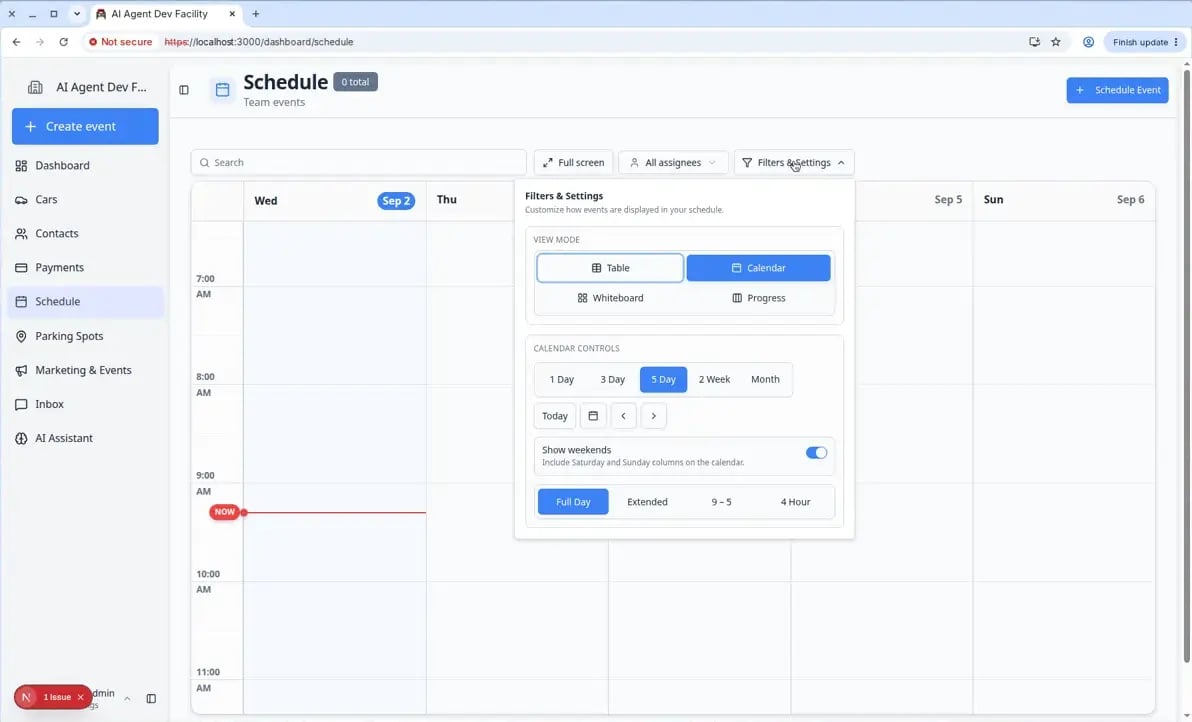
Calendar is best for seeing time and availability. Use it when you want to know “What is happening at 2 PM on Thursday?”Table is best for sorting, scanning many events quickly, and seeing details in columns. Use it when you want to review a long list of upcoming work.Whiteboard is best for a visual card layout of scheduled work. Use it when your team prefers a spatial view.Progress is best for tracking work through stages like To Do, In Progress, and Done. Use it when you want to answer “What still needs to be finished today?”
Your first day on Schedule (5-minute checklist)
New to the calendar? Walk through this once while signed in:1
Open Schedule and scan the week
Go to Schedule. If the calendar looks empty, widen the date range in Filters & Settings (try 5 Day or This Week).Expected result: You see colored blocks for upcoming visits.
2
Check Needs Approval
If a Needs Approval button shows a number badge, click it and review each online booking request.Why this matters: Customers often think submitting a form means they are confirmed. Clearing this queue prevents confusion.
3
Try one alternate view
Open Filters & Settings and switch to Table or Progress for one minute. Switch back to Calendar when you are done.Expected result: You know where to find a sortable list (Table) and a status board (Progress) before a busy day.
4
Bookmark the guide you need most
Front desk: Create an appointment. Floor techs: Run event workflow from Schedule. Managers: Track work in the Progress view.
Recommended path for your first week
If Schedule is new to your team, use this order:1
Put today’s work on the calendar
Start with Create an appointment for drop-offs, service, and pickups your team books by phone.
2
Learn how to find work fast
When the board gets busy, use Find and filter scheduled work. For 2 Week planning or the side Day detail panel, read Use the 2-week view and day detail panel. For a sortable list of every visit, open Use Table view on Schedule.
3
Handle online booking requests
If customers book on your website, review Approve or decline a customer booking request at least twice per day.
4
Track what is finished
On active service days, open Track work in the Progress view so To Do, In Progress, and Done stay honest.
Choose the right Schedule guide
1
Show the schedule on a wall monitor
Use Use full-screen schedule display when a TV or large screen should show today’s work without dashboard menus in the way.
2
Create a new event
Start with Create an appointment when you need to put new work on the calendar. When you know who owns the visit, also read Assign team members and vendors to events.
3
Schedule work with no clock time
Use Create an all-day event when staff can finish the job anytime that day (battery checks, holds, or a full-day Calendar Block). Those visits sit in the ALL DAY row above the hours.
4
Plan two weeks ahead
Use Use the 2-week view and day detail panel when 5 Day feels too tight but you still need more than a month grid.
5
Read icons on busy days
Use Read calendar icons and badges when you see repeat arrows, dollar signs, stripes, or grouped 3 events blocks.
6
Create repeating work
Use Create recurring appointments when the same visit or task should repeat weekly, monthly, or on another schedule. When you change one date later, read the Only this event vs All events in the series prompt carefully.
7
Find the right work
Use Find and filter scheduled work when the schedule is busy and you need to narrow it down.
8
Scan many events in a list
Use Use Table view on Schedule when you want to sort and review events as rows instead of calendar blocks.
9
See work as cards on a board
Use Use the Whiteboard view on Schedule when your team prefers a card layout instead of a time grid.
10
Approve online booking requests
Use Approve or decline a customer booking request when a customer books online and the event shows Needs Approval.
11
Run photos, checklists, and floor work
Use Run event workflow from Schedule when a technician should open Open Event and complete the visit (not just read the calendar block).
12
Change an event
Use Update, assign, or reschedule an event when a time, person, duration, event type, or note needs to change. You can also drag an event on the calendar when only the time moves.
13
Cancel or remove an event
Use Cancel or delete a scheduled event when an event is no longer happening or was added by mistake.
14
Track work through completion
Use Track work in the Progress view when you want a board-style view of what is waiting, active, blocked, or done.
15
See the schedule on your phone or Outlook
Use Subscribe to the team calendar when you want Apple Calendar, Google Calendar, or Outlook to stay in sync with your shop schedule.
16
Understand striped or plan visits
Use Understand tentative and service plan events when an event looks tentative or was created automatically from a service plan.
Reading the small marks on calendar blocks
On Calendar view, event blocks may show extra marks in the corners. These help your team spot work that needs attention without opening every appointment.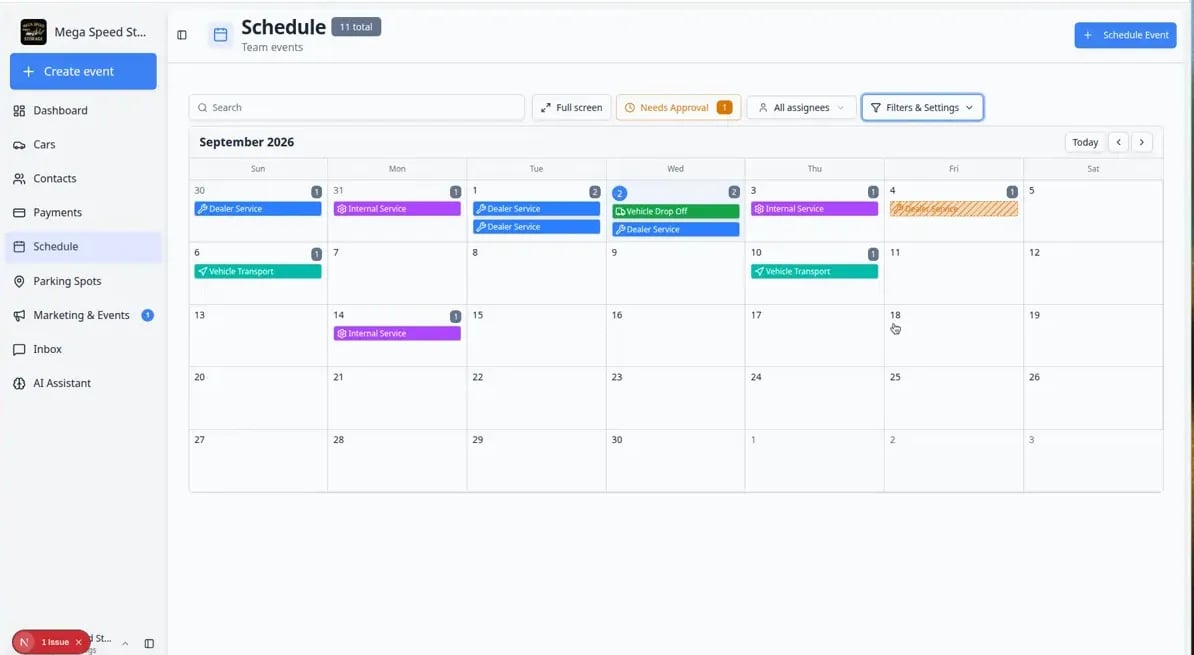
Important words on the Schedule page
Event means one scheduled item. It may be a customer appointment, a vehicle task, or a facility-only block of time.Event type means the kind of event, such as Vehicle Drop Off, Dealer Service, Vehicle Pick Up, or Calendar Block. Each event type has its own color on the calendar so you can tell them apart at a glance.Assigned to means the team member responsible for the event. When you assign someone, that event will show when they use the “Assigned to me” filter.Status tells your team where the event stands, such as Scheduled, In Progress, Complete, Cancelled, Needs Approval, Declined, Tentative, or Blocked (when your team uses a blocked stage on the Progress board).All day means the work is on a date but has no clock time. It sits in the ALL DAY row above the hours. Use it for battery checks, holds, or a full-day Calendar Block. See Create an all-day event.Recurring means the event is part of a repeat series. Changing one date may ask whether you mean only this event or all events in the series.Open Event appears on some events when your team should run a linked workflow (photos, checklists, or operational steps) from the event detail panel.Branch icon on a calendar block means the visit is tied to a workflow instance. Click the icon to open the workflow overview page. Use Open Event when a technician is doing today’s floor work.Blockout day means the facility (or an event type) is closed that day. You cannot drop new bookings on blockout days.Damage badge (small red mark on an event) means photos on that visit were flagged as damage. Open the event to review them.
Related setup
Schedule uses settings created in other areas of the app:- Set up appointment names, colors, availability, reminders, and rules in Settings > Events & schedule.
- Learn the setup steps in Configure event types.
- Add rooms, bays, equipment, staff resources, or other bookable resources with Set up bookable resources.
- Create customers in Contacts and cars in Cars before scheduling customer or vehicle work.
- Let staff subscribe to the schedule in Apple, Google, or Outlook with Subscribe to the team calendar.
Quick links by job
- Front desk / phone bookings: Create an appointment
- Work with no arrival time: Create an all-day event
- Busy week / sort by status: Use Table view on Schedule
- Online booking requests: Approve or decline a customer booking request
- Technician starting the job: Run event workflow from Schedule
- Busy day on the floor: Track work in the Progress view
- Shop TV or wall monitor: Use full-screen schedule display
- Personal phone calendar: Subscribe to the team calendar
Who should read which guide
Front desk / phone bookings — start with Create an appointment and Find and filter scheduled work.Managers running the shop floor — use Track work in the Progress view and Use full-screen schedule display.Technicians doing the visit — use Run event workflow from Schedule when you see Open Event on an appointment.Anyone handling online bookings — check Approve or decline a customer booking request at least twice per day when Needs Approval shows a number badge.
Online booking requests (Needs Approval)
When customers book on your website, some appointments may wait for your team before they appear as confirmed work.1
Look for the Needs Approval button
On Schedule, find Needs Approval near the top of the page. A small number badge shows how many requests are waiting.Expected result: You see only events that need a yes or no from your team.
2
Review each request
Open each event, read the customer, vehicle, time, and notes, then approve or decline.Follow Approve or decline a customer booking request for the full steps.
Progress view at a glance
On busy service days, many teams switch to Progress view to see work in To Do, In Progress, and Done columns instead of clock times.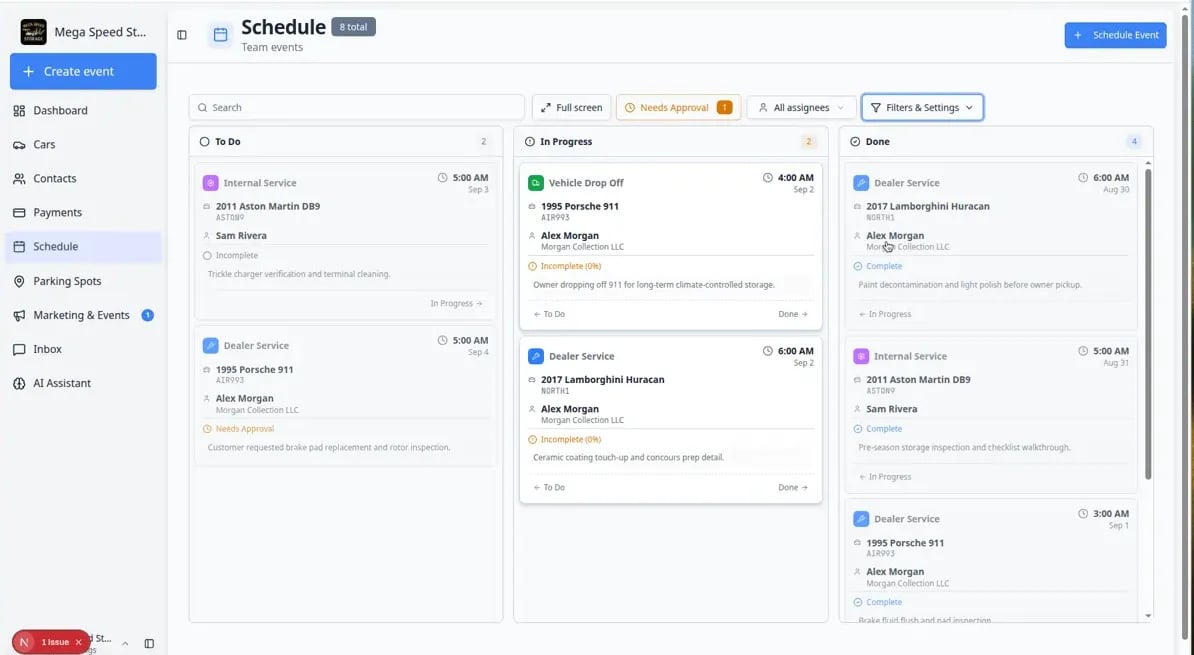
Troubleshooting
What success looks like
When your Schedule is healthy:- Each event has the correct date, time, customer or vehicle, and event type.
- Staff can quickly see what is happening today.
- Busy days are easier to manage because filters and views show the right work.
- Online booking requests are approved or declined promptly—not left in Needs Approval for days.
- Customers are less likely to receive confusing updates because cancelled, rescheduled, and completed work is tracked clearly.