

What you will accomplish
- Understand what each section on Settings > Operations does.
- Add the bays, rooms, or equipment that should not be double-booked.
- Choose miles or kilometers for new cars.
- Know where staff list a car for sale and how often parking audits come due.
Operations is different from Services & scheduleServices & schedule (Settings > Services & schedule) defines what kinds of appointments exist and recurring service plans.Operations defines spaces you can reserve, odometer defaults, marketplace listing tools, and parking audit reminders.Set up services first, then return here.
Before you start
- You should be signed in as a team admin or manager with permission to change settings.
- Write down the real names staff use for bays and rooms (for example Detail Bay 1 or Wash Bay Large).
- Know whether your facility measures distance in miles or kilometers.
- If you track parking on a map, skim Set up parking spots and zones.
Open Operations settings
1
Open Settings
From the Dashboard, click Settings in the main sidebar.
2
Choose Operations
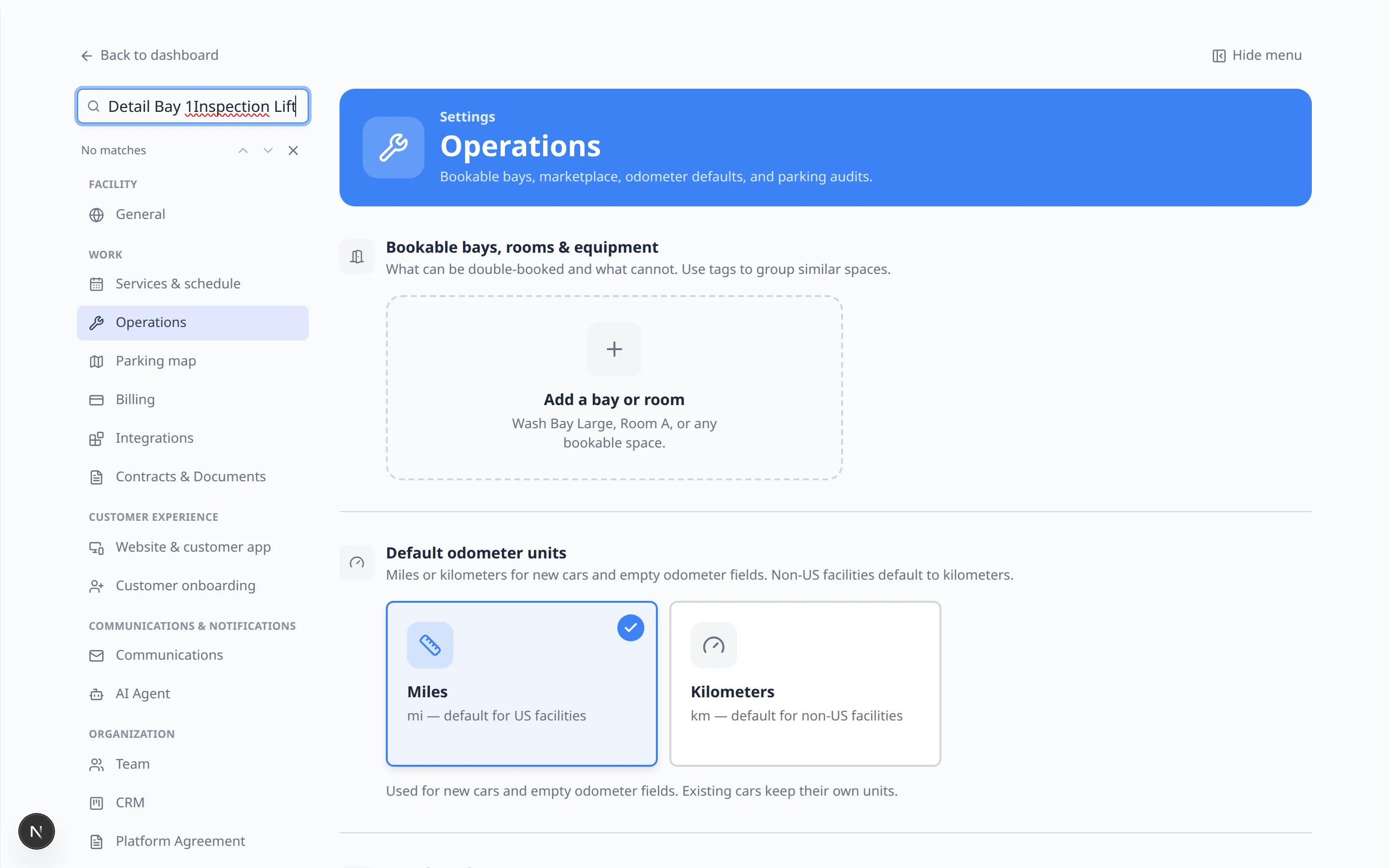
Click Operations in the settings list — or search bay or odometer in Search settings….Direct link: Settings > Operations.
Add bookable bays, rooms, and equipment
Use this section for spaces or tools that should not be double-booked.1
Find Bookable bays, rooms & equipment
At the top of Settings > Operations, find Bookable bays, rooms & equipment.
2
Create an amenity
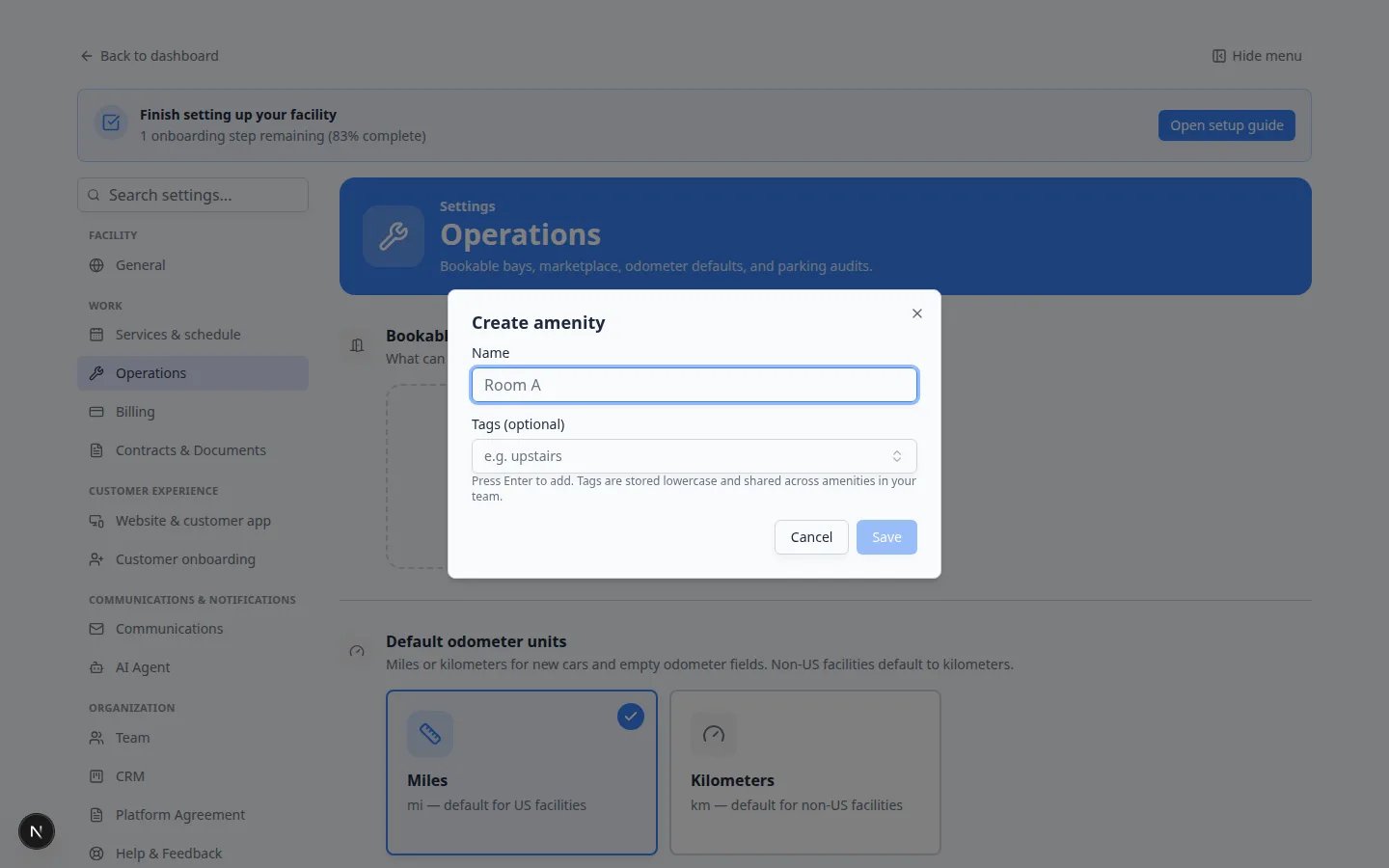
Click the add card. A Create amenity window opens.In Name, type the name staff already say out loud, such as Detail Bay 1.Tags (optional) help group similar spaces (for example upstairs). Press Enter to add a tag.
3
Click Save
Click Save.Expected result: The bay or room appears in the list and can be reserved when staff book time on Schedule.
Set default odometer units
1
Find Default odometer units
On Settings > Operations, find Default odometer units.
2
Choose Miles or Kilometers
Pick Miles (the usual choice for US facilities) or Kilometers.Expected result: New cars and empty odometer fields use the unit you chose. You can still change units on one car later if needed.
Review cars for sale
1
Find Cars for sale
Scroll to Cars for sale. The line under the heading says this controls marketplace listings on car detail pages — list, unlist, and mark vehicles sold.
2
Choose Off or On
Click one of the two cards:
- Off — Hide marketplace listing actions.
- On — List, unlist, and mark vehicles sold. When this is on, you may see Active on car pages.
3
If On, choose who can list
Two more cards appear:
- Staff only — Only team members manage listings.
- Customers too — Customers can list from the portal.
Set the parking audit schedule
1
Find Parking audit schedule
Scroll to Parking audit schedule. The line under the heading says overdue audits show on Parking Spots.
2
Choose Off or On
Click one of the two cards:
- Off — No overdue flags on the parking page.
- On — Flag when the last audit is older than your interval.
3
If On, set Audit every (days)
In Audit every (days), type how many days can pass between walk-throughs (for example 7 for weekly, 30 for monthly). Click away from the box to save.Why this matters: Overdue audits show on Parking Spots so a walk-through does not slip for months.
Need the floor map itself?The visual parking map is edited from Parking map layout on this same Operations page (click Edit parking map) or directly at Settings > Floor Plan. Follow Set up parking spots and zones.
Where other Operations tools moved
Service plans — now on Settings > Services & schedule. See Set up vehicle service plans.Custom status labels — Settings > Custom statuses. See Manage custom statuses and amenities.Workflows (checklists) — still covered in Create operations workflows.External camera systems — appears on Operations only if your team turned cameras on.
Test Operations with one vehicle
1
Pick one process
Choose a single flow your shop already does well — such as booking a detail bay or listing a car for sale.
2
Set up only what that process needs
Add the bay, confirm odometer units, and skip the rest for now.
3
Book a test appointment in that bay
Open Schedule, create a test event, and reserve the bay you added.Expected result: The bay appears as a choice, and a second overlapping booking is blocked or clearly warned.
How Operations connects to daily work
Bay or room — Schedule when booking time in a space.Odometer units — Cars on new vehicle records.Cars for sale — the car detail page when staff list or unlist a vehicle.Parking audit — Parking Spots overdue reminders.
Common mistakes to avoid
- Do not create dozens of bays on day one. Start with the spaces that truly cannot overlap.
- Do not look for service plans on Operations — they live on Services & schedule.
- Do not skip testing. Book one test appointment in a new bay before the whole team relies on it.