

What you will accomplish
You will create clear labels—such as Insurance, Vehicle Registration, and Driver’s License—so staff and customers upload files to the right place. When someone uploads a card or registration paper, everyone sees the same category on the customer record.When to use this guide
Use this guide before you:- Ask customers to upload files during portal onboarding.
- Collect files during public registration.
- Want staff to stop using vague names like “Misc file” for important paperwork.
Before you start
- List the files your facility needs from customers.
- Decide which files are required and which are optional.
- Decide which files customers should upload themselves vs. staff-only uploads.
- Sign in as a team member who can manage Settings.
Step 1: Open document types in settings
1
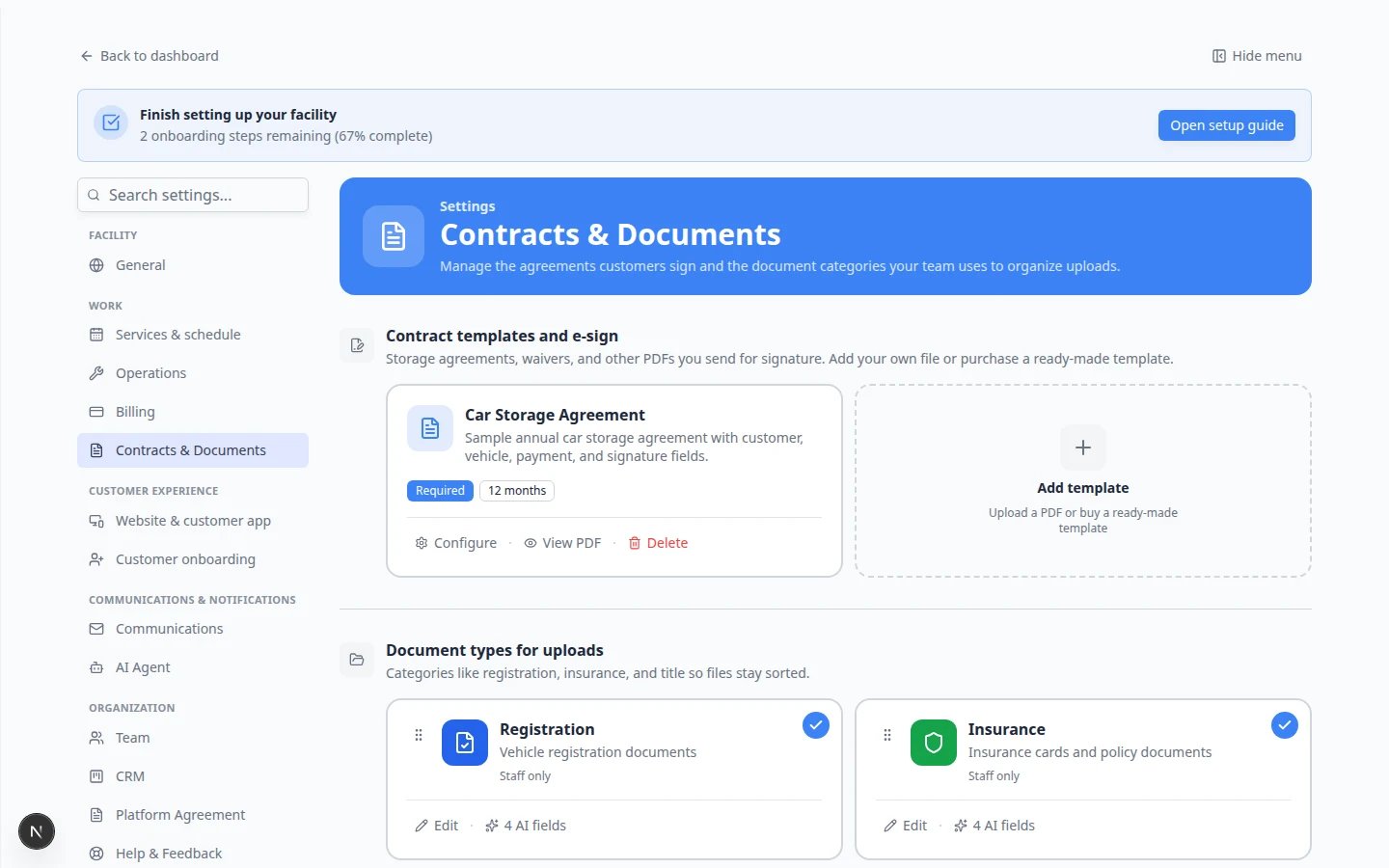
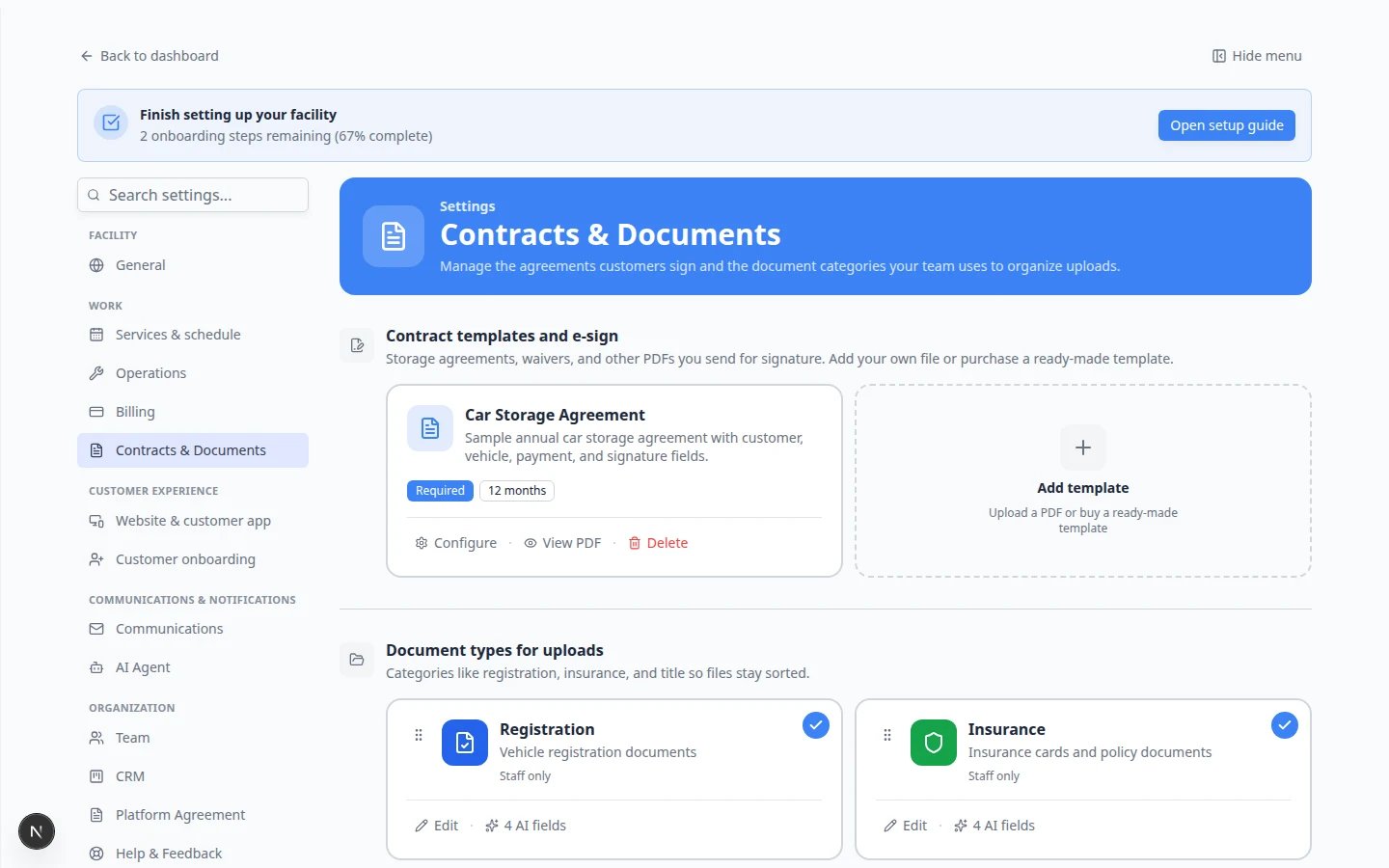
Go to Contracts & Documents
2
Scroll to Document types for uploads
Find the section Document types for uploads below the contract templates area.
Step 2: Plan the types you need
Start with files your team asks for most often.- Insurance — proof of vehicle insurance.
- Registration — registration paperwork for the stored vehicle (the default system label is Registration, not “Vehicle Registration”).
- Driver’s License — government ID for the account holder.
- Title — ownership paperwork when needed.
- Bill of Sale — purchase or transfer records.
- Other — only when nothing else fits.
Customer Access is off by defaultNew document types—and the built-in Insurance and Registration types—start with Customer Access turned off. Turn it on for each type customers should upload in the portal or during onboarding.
Step 3: Create a document type
1
Click Add document type
In Document types for uploads, click Add document type (below the list of existing types).
2
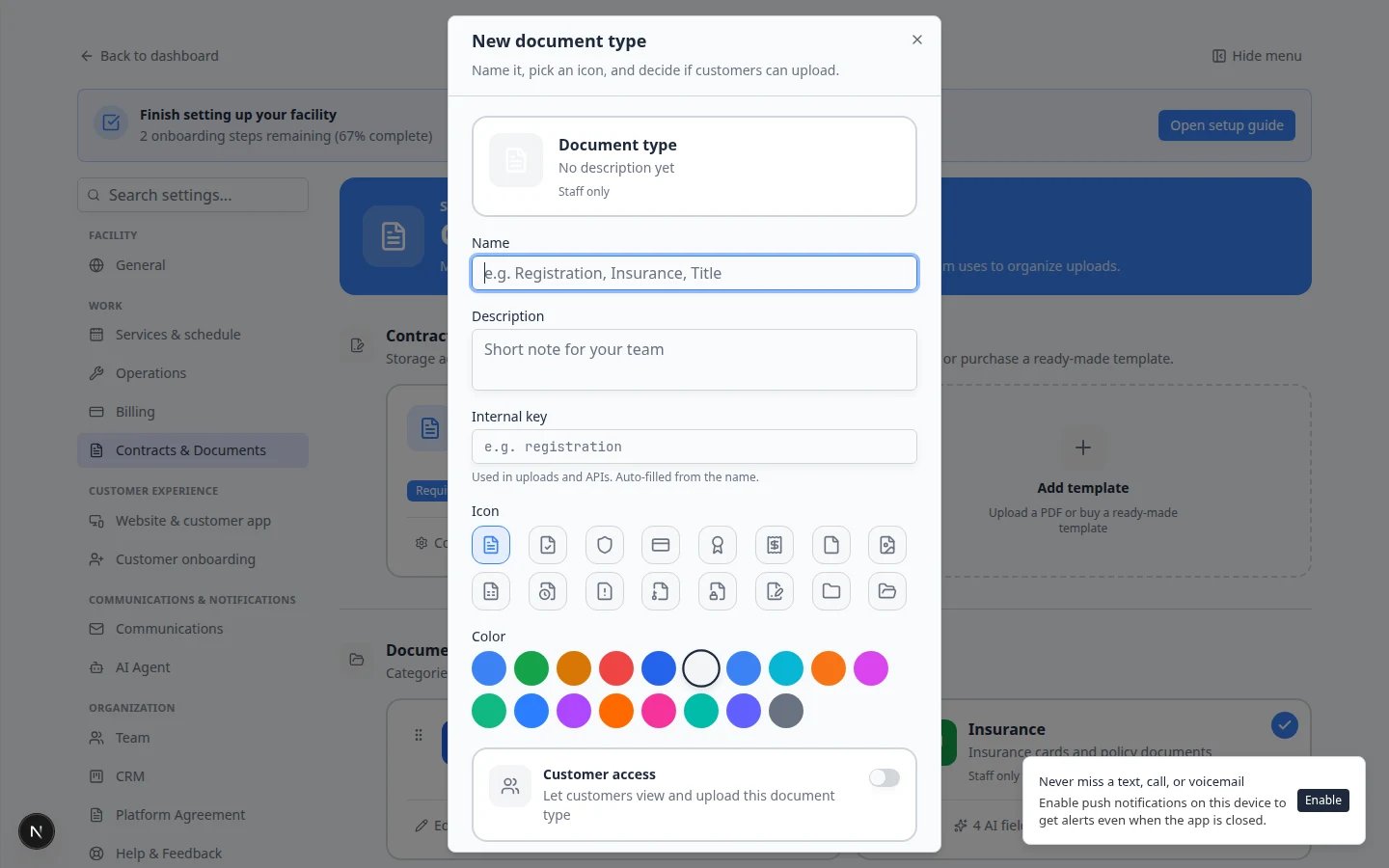
Enter the Name
Type the name staff and customers should see, such as Insurance or Vehicle Registration.
3
Review the Value field
The Value field is used behind the scenes. In most cases, leave it as the app suggests from the name.
4
Add a Description
Explain what should be uploaded. Example: Current insurance card for the vehicle on file.
5
Pick Icon and Color (optional)
Choose a simple icon and color so staff can scan a long document list quickly.
6
Set Customer Access
Find the switch labeled Customer Access (or similar wording).Turn it on if customers should see or upload this type in the customer portal (My Documents or onboarding).Leave it off for internal-only files (staff inspection notes, private accounting scans).Why this matters: If Customer Access is off, customers will not see that type during portal onboarding—even if you turned on the document upload step. You can also toggle Customer Access later from the document types table without reopening every type.
7
Save
Click Create Document Type or Save Changes.Expected result: The new type appears in the document types list and can be chosen when uploading files from Contacts or during customer onboarding.
Step 4: Put types in a helpful order
If you have many types, drag the rows so the most common ones appear first (Insurance, Registration, and so on). Staff and customers will see types in this order when they upload files. Expected result: The list order matches how your team talks about paperwork—insurance and registration before less common types.When a document type should stop being used
If a label is outdated but old files still use it, do not delete the type immediately.1
Turn off Status instead of deleting
Edit the document type and set Status to inactive (or off—wording may vary).Why this matters: Old uploads keep their label so history stays readable. New uploads can no longer pick that type.
2
Tell your team the new label
If you replaced Insurance card with Insurance, mention the change at your next staff meeting so front desk picks the new name.
Step 5: Connect types to customer onboarding (optional)
If new customers must upload files during portal setup:1
Open Customer onboarding
2
Find Customer app onboarding
Scroll to Customer app onboarding.
3
Turn on the document upload step
Enable the step that asks customers to upload documents.
4
Click Configure on that step
Choose which document types are required during onboarding in Document Upload Step Configuration.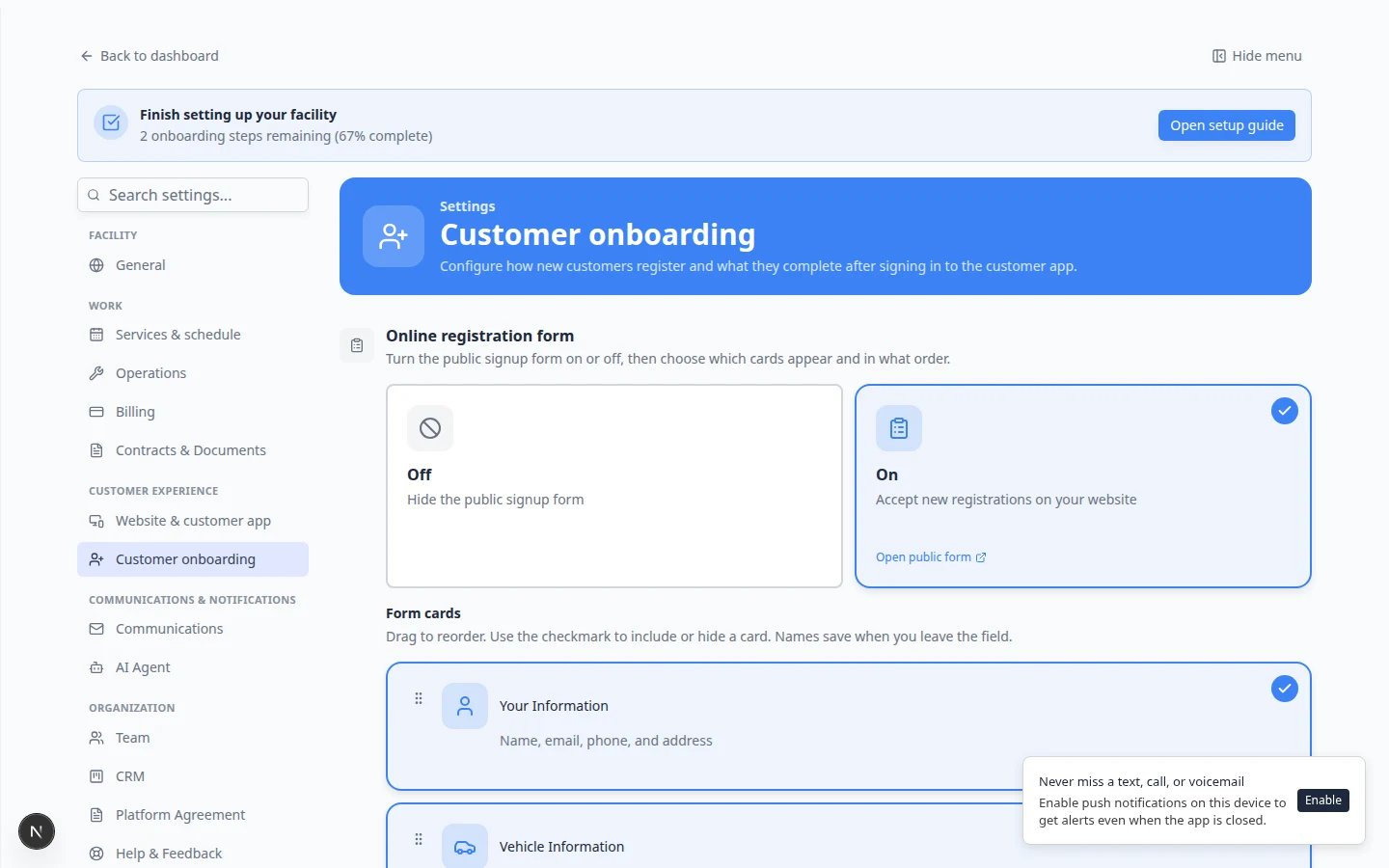
5
Save and test
Invite a test customer and confirm the upload step shows the correct type names.For the full onboarding flow (including contracts), see Configure customer onboarding and Attach contracts to customer workflows.
Step 6: Test from a customer record
1
Open a customer
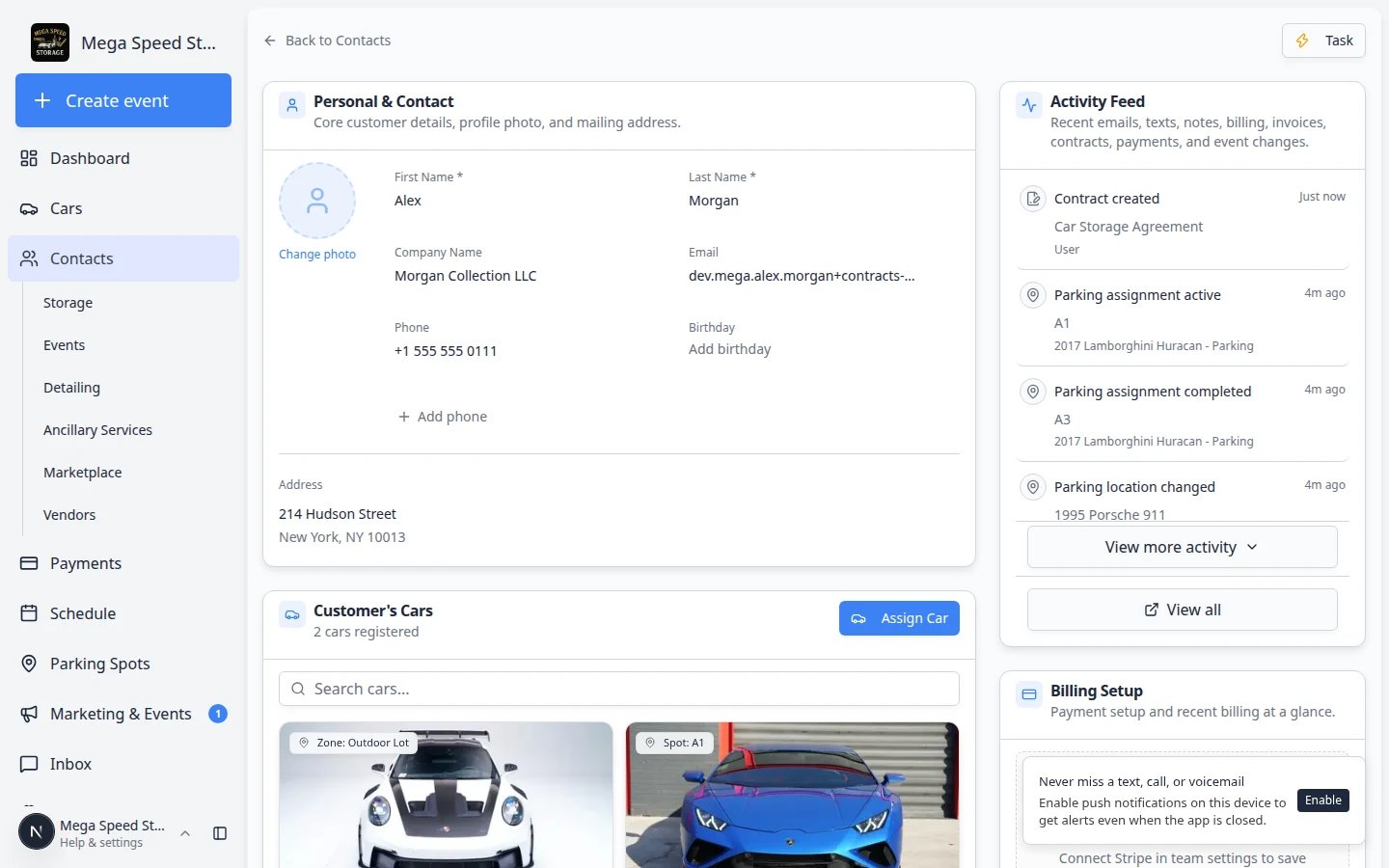
Go to Contacts and open a customer record.
2
Find Documents & Contracts
Scroll to Documents & Contracts.
3
Click New Document
Click New Document, choose General Document, then pick the document type you created.Confirm the type name appears as expected.
What success looks like
- Document types appear in Settings > Contracts & Documents.
- Customer-facing types have Customer Access turned on.
- Internal-only types have Customer Access turned off.
- Staff can pick the correct type when uploading from a customer record.
- Customers only see upload requests that make sense for them.