

What you will accomplish
- Send a customer email from the correct Inbox conversation.
- Write a clear subject line and easy-to-read message.
- Keep the email in the same customer timeline for your team.
Before you start
- Email sending must be set up for your team. If Email is disabled, review Configure communication settings for Inbox.
- The customer must have a valid email address on file.
- Know the main point you need the customer to understand.
- If the email mentions a car, invoice, appointment, or contract, confirm those details before writing.
Open the email composer
1
Open Inbox
Go to Inbox.
2
Select the customer
Click the customer conversation.Read the latest messages before replying.
3
Click Email at the bottom
At the bottom of the conversation, click Email.The email composer shows a Subject field and a larger message field labeled Write your email… (some screens shorten this to Write an email…—both mean the same box).If Email is gray: Ask an admin to finish setup in Configure communication settings for Inbox, and confirm the customer has an email address on file.Why Email vs Text: Text is for short phone updates. Email adds a Subject line and a larger writing area—better when the customer needs to search their inbox later or when you are explaining several details.
Write the email
1
Write a clear subject
Use a subject that tells the customer what the email is about.Good examples:
- Re: Service estimate for the Porsche
- Huracan pickup confirmation
- Invoice question follow-up
2
Start with the answer
Put the most important answer in the first sentence.Example: “Hi Alex, we will send the Porsche service estimate this afternoon.”
3
Add details in short paragraphs
Keep paragraphs short. If there are several steps, use a short list.Customers are more likely to read and understand a message when it is easy to scan.
4
End with the next action
Tell the customer what happens next.Example: “Please reply to approve the estimate, or call us if you want to review it together.”
Send the email
1
Review the customer and subject
Confirm you are in the correct customer conversation and the subject is accurate.
2
Read the email once before sending
Check names, dates, times, vehicle details, dollar amounts, and links.
3
Click Send email
Click Send email.The email appears in the conversation timeline after it sends.
What address the customer seesOutbound emails come from your facility’s configured sending domain (for example service@yourfacility.com). If customers say they cannot find your email, ask them to search for your facility name and check spam. Admins set this up in Configure communication settings for Inbox.
Reply to an existing email
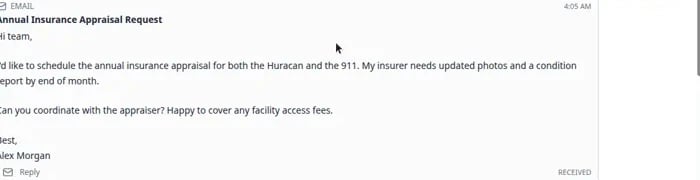
If the customer sent an email, you may see a Reply button on that email in the timeline. This keeps your answer in the same email thread the customer started.1
Open the customer in Inbox
Go to Inbox and select the customer, such as Alex Morgan.
2
Show only emails (optional)
Near the top of the timeline, click the Emails pill (it shows a count such as Emails 1).Why this helps: Hides texts and calls so you can focus on the email thread.See Respond to a conversation for more on timeline filters.
3
Click Reply
On the customer’s email message, click Reply.Expected result: The Email composer opens at the bottom with Subject filled in (often starting with Re:).
4
Write and send your reply
Type your message, review it, and click Send email.Expected result: Your reply appears in the timeline under the original email.


When to use Reply vs a new Email
- Use Reply when the customer sent an email and you are answering that same thread. The subject usually keeps Re: so messages stay grouped in the customer’s inbox.
- Use Email (the tab at the bottom) when you are starting a new topic, sending a first email to a customer who only texted before, or writing about something unrelated to the email above.
Attachments and formattingInbox email is for plain written messages with a subject line. You cannot attach files from the Inbox email composer today. If the customer needs a PDF, invoice link, or signed contract, send them to the customer portal or share a link from Payments instead.When a customer emails you, their message may show rich formatting (bold text, images, or links). Your reply is plain text—keep paragraphs short so it is easy to read on a phone.
Common mistakes to avoid
What success looks like
- The email appears in the conversation timeline.
- The subject clearly matches the topic.
- The customer knows what happened and what to do next.
- Your team can find the email later in the same customer conversation.