

What you will accomplish
- Find call history inside a customer conversation.
- Understand inbound, outbound, and voicemail entries.
- Read or request a transcript when one is available.
- Place a call or send a written follow-up after you review the call.
Before you start
- Calling must be set up for your team. If call buttons are disabled, review Configure communication settings for Inbox.
- Make sure you have permission to view Inbox and customer communication history.
- Use call recordings and transcripts only for legitimate customer support and operations.
- Follow your facility’s policy and local laws for call recording and customer consent.
Find call history in a conversation
1
Open Inbox
Go to Inbox.
2
Select the customer
Click the customer conversation.
3
Click Calls
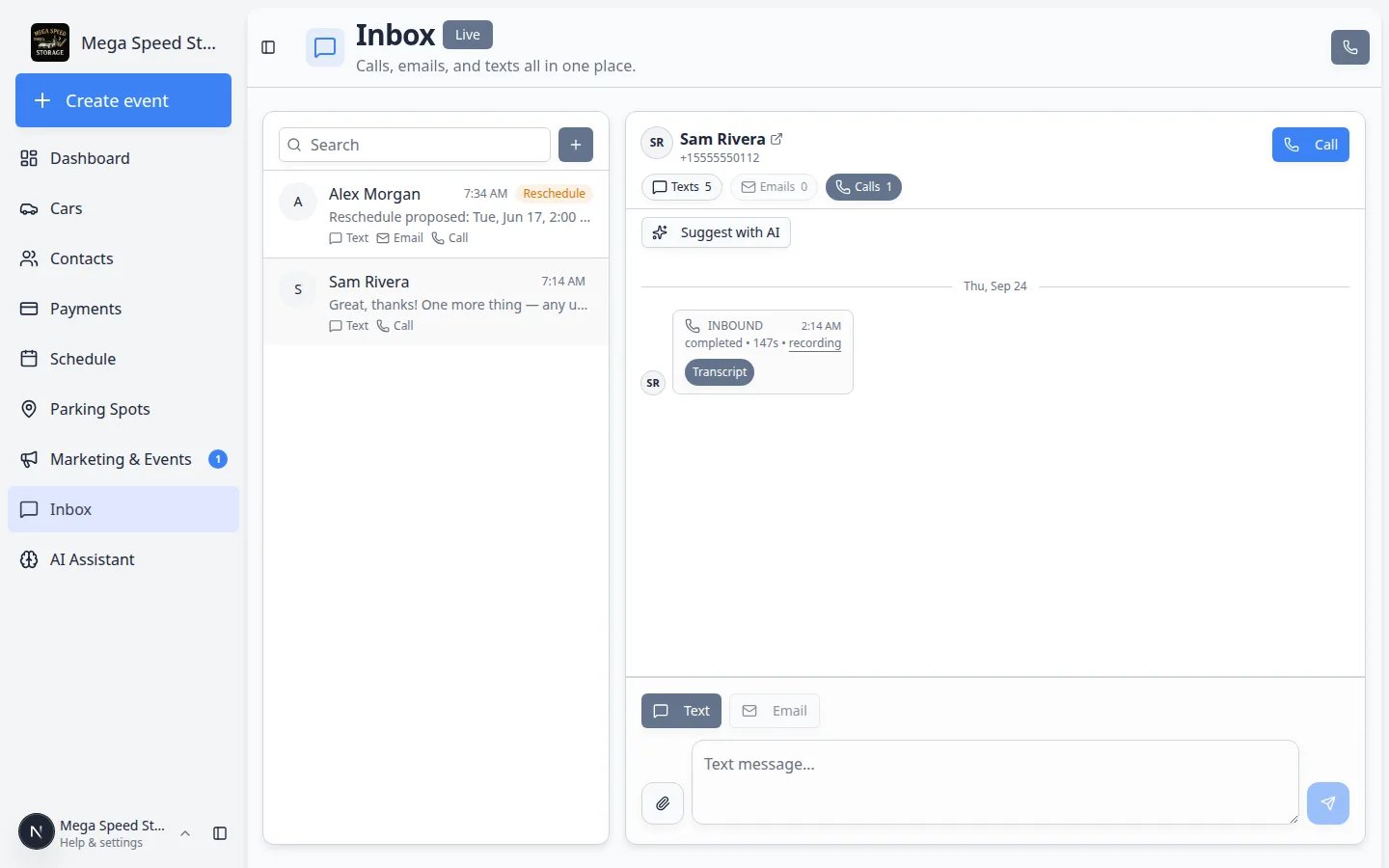
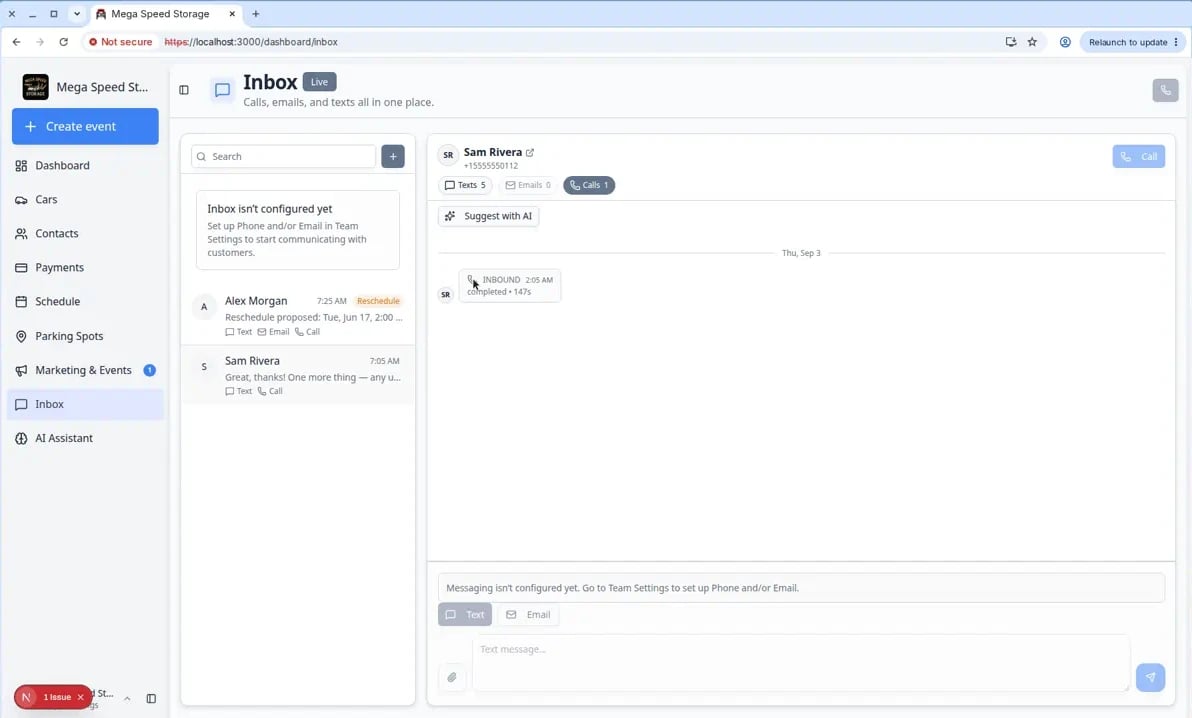
Near the top of the conversation, click Calls.The pill shows a number when calls exist—for example Calls 1. If the pill is gray and says Calls 0, this customer has no call history linked to this conversation yet.Expected result: The timeline shows only phone activity—INBOUND (customer called you), OUTBOUND (your team called them), or Voicemail entries.
Calls count at the top vs the Calls filterNear the customer name you may see Calls 0 even when call history exists below. That number often tracks unread call activity. Click the Calls pill in the timeline to focus on phone entries — the filter is what hides texts and emails.
Read a call entry
Call entries use simple labels.- INBOUND means the customer called your facility.
- OUTBOUND means your team called the customer.
- Voicemail means the customer left a message when nobody answered. A recording may be available.
- The status, such as completed, tells you how the call ended.
- The duration shows how long the call or voicemail lasted.
Open a recording or transcript
When a call was recorded, you may see a Recording link and a Transcript button on the same entry.1
Find the call
Open the customer (for example Sam Rivera), click the Calls pill near the top of the timeline, and find the call you want to review.
2
Open Recording when you need to hear exact wording
Click Recording to open the audio in a new browser tab.Why this helps: Transcripts can miss names or numbers. Listening once confirms spelling before you promise a time or dollar amount.If Recording is missing, your facility may not save call audio, or the file may still be processing. Ask an admin to review call recording settings under Settings > Communications.
3
Click Transcript for a quick read
Click Transcript on the call entry.If a transcript is ready, it opens below the call with a written summary of what the customer said.Expected result: You can read the customer’s request without listening to the full recording.
4
Read the transcript carefully
Use the transcript to understand the customer’s request.Transcripts can make mistakes—especially with names, dollar amounts, and license plates. If something sounds important or unclear, listen to the Recording link when available or confirm with the customer before you promise a time or price.
5
Take notes for your follow-up
Before you leave the call entry, jot down:
- Vehicle name
- Requested date or time
- What you promised to check
After you review a call
1
Decide whether a written follow-up is needed
Send a short text or email when the customer asked for a specific time, price, or next step that should be in writing.See Send a text message from Inbox or Send an email from Inbox.
2
Update Schedule when the call changed an appointment
If the customer moved a visit during the call, open Schedule and save the new time before you tell them it is confirmed.See Update, assign, or reschedule an event.
3
Mark unread if someone else should finish
If you cannot complete the follow-up, right-click the customer’s name in the conversation list and choose Mark unread. See Coordinate with your team in Inbox.
Check for or refresh a transcript
If a call has a recording but no transcript yet, you may see Check for transcript.1
Click Check for transcript
Use this when the transcript has not appeared yet.The app looks for a transcript that may still be processing.
2
Wait for the transcript to appear
The transcript may take a short time to show up after the call ends.
3
Click Refresh if you still do not see text
Use Refresh at the bottom of the transcript box to check again whether the transcript is ready.Why this helps: Recordings and transcripts can take a short time to process after a call ends—especially for voicemails left after hours.
Place the next call from Inbox
When you are ready to dial — not just review history — use the dedicated calling guide.- Call (top-right of the open conversation) dials the number on that customer record.
- Quick call (phone icon in the Inbox header) opens a dial pad so you can type any number.
What success looks like
- You can see the call in the customer timeline.
- You understand whether the call was inbound or outbound.
- You can read or request a transcript when a recording is available.
- Your follow-up message or next action matches what the customer asked for.