

What you will accomplish
You will open a customer record, find signed agreements and uploaded files, understand what each status means, and download or void records when your facility needs proof or corrections.When to use this guide
Use this guide when:- A customer says they already signed.
- You need a PDF copy for your files or insurance.
- You must confirm insurance or registration was uploaded.
- A signed agreement should no longer be treated as valid but must stay in history.
- A contract still shows Sent or Viewed and you need to know what to do next.
- You need to resend a signing link or cancel an agreement the customer should not finish.
Before you start
- Know which customer you are reviewing.
- Sign in as a team member who can view customer records.
- If you plan to void or cancel a contract, know the plain-language reason first.
Quick answer: “Did they sign?”
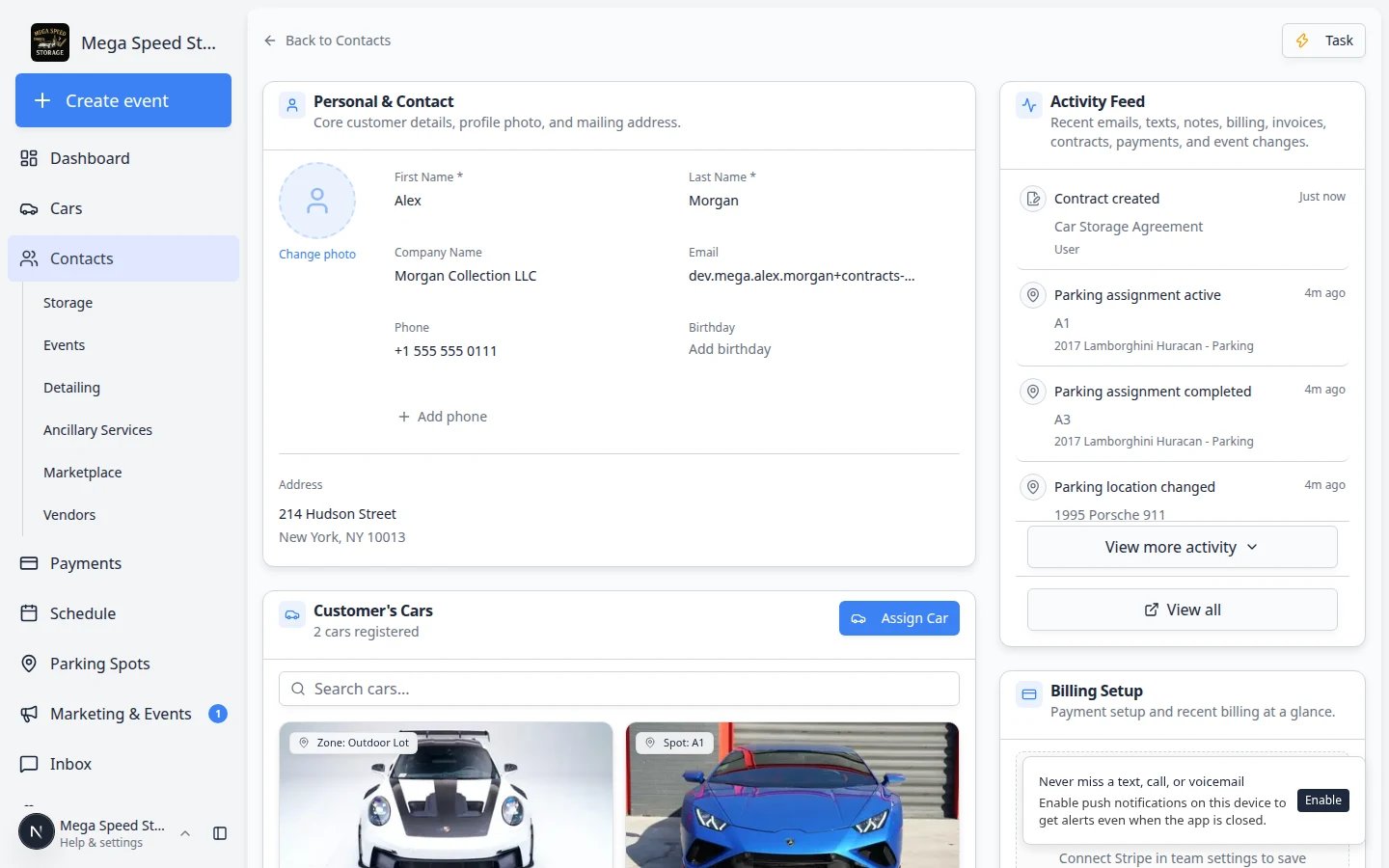
Step 1: Open the customer record
1
Open Contacts
Go to Contacts.
2
Search and open the customer
Search by name, company, email, or phone. Open the matching record.Expected result: You see the correct customer before viewing private documents. If two people have similar names, compare email and company on the record header.
Step 2: Open Documents & Contracts
Scroll to Documents & Contracts on the customer page. This section shows:- Contract cards — agreements sent for signature, each with a status badge (Draft, Sent, Viewed, Completed, and more).
- Document cards — uploaded files such as insurance or registration.
Step 3: Open a contract or document
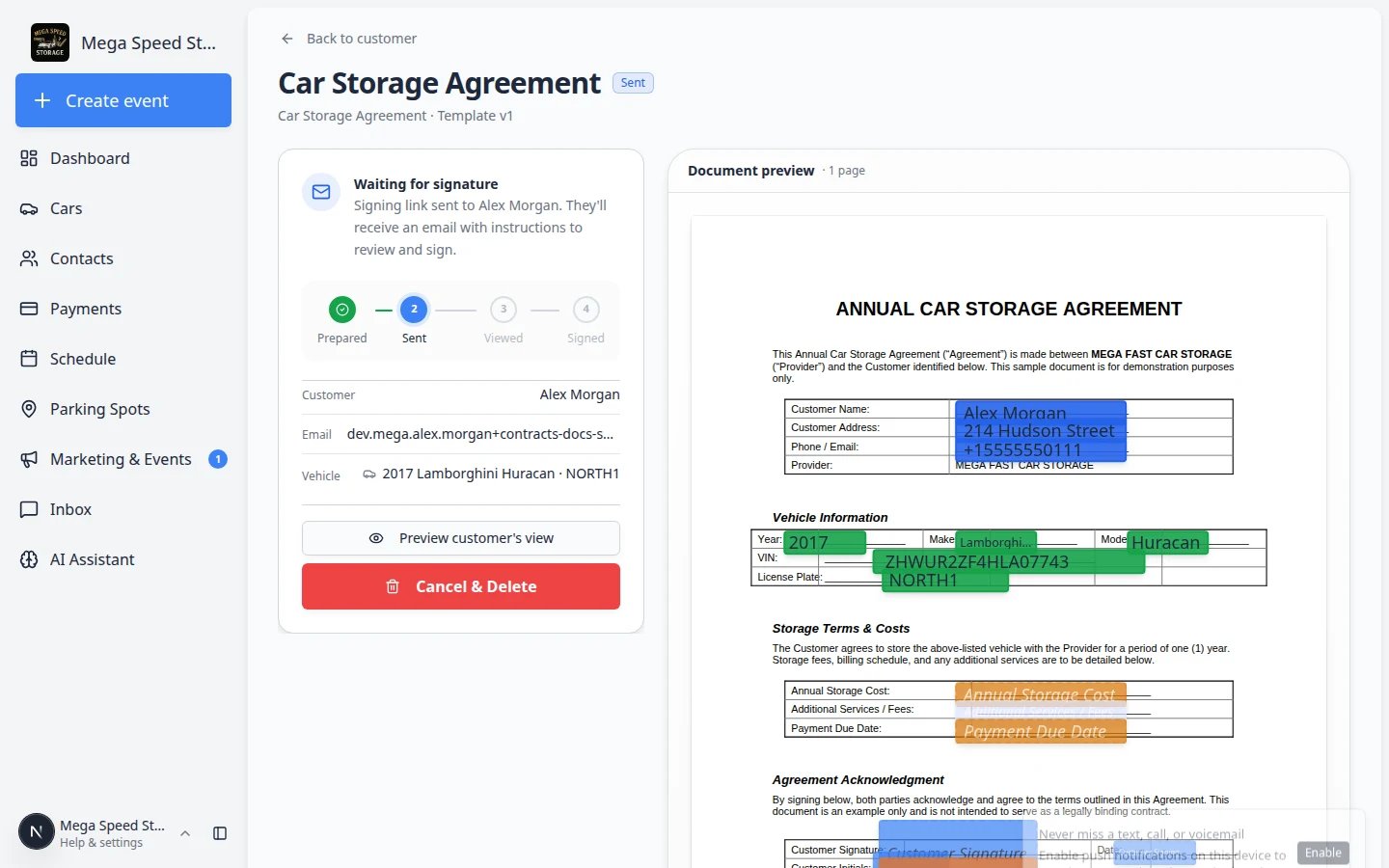
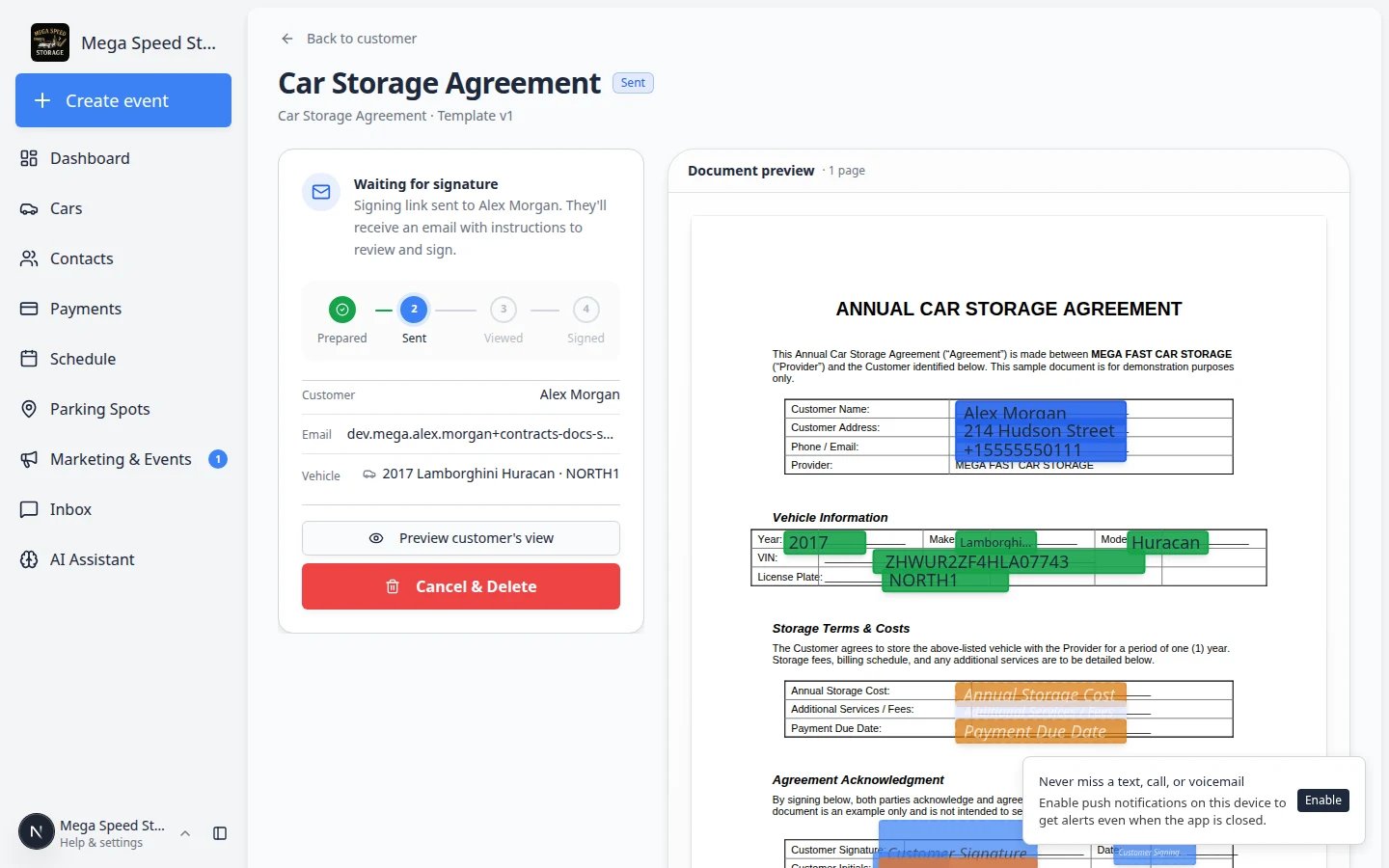
Contracts and uploads both appear as cards, but they open different screens when you click them.Contract cards (agreements with statuses like Sent, Completed, or Awaiting team signature) open a full contract page where you can resend email, download PDFs, cancel unsigned requests, or amend signed agreements.Document cards (uploads such as insurance or registration) open a preview window where you can view or download the file.
1
Click a contract card
Click the agreement you want to review.Expected result: A contract page opens with a status badge at the top, a progress tracker (Prepared → Sent → Viewed → Signed), and action buttons such as Resend email, Download PDF, or Cancel contract.
2
Click a document card
Click an uploaded file (insurance, registration, and so on).Expected result: A smaller preview window opens with Download or View—the same as before.
Step 4: Understand contract statuses
Read the status on the contract card or in the preview window.Draft — your team created the contract but has not sent it yet. Action: send when ready, or cancel if it was a mistake.Sent — the customer was emailed a signing link. Action: wait, resend, or call the customer if it has been a while.Viewed — the customer opened the contract but has not finished signing. Action: remind them to complete signature and initials.Awaiting team signature — the customer finished, but your facility must counter-sign (Team signs last templates). Action: follow Counter-sign after the customer.Signed / Completed — everyone who must sign has finished. Action: download the signed PDF for your records.Waiting for facility signature — the customer signed first; your team must Counter-sign when the template uses Team signs last.Cancelled — the signing request was stopped before completion. Action: create a new contract if the customer still needs to sign.Expired — the signing link passed its expiration date. Action: create and send a new contract.Voided — the signed agreement stays in history but should not be used anymore. Action: send a replacement agreement if the customer still needs a valid contract.
Choosing the right action (quick guide)
Use this table when a customer calls or a contract card looks confusing:Step 5: View, download, or resend a contract
On the contract page (opened from a contract card), look for these actions:- View contract or Preview — opens the agreement in the browser (same type of page the customer uses to sign).
- Download PDF — saves a copy to your computer. For proof, use a contract whose status is Completed or Signed.
- Resend email — sends the signing message again when status is Sent or Viewed.
- Cancel contract — stops an unsigned request the customer should not finish.
- Amend or Version history — appears on signed contracts when your template allows amendments. See Amend a signed contract.
1
Download a signed PDF for your files
Open a Completed contract card. Click Download PDF.Expected result: Your computer saves a PDF that includes the customer’s signature (and facility signature when Team signs last was used).
2
Resend when the customer did not get email
Open a Sent or Viewed contract. Click Resend email.Confirm the customer’s email if asked. Tell the customer to check spam or junk folders.Expected result: They receive a fresh message with the signing link.
Step 6: Cancel an unsigned contract
Use Cancel contract when the customer should not finish signing—for example, wrong vehicle, wrong template, or they chose not to store the car.1
Open a Draft, Sent, or Viewed contract
Click the contract card to open the contract page, then click Cancel contract.
2
Read the warning
A dialog explains that cancelling stops the signing request. This is normal when you need to start over.
3
Confirm cancellation
Follow the on-screen steps to cancel. The status should change to Cancelled.Expected result: The customer can no longer sign that link. Create a new contract if they still need an agreement.
Step 7: Review uploaded documents
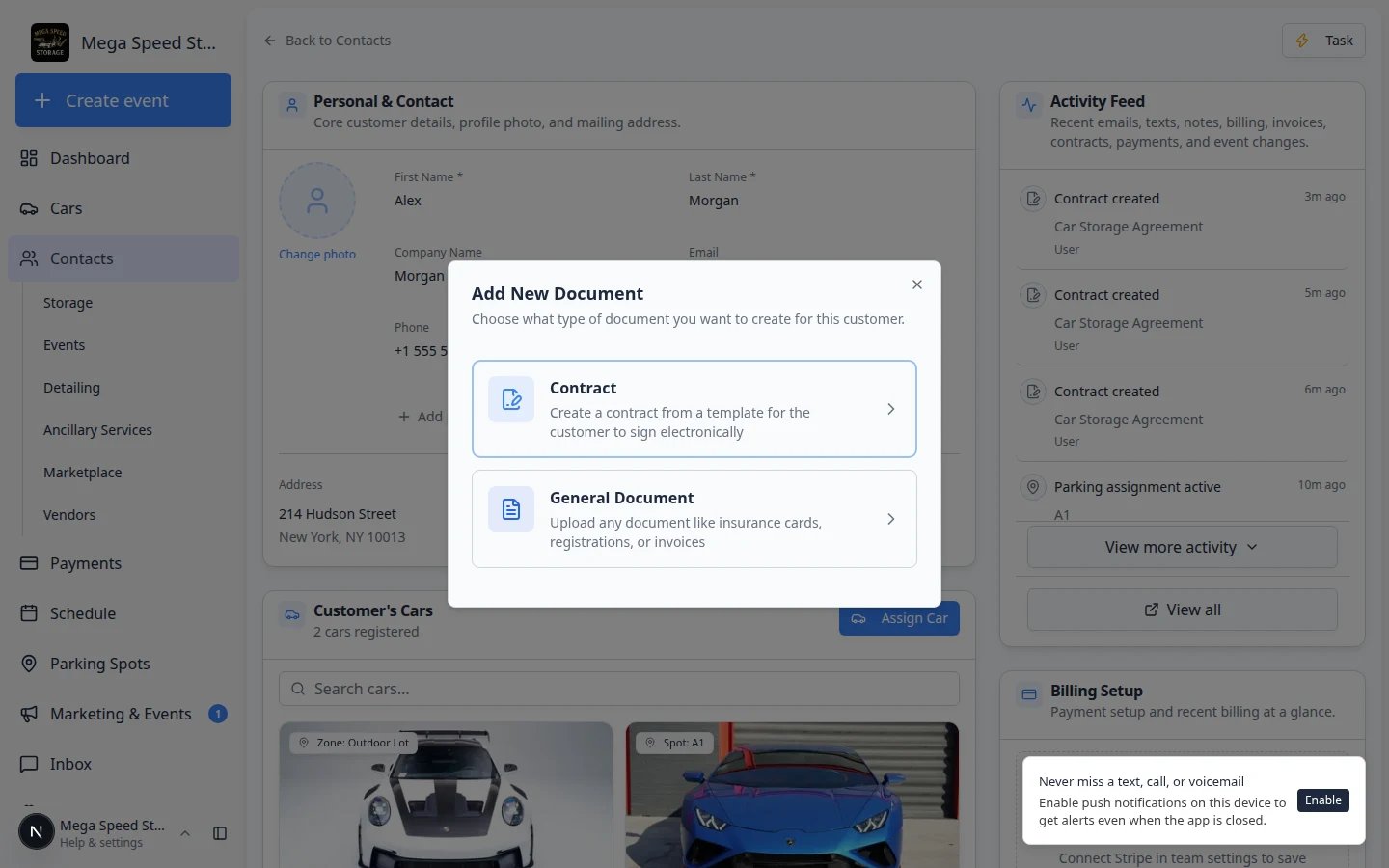
In the same Documents & Contracts area, review uploads such as insurance cards, registration, titles, or licenses. Uploaded files appear as document cards (not contract cards). They usually show the document type name—Insurance, Registration, and so on—without a signing status like Sent or Completed.1
Click the document card
Click the upload you want to review. A preview window opens—similar to contracts, but for files customers or staff uploaded.Expected result: You can read the file name, document type, and any notes your team added.
2
Open or download the file
Use Open full view (or View) for photos and PDFs inside the browser. Use Download to save a copy to your computer for insurance or audit requests.Why this matters: Contracts need a Completed status for a signed PDF. Uploads are ready to view as soon as they appear on the record.
- The document type label is correct.
- The file belongs to this customer.
- The file is linked to the right car when a car is shown.
- The file is readable and current (not expired insurance, for example).
- Notes explain anything staff should know later.
Step 8: Add helpful notes
If a file or contract needs context, add a short description when the app allows it. Good examples:- Insurance card expires 03/31/2027.
- Signed replacement agreement after vehicle change.
- Title copy provided by spouse.
When a signed agreement should no longer be used
Sometimes a Completed contract must stay in history but should not be treated as the active agreement—for example, the customer sold the vehicle or signed a replacement agreement.What to do today: Keep the old card on the customer record for history. Add a clear note in the Description field on the preview window (for example, Replaced by new agreement 05/2026 — do not use). Send a new contract if the customer still needs a valid agreement on file.If your facility uses a formal void workflow, follow your manager’s process. On the current Documents & Contracts cards view, staff use Cancel contract for unsigned requests and keep signed PDFs for history rather than deleting completed agreements.
What success looks like
- You can find signed agreements quickly on the customer record.
- You can download final signed PDFs.
- You can tell which uploads are present and which are missing.
- Statuses clearly show what still needs a phone call or resend.
- Important context is written in the description field when a contract is outdated but kept for history.