

What you will accomplish
- Open the correct customer conversation.
- Read recent texts, emails, and calls before you reply.
- Choose the channel that fits the customer’s question.
- Send a reply that matches what your team can actually do next.
Before you start
- Make sure you are on the Inbox page.
- Confirm the customer name, email, or phone number before you reply.
- Read the latest message and at least a few earlier messages so you understand the full request.
- If the customer mentions a car, invoice, appointment, or contract, open that record in another tab if you need to verify details.
- If another teammate is already handling the message, coordinate before sending a second reply.
- If Text or Email is gray, review Configure communication settings for Inbox first.
Open the conversation
1
Open Inbox
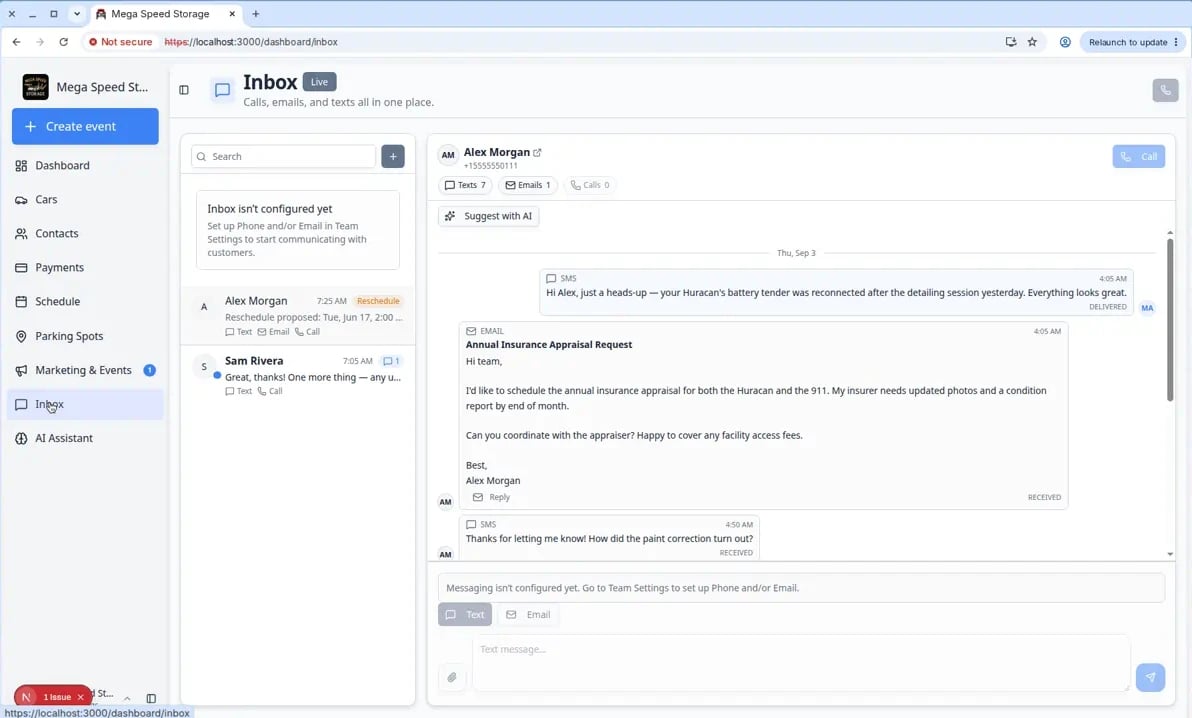
Go to Inbox from the dashboard sidebar.The left side shows the conversation list. Each row includes the customer name or phone number, the most recent activity, and channel labels such as Text, Email, or Call.
2
Find the customer
Scroll the list or type in Search to find the customer you need.You can search by name, email, or phone number.Note: The main Search box filters conversations you already have. It does not search company names. To search by company, click + and use the new-conversation search panel instead (see Start a new Inbox conversation).
3
Select the customer
In the conversation list on the left, click the full row for the customer you want to answer—not just their name in the message preview on the right.Tip: Each row is a button. Click anywhere on the row that shows the customer’s name and the gray preview line underneath.The timeline opens on the right. The customer name, phone number, and contact information appear at the top.
4
Check that you selected the right person
Look at the name, email, and phone number at the top of the conversation.This matters because some customers may have similar names or more than one car. Taking a few seconds to confirm the person prevents private information from going to the wrong customer.
Two search boxes — know which one to use
Inbox has two different search fields. They look similar but do different jobs.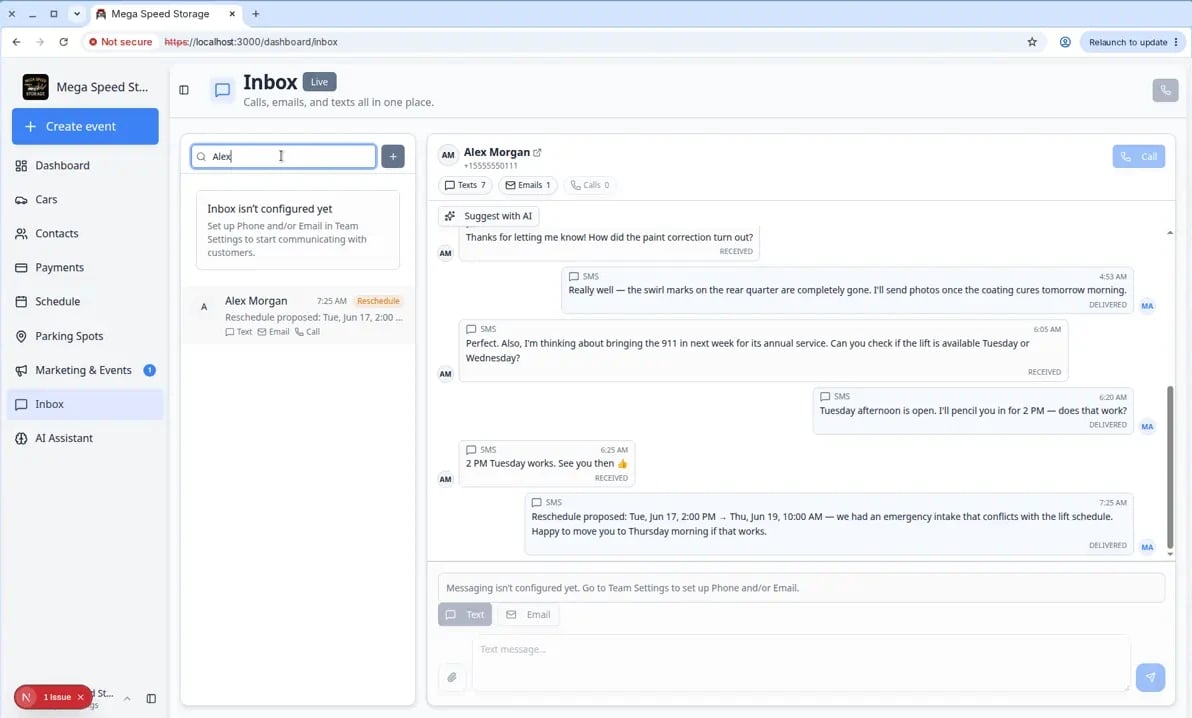
Review the timeline before replying
One customer conversation can include texts, emails, and phone calls in a single timeline. You do not need to open three different apps—the history stays together so your team sees the full story. The timeline can include several types of activity.- SMS means a text message.
- EMAIL means an email message.
- INBOUND or OUTBOUND call entries show phone activity.
- Image attachments may appear under text messages — click a photo to view it larger before you reply.
- Call entries may include a Transcript button when a recording or voicemail transcript is available.
When a customer sends a photo
1
Find the image in the timeline
Customer photos usually appear below their text message as a small preview.Why this matters: Customers often send damage photos, registration cards, or insurance documents by text.
2
Click the image to open it
Click the preview to see the full-size photo in a new browser tab or viewer.Expected result: You can read details (plate numbers, tire wear, dents) before you promise next steps.
3
Reply with what you verified
Reference what you actually saw. Example: “We received your tire photo — the front-left looks low. We will check pressure at pickup.”If you need the file saved on the customer record, ask an admin whether your team also uploads documents from Contacts.
- Texts — show only text messages.
- Emails — show only email messages.
- Calls — show only phone calls and voicemails.
1
Open a customer conversation
Select the customer in the list on the left, such as Alex Morgan.
2
Click a filter
Near the top of the timeline, click Texts, Emails, or Calls.Expected result: The timeline shows only that type of activity. This is helpful when a customer has a long history and you only need to review emails or calls.
3
Return to the full timeline
Click the same filter button again to see everything together.

Why reading first mattersCustomers often repeat a question when they think nobody saw the first message. Reading the timeline first helps you answer once, clearly, and with the right details.
Choose the best way to reply
Choose the channel based on what the customer needs. At the bottom of the conversation you will see Text and Email. Near the top you may also see Call when the customer has a phone number on file.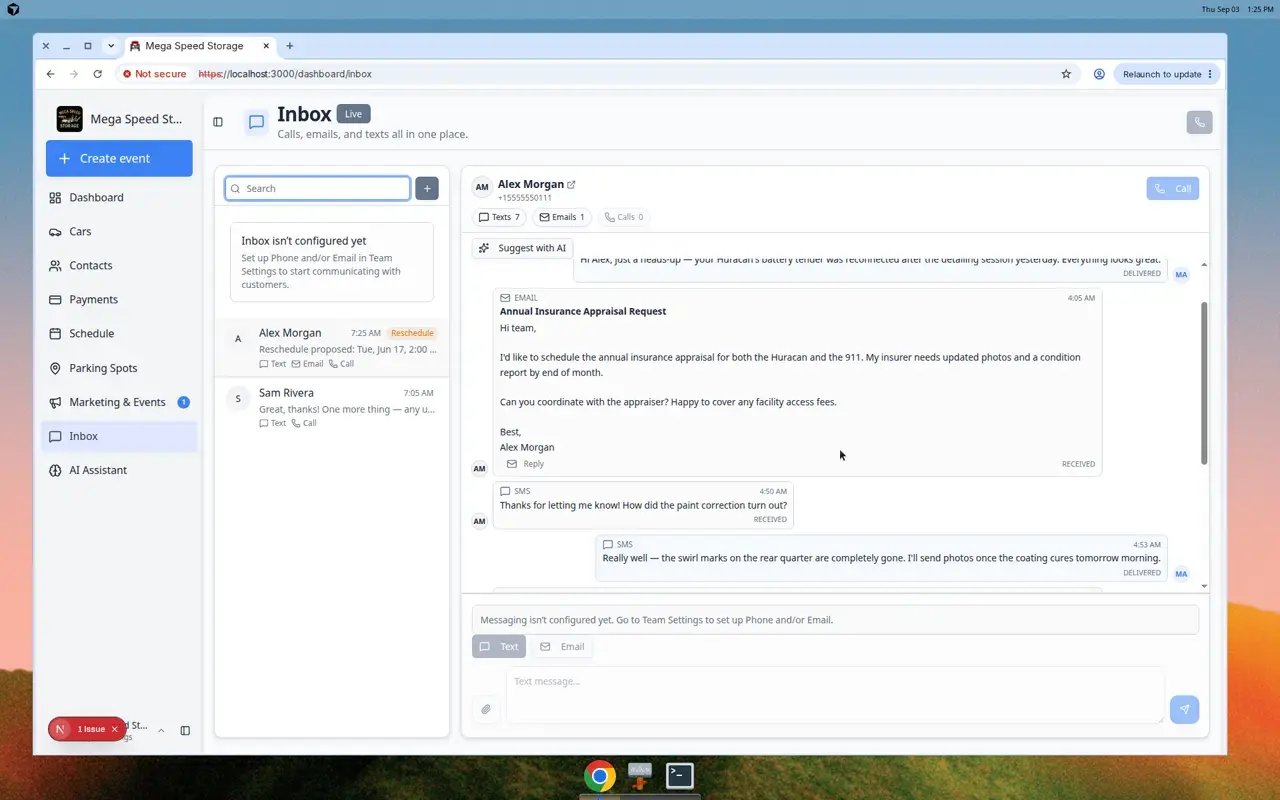
1
Use Text for quick updates
Click Text when your answer is short and time-sensitive.Good text examples:
- “Your car is ready at the front entrance.”
- “We received the photo. We will review it now.”
- “Your appointment is confirmed for 10 AM.”
2
Use Email for longer or more formal replies
Click Email when your message needs a subject line, more detail, or a record that is easier to search later.Good email examples:
- A service estimate explanation.
- A billing question.
- A recap after a phone call.
- A message with several next steps.
3
Use Call when a live conversation is better
Click Call when the customer needs a faster back-and-forth conversation or when the topic may be confusing by text.After a call, add a short written follow-up if the customer or your team needs a record of what was decided.For Call vs Quick call, see Call a customer from Inbox.
Open related records while you reply
Customers often ask about a specific car, invoice, or appointment. Inbox shows the message history, but you may still need to open other pages to confirm facts before you reply.1
Note the car, date, or dollar amount in the message
Read what the customer named—for example Huracan, Tuesday at 2, or last month’s invoice.
2
Open the record in a new browser tab
Common pages staff check:
- Cars — vehicle location, service history, parking spot
- Schedule — appointment date and time
- Payments > Invoices — billing status
- Contacts — customer email, phone, and linked vehicles
3
Return to Inbox and write your reply
Use the facts you confirmed. If you need more time, use Mark unread so a teammate knows follow-up is still needed.
Write a clear reply
Before you send, make the reply easy for the customer to understand.- Use the customer’s name when it feels natural.
- Answer the question directly in the first sentence.
- Include dates, times, vehicle names, and next steps when they matter.
- Avoid internal shorthand the customer may not understand.
- If you are not sure, say what you are checking and when you will follow up.
Example clear replyHi Alex, yes. We will stage the Huracan at the front door tomorrow at 10 AM. If the weather changes, we will text you before moving it outside.
Know when a teammate is already working
When another staff member is viewing the same conversation, you may see a short note below the customer name, such as Alex is typing… or Sam is on a call… Pause before you send your own reply if someone else is already responding. This helps your team avoid two different answers to the same customer. For more detail on Live updates, sender initials, and handoffs, see Coordinate with your team in Inbox.Mark a conversation for follow-up
Sometimes you read a message but cannot finish the reply right away. Marking a conversation unread reminds your team that someone still needs to respond.1
Find the customer in the conversation list
On the left side of Inbox, find the customer row you want to flag.
2
Open the conversation menu
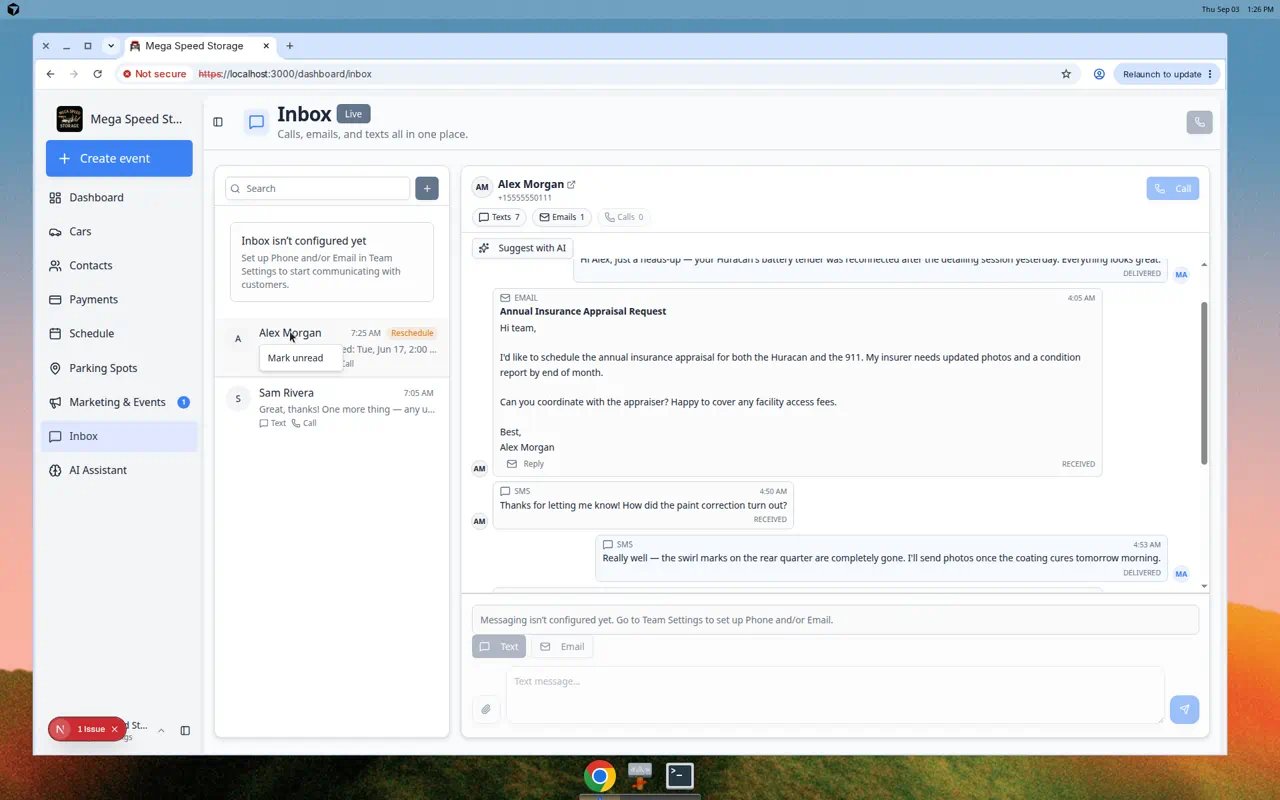
On a computer: right-click the customer’s name in the list.On a phone or tablet: press and hold the customer’s name until a menu appears.
3
Choose Mark unread
Click Mark unread.Expected result: The conversation shows as unread again (for example, a blue dot or bold name) so the next staff member knows follow-up is still needed.
Write and send your reply
1
Choose Text or Email
Click Text or Email at the bottom of the conversation.Why this matters: The channel you choose is how the customer receives your answer. Match their question when you can—if they texted, they usually expect a text back unless the answer is long.
2
Type your message
Write a clear reply in the composer at the bottom.For texts, press Enter to send or Shift+Enter for a new line. For email, fill in Subject and Write your email…, then click Send email.
3
Send and confirm
Click send, then confirm your message appears in the timeline.Expected result: Your outbound message shows in the timeline with your team’s initials (when shown) so the next shift knows who replied.
Use AI only as a starting point
If Suggest with AI appears, you can use it to draft a possible response. Always read the suggestion before using it. AI can help with wording, but your team is still responsible for checking that the details are correct.Not the same as AI AssistantSuggest with AI lives inside Inbox and drafts a reply from the current conversation (recent texts and emails). The separate AI Assistant page in the sidebar can search records, propose schedule changes, and help with broader tasks. Use Inbox suggestions for customer replies; use AI Assistant when you need to look up cars, parking, or records across the facility.
What success looks like
After you respond:- The reply appears in the conversation timeline.
- The message uses the correct channel: text, email, or call.
- The customer can understand the answer without needing another explanation.
- Any promised follow-up is clear to your team.