

What you will accomplish
- Search by customer, vehicle, plate, or notes.
- Filter to Assigned to me or Needs Approval when those views help.
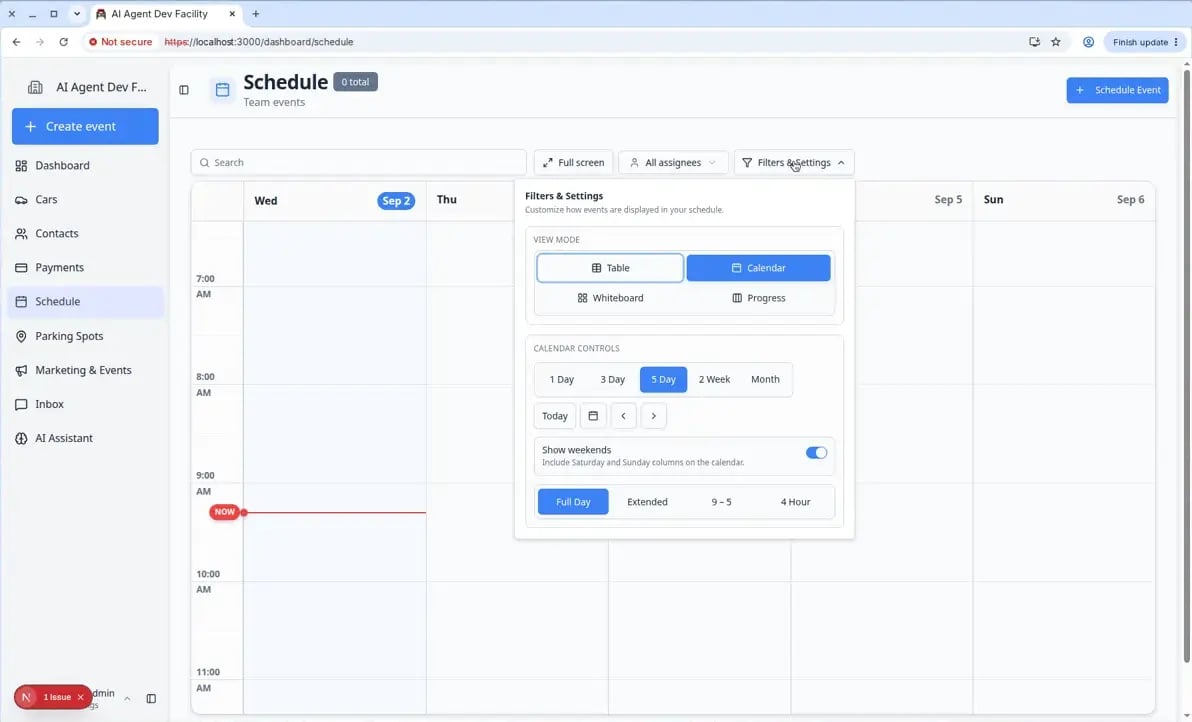
- Switch between Calendar, Table, Whiteboard, and Progress views.
- Open the correct event without changing the wrong one.
Before you start
- Open Schedule.
- Know what you are looking for, such as the customer name, vehicle, event type, date, or staff member.
- If you are looking for your own work, make sure events are assigned to you.
Search by name, vehicle, or notes
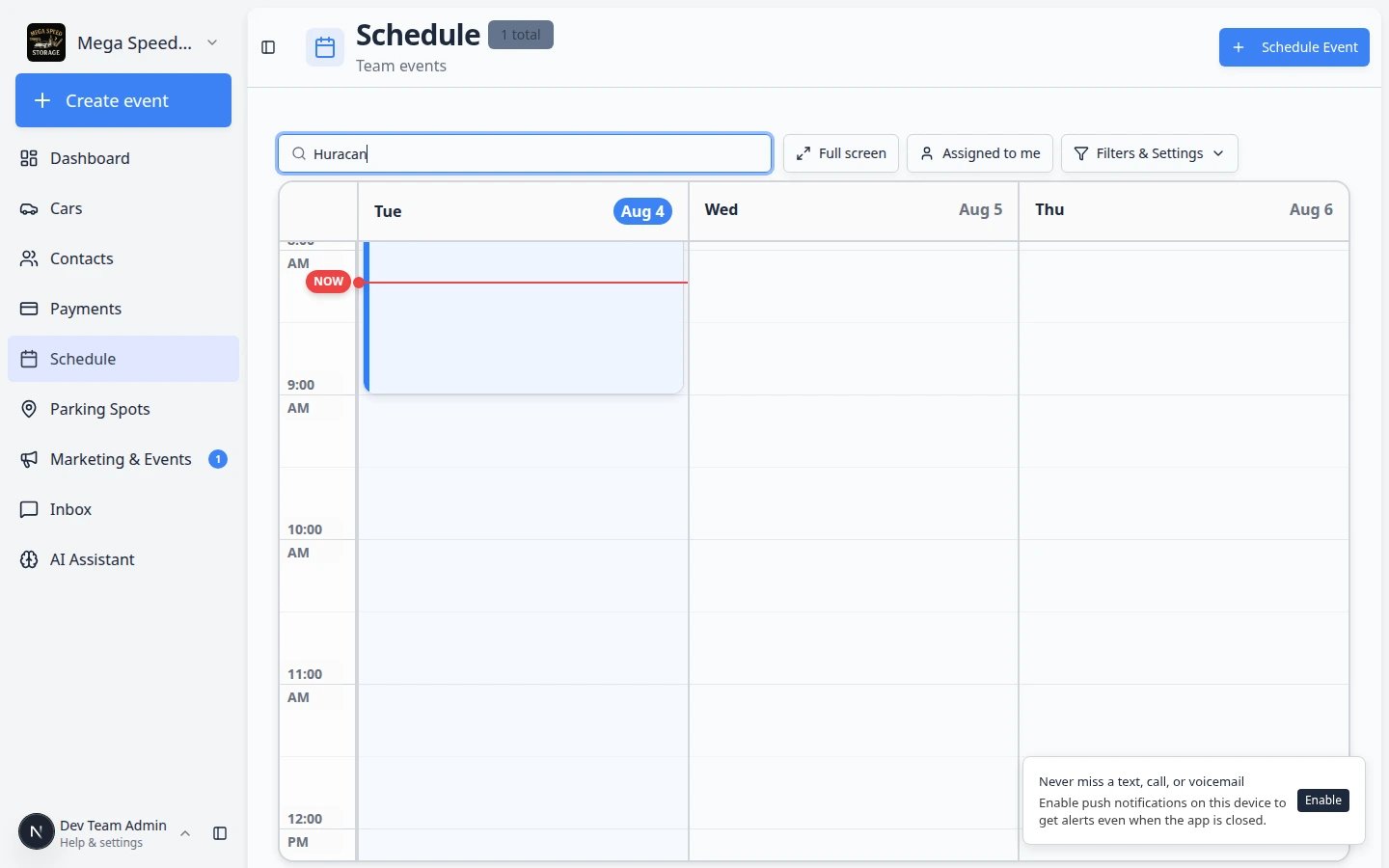
Click the Search field
Type what you know
Review the results
Clear the search when finished
Show only work assigned to you
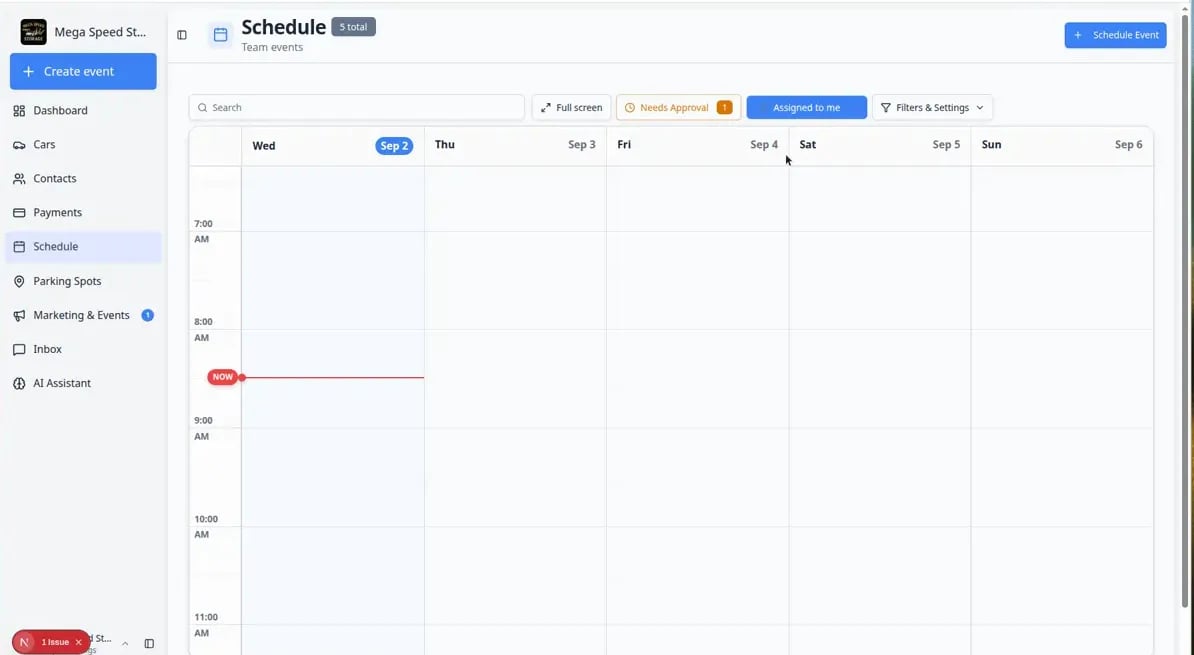
Click Assigned to me
Review your filtered schedule
Click Assigned to me again to turn it off
Find bookings that need approval
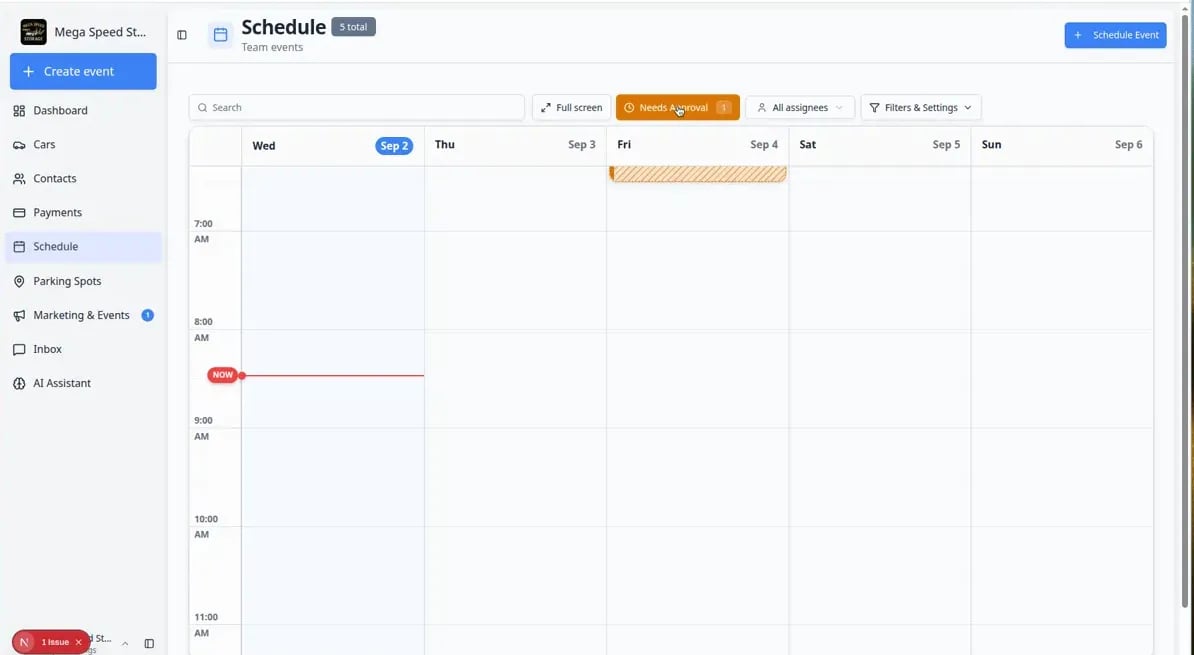
Look for Needs Approval
Click Needs Approval
Open each booking
Change the calendar date or time range
Click Filters & Settings
Make sure Calendar view is selected
Choose the number of days
- Use 1 Day for a busy day with many details — each event gets more visual space.
- Use 3 Day when you are planning a few days ahead.
- Use 5 Day for a full work week overview.
- Use 2 Week when you need fourteen days visible for transport or service planning. See Use the 2-week view and day detail panel.
- Use Month when you need a wide planning view to spot gaps or busy periods.
Optional — hide weekends or open the day panel
Use Today or the arrows to navigate
Choose the visible hours
- 9 - 5 hides early morning and late evening hours so the workday is easier to read.
- Full Day shows all 24 hours in case events happen outside normal hours.
- If an event seems missing, switch to Full Day — the event may be outside the hours you are currently viewing.
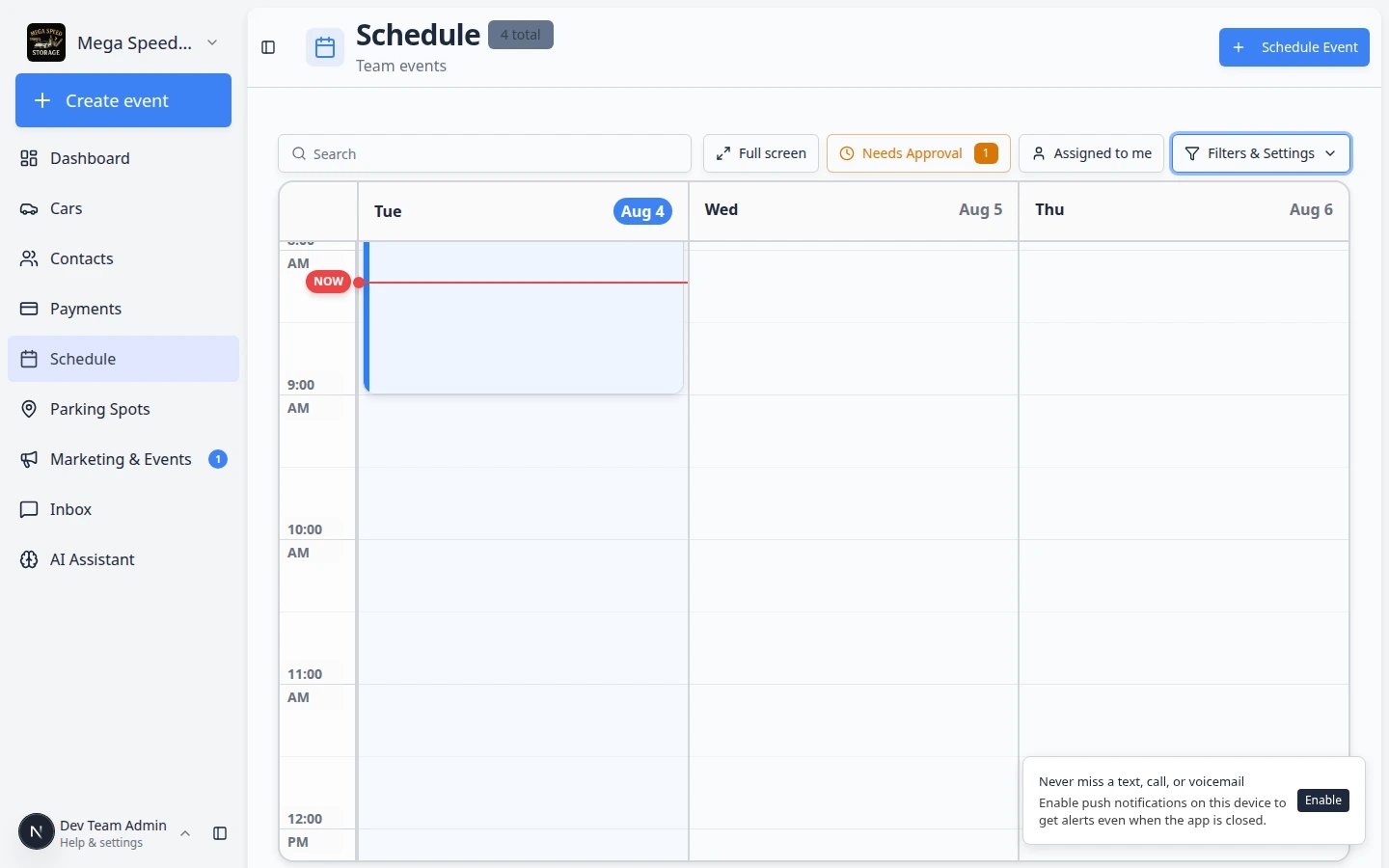
Read the small icons on calendar events
On Calendar view, each event block can show tiny icons that save you from opening every visit.- A clock icon in the corner often means the booking still needs approval before it is confirmed.
- A warning dot can mean the visit still needs to be marked complete.
- A small colored dot near the bottom can mean billing needs attention (for example an open invoice).
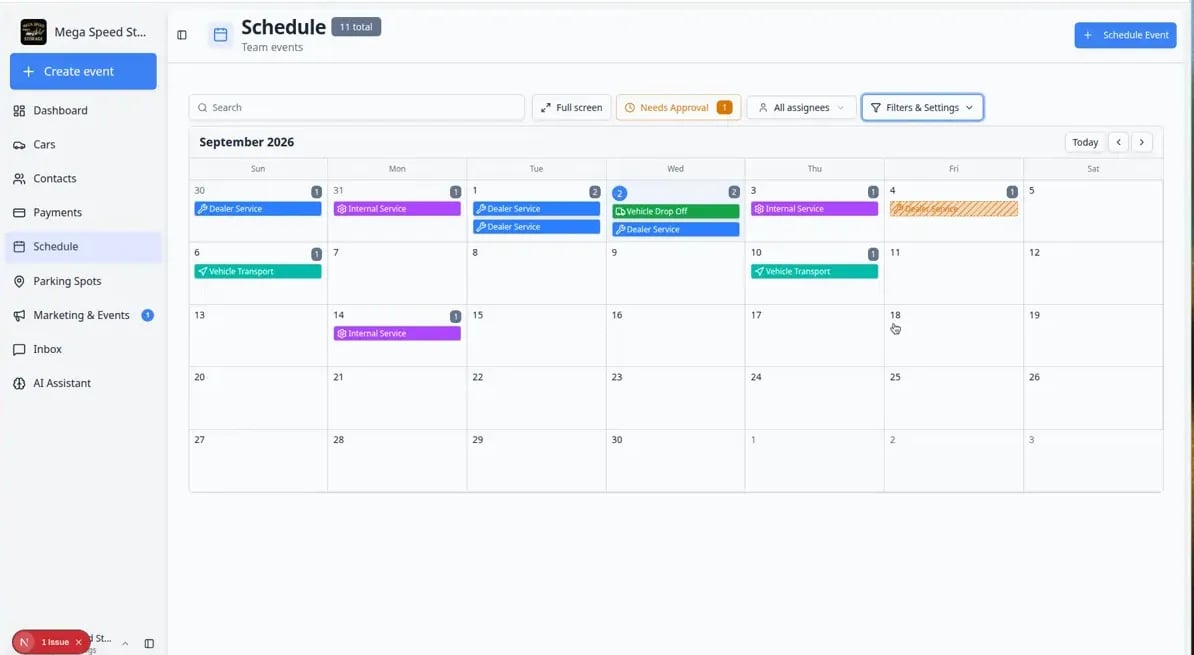
Switch to Table view for a detailed list
The Table view shows your scheduled events as rows in a sortable list. This is useful when you want to scan many events quickly or sort by a specific column. For a full walkthrough of sorting, columns, pagination, and the Details button, read Use Table view on Schedule.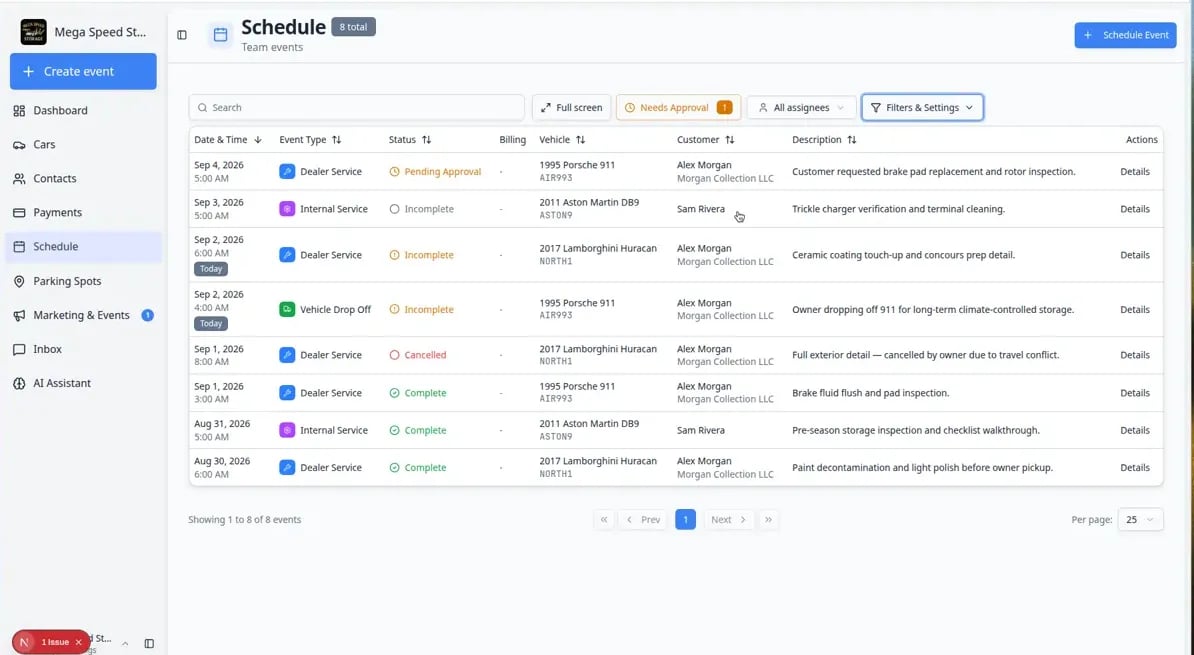
Open Filters & Settings
Choose Table
Sort and scan
Open Details from a row
Show or hide columns when needed
Turn pages when the list is long
Understand billing, damage, and approval marks on events
On Calendar view, you do not have to open every block to spot certain problems. Small marks in the corners tell part of the story at a glance.Look for the stripe pattern first
Check colored dots for billing
Check red badges for damage photos
When several events share the same time slot
On Calendar view, two or more visits can land on top of each other when your shop is busy. Instead of hiding them, the calendar may show a summary such as 2 Events or 3 Events in one block.Look for a grouped block
Click the grouped block
Open the event you need
Read icons and badges on event blocks
Small symbols on calendar blocks—repeat arrows, dollar signs, stripes, warning triangles—carry extra meaning. When a block looks unusual, open Read calendar icons and badges before you change or cancel the wrong visit.Choose the best view for the job
Use full-screen mode on a large monitor
Click Full screen
Exit when you are done
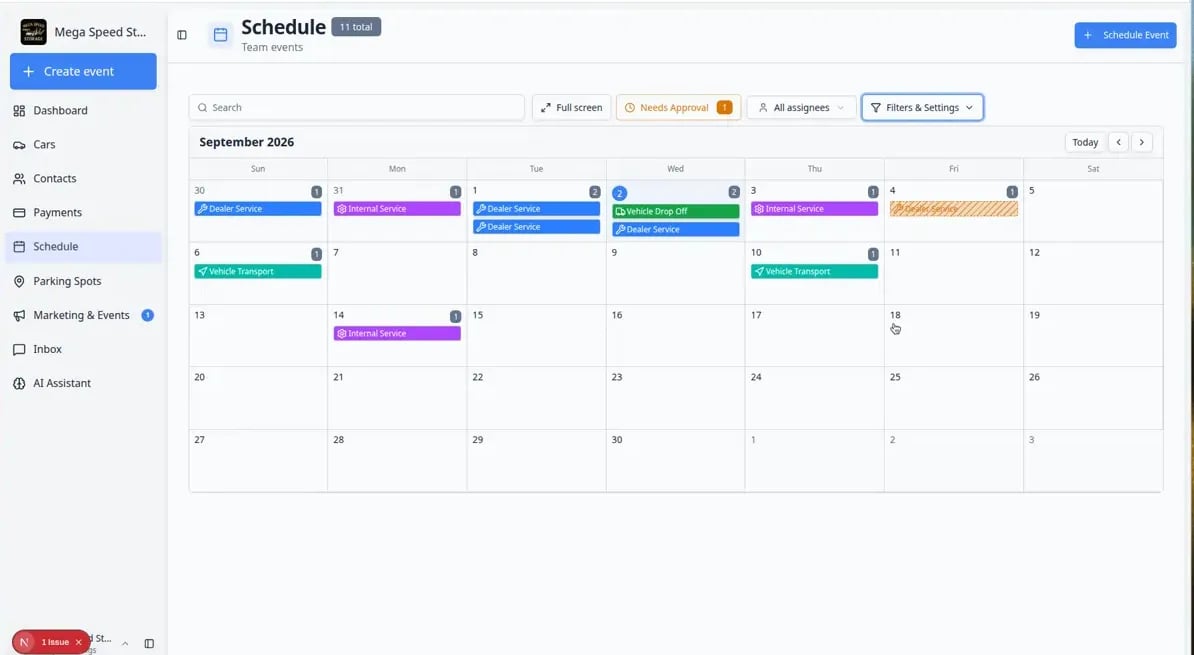
Switch to Month view and use the day detail panel
Month view helps you plan weeks ahead. You can open each day in a pop-up or keep a day detail panel on the right side of the screen. Month view helps managers plan ahead. It shows which days are light or heavy before the week gets busy.Open Filters & Settings
Choose Month
Click a day on the grid
Open an event from the list
Add work from the day list when the day is empty
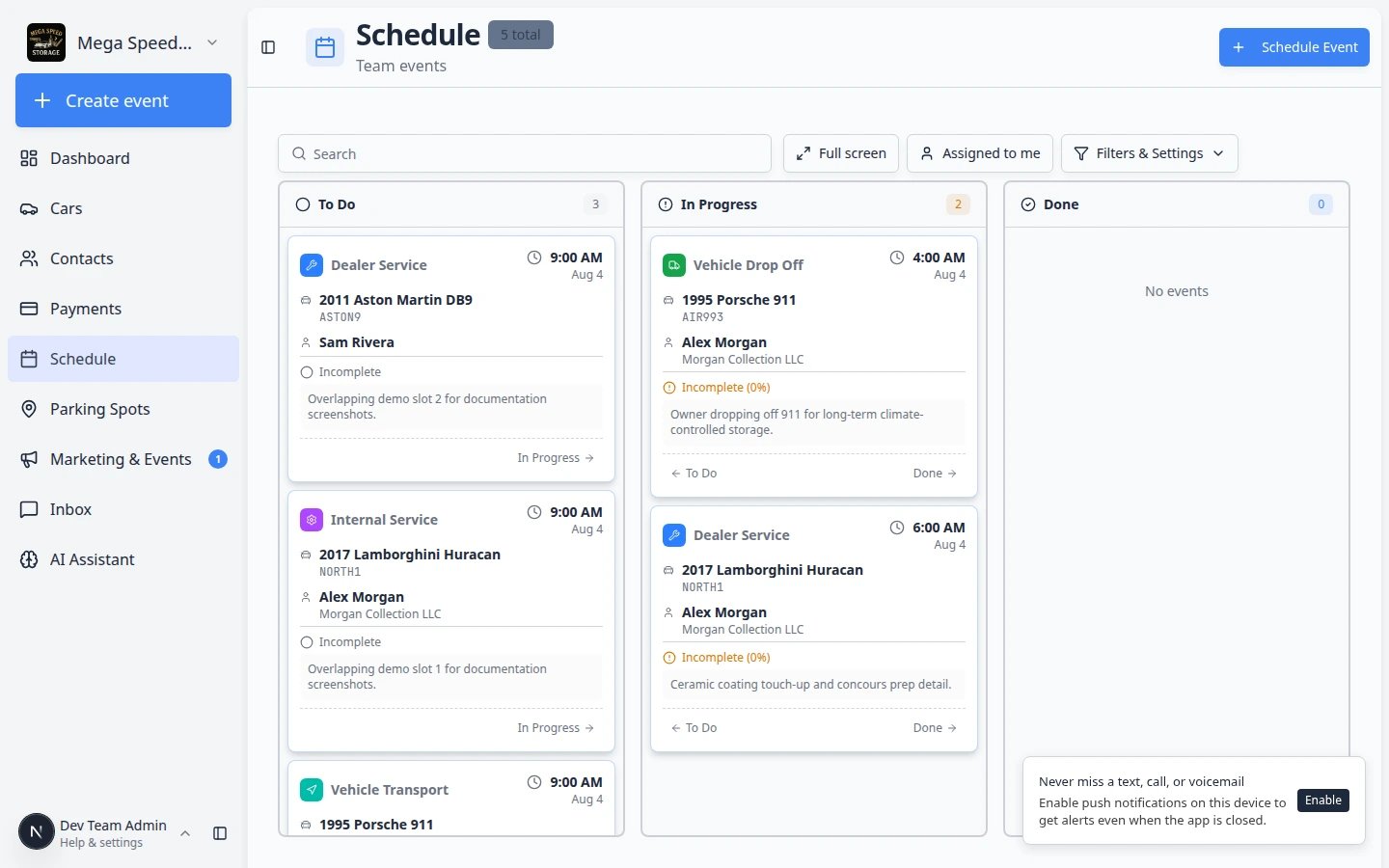
Switch to Whiteboard view
For screenshots, tips, and mistakes to avoid, see Use the Whiteboard view on Schedule.Open Filters & Settings
Choose Whiteboard
What success looks like
After filtering or changing views:- You can see only the events that match your current task.
- You know whether you are viewing one day, several days, a month, or a filtered list.
- You can open the correct event without guessing.
- You can turn filters off when you need the full team schedule again.