

What you will accomplish
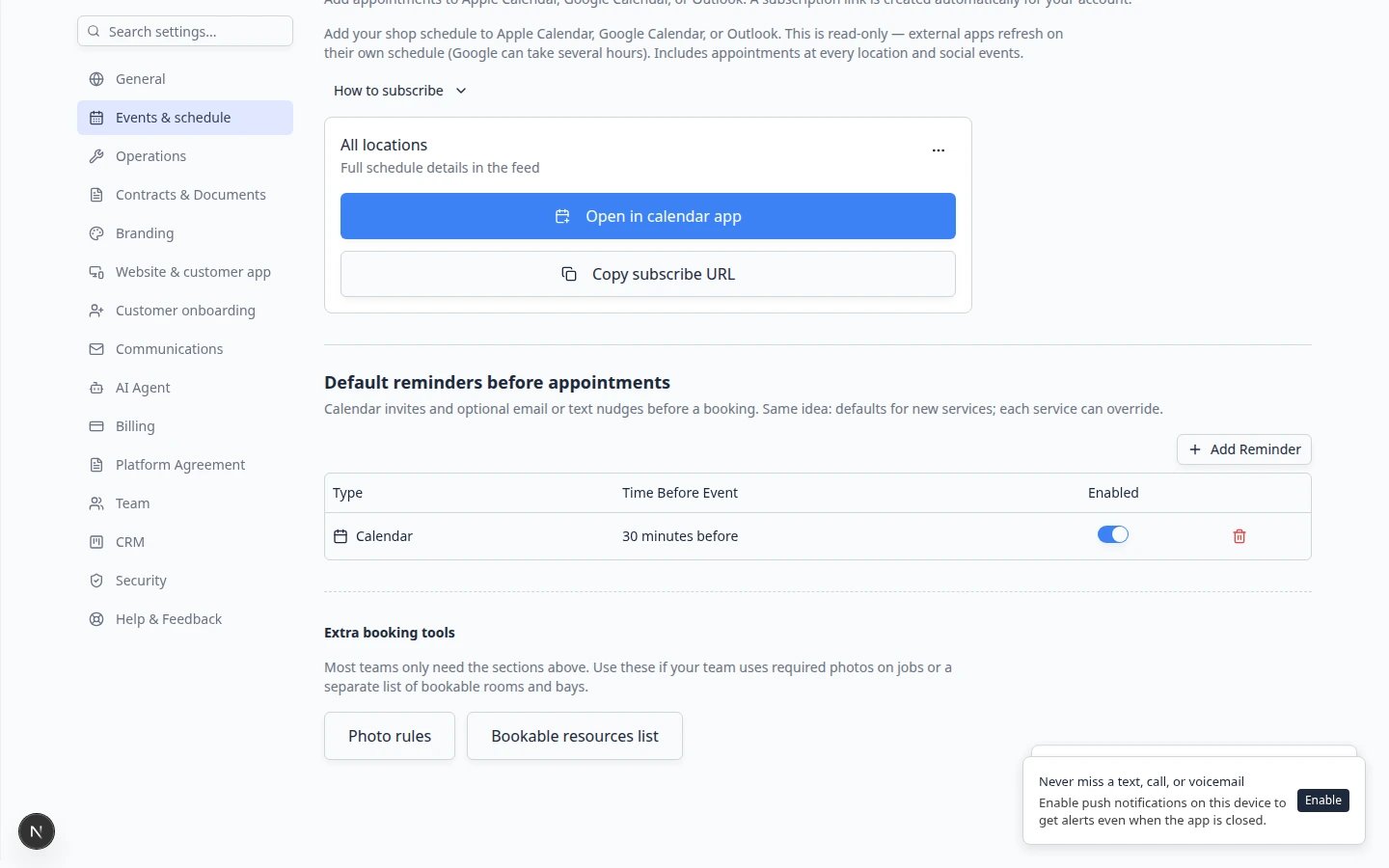
You will copy a read-only subscription link from Settings → Events & schedule and add it to Apple Calendar, Google Calendar, or Outlook so your personal calendar stays in sync with the shop schedule.- Find your facility’s calendar subscription link in the dashboard.
- Add that link to Apple Calendar, Google Calendar, or Outlook.
- Choose whether the feed shows full details or busy-only privacy.
- Know what to do if a link stops working or was shared too widely.
When to use a calendar subscription
- You want today’s appointments on your phone lock screen or watch.
- Managers want the team schedule next to personal events in one calendar app.
- You are tired of copying times from the dashboard into another calendar by hand.
Before you start
- You can sign in to the dashboard.
- You know which calendar app you will use (Apple, Google, or Outlook).
- For privacy settings or link rotation, you need team admin access (the three-dot menu on the feed card).
- If you manage your own website domain, keep someone available who can add DNS records — only needed if email domain setup is unrelated; calendar subscribe links do not need DNS for basic use.
Open your subscription link
1
Open Events & schedule settings
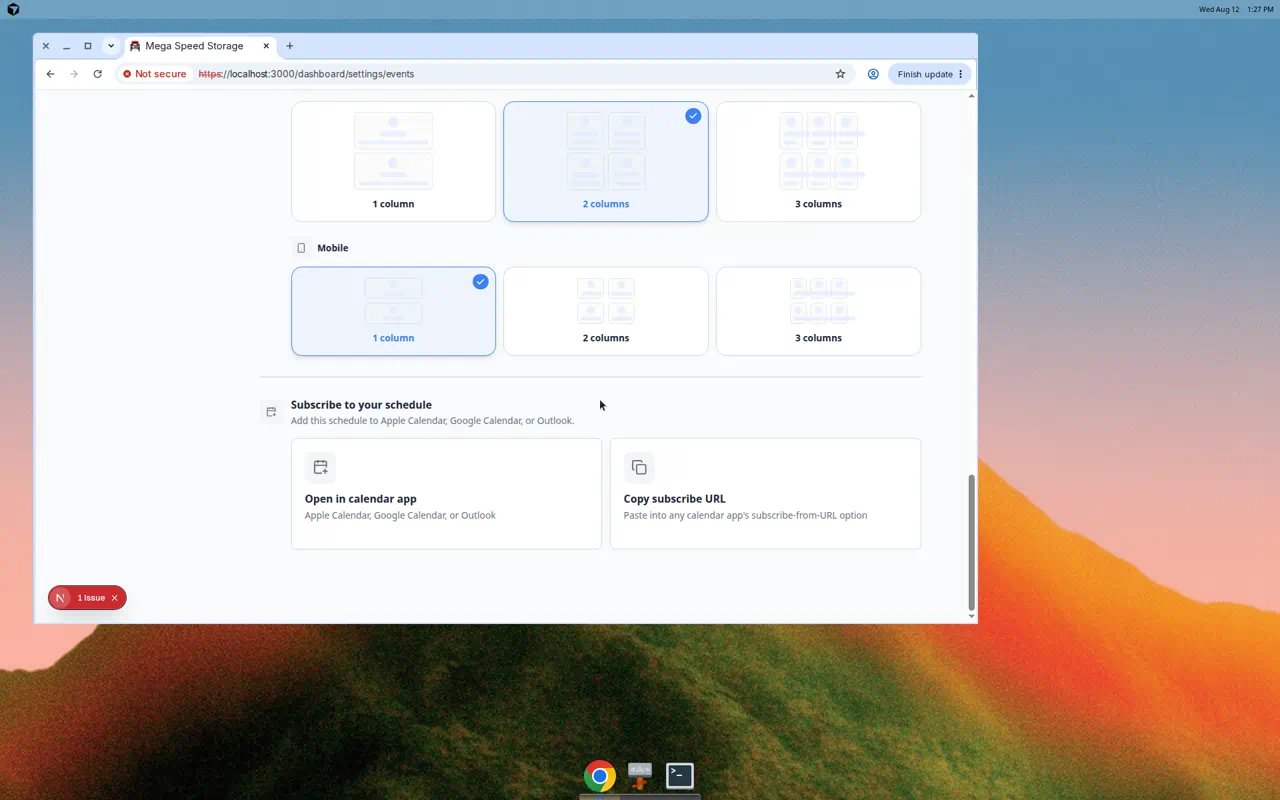
Go to Settings → Events & schedule.Expected result: You see sections for services, closed days, reminders, and Subscribe to your schedule.
2
Scroll to Subscribe to your schedule
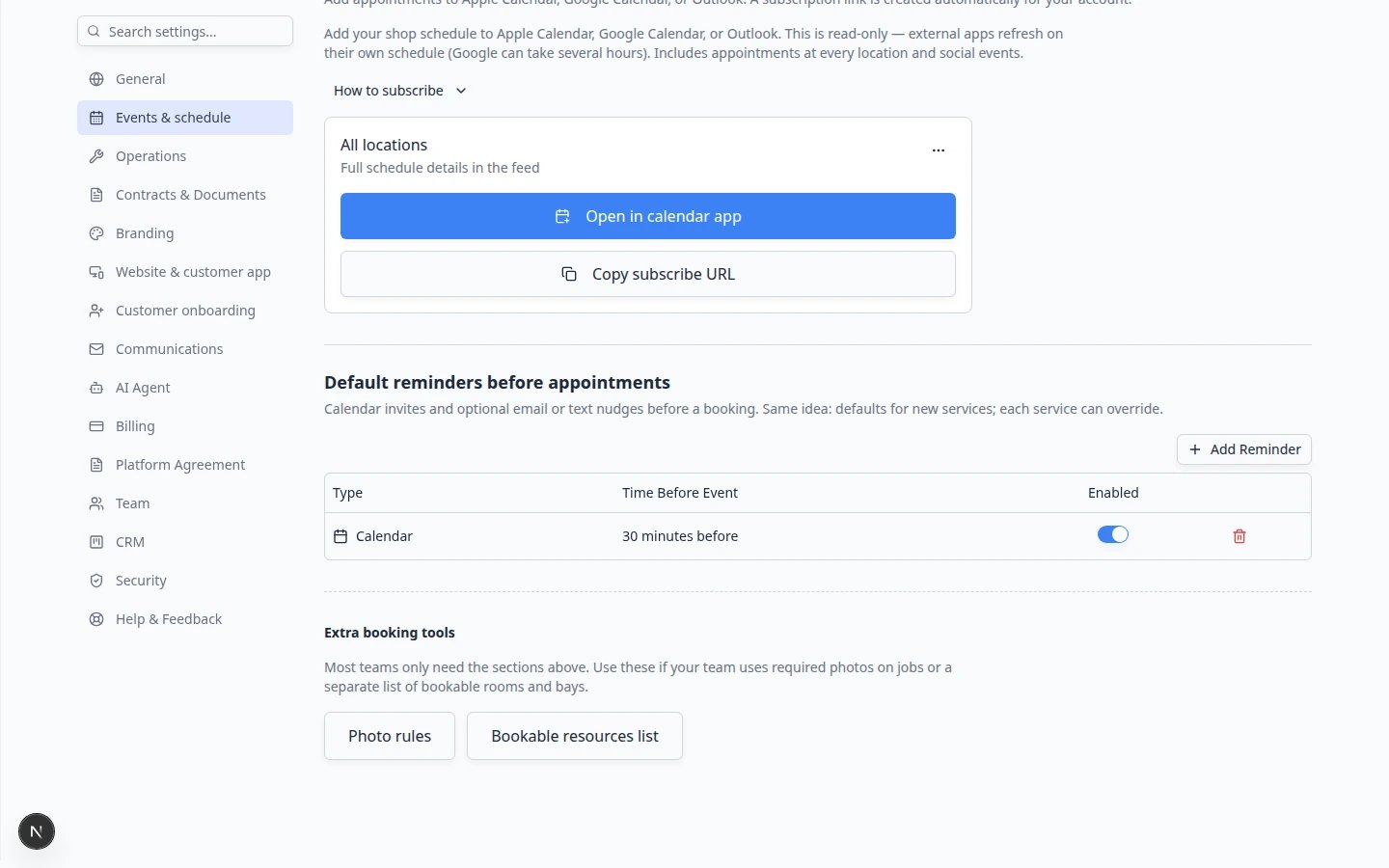
Find the heading Subscribe to your schedule.A short note explains that this is read-only and that Google may take several hours to refresh.
3
Choose which schedule to subscribe to (if you see a dropdown)
If your facility has more than one location, you may see Which schedule to subscribe to.
- All locations — appointments for the whole shop, plus social events (car meets, open houses, and similar).
- A single location — appointments for that location only (no social events in that feed). Staff who only work at one location may see only their location’s feed.
4
Review what the feed will show
Under the feed name you will see either:
- Full schedule details in the feed — event title, vehicle, customer name, appointment type, location, and notes (never email or phone numbers), or
- Busy only — no customer or vehicle details in the feed — events appear as Busy blocks.
Subscribe in Apple Calendar (Mac or iPhone)
1
Click Open in calendar app
On the subscription card, click Open in calendar app.Your device should open Apple Calendar (or another default calendar app) with a Subscribe prompt.
2
Confirm the subscription
Read the calendar name, then confirm Subscribe (or OK on some devices).Expected result: A new calendar appears in Apple Calendar. Events fill in after Apple refreshes the feed (often within about an hour).
3
If the button does nothing, paste the link manually
Click Copy subscribe URL.In Apple Calendar:
- Mac: File → New Calendar Subscription
- iPhone/iPad: Calendars → Add Calendar → Add Subscription
https://.Expected result: Apple accepts the URL and shows the same subscribe confirmation.Subscribe in Google Calendar
1
Copy the subscribe URL
On the subscription card, click Copy subscribe URL.Expected result: The app confirms the URL was copied.
2
Add the calendar in Google
Open Google Calendar.
- On the left, next to Other calendars, click +.
- Choose From URL.
- Paste the
https://…link. - Click Add calendar.
3
Wait for Google to refresh
Google refreshes subscribed calendars on its own schedule — often 3 to 24 hours between updates.Expected result: New and changed appointments appear after Google’s next refresh. This delay is normal and is controlled by Google, not your facility.
Subscribe in Outlook
1
Copy the subscribe URL
On the subscription card, click Copy subscribe URL. The link must start with
https:// and end with .ics.2
Subscribe from the web in Outlook
In Outlook on the web or desktop:
- Open the calendar.
- Choose Add calendar → Subscribe from web (wording may vary slightly by version).
- Paste the
https://…link. - Save.
Change feed privacy (admins)
Use busy only when people outside your shop should not see customer or vehicle names on a shared calendar (for example, a manager’s calendar mirrored on a wall display).1
Open the feed options menu
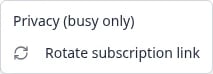
On the subscription card, click the three-dot button (admin only).
2
Choose Privacy (busy only)
Click Privacy (busy only).
3
Turn Busy only on or off
Use the Busy only switch:
- On — hide customer and vehicle names in this feed.
- Off — show full schedule details (still never email or phone).
Rotate a subscription link (admins)
Rotate when a link may have been shared too widely (email forward, old employee, posted in the wrong place).1
Open the feed options menu
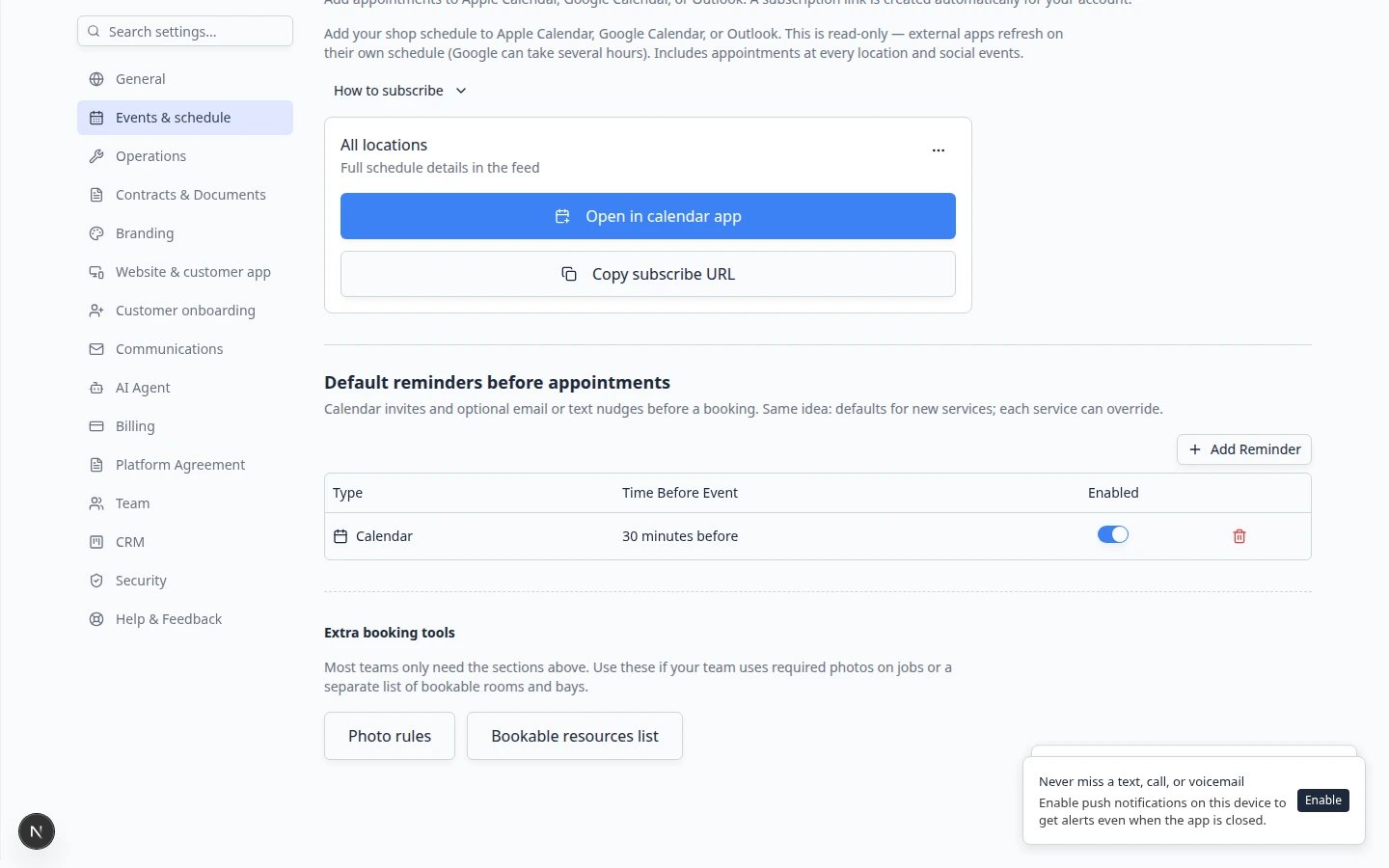
Click the three-dot button on the subscription card.
2
Click Rotate subscription link
Choose Rotate subscription link.
3
Confirm rotation
Read the warning: anyone using the old link stops getting updates after their calendar app refreshes (often within about 24 hours).Click Rotate link.Expected result: A new URL is created. Share Copy subscribe URL only with people who should still receive updates.
What each feed includes
All locations (team feed) — schedule appointments at every location and social events.Single location — appointments for that location only.Cancellations — deleted appointments and cancelled social events are sent as cancellations so subscribed calendars remove them on refresh.
Remove a subscription from your phone or computer
1
Remove the calendar in your app
In Apple Calendar, Google Calendar, or Outlook, delete or unsubscribe from the calendar you added. The steps vary by app, but you are looking for Delete Calendar, Remove, or Unsubscribe.Expected result: Your personal calendar no longer shows shop appointments. Nothing changes in Car Storage Software — this only affects your external calendar app.
2
Rotate the link if the old URL was shared too widely
If you worry the subscribe link was emailed to the wrong people, ask a team admin to Rotate subscription link (see above). Old links stop updating after calendar apps refresh.
Limitations to expect
- You cannot create or edit Car Storage Software appointments from Apple, Google, or Outlook with this subscription.
- External apps choose how often to refresh; delays are normal, especially in Google Calendar.
- Recurring events follow the same rules as your dashboard schedule.
- All day visits from Schedule usually appear as all-day items in Apple, Google, or Outlook (no start time). Timed visits keep their clock time.
Troubleshooting
What to do next
- Put new work on the calendar with Create an appointment.
- Schedule work with no clock time: Create an all-day event.
- Learn daily views with Find and filter scheduled work.
- Return to Schedule overview for the full list of Schedule guides.