

What you will accomplish
- Open the Contact page layout editor in Settings > CRM.
- Know what each block is for, and which blocks only appear when there is something to show.
- Turn a block off so it no longer appears on customer pages.
- Drag a block up or down inside its column so the sections you open most sit near the top.
- Confirm the change on a real customer record, then reset if you want the defaults back.
When to use this
Use this guide when:- Front-desk staff complain the customer page is “too long.”
- Your facility does not sell cars and never uses Market Interests.
- You do not use QuickBooks, so that card is always empty.
- You want Activity Feed or Billing Setup higher so people see it during a phone call.
- A new hire asks, “Where did Additional Contacts go?” after someone hid the block.
Before you start
- You have the Contacts permission, or you are a facility admin. Anyone can look at this page. Only people with Contacts permission can change it.
- Open one customer first—try All Contacts—so you know which blocks you actually use.
- Tell your team before you hide a block they rely on. The change applies to every customer page at once.
Hiding a block does not delete dataTurning a block off only hides it on the page. Notes, cars, invoices, and documents stay in the system. Reports, the activity timeline, and the portal still use that information.
Open the Contact page editor
1
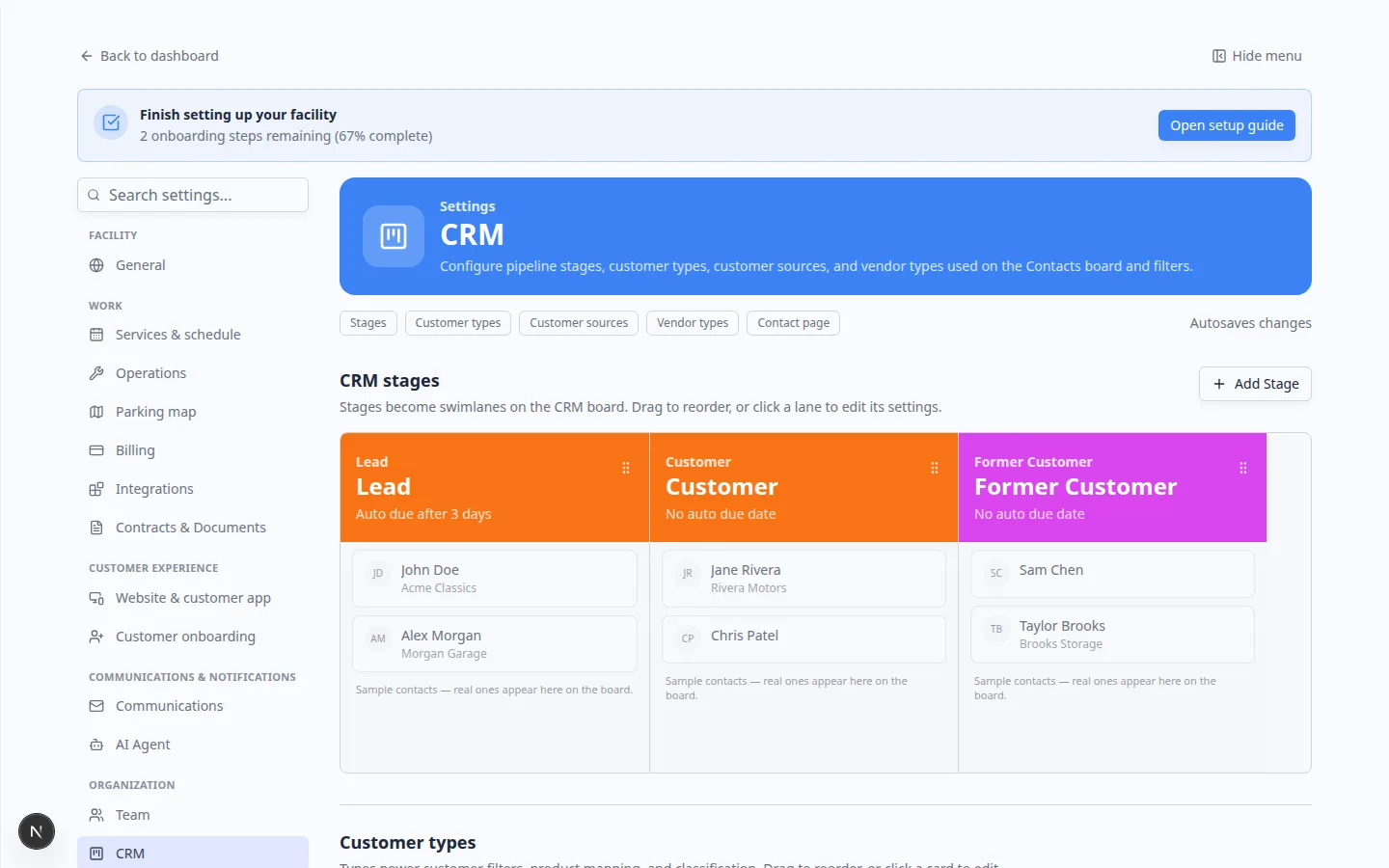
Go to Settings → CRM
Open Settings > CRM.Expected result: The page title says CRM. Near the top you see jump links: Stages, Customer types, Customer sources, Vendor types, and Contact page.
2
Click Contact page
Click the Contact page jump link.Why this matters: CRM settings is a long page. The jump link scrolls you past stages and types so you land on the layout editor.
Understand the layout preview
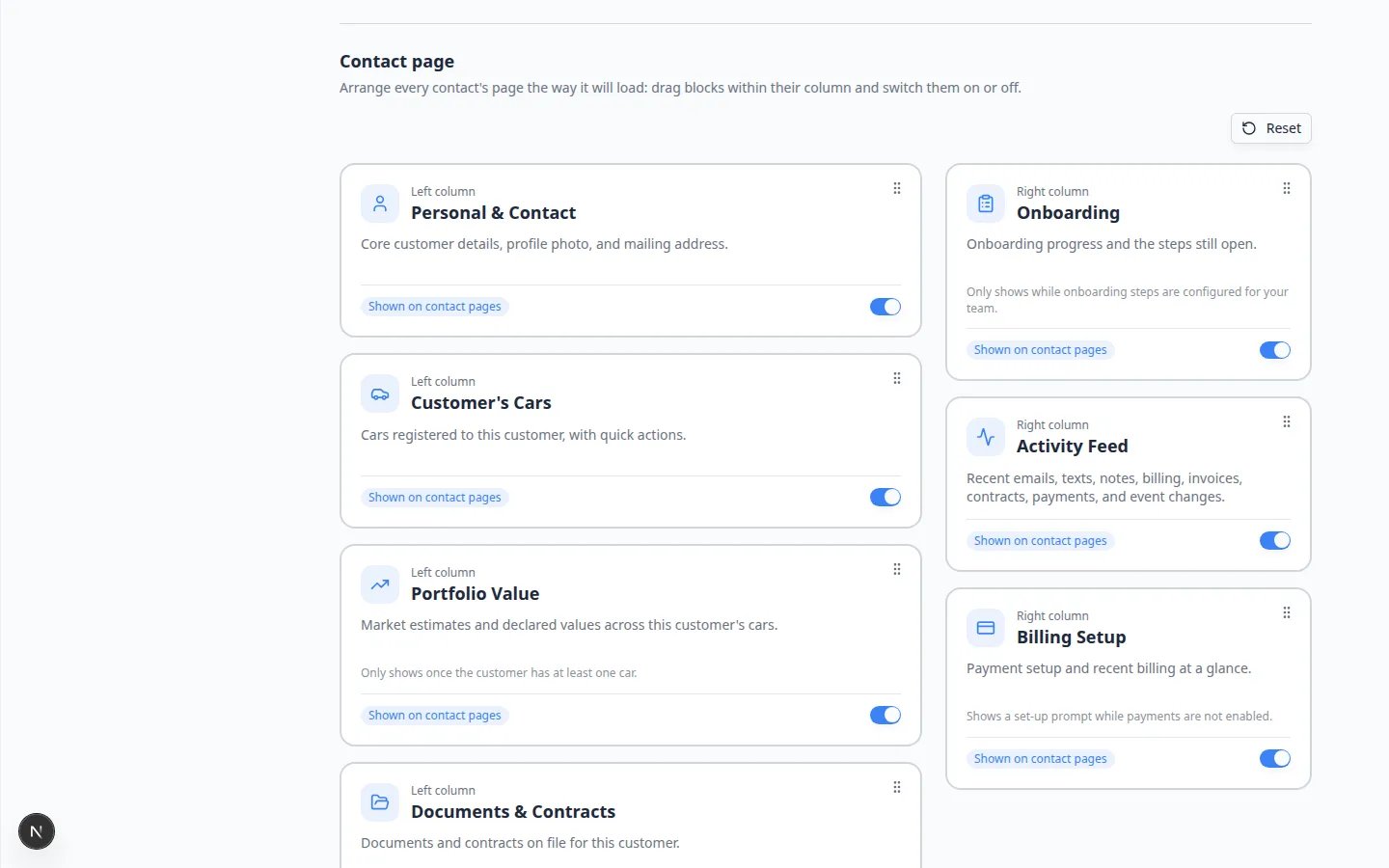
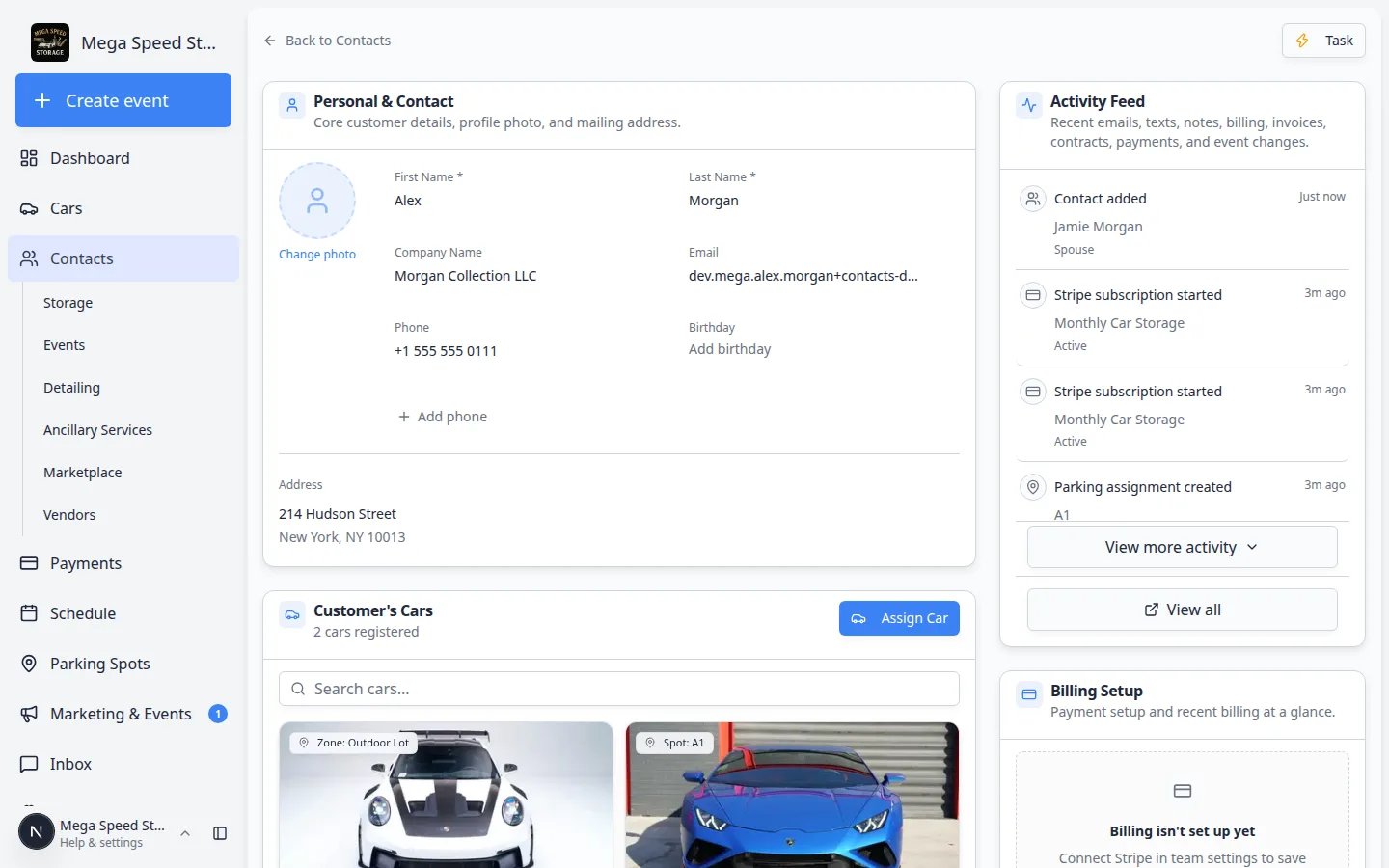
The Contact page section is a preview of a customer record. Every block is a card sitting where it will load:- Left column — wide area: personal details, cars, portfolio, documents
- Right column — narrower area: onboarding, activity, billing
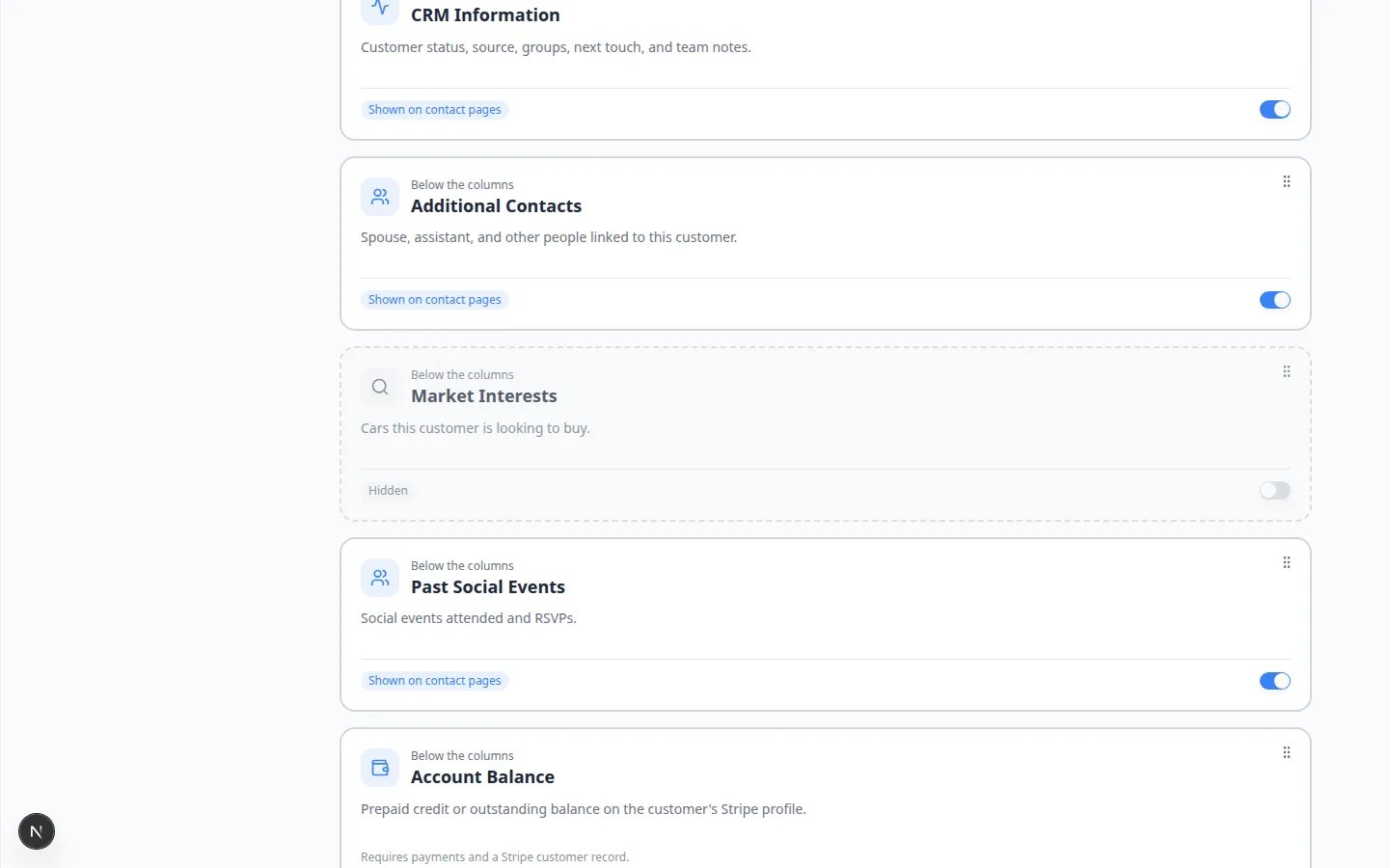
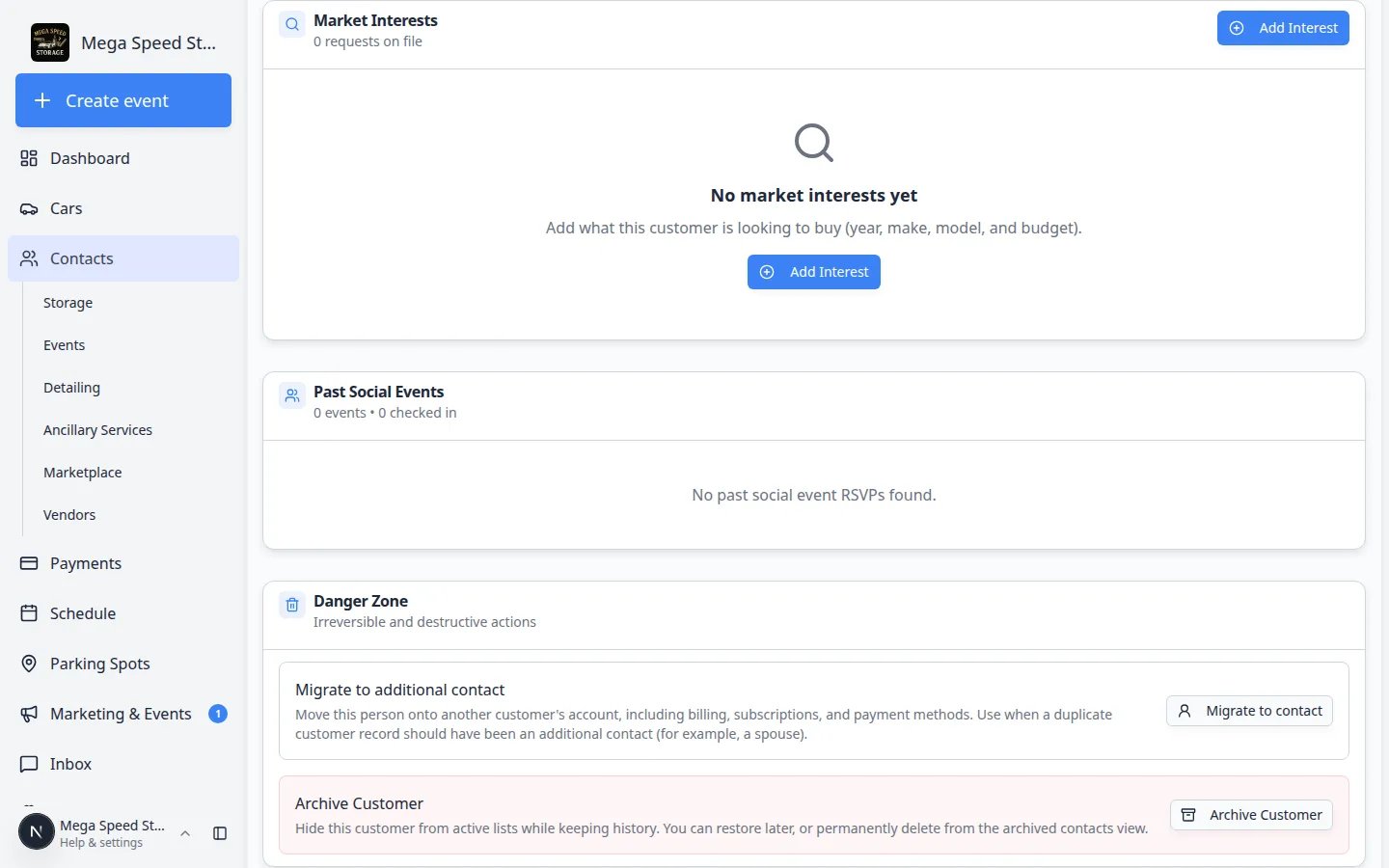
- Below the columns — full-width area: CRM, additional contacts, market interests, payments, and danger zone
What each block is for
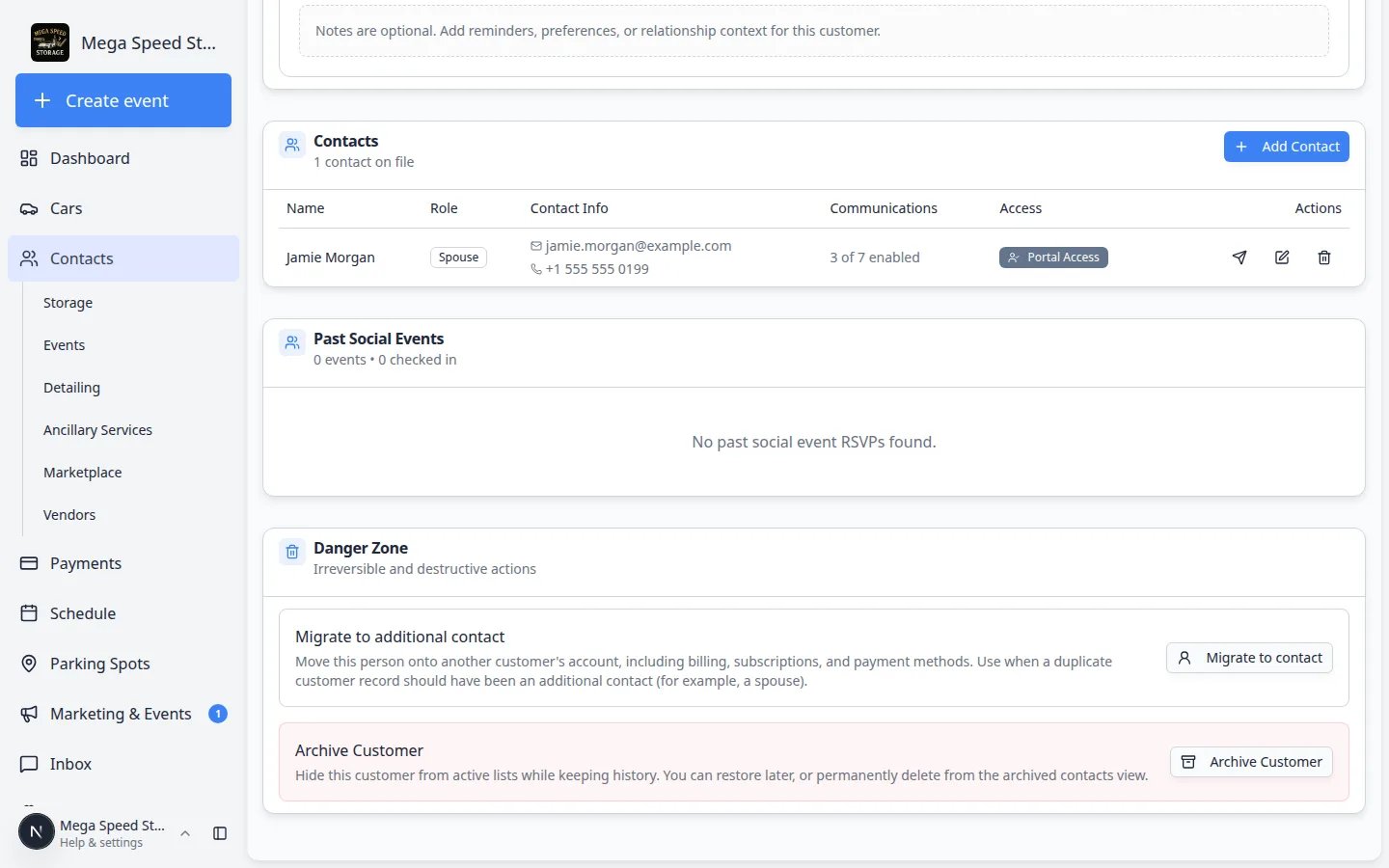
Use this list when you decide what to hide. Names below match the cards in Settings > CRM.The page title may not match the card titleThe settings card Additional Contacts becomes a section titled Contacts on the customer page. Danger Zone / Recover appears as Danger Zone. If a teammate cannot find a section, check this list before you assume the block was deleted.
Turn a block on or off
1
Find the card
Scroll the Contact page preview until you see the block—for example Market Interests.
2
Use the switch in the bottom-right corner
Click the switch. The card turns gray and dashed. The label changes from Shown on contact pages to Hidden.Expected result: Saved appears next to Reset after a moment. You do not click Save.Why this matters: Autosave means the next teammate who opens a customer already sees the new layout. If you hide Activity Feed by accident, turn it back on right away and tell the team.
3
Leave blocks on when they are only sometimes empty
Portfolio Value, Account Balance, and QuickBooks can stay on even if they hide themselves on some customers. Turning them on does not force an empty card to appear.Expected result: A customer with no cars still will not show Portfolio Value. A customer with cars will.
Reorder blocks
1
Grab the handle
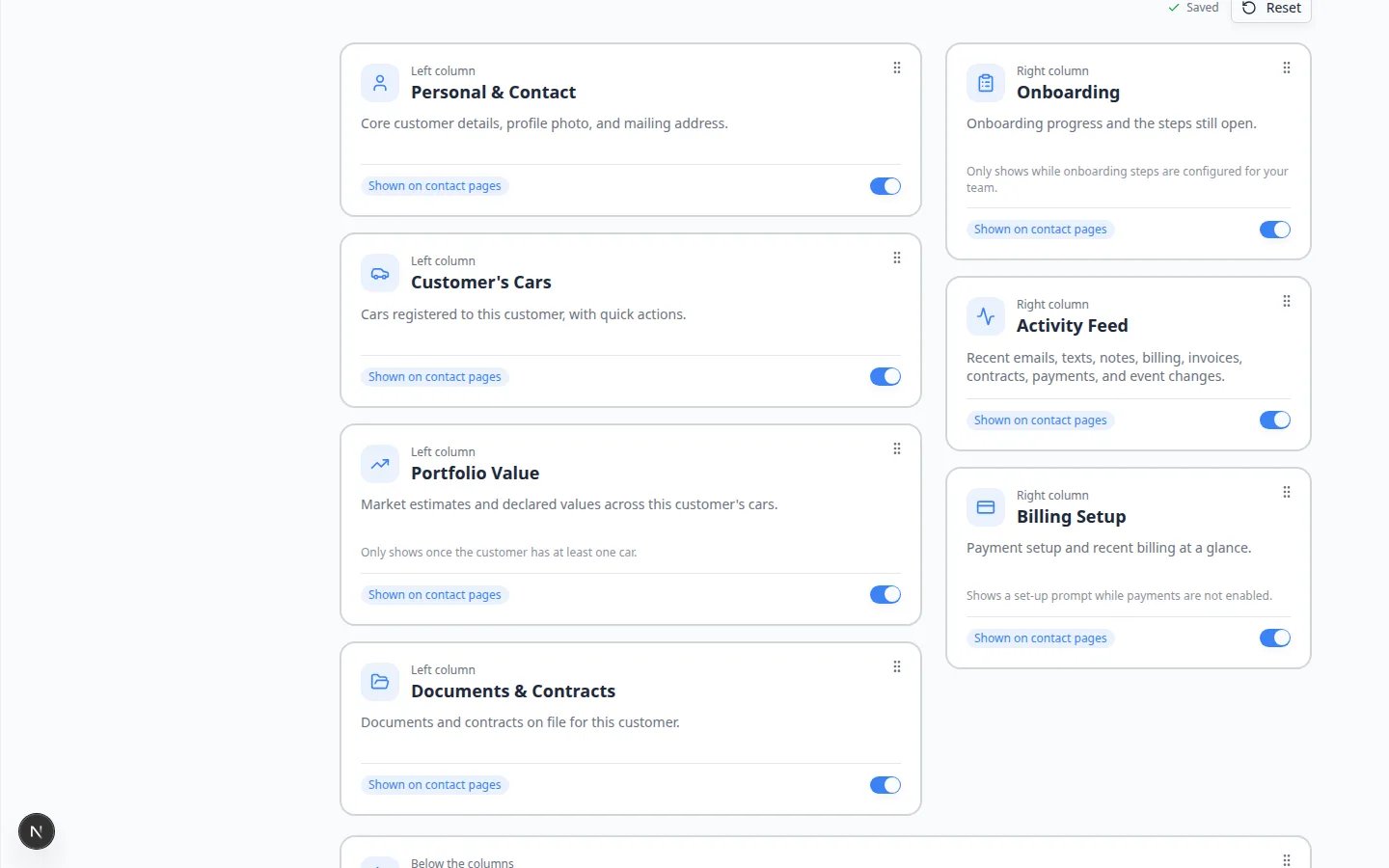
On the card you want to move, click and hold the grip dots in the top-right corner. The handle is labeled Reorder plus the block name if you use a screen reader.
2
Drag within the same column
Move Customer’s Cars above Documents & Contracts in the left column if your team talks about vehicles first.You cannot drag a left-column card into the right column.
3
Or reorder with the keyboard
Tab to the handle, press Space, use the arrow keys, then press Space again to drop it.Expected result: The card stays in its column. Saved appears when the new order is stored.
Check a real customer page
1
Open All Contacts
Go to All Contacts and open a customer you know well.
2
Look at the top of the page
You should still see Personal & Contact on the left and Activity Feed plus Billing Setup on the right, unless you hid those cards.
3
Scroll to confirm hidden blocks are gone
If you hid Market Interests, the page jumps from Contacts (additional people) to Past Social Events. The hidden block is gone—not grayed out.Expected result: Hidden blocks do not leave a blank hole. Remaining blocks keep their column.
Reset to the default layout
1
Return to Settings → CRM → Contact page
Open Settings > CRM.
2
Click Reset
Click Reset in the upper-right of the Contact page section.Expected result: Every block turns back on, order returns to the default, and you may see a confirmation that settings were reset.
3
Open a customer again
Hidden blocks reappear. Tell your team if you restored a section they had asked to hide.
Suggested layouts
Troubleshooting
What to do next
- Walk one teammate through a customer page and confirm the new order feels faster.
- Add a spouse or bookkeeper: Manage additional contacts
- Review billing status on the same page: Manage billing on a customer record
- Use the Activity Feed during callbacks: Review customer activity and history
- If you also change stages or customer types, use Configure CRM settings.