

What you will accomplish
You will read the Schedule calendar at a glance—without opening every event—by understanding the small icons and colored badges on event blocks. Expected outcome: Front-desk staff spot online bookings waiting for approval, managers see invoice status, and technicians notice damage flags before walking to the bay.When this guide helps
- A calendar block looks “striped” or different from normal colored events.
- You see a $ symbol, repeat arrow, warning triangle, or number badge on an event.
- Several visits stack in one hour and the calendar shows 3 events instead of three separate colors.
- A customer asks “Is my appointment confirmed?” and you need to know if it still needs approval.
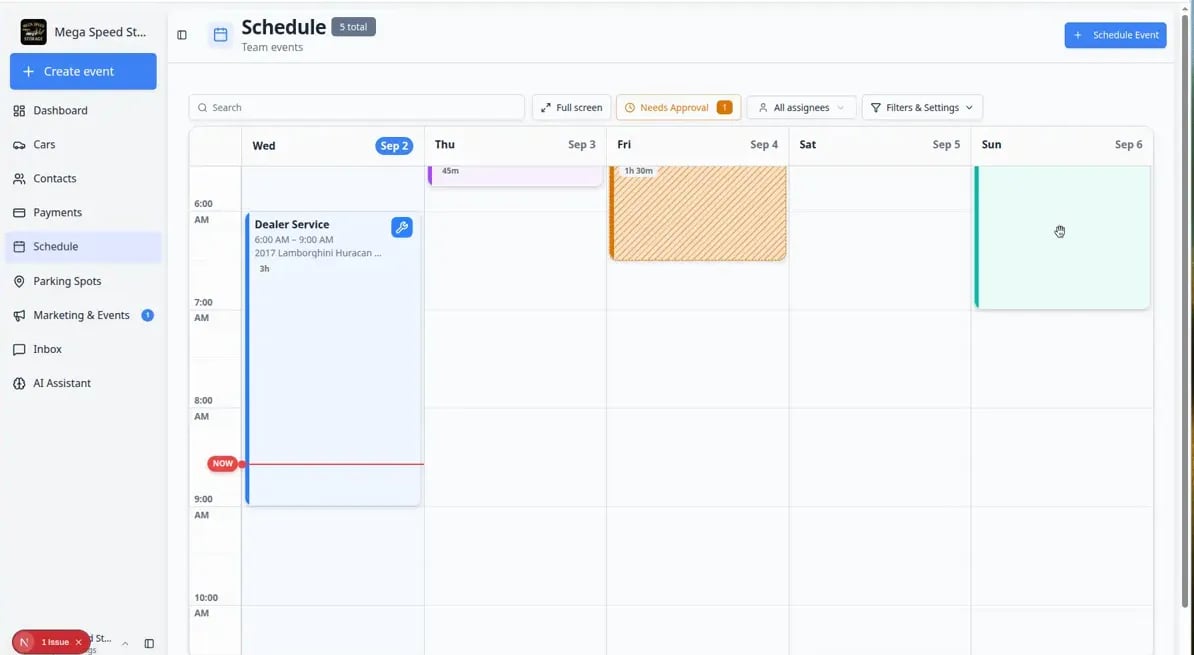
Event colors (the big picture)
Each event type has its own color—Vehicle Drop Off, Dealer Service, Detail & Wash, and so on. The color answers: What kind of work is this? Icons and badges answer follow-up questions: Is it confirmed? Paid for? Repeating? Flagged?Icon and badge guide
Repeat arrow (↻) — The event is part of a recurring series (weekly storage check-in, monthly battery service). Changing one date may ask whether you mean only this visit or the whole series. See Create recurring appointments.Dollar sign ($) — Billing is linked to this event. Colors often mean:
- Green — invoice paid.
- Yellow — invoice open or draft.
- Red — payment failed or needs attention.
- A customer booked online and the event is in Needs Approval.
- A service plan generated a future visit that is still tentative.
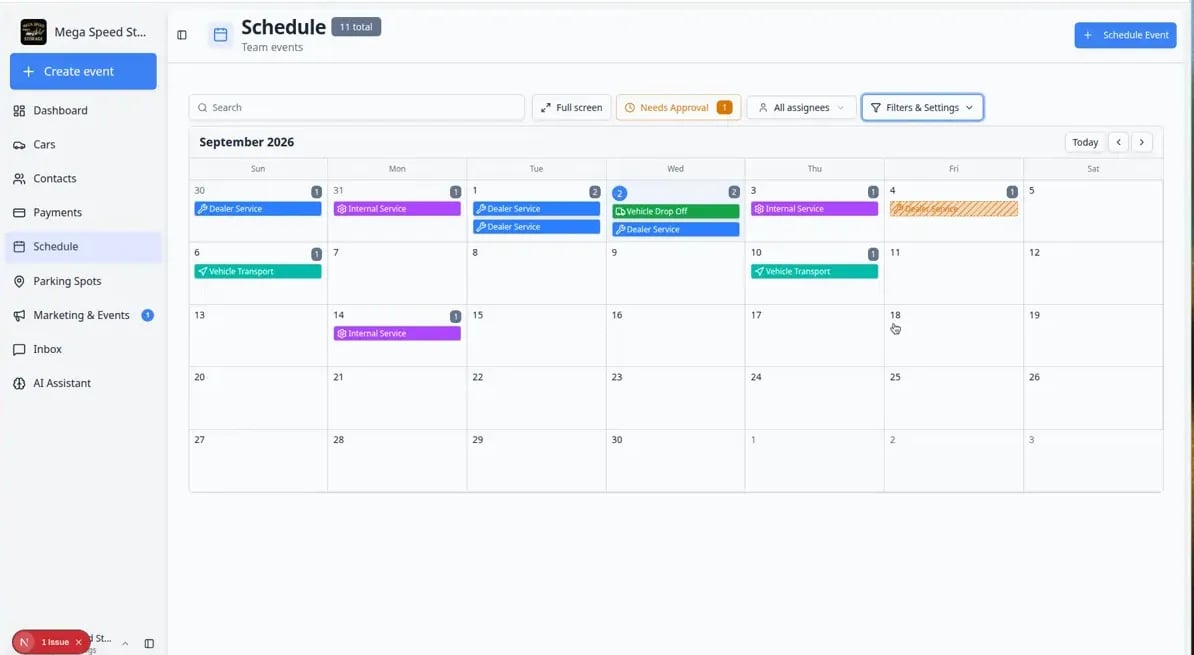
Grouped events (busy time slots)
When two or more events share the same hour, the calendar may show one dashed block labeled 2 events, 3 events, and so on. Why this happens: The calendar keeps busy hours readable. A single block does not mean only one visit—it means “open this to see the list.”1
Click the grouped block
Expected result: A list opens showing each visit in that slot.
2
Read small badges on each row
Rows may show their own approval, billing, or damage indicators.
3
Open the correct event
Click the row you need. The normal detail panel opens.Full steps: Find and filter scheduled work (section When several events share the same time slot).
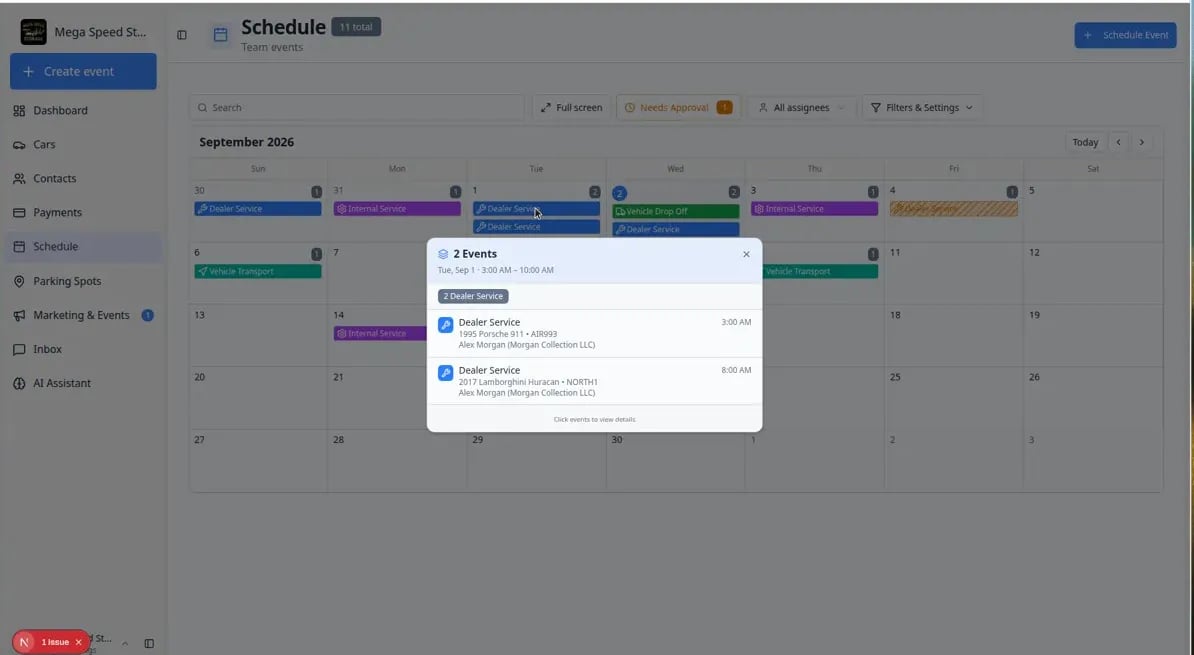
Needs Approval at a glance
Online bookings waiting for your team may show:- A Needs Approval filter button with a number badge at the top of Schedule.
- Striped or tentative styling on the calendar block itself.
1
Open Schedule
Go to Schedule.
2
Click Needs Approval
Click Needs Approval when the button shows a number (for example Needs Approval 2).Expected result: Only portal requests waiting for staff action remain on the calendar or table.
3
Open each event and approve or decline
Click a striped event, read the customer request, then approve, decline, or suggest a new time.Why this matters: Customers often think booking online means they are confirmed. Your team must approve before you promise the slot.
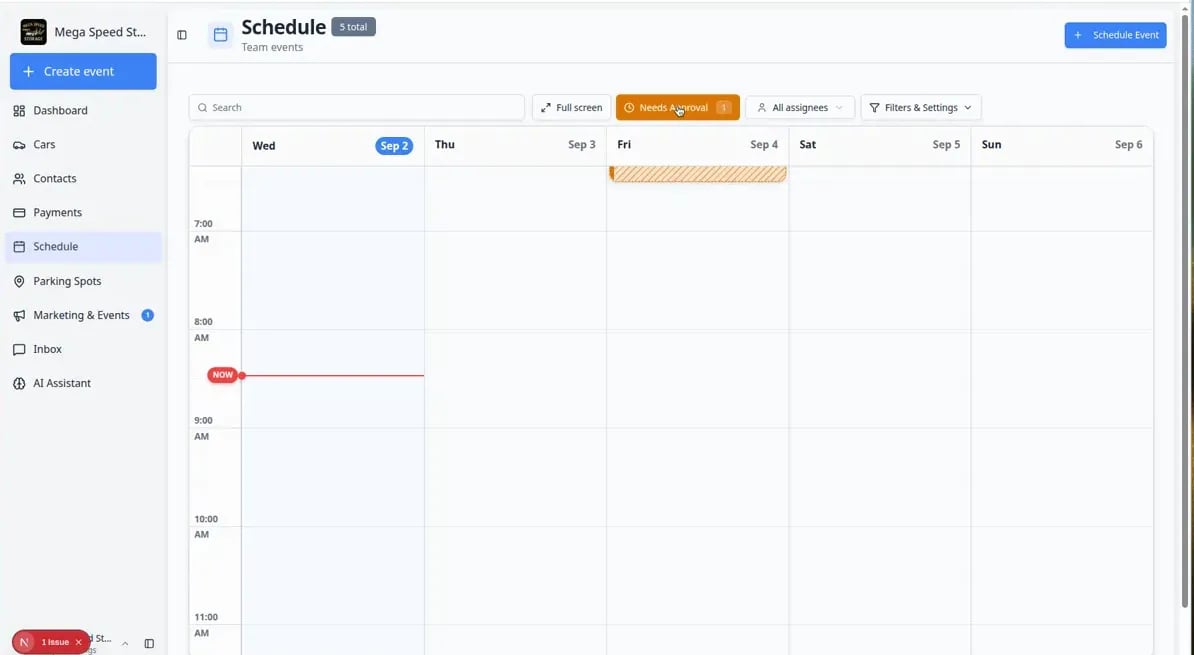
Table view shows the same signals in columns
When icons feel crowded on the calendar, switch to Table view. You can turn on columns such as Status and Billing for a scannable list.1
Open Filters & Settings
On Schedule, click Filters & Settings.
2
Choose Table view
Under View Mode, click Table.
3
Turn on Status and Billing columns
In the column picker, enable Status, Billing, and Assigned to when you need a manager’s morning checklist.Expected result: Each row shows the same signals as the calendar—without squinting at tiny icons.
Quick reference card
Common mistakes to avoid
- Do not ignore a $ badge when a customer asks about payment—the invoice may still be open.
- Do not drag a recurring event without reading the Only this event vs All events prompt.
- Do not assume a grouped block is only one visit—always click when the count is greater than one.
- Do not promise a customer their online booking is confirmed while Needs Approval still shows a count.
What to do next
- Filter to pending bookings: Approve or decline a customer booking request
- Plan with wider date ranges: Use the 2-week view and day detail panel
- Service-plan visits: Understand tentative and service plan events