

When to add a customer (and when not to)
- Add one customer at a time when you are helping one person or company right now.
- Use import instead when you have many names on a spreadsheet. See Import customers, cars, events, and photos.
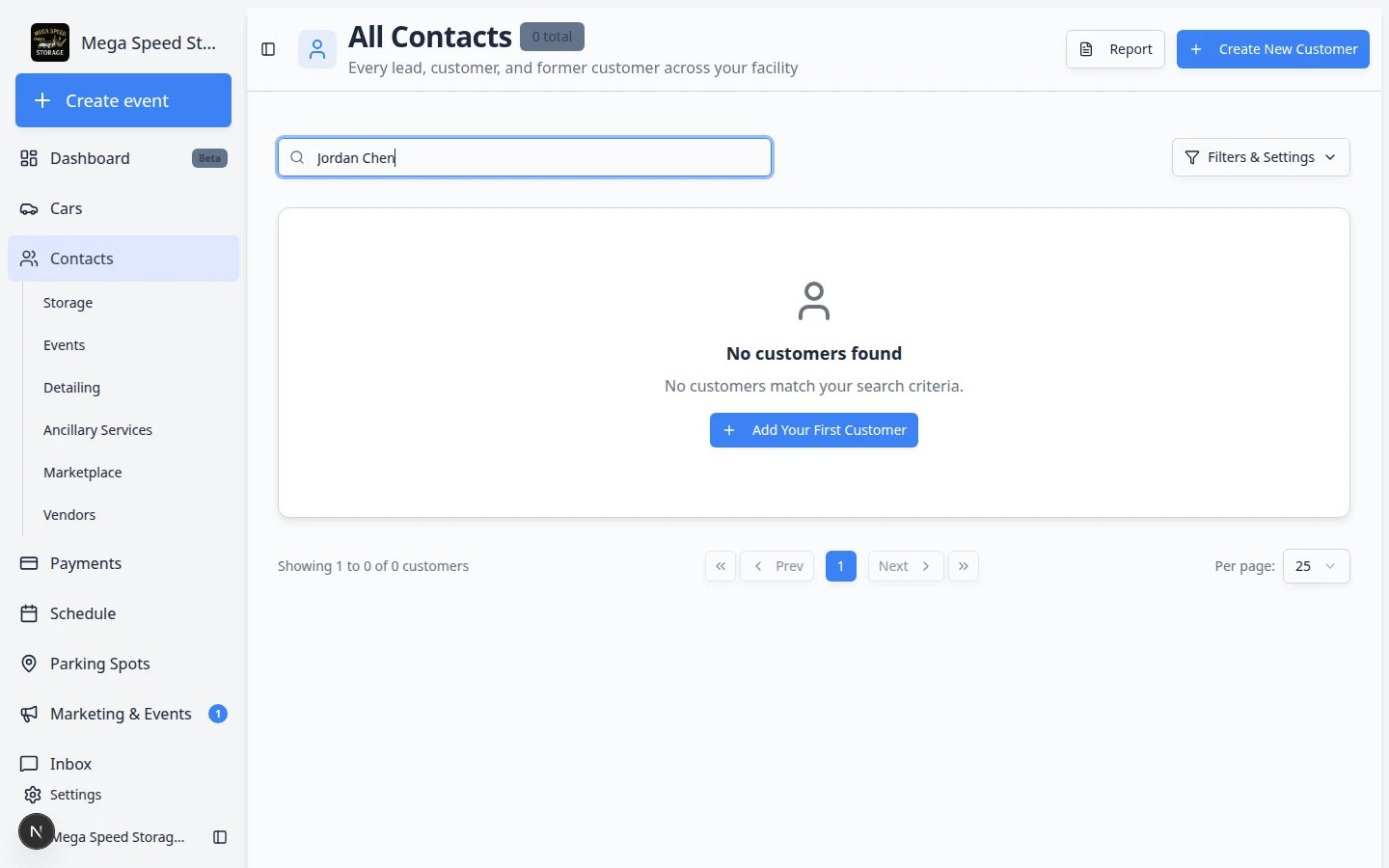
- Search first before you create a record. You may already have the customer under a slightly different name or email.
Before you start
- First name and last name (required).
- Email address if you plan to send invoices, portal invites, or contract links.
- Phone number if your team calls or texts customers.
- Company name if the customer is a business.
- A rough idea of whether they are a lead, active customer, or former customer (you set this with CRM Stage in the form).
Open Contacts and start a new customer
1
Open Contacts
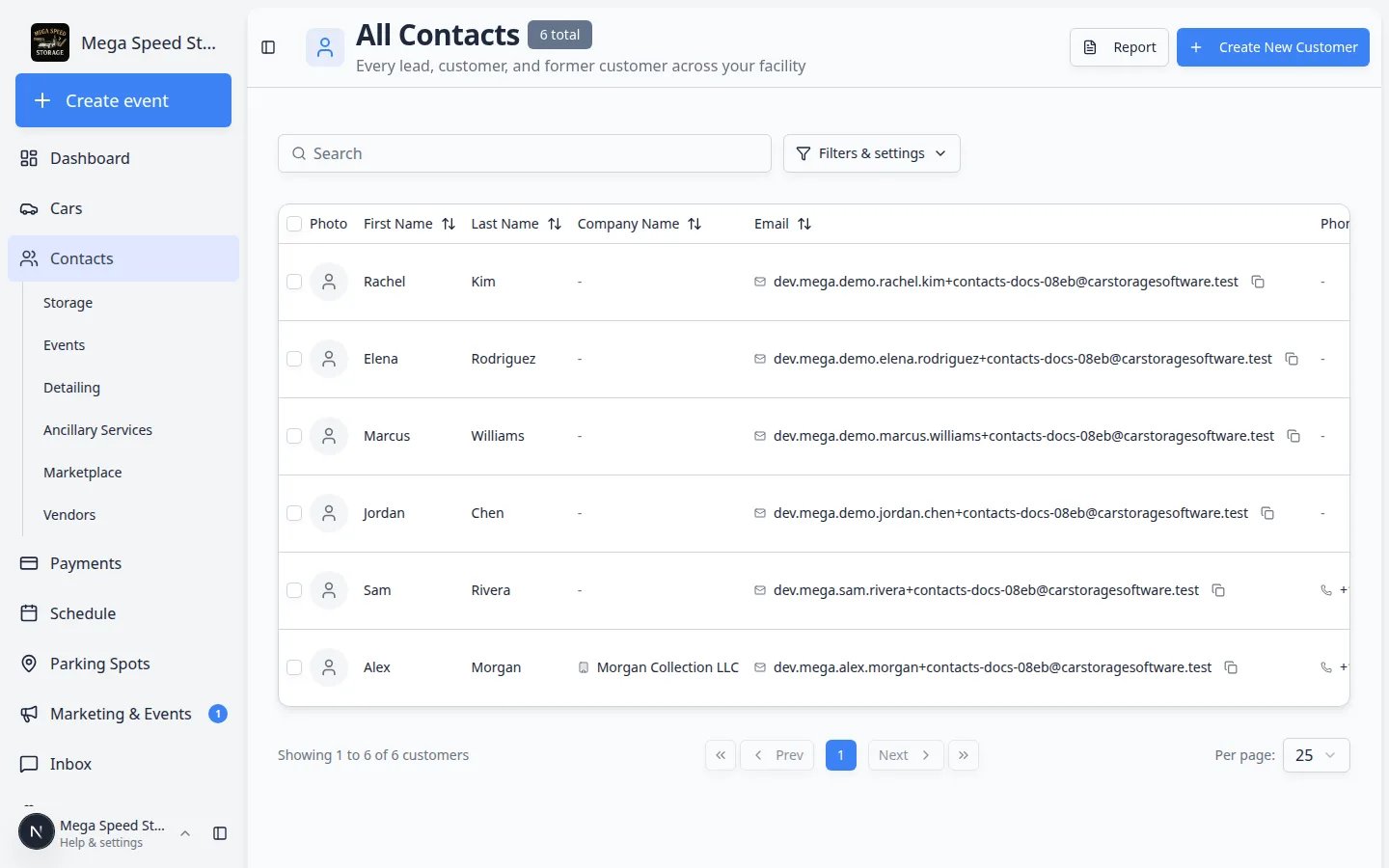
In the left sidebar, click Contacts, then All Contacts. You can also go directly to All Contacts.Expected result: The page title says All Contacts and you see your customer list (table, cards, or board view depending on your team’s preference).
2
Click Create New Customer
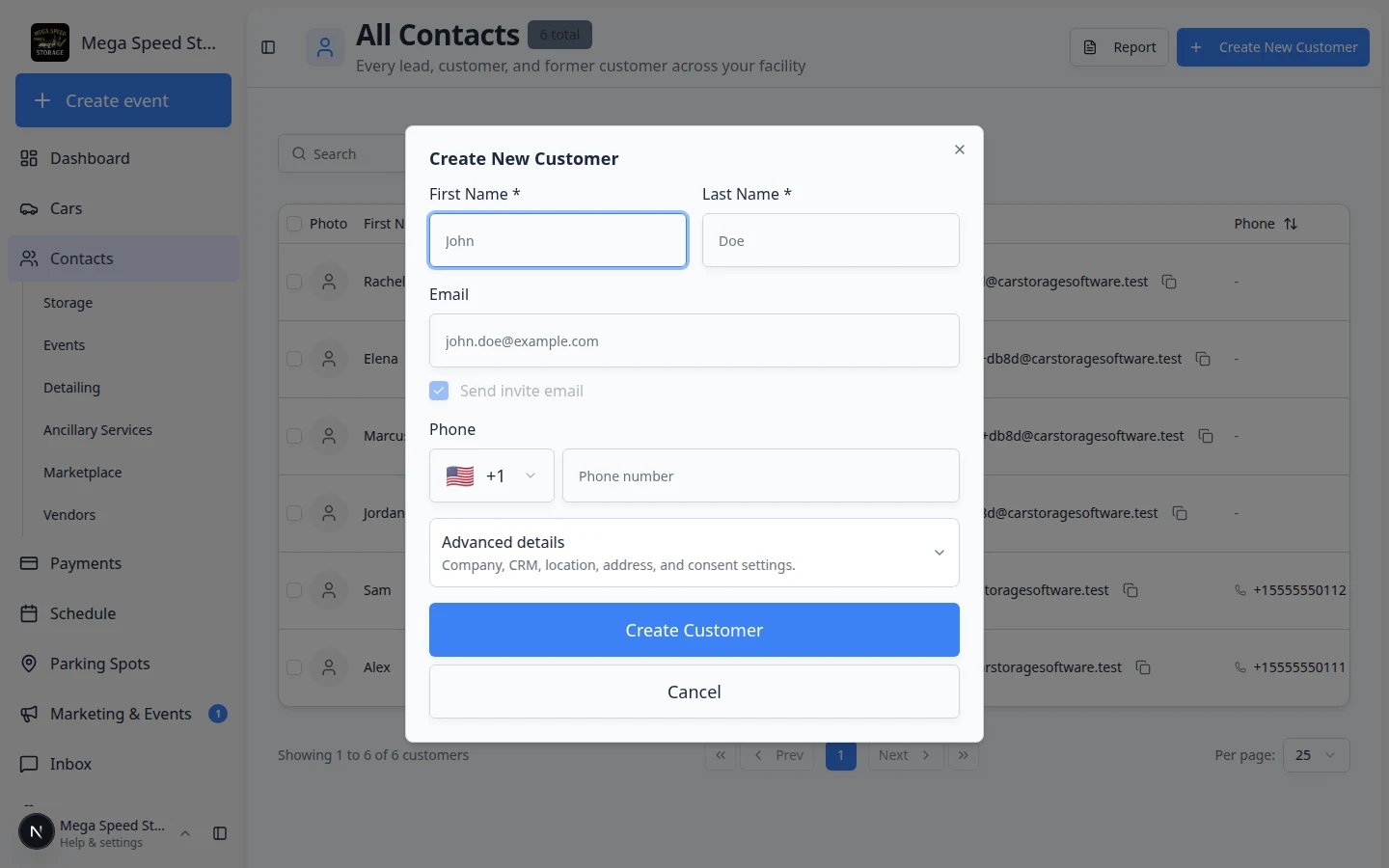
In the top-right area of the page, click Create New Customer.If your list is empty, you may also see Add Your First Customer in the middle of the page. Both buttons open the same form.Expected result: A window titled Create New Customer opens.
Fill in the main details
Start with the fields at the top of the form. These are the details most teams need on day one.1
Enter first and last name
Type First Name and Last Name. These are the only required fields.Use the name your team will recognize on the phone and on invoices.
2
Add email (recommended)
Type Email if you have it.When you enter an email, saving may ask Notify the customer? Choose Yes to send a welcome sign-in email, or No to create the record without emailing. Closing that window cancels the save. This welcome email is not the same as the customer portal invite you send later from the customer record.Expected result: The email field is filled and ready to save.
3
Add phone (optional)
Type Phone if your team uses calls or text messages. Use the country format your facility expects.
Add company, CRM stage, types, and address (optional)
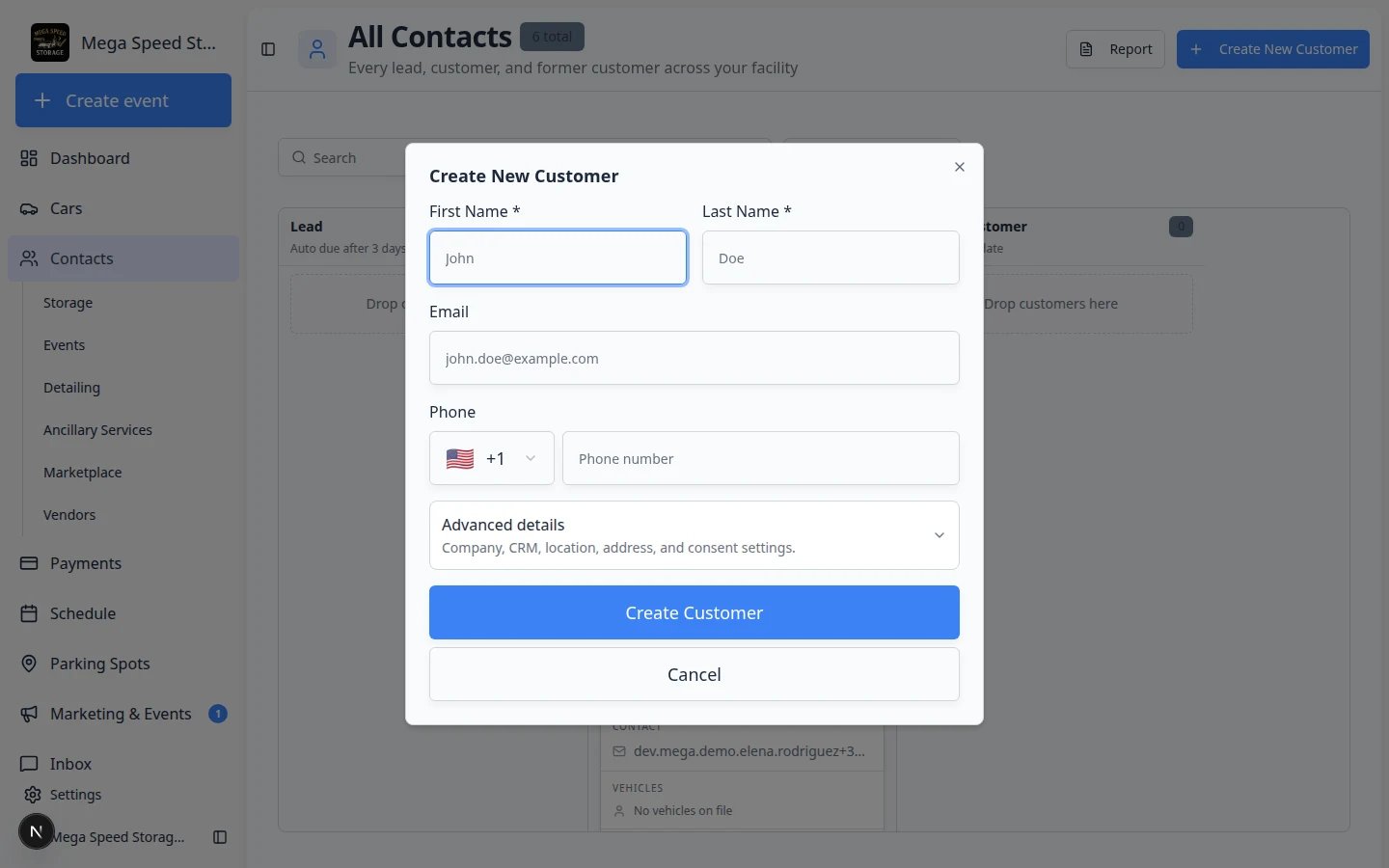
Many facilities only need name and email at first. When you have more information, open Advanced details.1
Open Advanced details
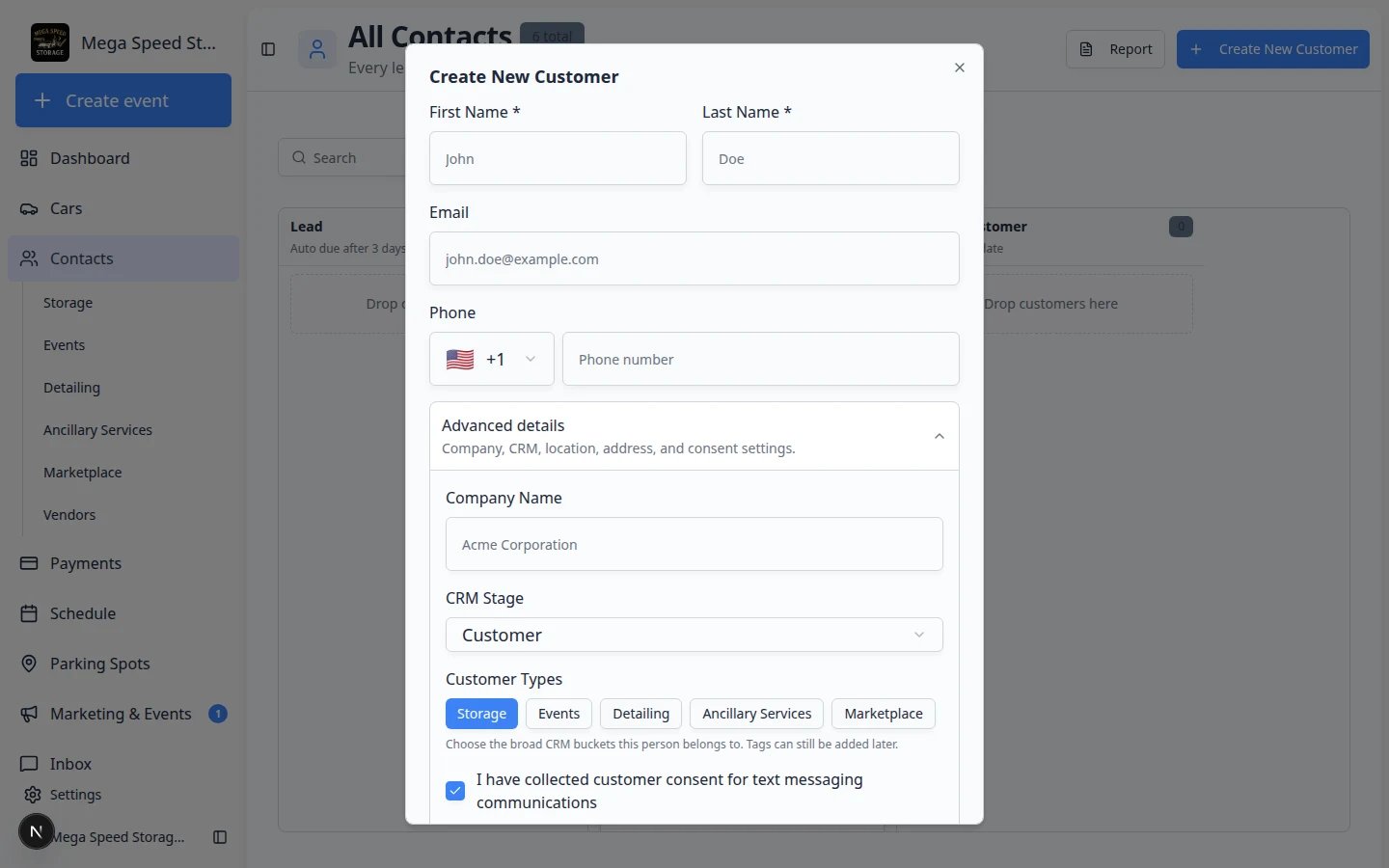
Click Advanced details (subtitle: Company, CRM, location, address, and consent settings.).Expected result: More fields appear below, including company name, CRM stage, customer types, and address.
2
Add company name (optional)
Type Company Name when the customer is a business or fleet account.
3
Choose CRM Stage
Open the CRM Stage dropdown.Your facility may see custom stage names (for example New Inquiry or Active Storage). Each stage belongs to one of three groups:
- Lead — interested, not yet paying.
- Customer — active, paying relationship.
- Former Customer — used to store or work with you but no longer active.
4
Choose Customer Types (optional)
Click one or more Customer Types buttons, such as Storage, Events, Detailing, Ancillary Services, or Marketplace.Storage is often selected by default. These types help your team group customers; you can still add freeform tags later on the customer record.
5
Select a location (multi-location facilities only)
If your team uses more than one location, choose Location or leave All locations so the customer can appear across sites.If you do not see Location, your facility runs as a single site and this field is hidden.
6
Confirm text messaging consent (optional)
If your facility texts customers, you may see a checkbox: I have collected customer consent for text messaging communications. Check it only when your team has actually received consent according to your policies.
7
Add an address (optional)
Use Address search to find and fill in a mailing address. This can appear on invoices and helps with logistics.
Save the customer
1
Review what you entered
Read the name, email, and CRM stage one more time. Fixing mistakes now is faster than moving cars and invoices later.
2
Click Create Customer
At the bottom of the window, click Create Customer. While the system saves, the button may show Creating…Expected result: A success message appears (for example Customer created successfully), the window closes, and the new name appears on your All Contacts list (and on any customer-type page that matches their Customer Types).
3
Cancel if you are not ready
Click Cancel to close the form without saving. Nothing is created.
If you see a second window about onboarding contracts
Some facilities use automatic onboarding contracts when a new customer is created. If your team has that turned on, you may see Link details for onboarding contracts right after save.This extra window is not an error. It helps your team connect a vehicle or payment details when a contract template needs them.
- Add vehicle — opens the add-car flow for this customer.
- Open customer — goes to the customer detail page.
- Done — closes the window when requirements are met.
After the customer is created
Open the customer from the list to finish setup. The detail page is where your team adds cars, documents, tags, and portal access.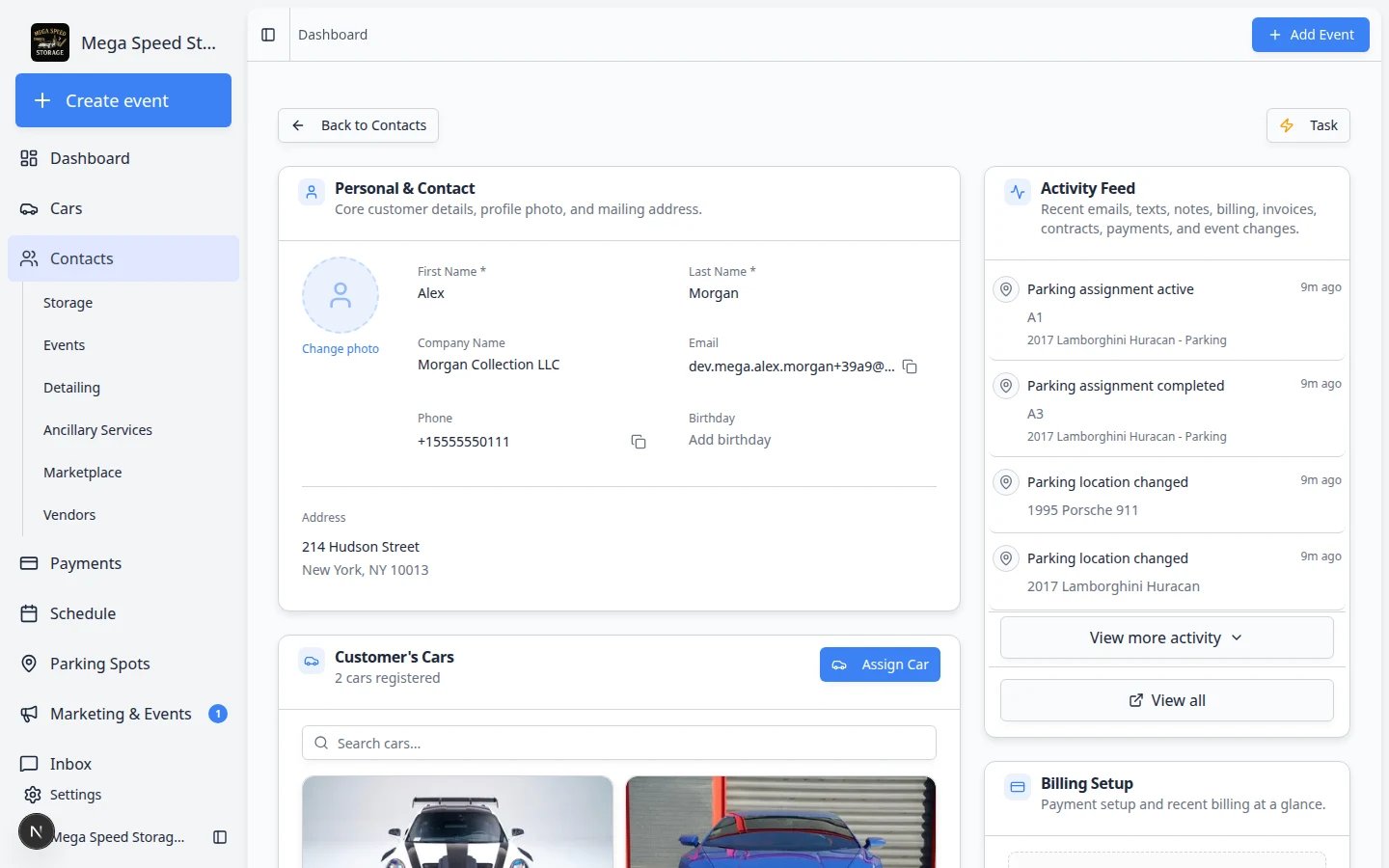
- Link vehicles — assign cars in the Cars section so ownership and billing stay connected. See Add a car.
- Add tags — use tags such as VIP or Collector for filtering and campaigns. See Manage contact tags.
- Record CRM source — note how they found you (website, referral, event) on the detail page.
- Add additional contacts — add a spouse, assistant, or bookkeeper if they should receive messages too. See Manage additional contacts.
- Send a portal invite — when the record looks ready, invite the customer so they can sign in. See Invite a customer to the portal.
- Help them use the portal — share Guide a customer through the portal with front-desk staff.
What a good customer record looks like
Your goal is a record the next teammate can use without guessing:
- Correct name and email
- Clear CRM Stage (lead vs active customer)
- Cars linked to the right owner
- Tags or notes for anything unusual
- Portal invite sent only when cars and billing are ready for the customer to see
Troubleshooting
What to do next
1
Add their first car
Go to Add a car and link it to this customer.
2
Send your first invoice (when ready)
When billing is set up, use Create an invoice.
3
Learn the full Contacts area
Read Contacts overview for search, filters, board view, and import.