

What you will accomplish
You will update the fields on one car record so the vehicle can be identified, billed, insured, and serviced correctly. Expected outcome: The car detail page shows saved values your whole team can trust—especially customer ownership, plate and VIN details, insurance dates, and odometer or fuel readings.When to use this guide
Use these steps when:- A car record is missing a plate, VIN, color, trim, stock number, or key number.
- A vehicle changes owners or needs to be linked to the correct customer.
- Insurance, registration, inspection, or plate expiration dates need to be updated.
- The declared value, odometer, fuel level, battery notes, or service plan information needs review.
Before you start
- Open the correct car from the Cars page. If you need help finding it, use Find and filter cars.
- Have the correct information ready before editing. For example, use the registration, insurance card, customer message, or intake paperwork.
- Make sure you are allowed to edit car records. If a field is locked or missing, ask a team admin for help.
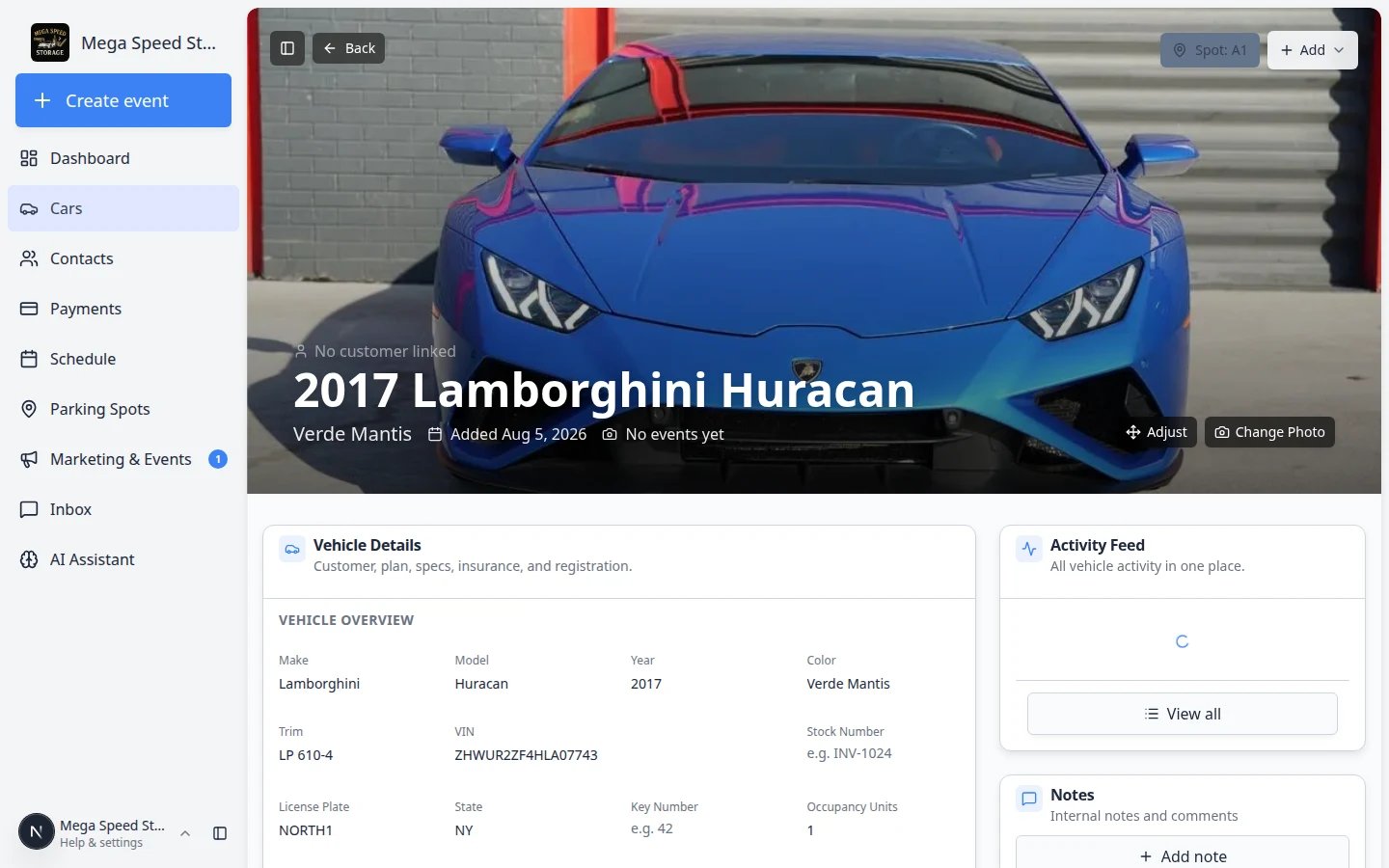
Update the banner photo (optional)
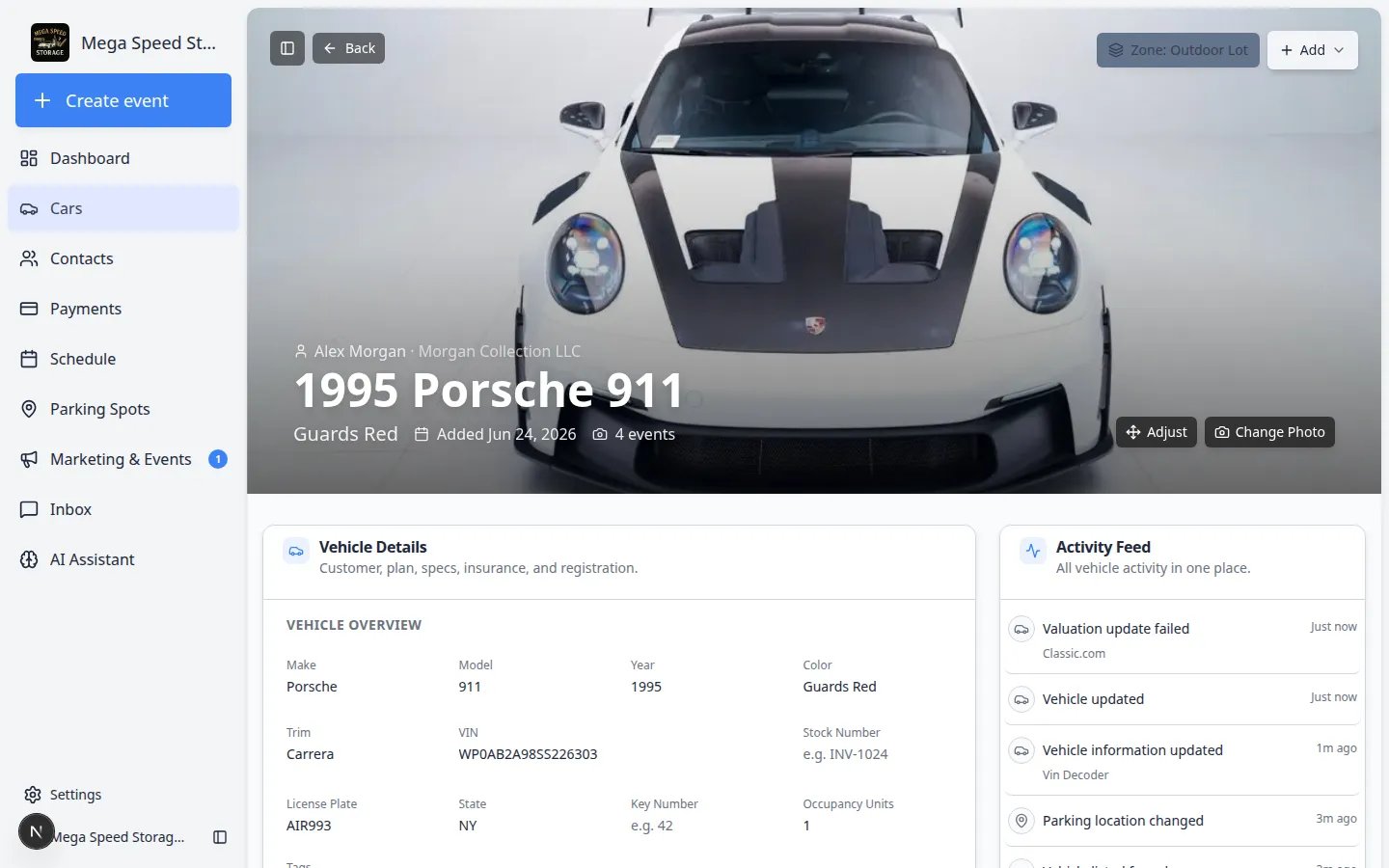
The large photo at the top of the car page is what teammates often see in Card view on the Cars list.Open the car record
Add or change the banner photo
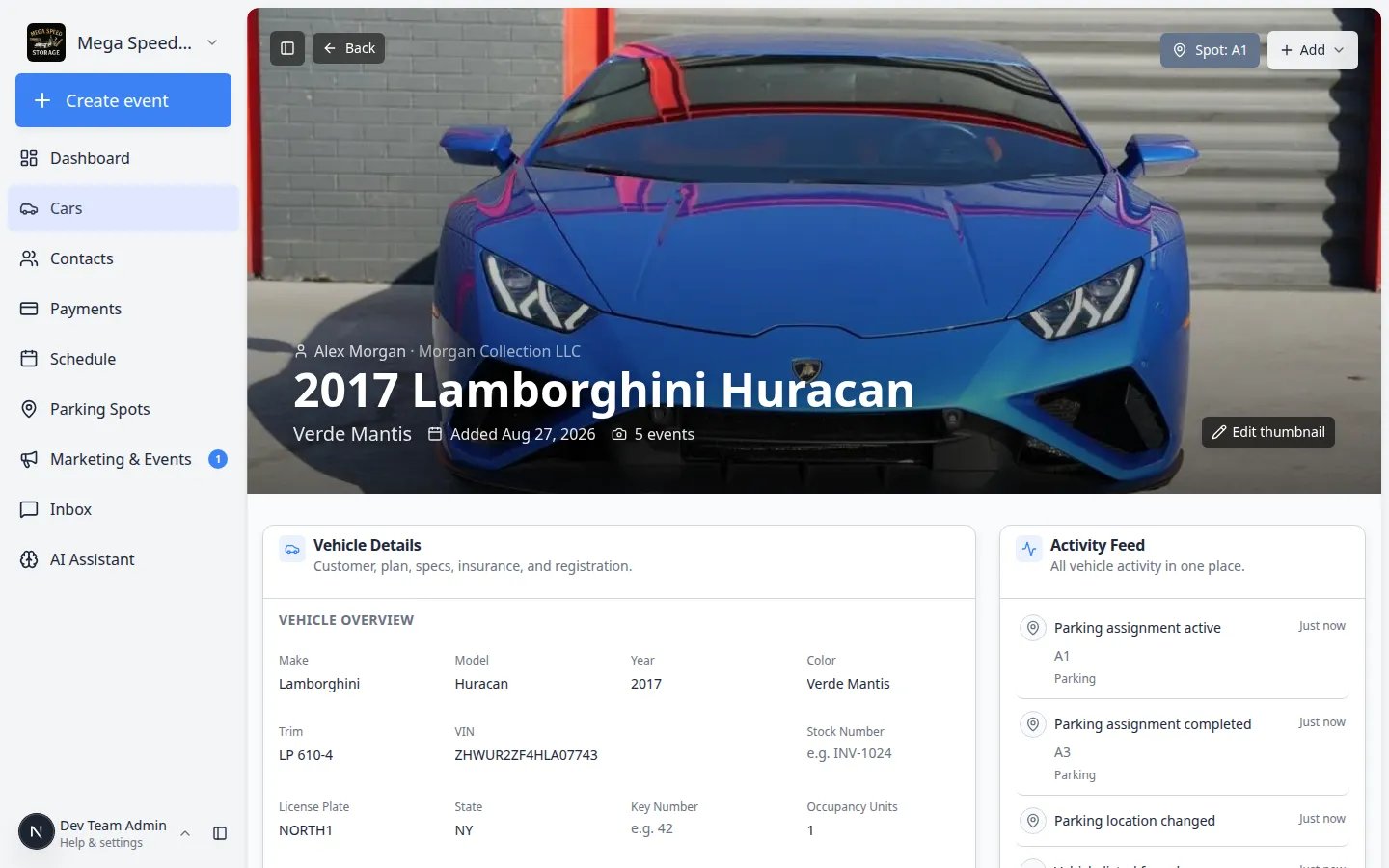
Open Vehicle Details
Open the car record
Find the Vehicle Details card
Review the sections before editing
- Vehicle Overview — make, model, year, color, VIN, plate, tags
- Sale status — marketplace listing (when enabled)
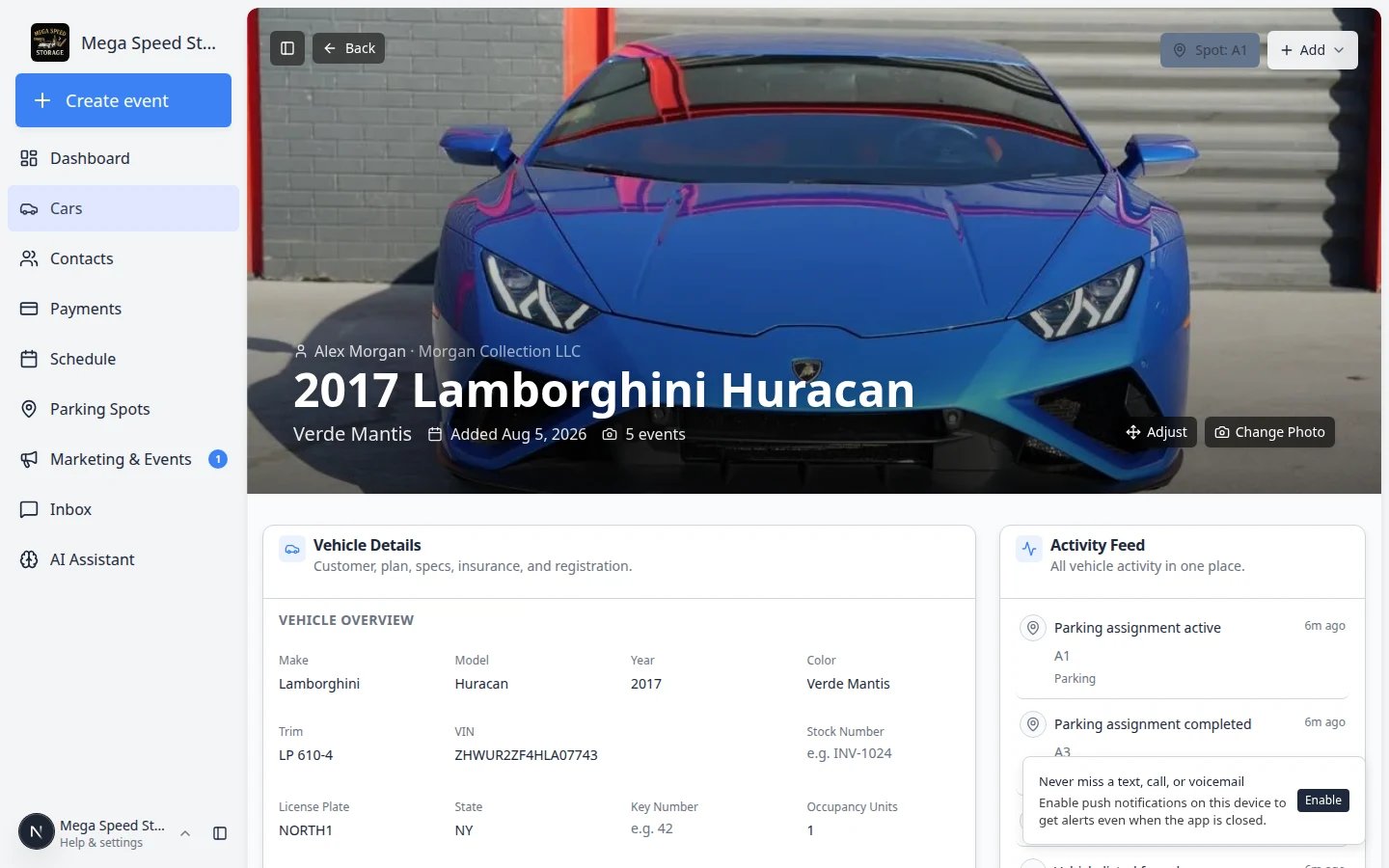
- Customer — linked owner
- Payments — recurring billing badge
- Service Plans — storage or maintenance plans on this car
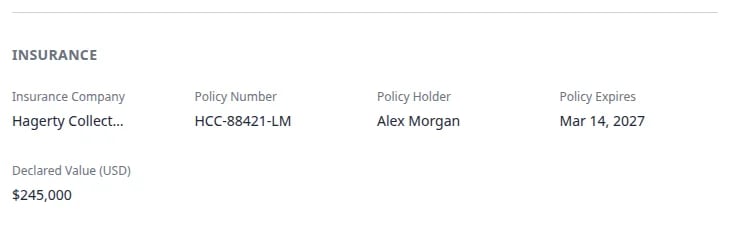
- Insurance and Registration — policy and expiration dates
- Market Data — Classic.com price trends (when enabled)
- Battery Information and Vehicle Readings — odometer, fuel, tire data
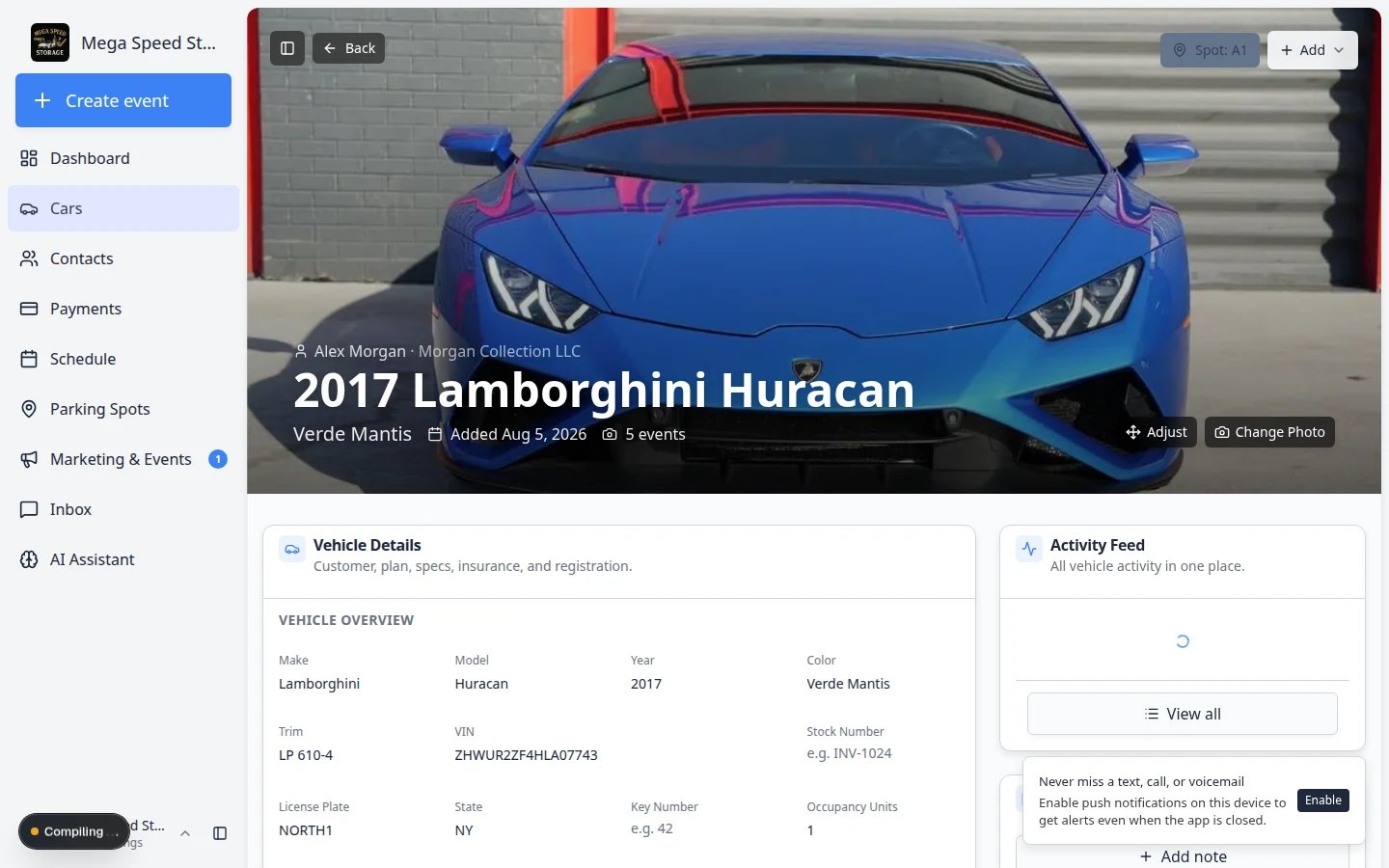
Edit a vehicle field
Most fields on the car detail page save one at a time. This helps prevent large accidental changes.Click the field you need to change
Enter the correct information
Save the field
Confirm the field now looks right
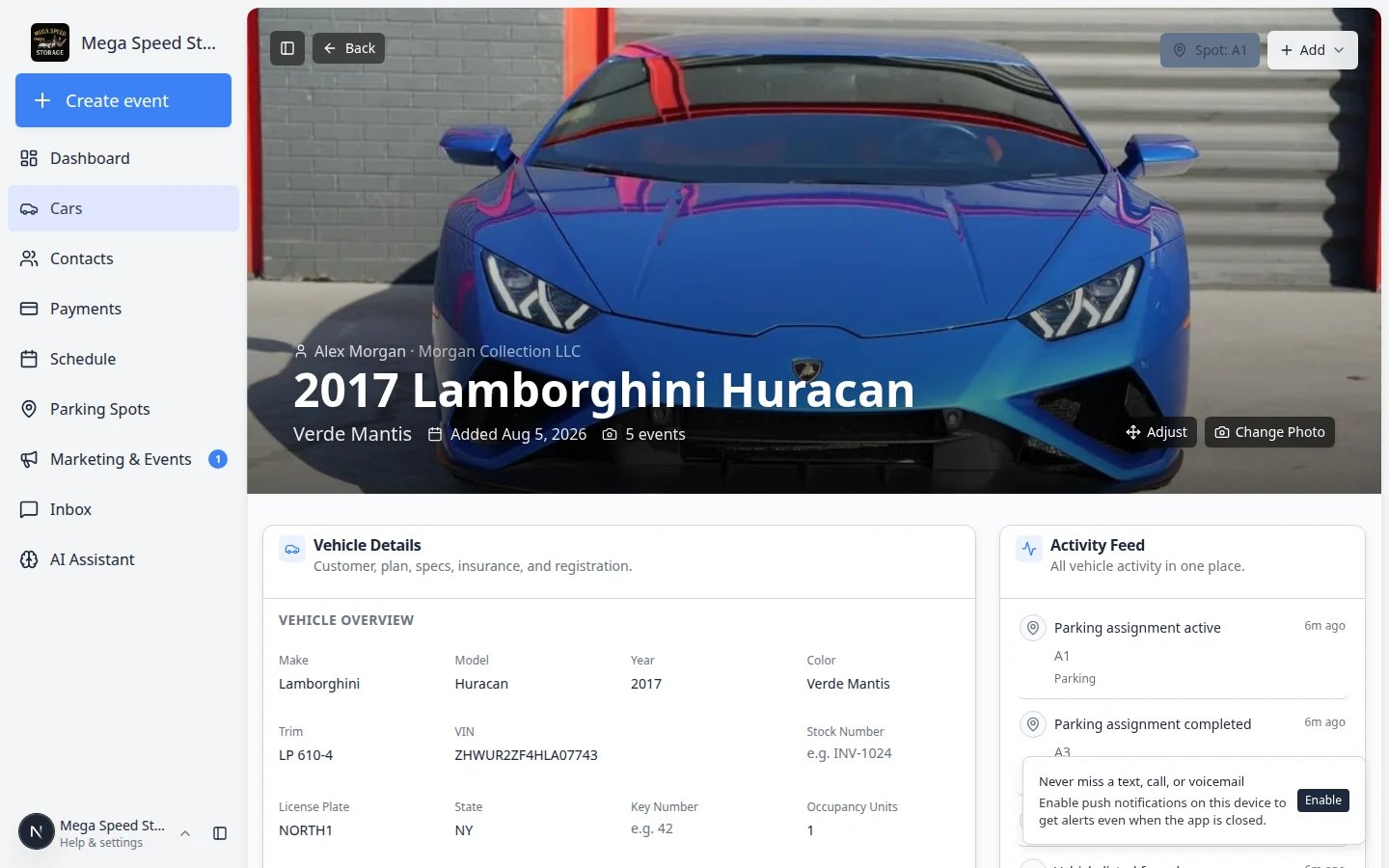
Upload insurance or registration files
Sometimes you have a paper or PDF file before you have every date typed into the form. You can store the file on the customer record and link it to this car.Open the car record
Click Add → Upload document
Choose General Document for scans and cards
Select the file and save
Still add key dates in Vehicle Details
Link or change the customer
The customer connection matters because it affects billing, messages, portal access, and the customer’s view of the vehicle.Find the Customer section
Select the correct customer
Confirm the customer details
Keep insurance and registration current
Insurance and registration fields help your team spot expiring paperwork before it becomes a problem.Find Insurance and Registration
Fill in the policy details
Add plate, registration, and inspection dates
Check the Cars list later
Check recurring billing on the car
Inside Vehicle Details, look for the Payments section.Review service plans on the car
If your facility uses storage or maintenance plans, the Service Plans section shows which packages apply to this car. For full steps to add or change plans, see Assign service plans on a vehicle.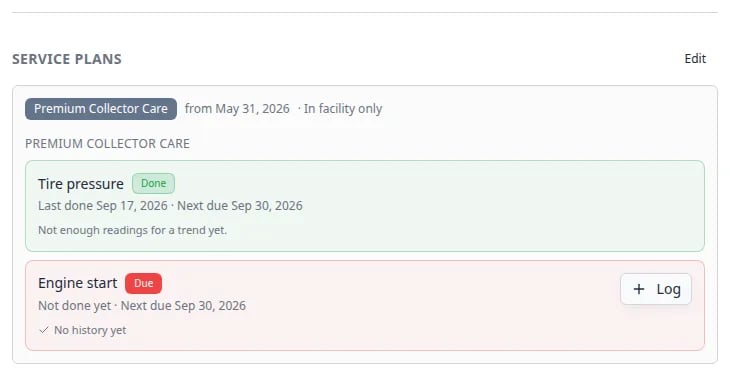
Add or update tags
Some facilities tag cars for marketing, VIP storage, or internal tracking. Tags appear in the Vehicle Overview section.Find the tags field
Choose existing tags or type a new one
Save and confirm

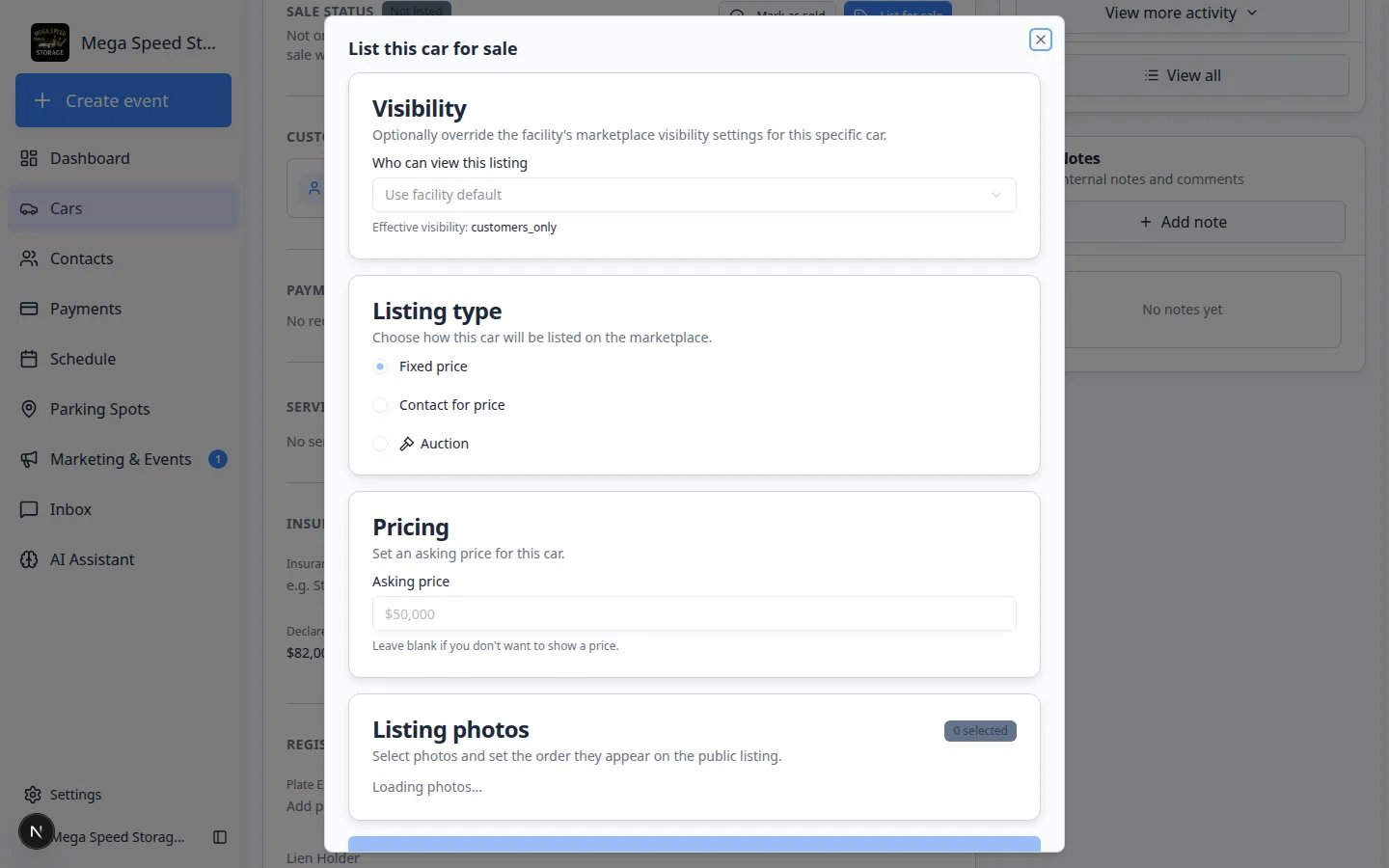
List a car for sale (when your facility uses marketplace)
Some teams sell vehicles on a public marketplace page. Inside Vehicle Details, look for the Sale status section.Open the car record
Find Sale status
List or update the listing
Click List for sale
Add price and listing details
Publish the listing
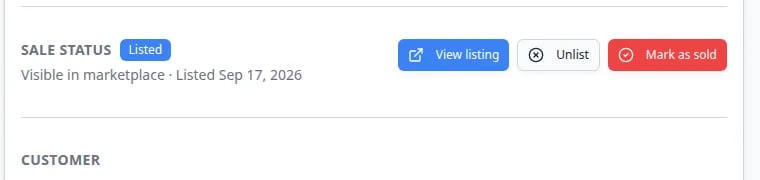
Unlist or mark as sold later
Review market data (when your facility uses Classic.com)
Some facilities connect Market Data on a car record to Classic.com price trends. For a full walkthrough—including how to fix the chart when it shows the wrong vehicle type—see Review Classic.com market data on a vehicle.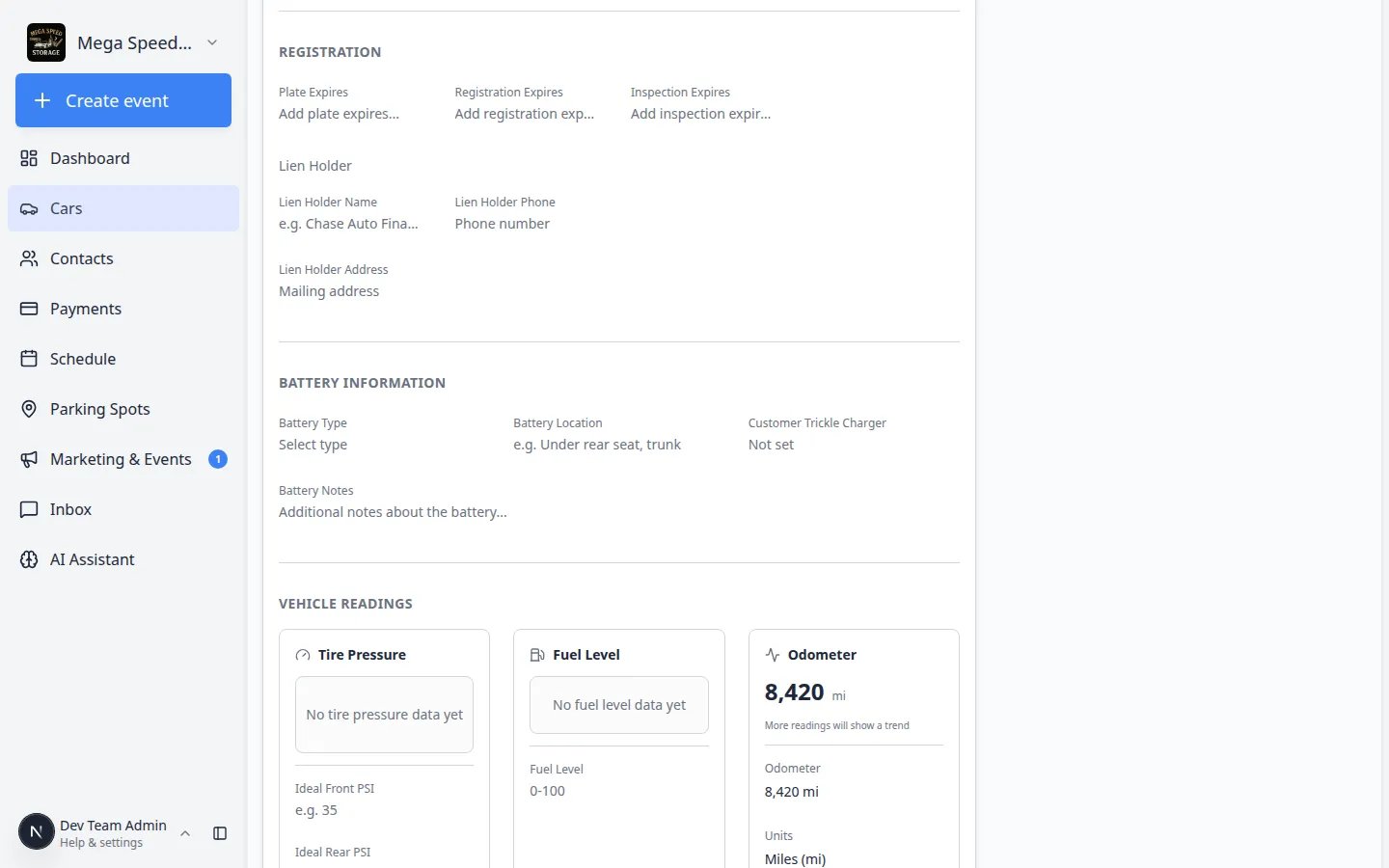
Update declared value and readings
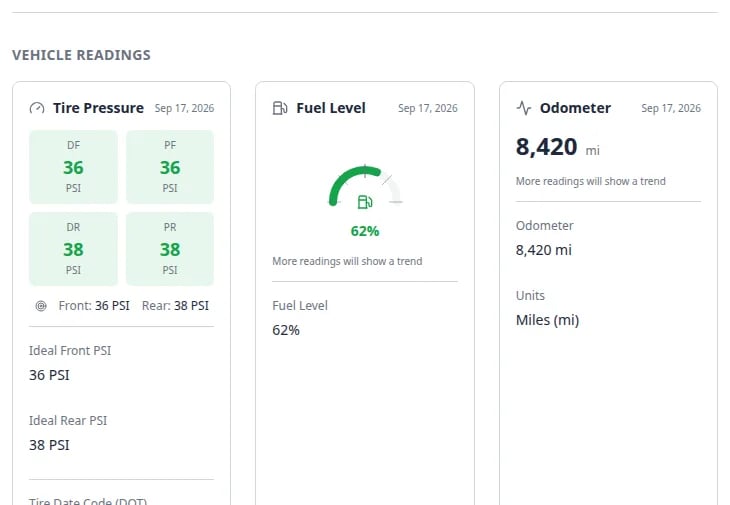
Declared value and vehicle readings help your facility understand risk, storage needs, and service history. Declared Value lives under Insurance. Odometer, fuel, tire, and battery fields have their own blocks. For the full walkthrough of Battery Information and Vehicle Readings—including battery type, customer trickle chargers, target PSI, and odometer units—see Record battery care and vehicle readings.- Use Declared Value (USD) for the value your facility should use for insurance and reporting conversations.
- Use Odometer to record mileage from intake, inspection, or service work.
- Use Fuel Level when your team tracks fuel during intake, delivery, or storage checks.
- Use Battery Information for battery tender instructions, battery location, or special handling notes.
What success looks like
After updating Vehicle Details:- The car can be identified without walking the floor.
- The correct customer is connected to the car.
- Insurance, registration, value, and readings are current enough for your team’s daily work.
- Other teammates can trust the record when they search, invoice, schedule, or move the car.
Common mistakes to avoid
- Do not guess a VIN, plate, or expiration date. Leave the field blank until you have the correct information.
- Do not change the customer unless you are sure the car should belong to that customer record.
- Do not use internal shorthand in customer-facing fields. Use clear names and values.
- Do not edit several fields quickly without checking whether each one saved.