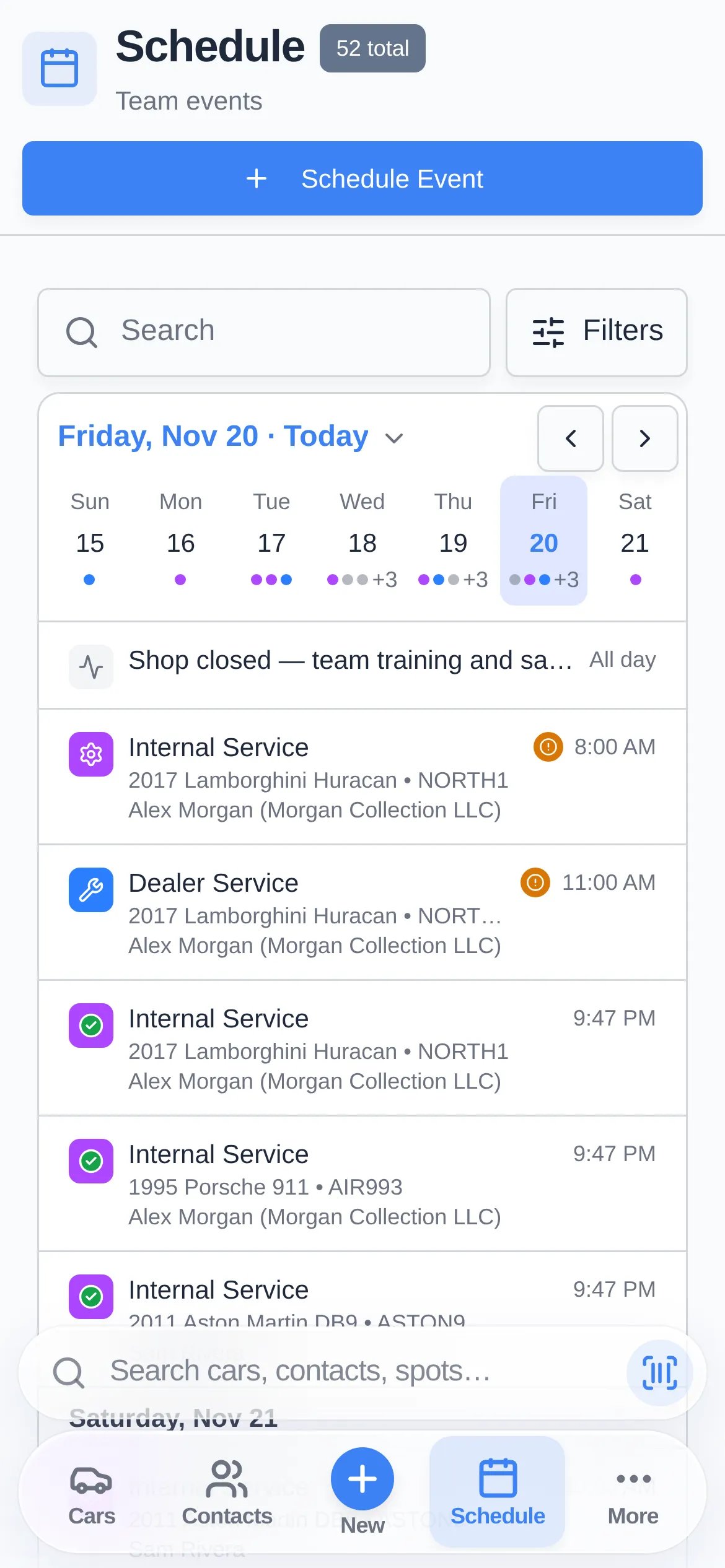
Open the Filters panel
1
Click Filters
It’s in the toolbar next to Search. On desktop the button also shows the current view, for example Filters · 5 days.
2
Pick a view and what to show
Choose a View and the other options described below.
3
Click Apply filters
Active filters show as chips under the toolbar. Click the × on a chip to remove that filter, or open Filters and click Reset to clear everything.
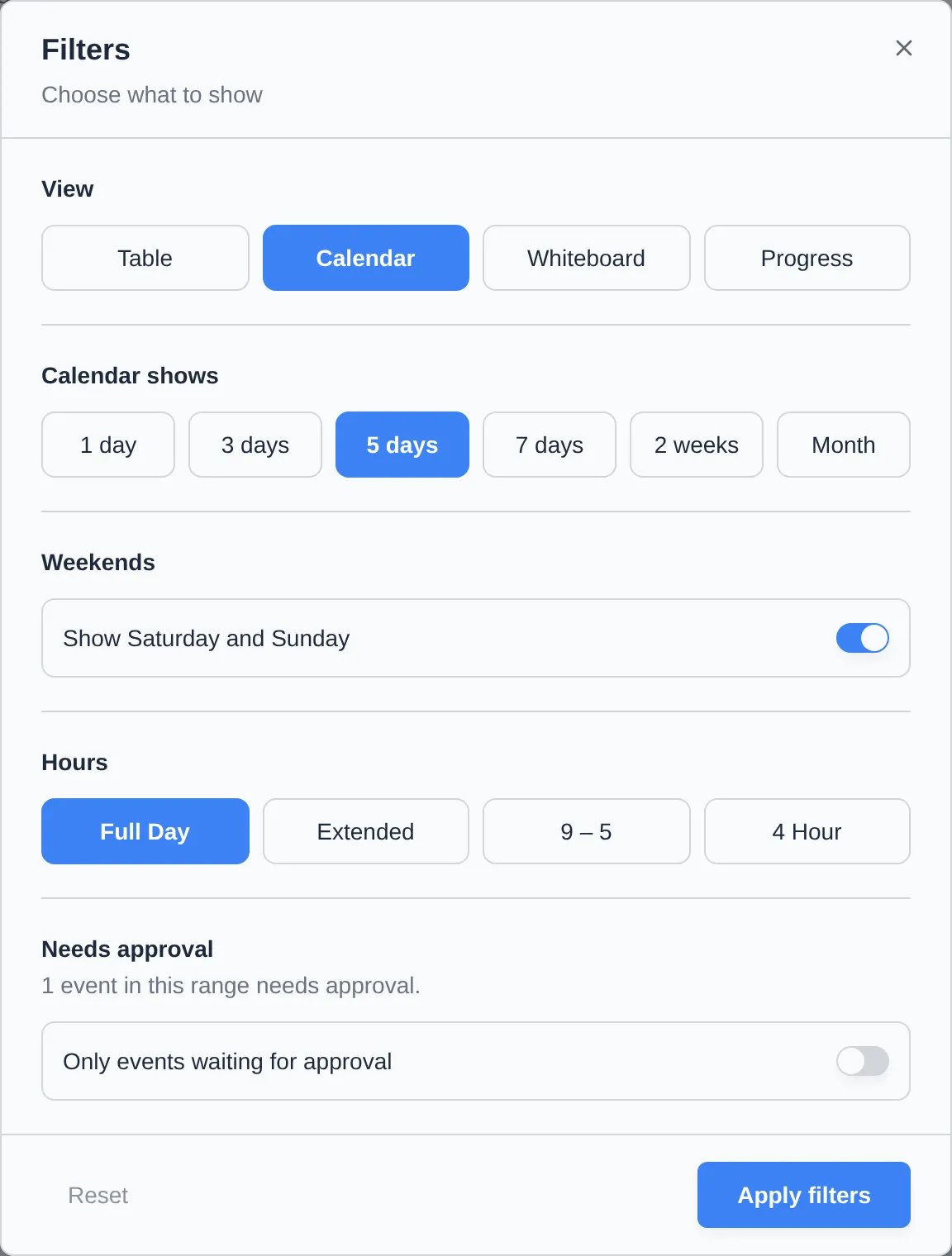
Choose a view
Calendar options
- Calendar shows: 1 day, 3 days, 5 days, 7 days, 2 weeks, or Month.
- Weekends: turn off Show Saturday and Sunday to hide weekends.
- Hours: Full Day, Extended (6 AM–10 PM), 9 – 5, or 4 Hour. Only applies to the 1-, 3-, 5-, and 7-day views.
- Day panel: available in Month and 2 weeks. Turn on Show the selected day beside the calendar to see a day’s events in a side panel. When it’s off, clicking a day opens it in a dialog. From an empty day, click Create Event on This Day.
Table, Whiteboard, and Progress options
These views use Date range instead of Calendar shows: Today, This week, This month, Next 7 days, Next 14 days, or Next 30 days. In Table view, open Filters → More → Columns to show, hide, and reorder columns. Click a column header to sort, and click Details on a row to open the event.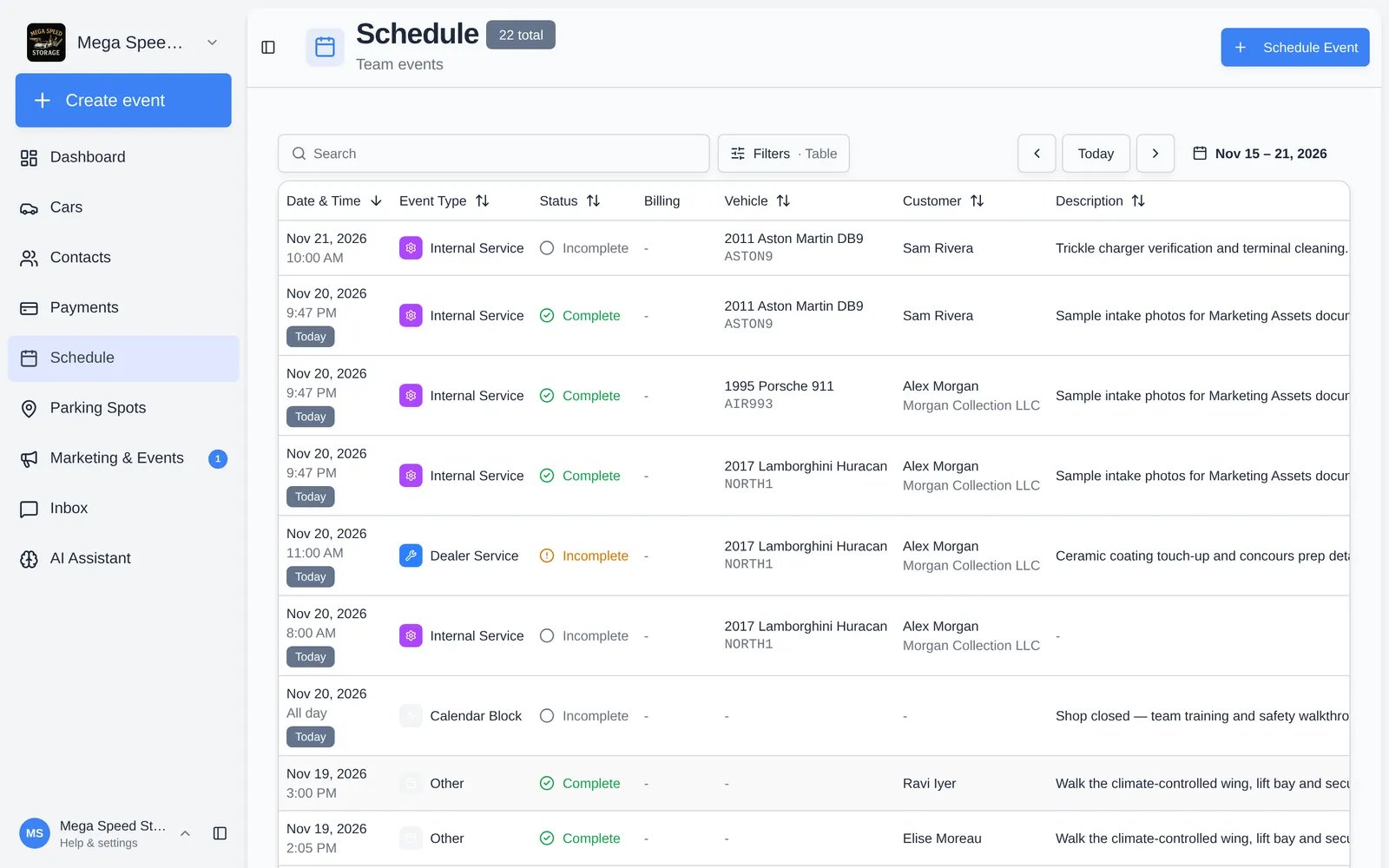
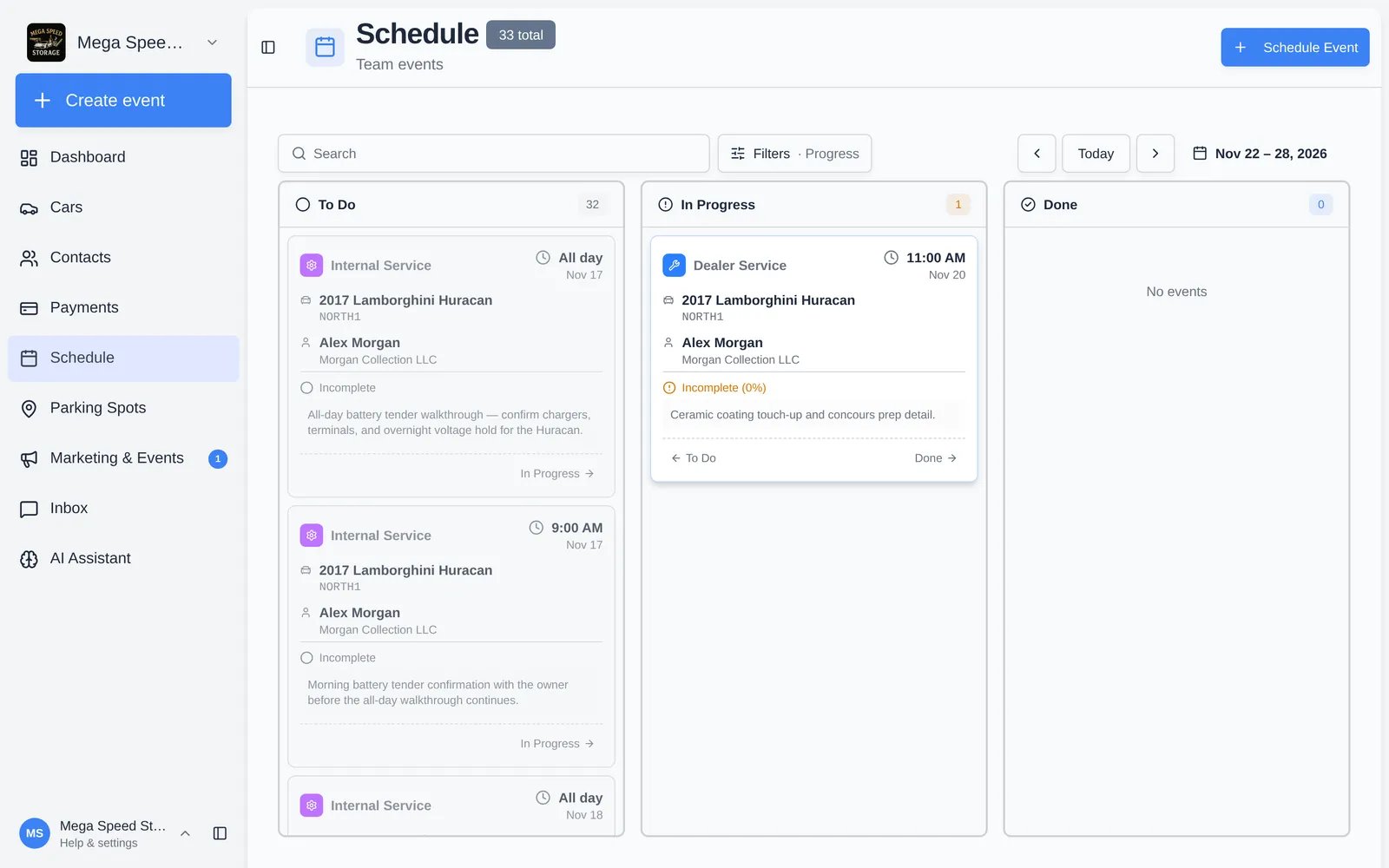
Filter the events
Show the Schedule full screen
Open Filters → More → Full screen to hide the sidebar and page header, which is handy on a wall monitor. Press Esc, or choose Exit full screen from the same menu, to go back. You can also bookmark the full-screen page athttps://www.carstoragesoftware.com/dashboard/schedule/display.
On a phone or iPad
- Phone: the calendar offers Agenda, 1 day, and Month. Agenda (the default) shows a week strip with dots for busy days, followed by a scrolling list of events. Swipe the strip to change weeks. You can’t drag events to move them on a phone; open the event and use Edit Event instead.
- iPad: you get the same calendar grids as on desktop, including drag and drop, with the app’s bottom navigation bar instead of the sidebar. Event details open as a sheet from the bottom of the screen. In portrait, tapping a day opens a dialog instead of the side panel.