

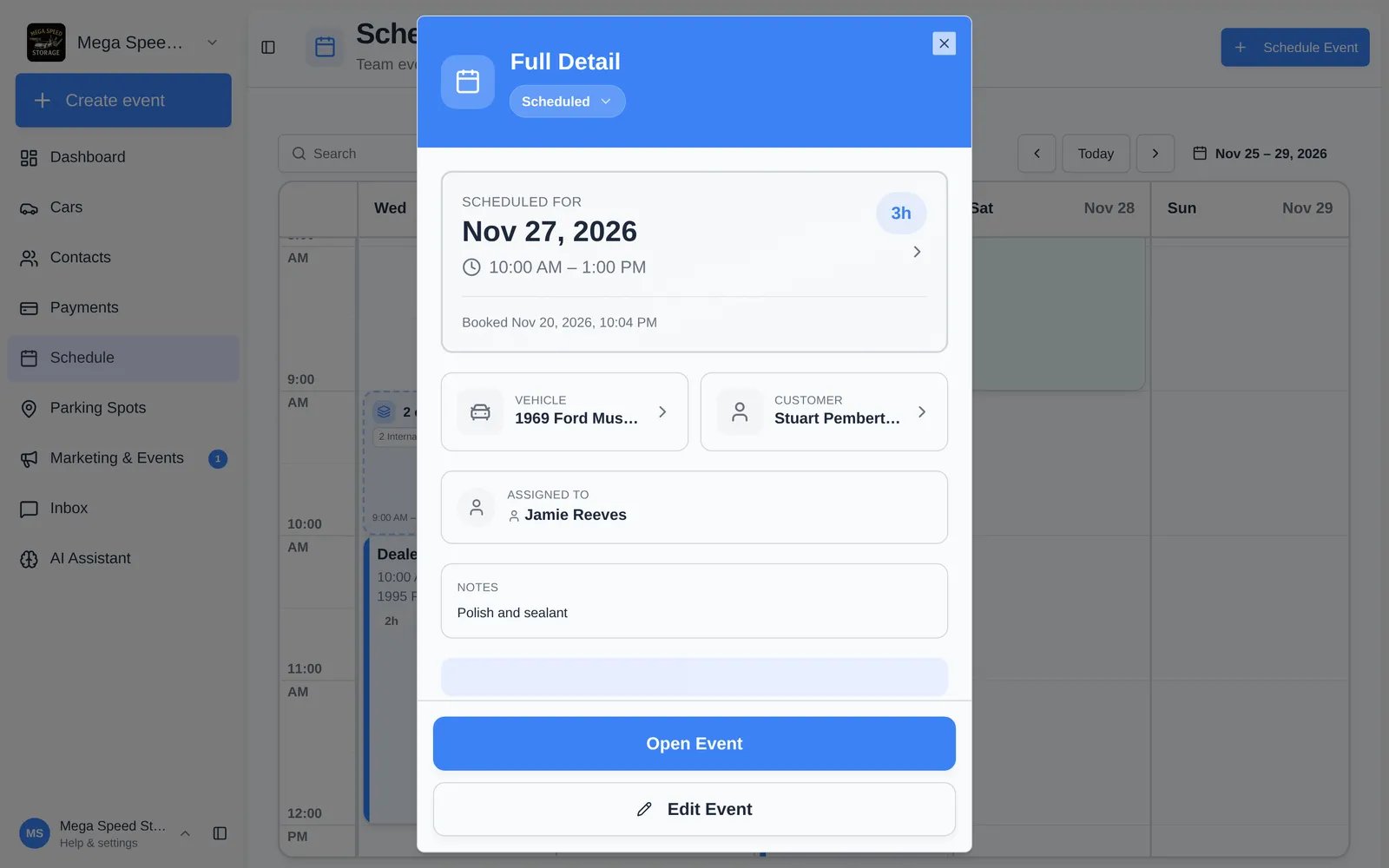
Edit an event
1
Click Edit Event
At the bottom of the event details.
2
Change what you need
- When: the date and start time.
- Duration: 15m to 2h, or Custom to type the minutes.
- Event Type and Assigned To.
- Notes.
3
Click Save Changes
If customer messages are on, choose whether to notify the customer.
Move an event to another day
On desktop or iPad, drag the event to a new day or time in the calendar. Confirm in Confirm event move, which shows the From and To dates, then click Confirm move. In Month and 2-week view, dragging changes only the date; the time stays the same. You can’t drag completed, cancelled, or declined events, or calendar blocks. On a phone, use Edit Event to change the date.Repeating events
When you edit or delete one date in a repeating series, the app asks whether to change Only this event or All events in series.Cancel or delete an event
Cancel when the visit won’t happen but you want a record of it. Delete when the event was a mistake.1
Open Edit Event
Click the event, then Edit Event.
2
Open Cancel or Delete Event
Expand Cancel or Delete Event at the bottom of the form. Type a Reason (optional).
3
Choose cancel or delete
- Cancel Event (Keep in History): confirm with Cancel appointment. The event stays on the calendar marked cancelled.
- Delete Permanently: confirm with Delete. This removes the event, plus its event page and photos. Unpaid charges added to the customer’s next bill are removed too.