

Before you start
- Payments must be turned on. If they aren’t, the Pricing step shows Enable payments, which takes you to Settings → Billing. See Billing.
- Prices come from your product catalog. You can pick an existing price or create one from the picker.
Set the price
1
Open the Pricing step
In Settings → Services & schedule, open the service and click Pricing in the step bar.
2
Choose how it's paid for
Under How does this event get paid for?:
- No charge: for pickups, inspections, and internal work.
- One flat price: every booking costs the same. Pick the price.
- Tiers: several versions at different prices.
3
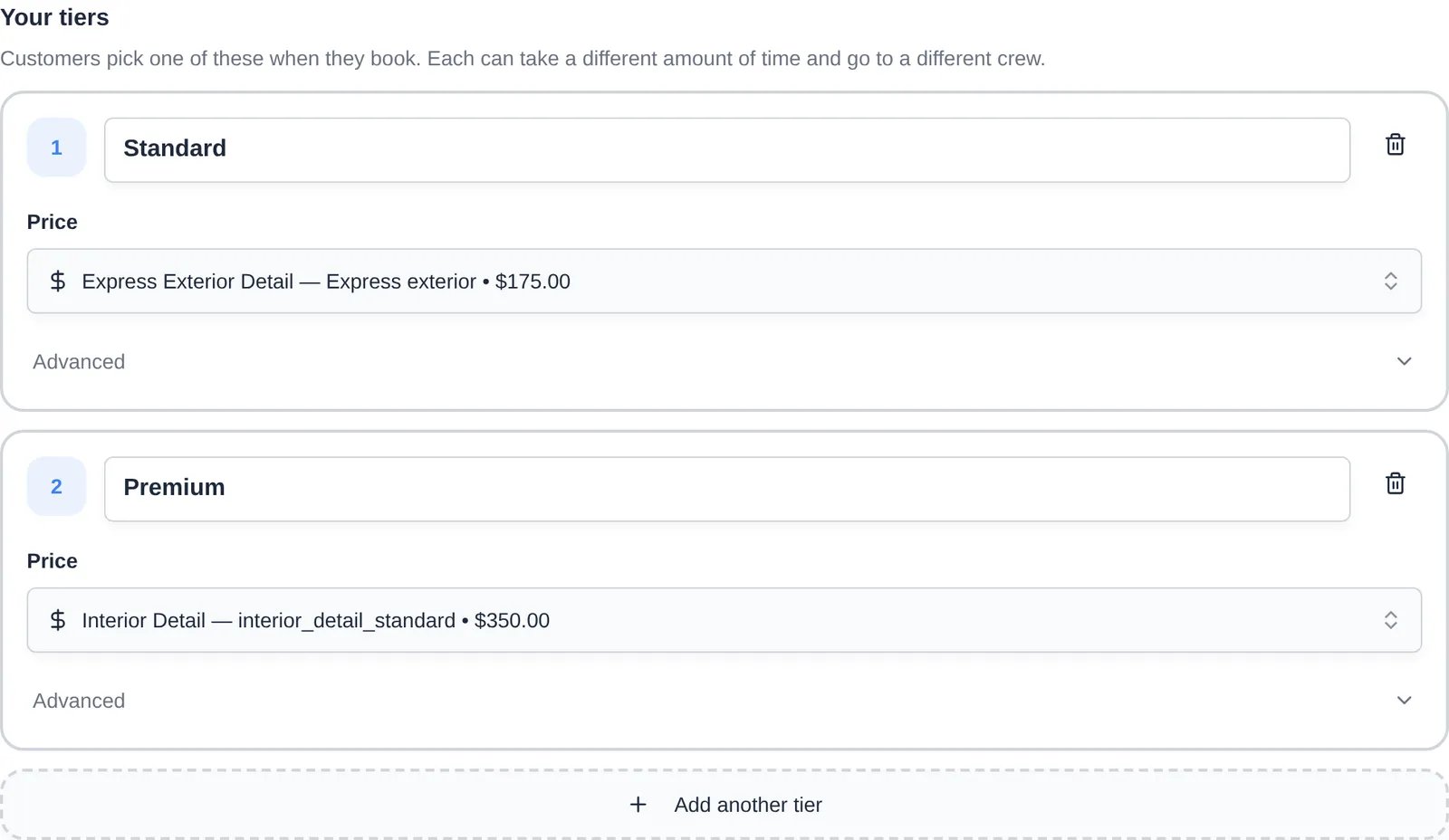
Set up tiers (if you chose Tiers)
For each tier, enter a Tier name (for example “Standard”) and pick a Price from Search products and prices…, or choose Create new price. Click Advanced on a tier to add a Description, set How long does this one take?, and choose who does it: Whoever’s free, A team member, or An outside vendor. Click Add another tier for more.
4
Add add-ons (optional)
Under Offer add-ons at booking?, click Add an upcharge. Set its Upcharge price and any Extra time it needs. Turn on Suggest this by default to pre-select it. Customers see add-ons before they confirm a booking.
5
Choose when to charge
Under When do we charge?:
- When they book: charges the card on file right away. Best for fixed-price work.
- When it’s done: holds a draft invoice and charges at completion, so you can adjust it first.
6
Choose where the charge goes
Under Where does the charge go?:
- Bill now: its own invoice, charged to the card or bank on file.
- Add to next bill: added to the customer’s next monthly plan bill, with no payment at booking. Customers without an active monthly plan are billed now instead.
Things to know
- Set each tier’s length under Advanced. Otherwise bookings for that tier use a short default length instead of the service’s How long does it take?
- With When it’s done, add-ons chosen at booking go on the draft invoice. Extras added later don’t, so add them to the invoice from the event page.
- Customer-facing prices can include card processing fees if your team passes them on, so the portal price may be higher than the price staff see.