

There is no separate phone-only feature set. The Car Storage Software app opens the same dashboard you see in a browser, laid out for a small screen, so every how-to in these docs applies on the phone. The Utilities app is the only one with its own screens.
Get the apps
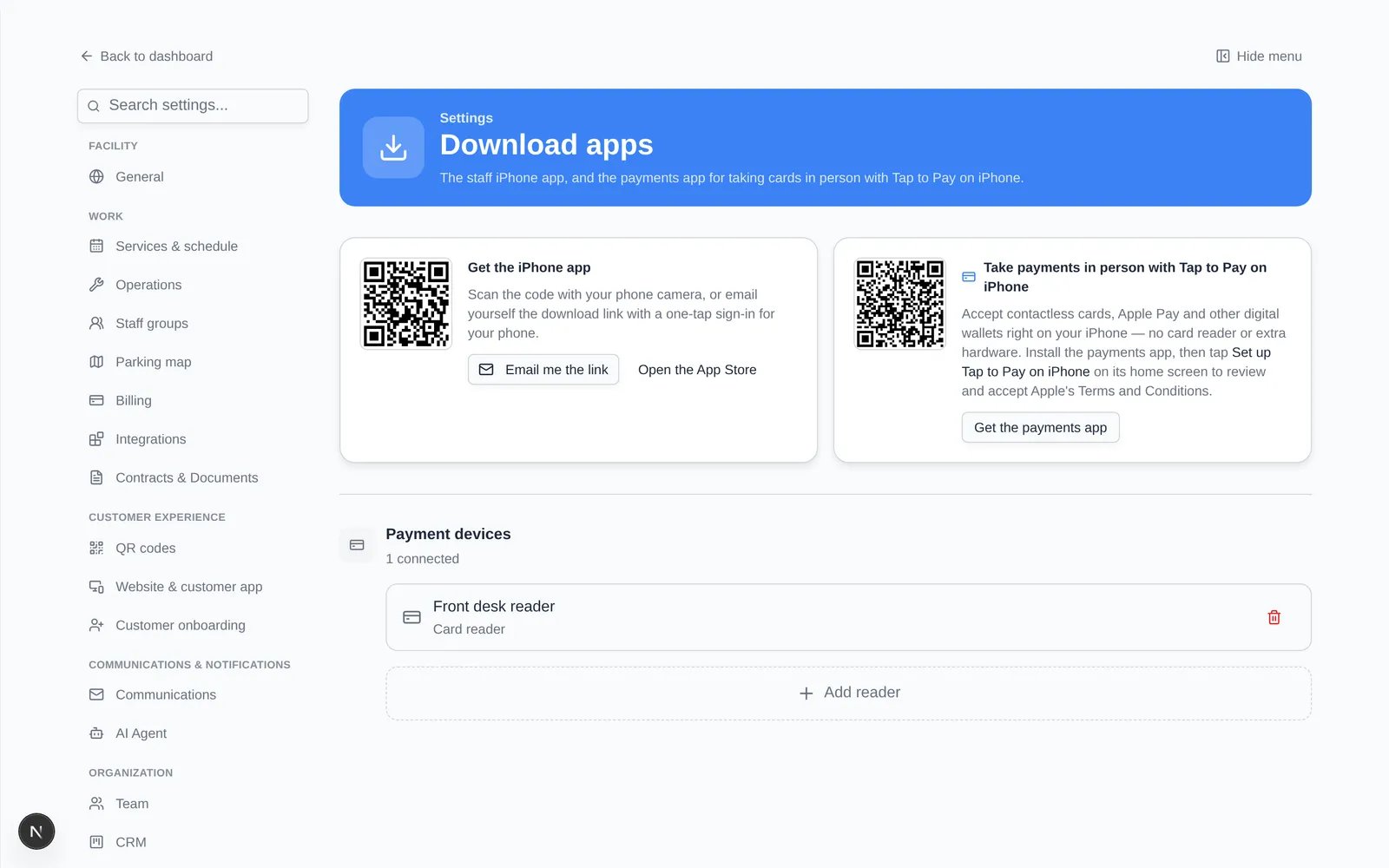
Open Settings > Download apps on a computer. It has a QR code and App Store link for each app:- Get the iPhone app has Email me the link (sends the App Store link to your inbox with a one-tap sign-in for your phone) and Open the App Store.
- Take payments in person with Tap to Pay on iPhone has Get the payments app, which is the Utilities app.
What the staff app asks your phone for
The first time you use a feature that needs it, iOS asks permission for:- Camera, to photograph a car’s condition and to scan VINs, license plates, and QR stickers to find a car’s record.
- Photo library, to attach existing photos to a car.
- Microphone, to record video with sound.
- Location (optional), to tag photos with where at the facility they were taken.
- Notifications, so the app can alert you.
Sign in to the Utilities app
1
Enter your email
Type the same email you use for the dashboard and tap Send code.
2
Enter the code
Type the 6-digit code from the email and tap Sign in. Use Use a different email if you mistyped.