

What archiving does
Archiving a customer:- Cancels their recurring plans right away. There’s no proration and no final bill.
- Voids their open and draft invoices. Paid invoices stay as they are.
- Archives their cars, so the cars leave your active car lists.
- Voids their unsigned and open contracts.
- Stops messages. Archived customers get no emails, texts, or push notifications from your facility. If you try to email or text one, the app shows “Not sent: this customer is archived.” The exception is an email or phone number that also belongs to an active customer or contact.
- Hides them from Contacts, pickers, and the customer report.
Before you start
- If the customer has recurring plans or open invoices, you need the Payments permission. Without it the app says “This customer has plans or invoices. Someone with Payments access needs to archive them.”
- On a multi-location team, you can only archive customers at locations you have access to.
Archive a customer
1
Open the customer
Go to Contacts and open the customer.
2
Click Archive Customer
Scroll to Danger Zone at the bottom of the page and click Archive Customer.
3
Check what will change
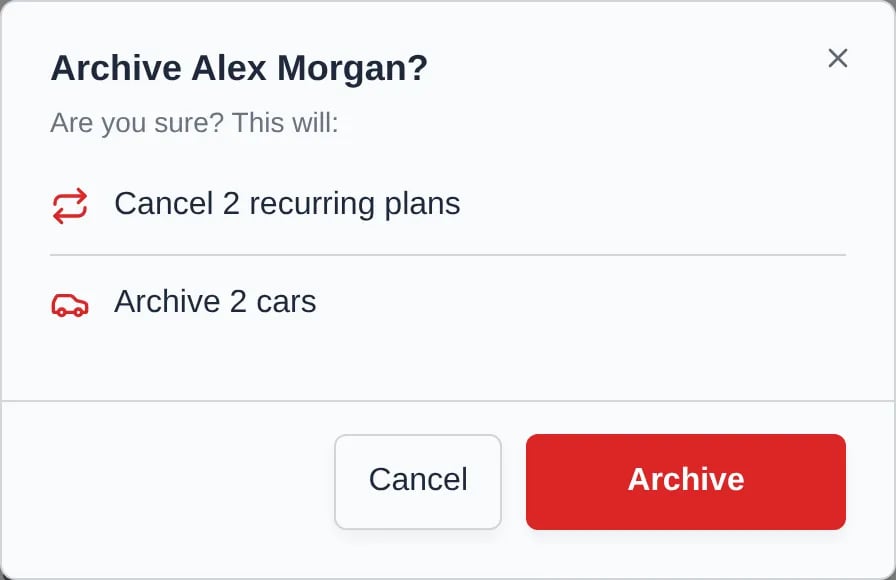
The confirmation lists exactly what happens to this customer, for example Cancel 2 recurring plans, Void 1 invoice, Archive 2 cars, and Void 1 contract. If there’s nothing to cancel, it just says they’ll be hidden from active lists. On a phone it opens as a sheet from the bottom.
4
Confirm
Click Archive. The plans are canceled in Stripe first. If a later step fails, the customer isn’t archived, but some plans may already be canceled. Click Archive again to finish.
Restore a customer
1
Show archived customers
On Contacts, click Filters, choose Archived under Status, and click Apply filters. The page title changes to Archived Contacts.
2
Restore
Click Restore on the row, or open the customer and click Restore Customer at the top. Confirm with Restore Customer.
Permanently delete a customer
Permanent delete removes the customer and everything tied to them: cars, events, files, contracts, and other records. Their plans are canceled and saved payment methods removed. It can’t be undone. Use it for test records or mistakes, not for customers who left.1
Archive the customer first
A customer has to be archived before you can delete them.
2
Open the archived customer
Open them from the Archived Contacts view.
3
Delete
Click Permanently Delete at the top of the page, then Permanently Delete in the confirmation.