How it works
- One email, one login. The customer signs in with the same email everywhere.
- One record per facility. Your record holds only what’s at your facility: cars, invoices, plans, saved cards, contracts, and messages. Nothing is shared or merged between facilities, and neither facility can see the other.
- The customer adds your facility, not you. Your team can create the record and send the invite, but the customer has to confirm the link from their own signed-in account.
- Each facility has its own onboarding. Contracts, documents, and payment steps you require still apply to your facility.
Add a customer who already has a login elsewhere
1
Create the customer as usual
Add the customer with the email address they already use. You won’t see any sign that they have an account at another facility. That’s on purpose.
2
Send the portal invite (optional)
The customer sees your facility the next time they sign in anywhere, even without an invite. To prompt them now, invite them to the portal. Because their login belongs to more than one facility, the invite link alone won’t sign them in. They confirm with an emailed sign-in link first, or go straight through if they’re already signed in on that device.
3
The customer adds your facility
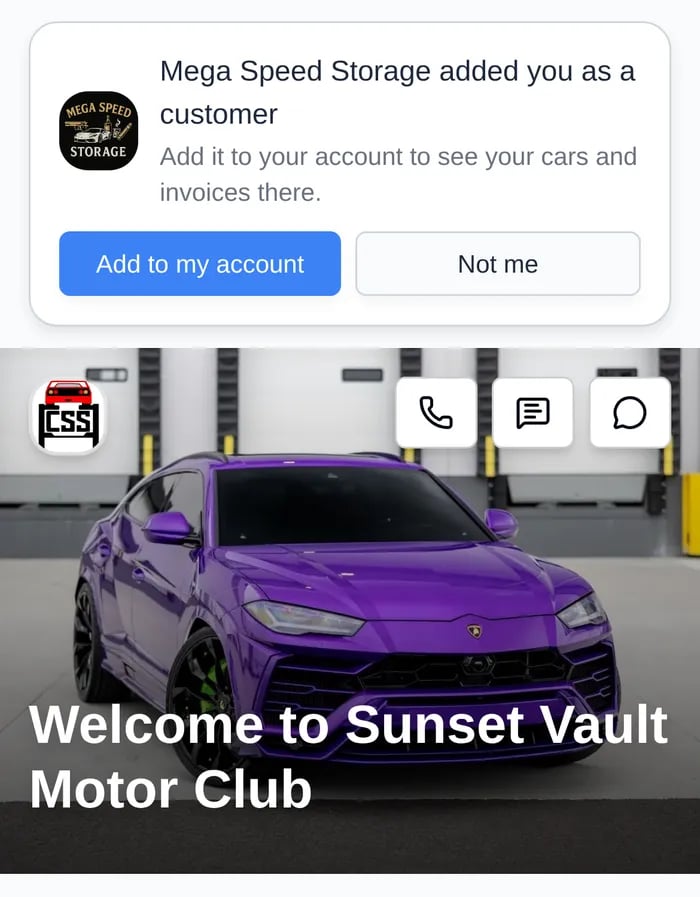
A card at the top of their portal says [Your facility] added you as a customer, with Add to my account and Not me. If they arrive from one of your links, they may instead see Add [your facility] to your account?, with Not now to skip.
What the customer sees
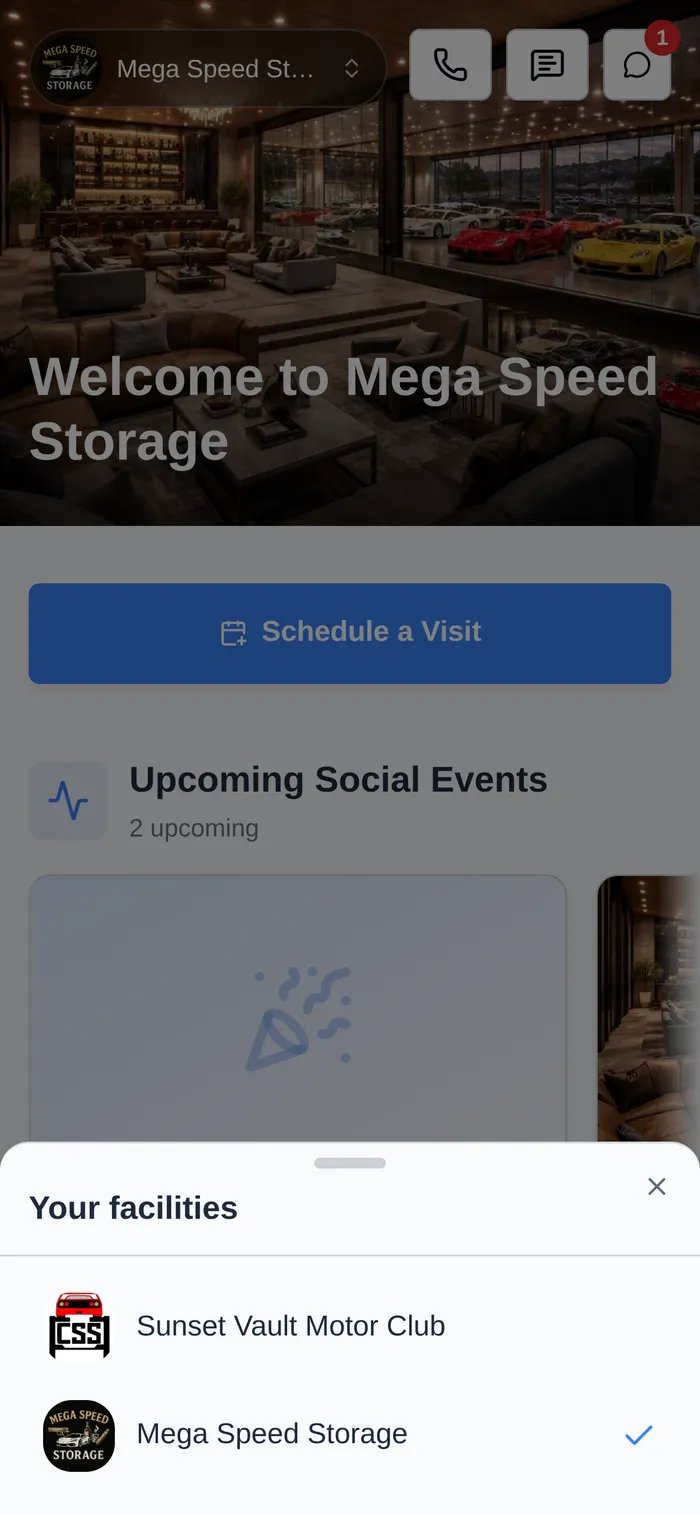
Once a customer has more than one facility, a facility switcher appears at the top of their portal home and in their profile settings. It shows each facility’s logo and name under Your facilities. On a phone it opens as a sheet from the bottom. Picking a facility reloads the portal with that facility’s cars, invoices, and branding. Right after a customer adds your facility, the portal switches to it.