Use Notes for things your team should remember, like preferences, promises, and gate instructions. Use the Activity Feed to see what has happened on the account: messages, billing, contracts, events, and changes to the record.

Add a note

1

Open the customer

Open the customer from Contacts. Notes is in the right-hand column, under Billing Setup.
2

Click Add note

Click Add note at the bottom of the Notes block and type the note.
3

Choose who can see it

  • Customer visible (the default): the note can be shared with the customer’s contacts.
  • Internal only: only your team sees it.
4

Save

Click Add note, or press Ctrl+Enter (⌘+Enter on a Mac).
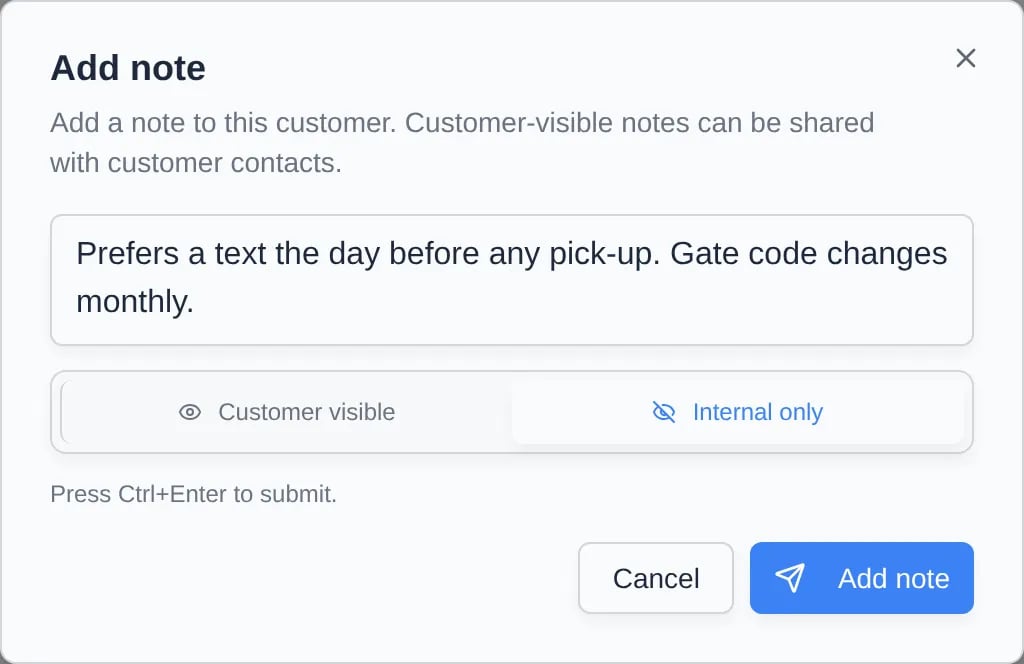
Add note dialog with a note typed in and the Internal only option selected
The Notes block shows the newest notes first, with the author, how long ago it was added, and an Internal only label where it applies. It also shows notes your team added on this customer’s cars and events, each labeled Vehicle or Event. Click Show all to see older notes. To delete a note, hover over it and click the trash icon. On a phone the icon is always visible.
Put short, permanent facts in notes. Put follow-ups in the CRM stage, and put conversations in the Inbox so the customer’s replies stay together.

Review activity

The Activity Feed on the customer page lists recent emails, texts, notes, billing, invoices, contracts, payments, and event changes. Click View more activity to load more, or View all to open the full Customer activity page.
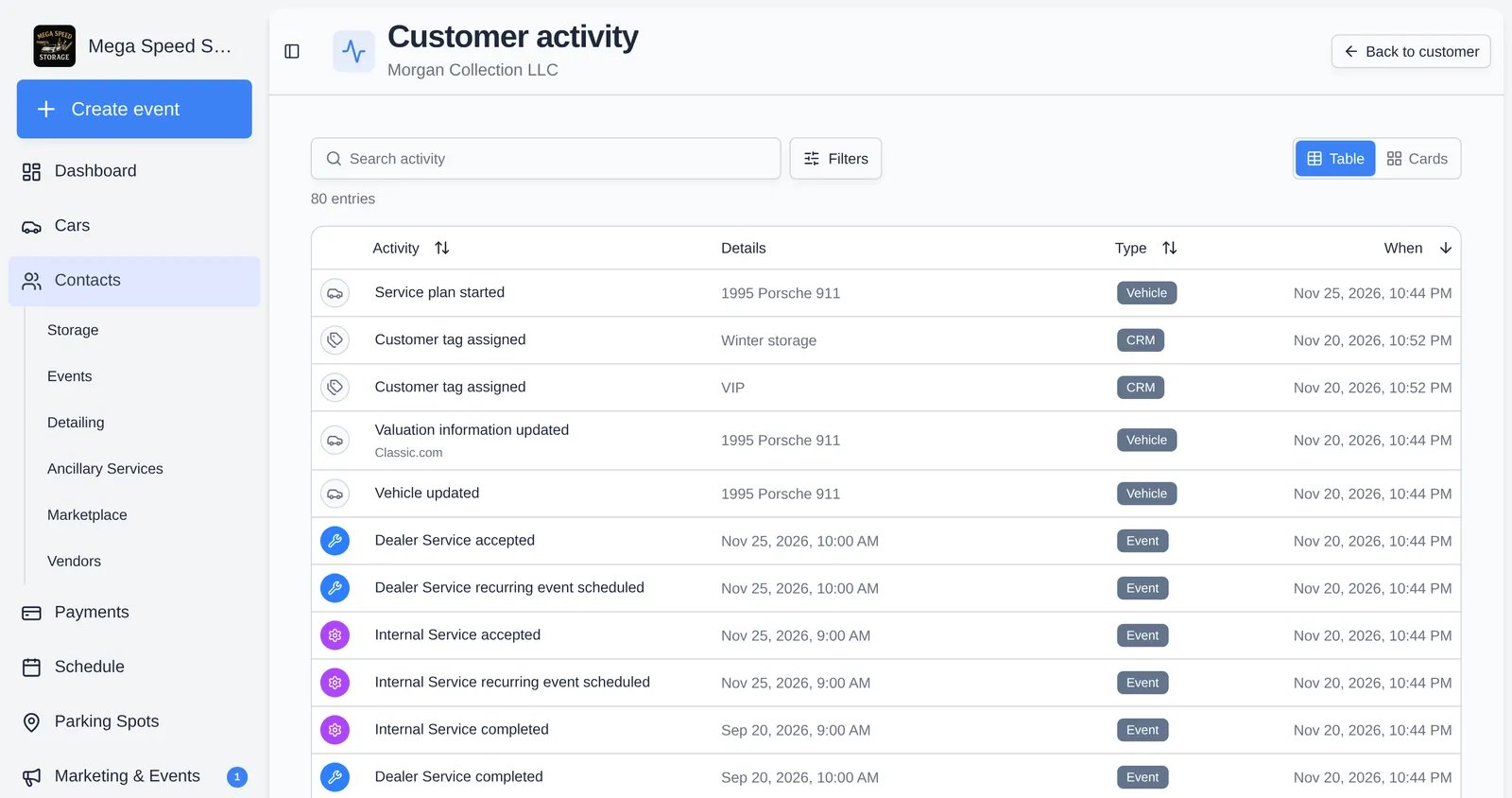
Customer activity page with a search bar, Filters, and a table of activity with the type and date of each entry
On the full page:
  • Search activity finds entries by text.
  • Filters narrows by Category (Vehicle & operations, Notes & documents, Billing, Customers & CRM, Communications) and Date.
  • Click Activity, Type, or When to sort.
  • Switch between Table and Cards.
  • Click an entry that links somewhere, such as an invoice or event, to open it.
Click Back to customer to return.