

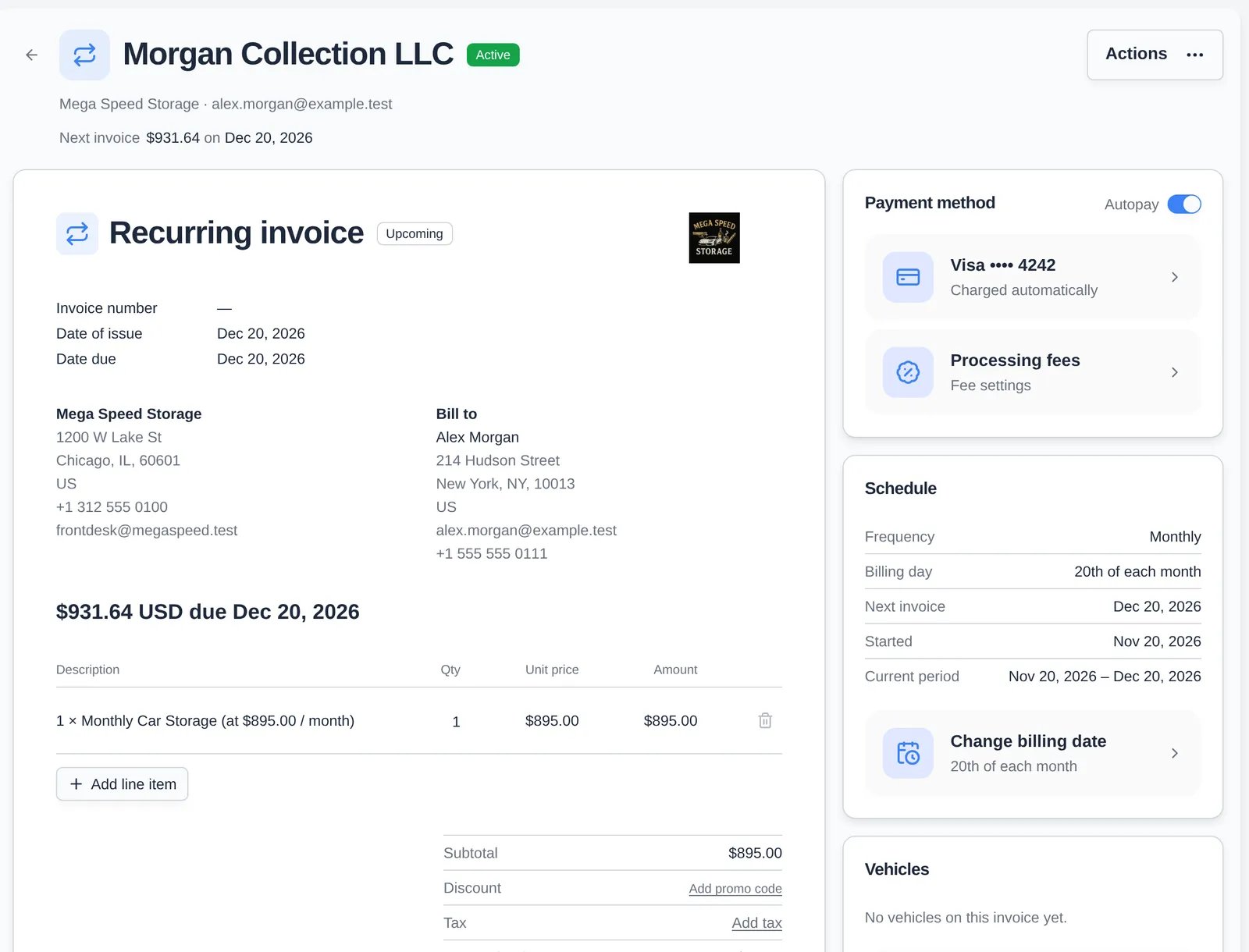
Prorate now or wait for the next cycle?
Most changes ask when they take effect:- Immediately / Prorate now: the customer is charged (or credited) for the rest of the current period right away.
- Next billing cycle: no proration. The new amount starts on the next invoice. This is the default for line edits.
Change the price, product, or quantity
1
Choose Change product & price from Actions
On plans with more than one item it reads Change product, price & quantity.
2
Pick the new price variant, product, or quantity
The dialog shows Currently, New, and the Difference per month. You can also add a coupon.
3
Choose when it takes effect and save
Pick Immediately or Next billing cycle, then click Update Price (the label changes with what you edited).
Change how it’s paid
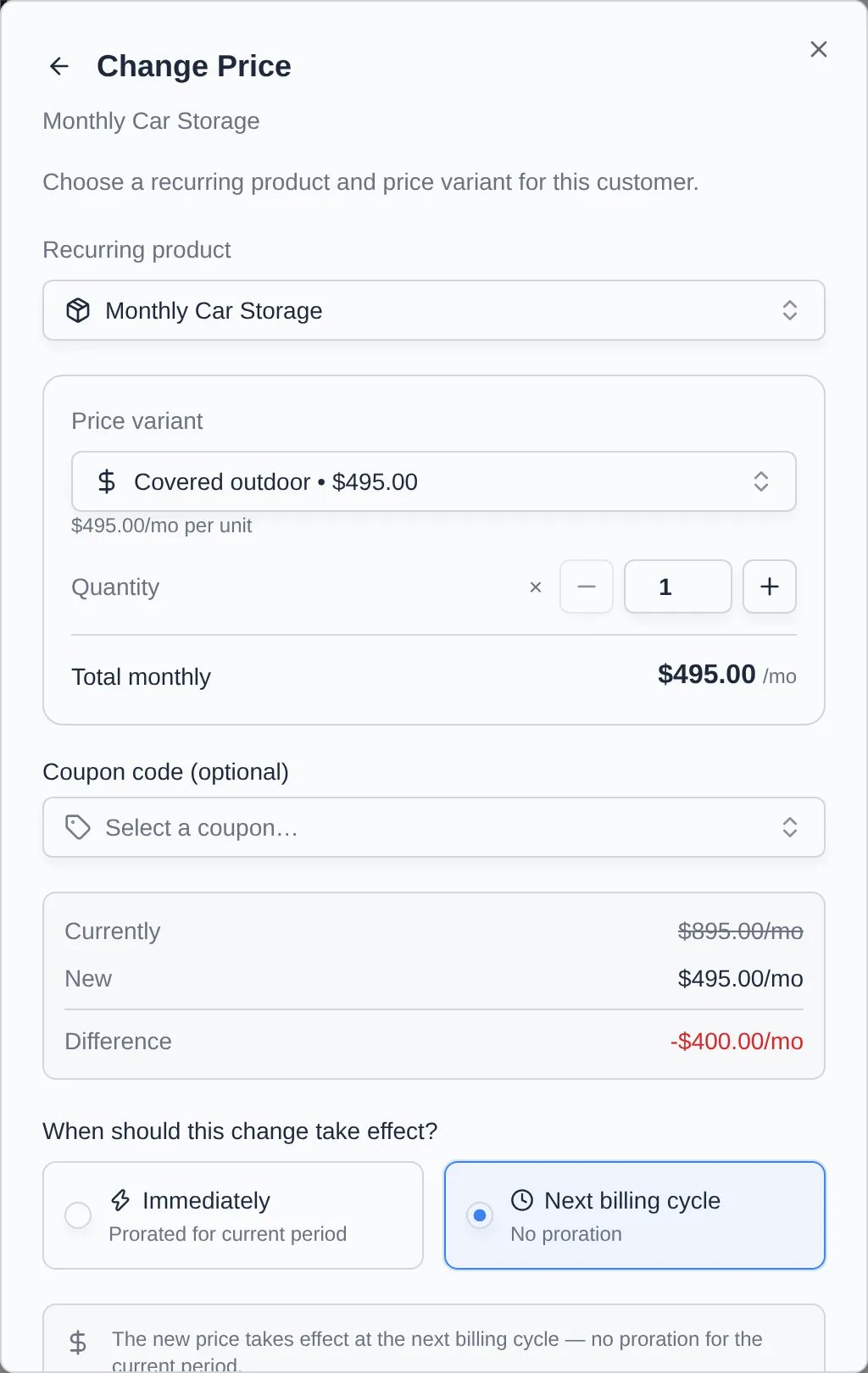
- Payment method: click the method tile on the Payment method card (or Change payment method in Actions). Choose Request (email them to pick), On file (a saved card or bank, or add one), or Off platform (cash or check).
- Autopay: the switch at the top of the card. On charges the card or bank on file each billing date. Off emails the customer a link to pay each invoice. You can’t turn it on without a payment method on file.
- Processing fees: the Processing fees tile waives or reduces the card/bank fee for this plan from the next invoice. See Set processing fees and taxes.
- Tax: Update tax rate in Actions changes the rate from the next invoice.
Change the billing date or frequency
Choose Change billing date in Actions or on the Schedule card. You can move the day of the month, change the frequency, or set the Rate review anniversary used for yearly rate increases. Moving the date asks whether to apply it Now (prorated) or at the Next billing cycle, and whether to charge for the gap.Add a one-time charge to the next bill
Use this instead of a separate invoice when a customer on autopay has an extra charge, such as a wash or a battery tender.1
Create a draft invoice with the charge
See Create an invoice.
2
Click Add to next bill
It’s on the Payment card. The hint names the plan and date, for example “Billed with Monthly Car Storage on Dec 20, 2026”.
3
Confirm
The amount isn’t charged now. It’s added to the plan’s next bill and charged with it, and the draft is removed.
Pause, resume, or cancel
- Pause billing: choose Immediately or End of period. The plan stays active and you can resume any time. On plans with several units it reads Pause units and asks how many.
- Resume billing: restarts billing on the next cycle.
- Cancel recurring: choose At end of billing period (no refund), Cancel immediately (you can choose Credit unused time to account balance), or On a specific date. Paid time after a specific date becomes account credit, not a card refund. Cancelling can’t be undone. You’d create a new plan to bill again. On plans with several units you can Reduce quantity instead.
Change many plans at once
Tick plans on the Recurring list to show the bulk bar:- Adjust Pricing: set a new price, a percentage change, or switch to an existing price variant, up to 10 plans at a time. Check the preview before you click update.
- Change Billing Date: move the selected plans to the same billing day.
- Resume and Cancel: for paused or unwanted plans.
- Merge: combine a customer’s plans into one invoice (shown only when the selection can be merged).
Troubleshooting
- “Locked until this plan bills.” The plan bills within the next few minutes. Price, quantity, item, pause, and billing-date changes come back after it bills. Payment method, tax, and cancelling still work.
- “This plan’s bill is being prepared. Change it once it’s sent.” Stripe is about to finalize the renewal. Charges you add now go on the bill after it.
- “Saved on the plan, but the invoice waiting to be charged didn’t update.” Don’t charge that waiting invoice yet. Open it from Billing history and check the lines.
- Autopay switch is grayed out. Add a payment method first.