

Before you start
- Create the recurring product and its price variants first, for example “Monthly Car Storage” at $495 for covered outdoor and $895 for indoor. See Manage products and services.
- To auto-charge from day one, the customer needs a saved card or bank account. If they don’t have one, you can add a card during setup or let them choose how to pay.
Add a recurring plan
1
Click Add recurring
Go to Payments → Recurring invoices and click Add recurring (top right). Pick the customer under Bill to and click Continue.You can also start from a contact’s Billing actions → Create new recurring, or from a draft invoice with Convert to recurring.
2
Plan: choose what they're billed for
Pick the Recurring plan (product), the Price variant, Qty, and Tax. Product default uses the variant’s tax rate.Click Add another item to bill more than one thing on the same invoice, such as a second space or a battery-tender plan. All items share one Billing frequency.
3
Payment: choose how it's paid
- Charge payment method: auto-charges a saved card or bank account each cycle. Pick it under Payment method, or click Add card to type one in.
- Send invoice: emails the customer to choose how to pay. Tick the methods under Customer can pay with. The plan waits until they choose. Set Auto-finalize date to charge or send the invoice anyway on that date.
4
Schedule: choose when billing starts
See the options below. What happens at the bottom shows today’s charge and the next full charge.
5
Review: check the first invoice and confirm
Add a promo code if needed. The button tells you what will happen: Charge (amount) & start, Send invoice · (amount), Create draft, or Add recurring.
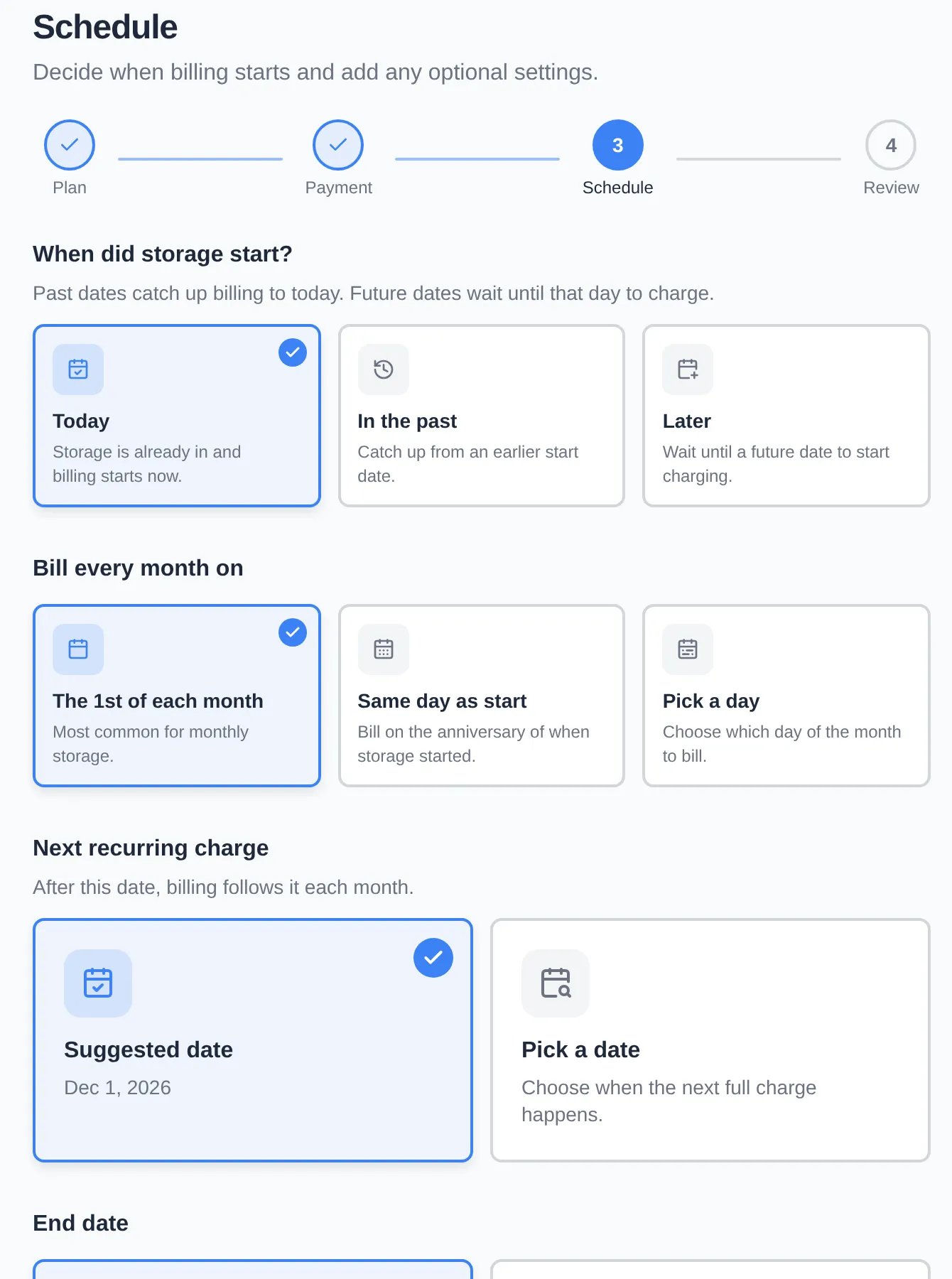
Schedule options
Example: storage starts November 20, billed on the 1st. The first invoice covers November 20 to December 1. The full monthly amount starts December 1.
Start as draft on the Review step creates the plan without sending or charging anything until you activate it. It’s only offered for single-item plans that charge a payment method.
After you create it
- Charge payment method: the first invoice is charged right away (or on the start date) and the plan shows Active.
- Send invoice: the customer gets a “Your invoice is ready” email. The plan shows Waiting for customer, and billing stays paused until they choose a method. The plan list shows it as Paused. To nudge them, use Remind or Select method on the plan’s Payment method card.
Troubleshooting
- “This product has no pricing configured.” Add a price variant to the product first.
- “Select or add a payment method to auto-charge.” The customer has no saved method. Click Add card, or switch to Send invoice.
- “Select at least one payment method for the customer to choose from.” Tick at least one method under Customer can pay with.
- “End date must be after the start date.” Fix the end date, or choose No end date.
- Stripe payments are not enabled for your team. Finish payment processing setup.