

Before you start
- Service plans are created in Services setup. See Set up service plans.
- To link billing, the car needs a linked customer who has a recurring plan. See Set up recurring billing.
Assign a service plan
1
Open Service Plans
On the car page, scroll to Service Plans and click Edit.
2
Pick a plan and start date
Choose a Plan and a Start date. Click Add plan to add another.
3
Save
Click Save Plans. Each check in the plan now shows its status and next due date.
Keep up with the checks
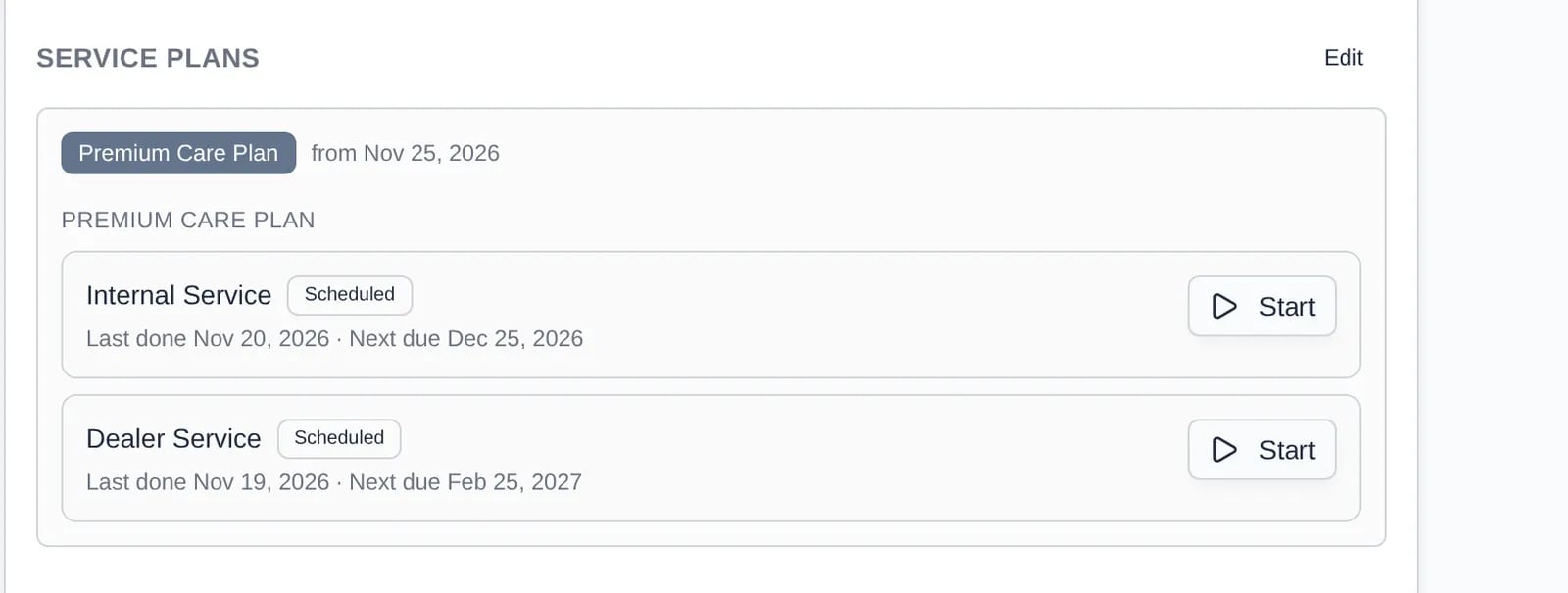
- Start (event checks): opens Create New Event with that event type already chosen, so you can book it. See Create an event.
- Log (checkbox checks): records the check as done today.
Link recurring billing
The Payments block shows the recurring plan this car is billed under.- Open the Link recurring plan list in the Payments block.
- Pick the customer’s plan (shown as “product • price”).