

Choose who pays processing fees
1
Open Billing settings
Go to Settings → Billing and find Processing fees.
2
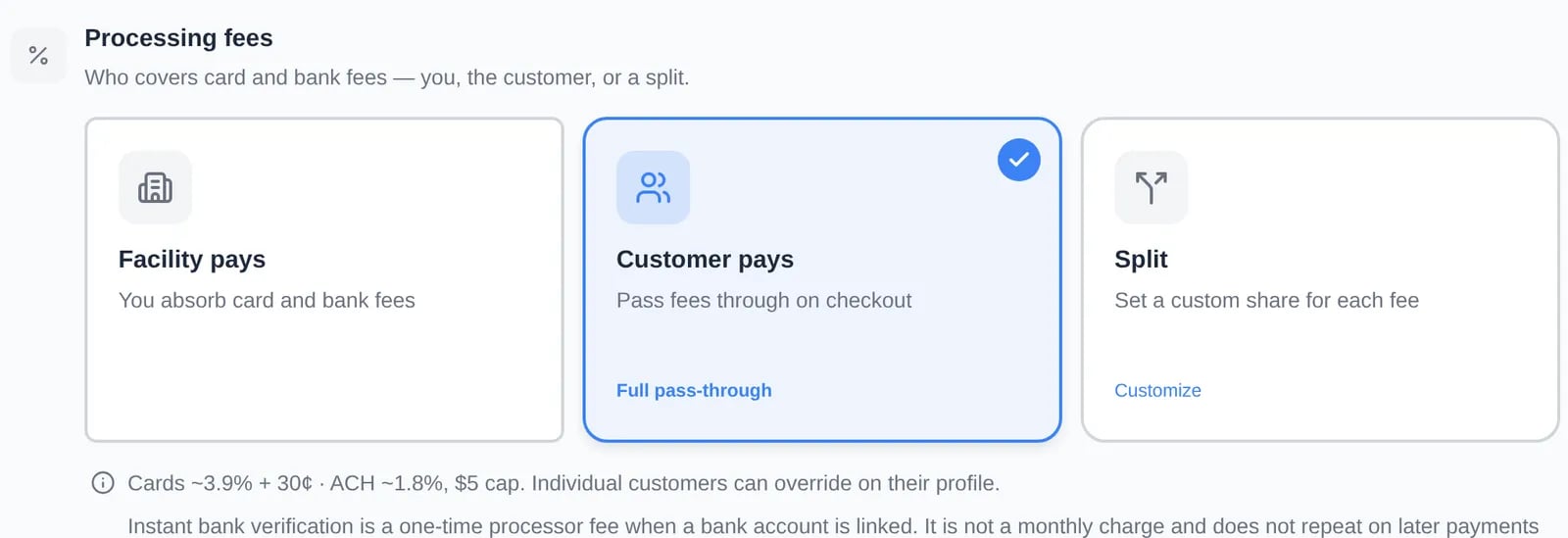
Pick an option
- Facility pays: you absorb card and bank fees. Customers see the list price.
- Customer pays: the full fee is added to the customer’s invoice as a Processing fee line.
- Split: click Customize and set the customer’s share separately for Cards and Bank autopay & Manual ACH.
Override the fee setting
From broadest to narrowest. The narrowest setting wins.Waive or reduce the fee on one invoice or plan
1
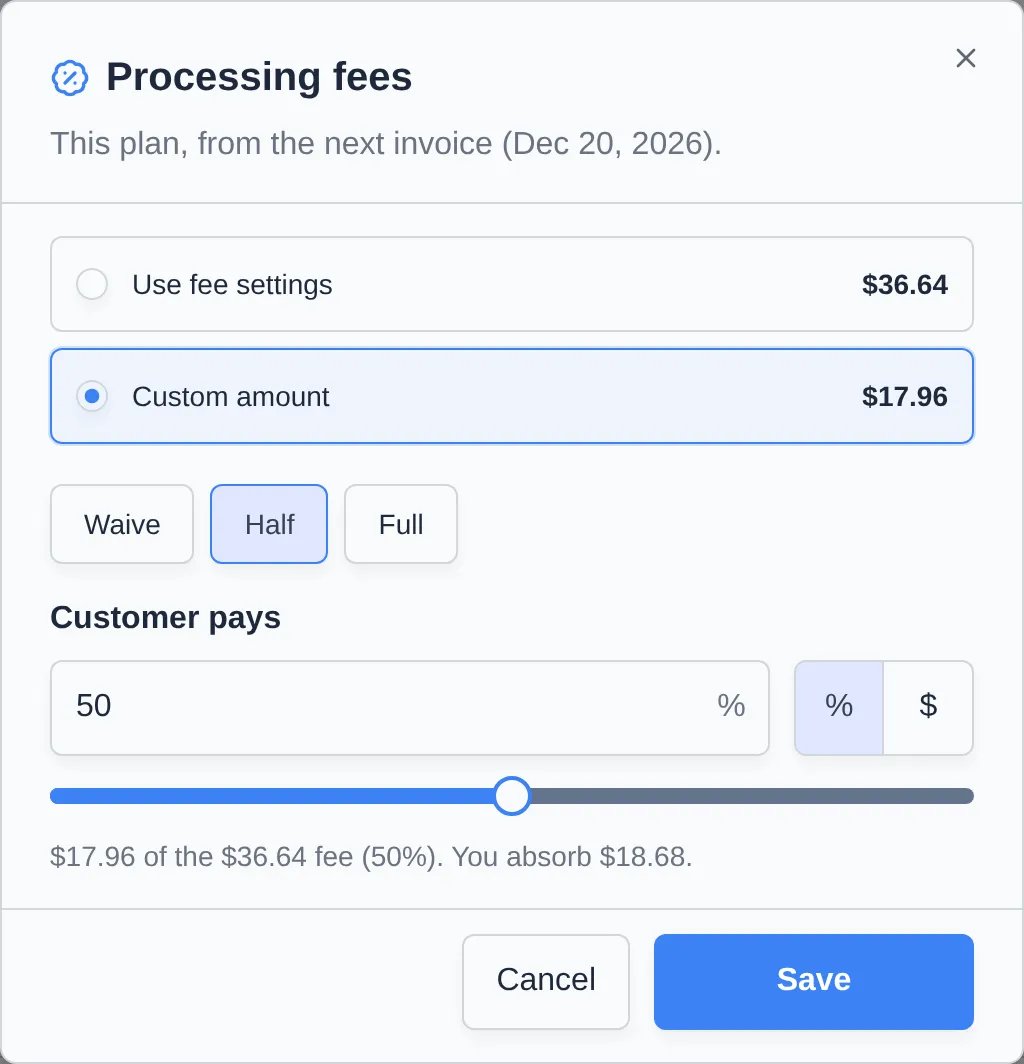
Click Processing fees
On a draft invoice it’s on the Payment card. On a recurring plan it’s on the Payment method card.
2
Choose Custom amount
Click Waive, Half, or Full, or type how much the customer pays under Customer pays. Switch between percent and dollars. The dialog shows what you absorb, for example “$17.96 of the $36.64 fee (50%). You absorb $18.68.”
3
Click Save
The tile now reads Waived, Customer pays full fee, or Customer pays and the percent. On a plan, the change starts with the next invoice.
Set up tax rates
1
Open Tax rates
In Settings → Billing, find Tax rates and click Add.
2
Enter the rate
Enter a Name (customers see it on invoices), the Rate (%) (up to four decimals, such as 10.25), and the Tax Type. Under Advanced, tick Price includes tax (tax-inclusive) if your prices already include tax, and add the country and state.
3
Click Create
Tick Set as default for new prices to make it the default, or click Set default on the rate’s card later.
Where tax is applied
- Invoices: each line has its own tax dropdown. A line takes one rate. Different lines can use different rates, and the totals list each rate.
- Recurring plans: the Tax field on each item, or Update tax rate on the plan.
- Price variants: a variant’s Tax rate is used by default wherever the variant is billed.
Troubleshooting
- No tax dropdown on invoice lines. No tax rates exist yet. Add one under Tax rates.
- “Percentage must be between 0 and 100.” Enter the rate as a percent, such as
7.5, not0.075. - The Processing fees tile is missing on a plan. The plan is paid by cash or check, or fees are built into its price.