

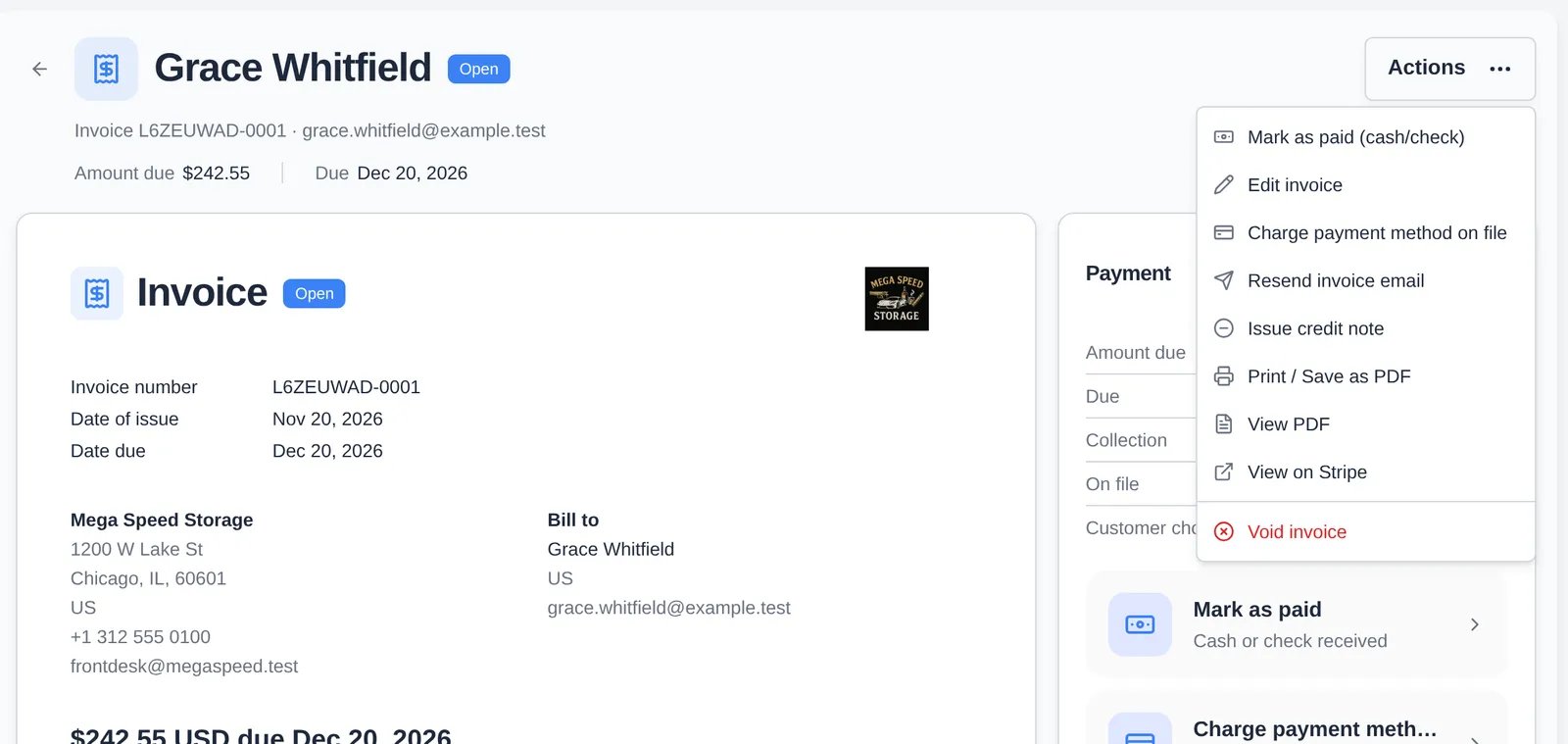
Read the status
On the invoice list you may also see Past due (open after its due date) and Past due · declined (a charge failed). The Payment column shows how the customer chose to pay: Card, Bank, Cash / Check, Waiting, or Not set.
When the customer hasn’t chosen how to pay
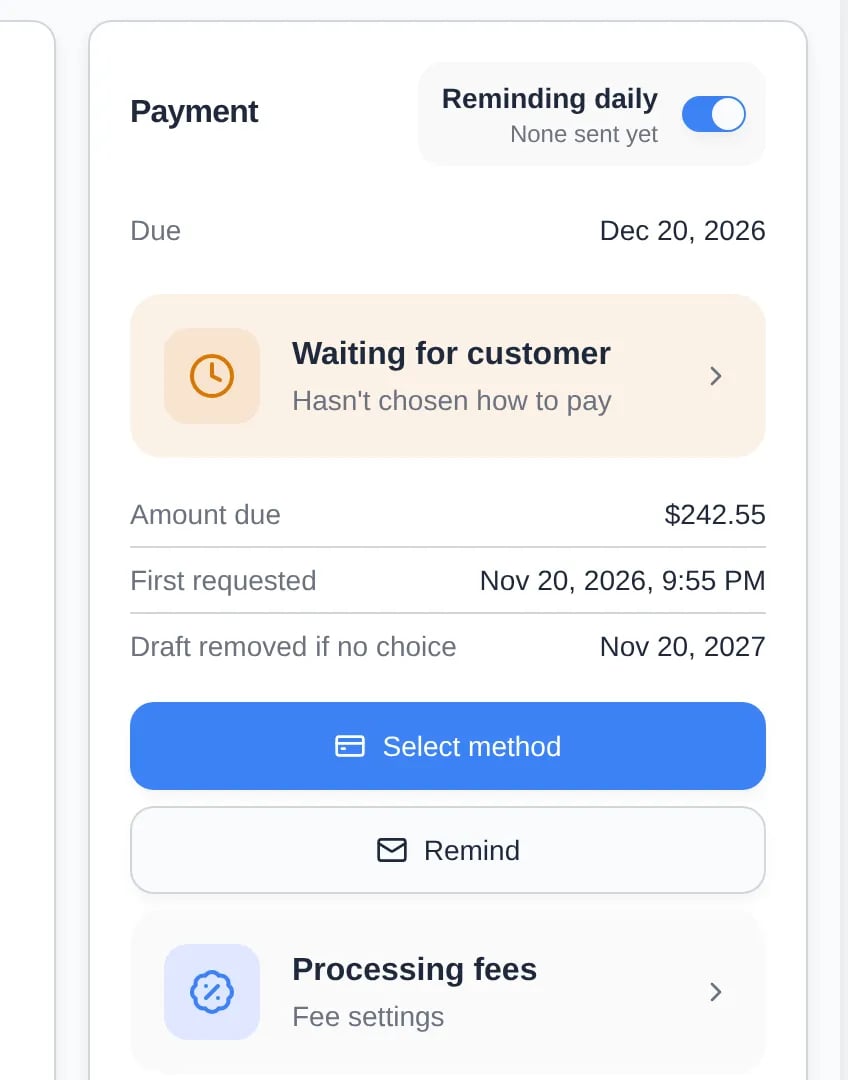
- Remind emails them the payment link again. The Reminding switch at the top of the card (for example Reminding daily; it follows your team’s reminder schedule) turns the automatic reminders on or off for this invoice.
- Copy payment selection link (in Actions) copies the link so you can text it yourself.
- Select method lets you decide for them. It has three tabs:
- Request: change which methods they can pick from, then Send reminder or Copy link.
- On file: Add a card (you type the card details) or Send a link so they add a card or bank account.
- Off platform: Cash / check. Click Use cash / check. The invoice is finalized as a cash/check invoice, with no processing fee, so you can record the payment.
Charge a saved card or bank account
1
Choose the charge action
On a draft, click Charge now. On an open invoice, choose Charge payment method on file from Actions.
2
Pick the payment method
The dialog lists their saved cards and bank accounts with the fee for each. The button shows the total, for example Charge $401.86 now.
3
Confirm and answer Notify the customer?
The invoice changes to Paid, and the attempt shows under Payments & transactions. Bank payments can show Processing for a few days first.
Record cash or a check
1
Choose Mark as paid
Click Mark as paid on the Payment card, or Mark as paid (cash/check) in Actions. It’s also on each row’s ⋯ menu in the invoice list.
2
Fill in the payment
Choose Cash or Check (add the Check number). Amount defaults to the full amount due. Enter less to record a partial payment. Set Date if it wasn’t received today.
3
Click Mark as paid
Answer Notify the customer?. A partial payment lowers Amount due and the invoice stays Open. A full payment marks it Paid.
Use the customer’s account credit
If the customer has credit on their account, Pay from balance appears in Actions with the amount available. It’s grayed out when the credit doesn’t cover the invoice.Take a card in person with Tap to Pay
If Tap to Pay is set up for your facility, Tap to Pay appears in Actions on draft and open invoices.1
Choose Tap to Pay
The Amount is the invoice total without processing fees. You can add a note under For.
2
Pick a device under Send to
Pick a staff iPhone signed in to the Car Storage Software Utilities app, a Card reader, or QR code (scan it with the facility iPhone).
3
Click Send
The button names the amount and device, for example Send $242.55 to Front desk iPhone. The status moves through Sent to phone, Waiting for tap, then Paid. If the card fails you see Didn’t go through with Try again.
Collect from the customer’s contact page
On a contact’s Billing Setup card, open Billing actions → Collect payment. Pick the open invoices they’re paying, or Or enter a custom amount, then choose On file (charge a saved card), Send link (they pay online), or Off platform (cash or check).Send or void many invoices at once
On the invoice list, tick the boxes next to customer invoices and open Bulk actions:- Send / resend email sends each selected draft or open invoice.
- Void / delete invoices voids open invoices and deletes drafts. You can add a reason.
What the customer sees
The customer opens the link from the email (or the portal) and picks how to pay. Each method shows its fee. Card and bank details are entered through Stripe, and bank accounts are verified instantly by signing in to their bank. Instant verification has a one-time processor fee. There are no micro-deposits.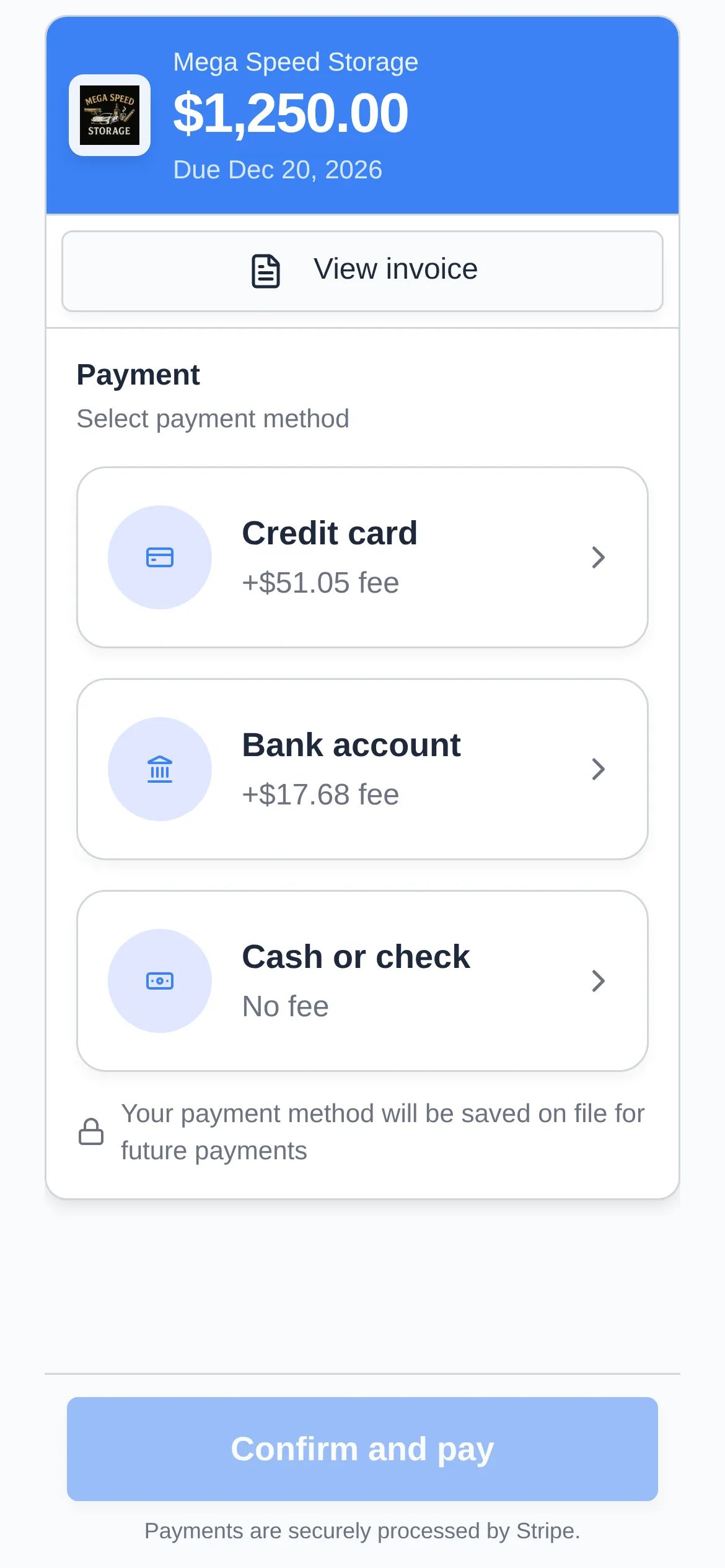
Troubleshooting
- Charge now is missing, or the charge tile says “No saved payment method”. The customer has no saved card or bank account. Use Select method → On file → Send a link.
- Mark as paid is missing. The invoice is waiting for the customer. Use Select method → Off platform → Use cash / check first.
- A payment attempt shows “Declined or incomplete”. The card or bank didn’t go through. The customer can try again from their link, or you can charge another saved method.
- “Amount must match the adjusted invoice amount (excluding processing fees).” You recorded cash from the list with a different amount. Open the invoice and use Mark as paid there instead.