

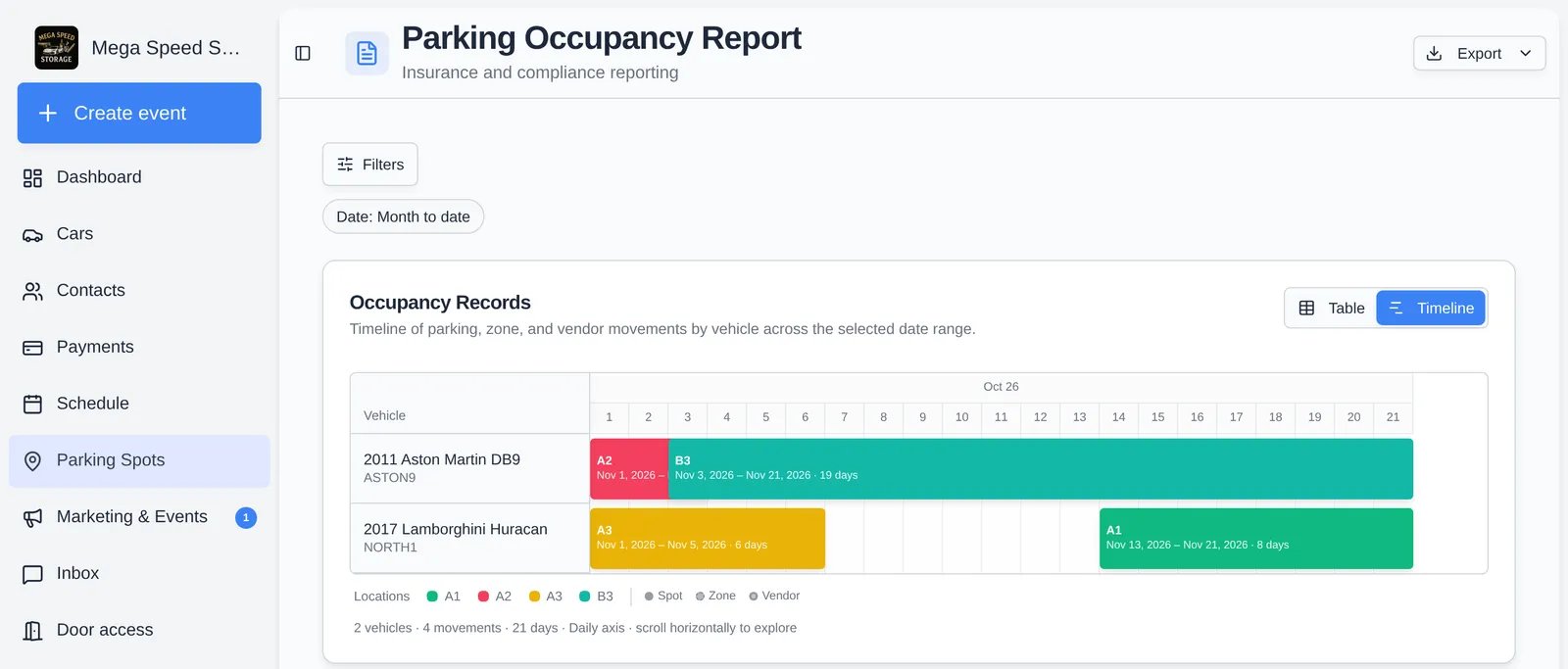
How rows are built
- A row is one stay: one car in one spot, zone, or vendor, from the moment it was assigned until it moved or left. A stay is included if any part of it falls in the date range.
- Stays that began before the range, or are still going, are cut to the range. Start Date and End Date show the cut dates, so a car that arrived on Oct 20 and left on Nov 3 reads Nov 1 to Nov 3 in a November report.
- Days counts calendar days inclusive, using dates and not clock times: a stay from Nov 13 to Nov 20 is 8 days. Each stay counts at least 1 day, and a mid-day move does not add a day.
- If the same car was somehow recorded twice for the same spot and dates, only the newest record is kept.
- Row per car (in Table) combines each car’s stays into one row. Row per movement keeps every stay.
- Est. Min Value, Est. Avg Value, and Est. Max Value come from your cars’ market data. They stay blank when a car has none. Declared Value is the insured value you entered on the car.
- The default range is Month to date. Day boundaries use your facility’s time zone.
Timeline view
Timeline draws one row per car with a bar per stay, colored by location, across the range. The header shows the month and day. Click a bar to open that car’s facility history. The footer counts vehicles, movements, and days.Filters and columns
Filters sets the Date range (Month to date, Last month, Last 3 months, Year to date, or Custom with both dates). Columns hides or reorders what you see and export, including customer contact fields, insurance company, policy number, and mileage. Your column choice is saved to your login.Export
Export (top right) offers CSV and a branded PDF.- CSV is named
parking-report-<start>-to-<end>.csv, has the visible columns, and follows your sort. - PDF (Branded) uses the same dates and your facility branding; the file is named
parking-report-<start>-to-<end>.pdf. - Both say “No data to export” when the range has no stays.