Signing a contract
The signing link in the email opens in any browser, on a phone or a computer. The customer doesn’t need an account.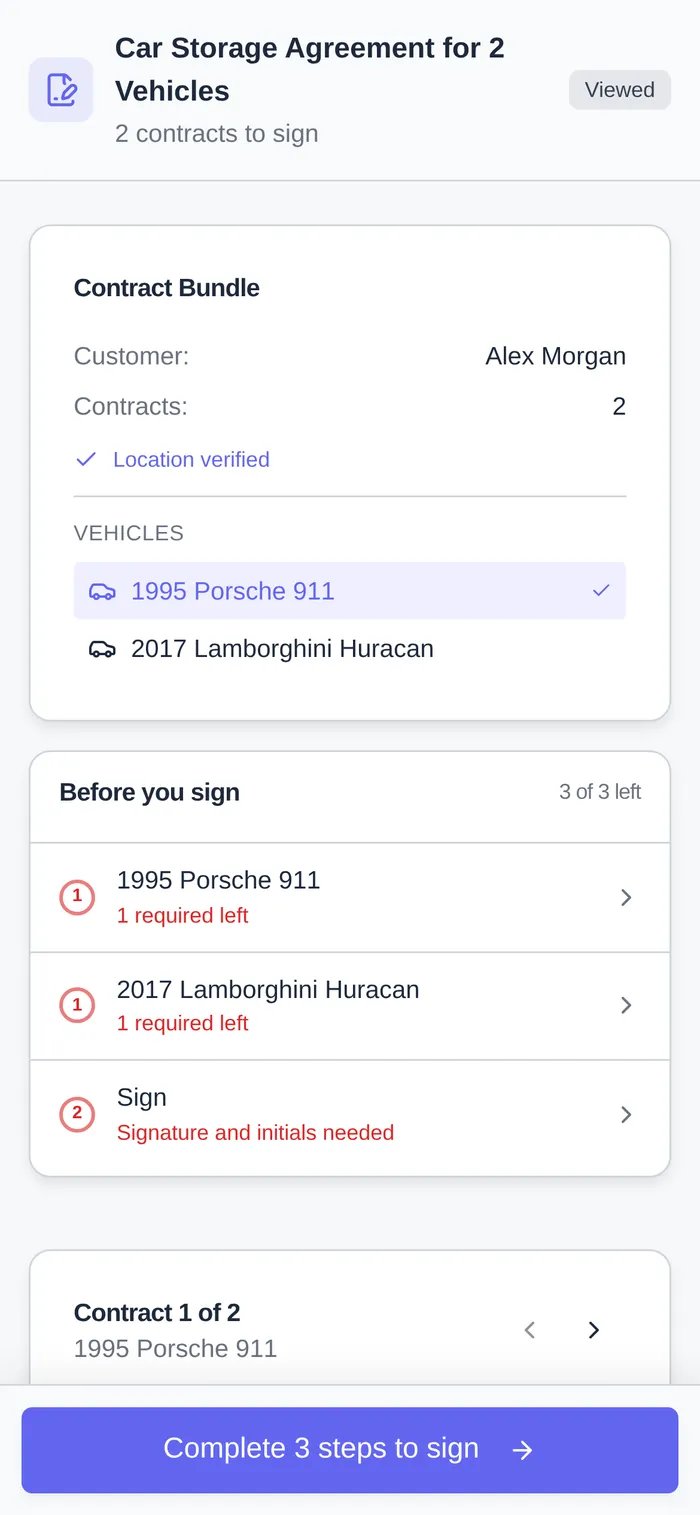
- Before you sign lists what’s left, such as Your vehicle, Your details, Agreement details, Book your appointment, and Sign. Only the steps the agreement needs appear.
- The big button at the bottom always says what’s next: Complete 2 steps to sign, Book your appointment to sign, Review page 2 to sign, then Sign now.
- On the Sign step they draw their signature and initials. A link covering several cars or agreements signs them all at once, with Sign all 2 now.
- When they’re done, the page confirms the signature. If your team signs last, it says it’s waiting for a facility representative to counter-sign.
Signing during onboarding
If you require paperwork during onboarding, new customers see these steps after their first sign-in:- Add Your Vehicle, if per-car agreements need a car first.
- Sign Your Contract(s): tap Review & Sign Now to open the same signing page. When they come back, the step shows Contracts Signed. If it still shows the contract as unsigned, they can tap Refresh Status.
- Upload Document(s): one upload for each required document type. Some steps offer Skip for now.
Uploading documents in the portal
Customers can upload any document type you’ve opened to them with Customer access.1
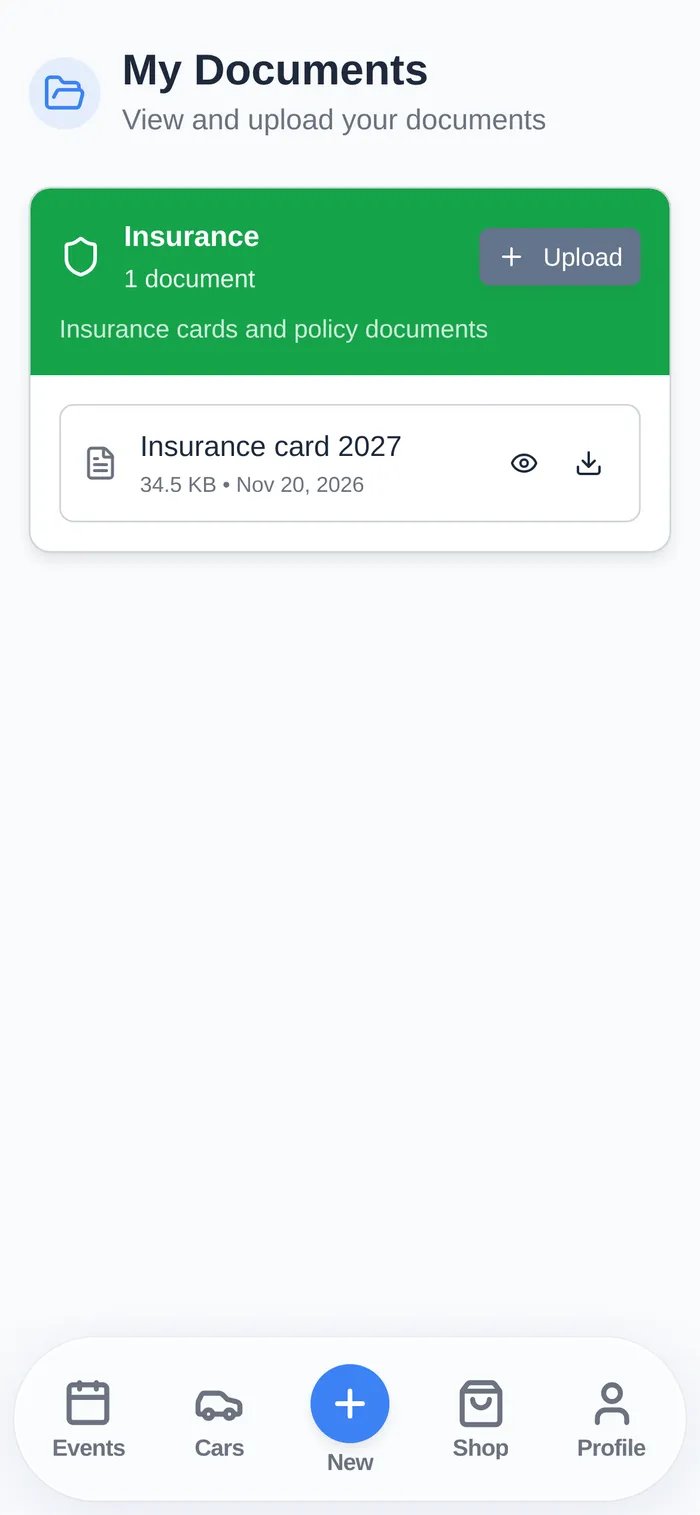
Open My Documents
In the customer app, tap Profile in the bottom bar, then My Documents.
2
Tap Upload on the document type
For example, under Insurance.
3
Choose the file and add a title
A phone photo works. Tap Upload. The file appears on their record for your team right away.