

Before you start
- Stripe payments are connected (Connect Stripe payments).
- You have the Payments permission.
- You know the exact account names in the Desktop company file (ask your bookkeeper).
Export a file
1
Open the QuickBooks Desktop card
Go to Settings → Integrations, click QuickBooks Desktop, and turn on Enable this integration. This turns off QuickBooks Online or Xero if either was on.
2
Match the account names
Fill in Accounts Receivable account, Income account, Undeposited Funds account, Sales Tax Payable account, and Default service item name exactly as they appear in your company file, then click Save account names. You only need to do this once.
3
Pick a date range
Under Export date range, choose Last 3 months up to Last 36 months. Click Preview counts to see how many customers, invoices, and payments are included.
4
Download
Click Download IIF file to import into QuickBooks Desktop, or Download Excel (.xlsx) to review the data first.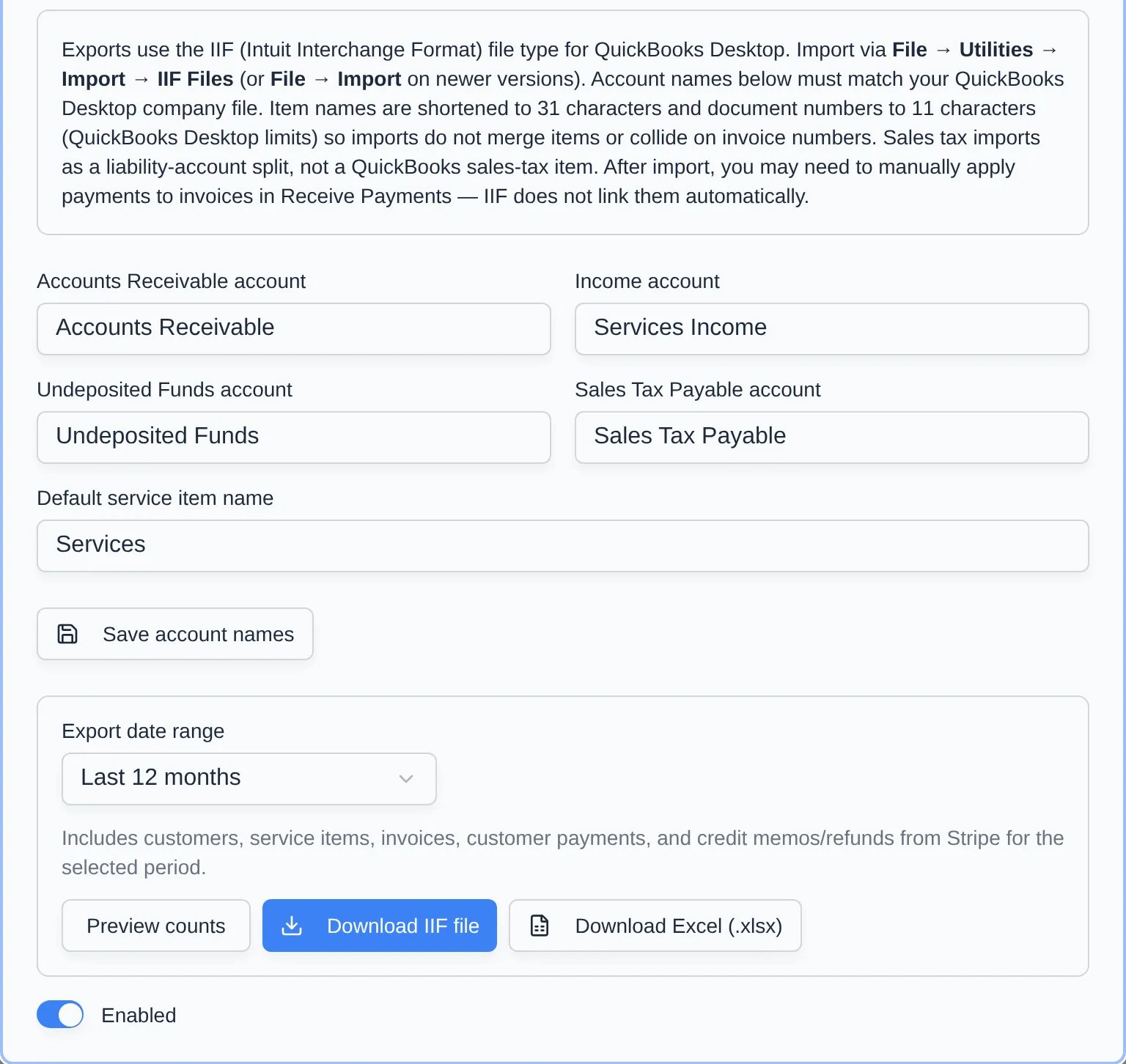
5
Import in QuickBooks Desktop
In QuickBooks Desktop, go to File → Utilities → Import → IIF Files (or File → Import on newer versions) and choose the file.
Things to know about IIF imports
- Item names are shortened to 31 characters and document numbers to 11 characters (QuickBooks Desktop limits).
- Sales tax imports as a split to the Sales Tax Payable account, not as a QuickBooks sales-tax item.
- IIF doesn’t link payments to invoices. After importing, you may need to apply payments to invoices in Receive Payments.
- If an account name doesn’t match your company file, QuickBooks Desktop may create a new account with that name. Check the names before the first import.